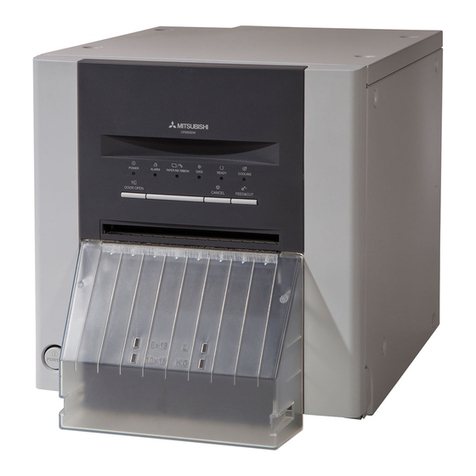
MITSUBISHI Digital Monochrome Printer P93DW
5
K'(x) = K(x)*(1+Contrast/128)
Contrast<0
K'(x) = K(x)*(1+Contrast/256)
3. Error indication
When no error message is displayed on the monitor and printing is not carried out, check the indicators on
the front of the printer.
For the indicator on the printer, see the operation manual of P93DW.
Notes
1) Secure of Hard disk for spool file
Secure the capacity of Hard disk for spool file enough for the printer operation and the number of printing
sheets.
The printing cannot be correctly carried out when the capacity is running short.
The drive for spool file is the same drive as the system drive usually.
2) Operation of the printer
Refer to the operation manual of the printer.
Do not turn off the power switch during data transfer or print.
If you turn off the power switch, restarting of a computer may be needed.
When deletion of a printing data cannot be performed, restarting of a computer is required.
3) Applicability of the image adjustment
Gamma, Sharpness, Brightness, and Contrast are applied to the entire printing range including the back-
ground.
4) About "Continuous print"
When you stop "Continuous print", push the FEED button on the printer.
5) Print job
Do not delete the print job in the spooler during data transfer. When deleting it, do not start printing until the
printer becomes to the initial status.
6) Number of prints
In some application, the number of prints set by the printer driver does not work. Set the number of prints
from the print dialog box of the application.
7) Continuous print
When carrying out the continuous printing, set “Copies” to “1”. When “Copies” is set to other than 1, continu-
ous printing is carried out for all the set number of copies.
Error dialog message
Paper empty. After remov-
ing Error, printer will
restart.
Door is opened. After
removing Error, printer will
restart.
Gear lock error. Turn the
printer power Off and On.
Something is wrong with
the printer.
No.
(1)
(2)
(3)
(4)
Operation
When installing a new roll of
paper, the dialog disappears and
printing starts again.
When closing the door, the dialog
disappears and printing starts
again.
When turning off and on the
power, the dialog disappears and
printing starts again.
Some error occurs in the printer.
When resolving the error, the
dialog disappears and printing
starts again.
Button
The buttons in the error dialogs work
as standard operating system. The but-
tons as follows are displayed.
Delete job : Deletes the job during
printing.
Stop All jobs : All the jobs in the
spooler, including the
jobs during printing
become paused.
Stop job : Stops the job during
printing. When any job
is in the spooler, the
job starts.