Before you begin 1 Log into gomotive.com
2 Go to the Admin section
You’ll need to be set up as a fleet admin to
add/edit vehicles and assign the Vehicle
Gateway. If you don’t see the Admin section
ater logging in, contact a fleet admin.
NOTE: If you are installing, but not activating,
the Vehicle Gateway, you can skip to page 4.
3 Add a vehicle
From the Admin section, select “Vehicles” and
either add a new vehicle or search for an
existing vehicle to edit.
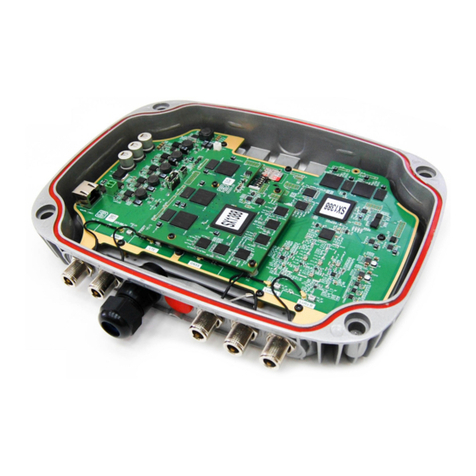
4 Assign your Vehicle Gateway
In the vehicle’s profile, add (or update) the
Vehicle Gateway’s serial number (printed on the
back of the device and on the outside of the
packaging). Make sure to hit “Save” when
you’re done.
5 Add a new driver to your account
From the Admin section of the Motive Fleet
Dashboard, go to the Drivers tab and select “Add
Driver” to begin creating their account. This will
generate a new login that the driver will use to
sign into the Motive Driver App and connect to
the Vehicle Gateway.
6 Download the Motive Driver App
Log in with the driver account credentials.
You’re now ready to install your Vehicle Gateway!
2
If you are the driver
or manage driver
accounts, follow these
additional steps.
3