Mountz ECD-5000U User manual

SILICON VALLEY HEADQUARTERS
1080
North 11th Street, San Jose, CA 95112 | Phone: (408) 292
EC-SERIES
OPERATING INSTRUCTIO
Rev 1.2 (9/26/2022)
Heading
Layout Overview
Controller System Start-up Process
Controller Operation Screen Overview
Parameter Menu Overview
Fastening Settings
Advanced Settings
Multi Sequence Settings
Model Settings
Presets or Model Selection
Screw Count Settings
Controller Settings
I/O settings
25P I/O Schematic
Network Settings
Monitoring Menu
Graphing
I/O Status Monitoring
Network Setting
Remote Menu
Auto Customizing Parameters
Speed Torque
Backup / Restore / Power Reset / Factory Reset
General Settings Menu
Date & Time
General Settings: Options
Barcode & Barcode Step
Storage (SD Card)
Firmware Upgrade
Maintenance
Torque Calibration and Compensation
Error Codes
North 11th Street, San Jose, CA 95112 | Phone: (408) 292
-2214 | Fax: (408) 292-2733 | mountztorque.com
OPERATING INSTRUCTIO
NS
Controller Operation Screen Overview
Backup / Restore / Power Reset / Factory Reset
Torque Calibration and Compensation
1
Page
2
3
5
7
7
11
16
18
21
23
25
31
37
39
40
40
41
41
42
43
44
45
46
46
47
48
50
52
53
54
57

SILICON VALLEY HEADQUARTERS
1080 North 11th Street, San Jose, CA 95112 | Phone: (408) 292-2214 | Fax: (408) 292-2733 | mountztorque.com
2
ECD Controller
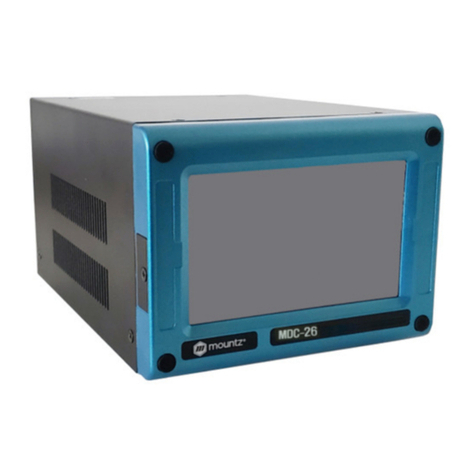
ECD-4000U and ECD-4000E controllers is compatible with EC-Series smart electric
screwdrivers (40000 models)
ECD-5000U and ECD-5000E controllers is compatible with EC-Series smart electric
screwdrivers (50000 models)
Input (Electric):
Input: AC120VC / AC230V, 50/60Hz 2.5A
Output (Electric): DC38V 3.5A
Fuse: 230V 25A
Operating Environment: 0 ~ 40℃ / 15 ~ 80% RH (without dew)
Front Panel: 4.3” Color LCD with touch screen
Communication: 1 x RS232C, 1 x Ethernet
Protocol: Modbus and Open Protocol
I/O: 8 Input & 8 Output flexible I/O (25P D-Sub)
No of Program Presets: 15
Error Display: Error code display ( 3 groups )
Dimension (W x L x H): 7 1/2” x 8” x 10 1/4”
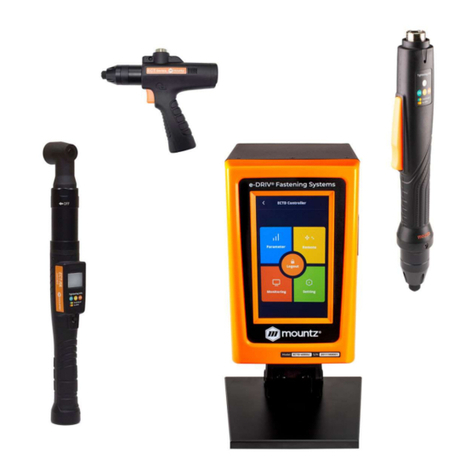
EC-Series Smart Electric Screwdrivers
DC38V, 5A max
Swiss DC servo motor
Built-in torque transducer and angle encoder
Built-in angle encoder
Power tool cable
Bottom View
RS232C 25 I/O Ethernet Upgrade
On/Off
Switch
Attach power
tool cable
Plug in power
cord
In-Line Pistol Grip Right Angle Robotic

SILICON VALLEY HEADQUARTERS
1080 North 11th Street, San Jose, CA 95112 | Phone: (408) 292-2214 | Fax: (408) 292-2733 | mountztorque.com
3
Controller System Start-up Process
Before attempting to make any settings, it is essential to initialize the controller and electric screwdriver as a
set, as the information stored within the controller during testing at the time of manufacture may not correlate
with the screwdriver shipped with the system. This process should be used when first turning on the unit or
after changing an electric screwdriver.
Connect the screwdriver to the controller with the supplied cable
Connect the controller power cable
Power on the controller with a power switch
The controller screen will display an error message as below, and
the screwdriver is locked.
Note: Power off controller before disconnecting electric screwdriver
[E114]
Screwdriver recognition
error
Press
Controller
Press
Parameter

SILICON VALLEY HEADQUARTERS
1080 North 11th Street, San Jose, CA 95112 | Phone: (408) 292-2214 | Fax: (408) 292-2733 | mountztorque.com
4
Select screwdriver model in list
Power reset is done automatically and controller is initialized with selected screwdriver factory parameters.
Torque unit selection:
If necessary change torque unit (changing torque unit will reset all parameters) same procedure as above
Open driver
model list
Open torque
unit list
Select torque unit in the list

SILICON VALLEY HEADQUARTERS
1080 North 11th Street, San Jose, CA 95112 | Phone: (408) 292-2214 | Fax: (408) 292-2733 | mountztorque.com
5
Controller Operation Screen Overview
Operation screen is a default window when the controller power ON.
The real time monitoring data and target settings are displayed together.
To go other menu, click the menu icon on the top left side.
There are 4 menus the main menu and a Logout option
1. Parameter change 3. Remote
operation
2. Real time monitoring 4. Display settings.
Menu
Preset (Model) # 1 - 15
Monitoring Torque
Torque Target
Fastening Time
Count (Target / Count)
Fastening Result OK/NG/Ready
Date & Time
Monitoring Angle / Time
Angle A1 / A2
Speed Target / Monitoring
Torque Unit

SILICON VALLEY HEADQUARTERS
1080 North 11th Street, San Jose, CA 95112 | Phone: (408) 292-2214 | Fax: (408) 292-2733 | mountztorque.com
6
Touch Screen field to move
Real time monitoring
Main Menu
Preset # or Model select
Last count cancel

SILICON VALLEY HEADQUARTERS
1080 North 11th Street, San Jose, CA 95112 | Phone: (408) 292-2214 | Fax: (408) 292-2733 | mountztorque.com
7
Parameter Menu Overview
Fastening Settings
Parameters listed on A and B pages
for each Preset from 1 to 15

SILICON VALLEY HEADQUARTERS
1080 North 11th Street, San Jose, CA 95112 | Phone: (408) 292-2214 | Fax: (408) 292-2733 | mountztorque.com
8
Preset Selection
Type
Unit Range Initial
Description Control type
TC/AM: torque control / angle monitoring
AC/TM: angle control / torque monitoring
Target Torque
Unit Range Initial
set up in controller Tool range
Description TC/AM: Target torque
AC/TM: Max torque
Torque Limit
Unit Range Initial
Torque limit (TC) %
Min torque (AC)
%
Set up in controller
0 ~ 100
Tool range
0
Description TC/AM: torque monitoring tolerance +/- % of target for fastening Ok
AC/TM: Min torque
Snug Torque
Unit Range Initial
Set up in controller Tool range 0
Description In TC/AM: Point to start angle monitoring
In AC/TM: Point to control angle
Target Speed
Unit Range Initial
rpm Tool range Auto
Description Target speed: Speed is changed by torque setting automatically. To change
manually, Auto Speed must be Disabled in Controller

SILICON VALLEY HEADQUARTERS
1080 North 11th Street, San Jose, CA 95112 | Phone: (408) 292-2214 | Fax: (408) 292-2733 | mountztorque.com
9
Target Angle
Unit Range Initial
degree 0 ~ 9999 0
Description Target angle in AC/TM mode
Min Angle
Unit Range Initial
degree 0 ~ 9999 0
Description Minimum angle to be OK in TC/AM mode
Max Angle
Unit Range Initial
degree 0 ~ 9999 0
Description Maximum angle to be OK in TC/AM mode
Angle for Free Speed
Unit Range Initial
degree 0 ~ 9999 0
Description Angle for Free speed
Free Speed
Unit Range Initial
rpm Tool range 0
Description Manual setting speed. Shift back to the auto speed after the free angle
running

SILICON VALLEY HEADQUARTERS
1080 North 11th Street, San Jose, CA 95112 | Phone: (408) 292-2214 | Fax: (408) 292-2733 | mountztorque.com
10
Soft Start
Unit Range Initial
msec 0 ~ 300 0
Description Speed reach to the target in the setting time, Preset complement to
acceleration controller parameter
Seating Point Torque %
Unit Range Initial
% 10 ~ 95 50
Description In TC/AM: % of Target torque
Auto speed slow down to ramp-up speed for torque control
In AC/TM: to be set with same torque value as Snug torque, in % of Max
torque
Torque Rising Time
Unit Range Initial
msec 50 ~ 200 50
Description Time setting from seating point to the target
Ramp-up Speed
Unit Range Initial
rpm Tool range Auto
Description Speed after seating to the end of tightening
Torque Compensation
Unit Range Initial
% 80 ~ 120 100
Description Individual torque tuning on each preset, saved in the controller
The torque output can be adjusted in the selected preset ONLY, it does not
influence other presets.
For details, please refer to page 55
This manual suits for next models
2
Table of contents
Other Mountz Controllers manuals

Popular Controllers manuals by other brands

Digiplex
Digiplex DGP-848 Programming guide

YASKAWA
YASKAWA SGM series user manual

Sinope
Sinope Calypso RM3500ZB installation guide

Isimet
Isimet DLA Series Style 2 Installation, Operations, Start-up and Maintenance Instructions

LSIS
LSIS sv-ip5a user manual
Rockwell Automation
Rockwell Automation 1769-L31 installation instructions