Phone Settings
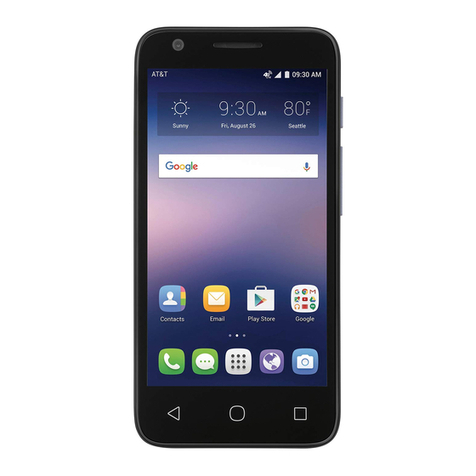
To display the Settings menu, tap the Settings icon directly. On the Home screen, tap the Menu button first, and then touch the Settings icon.
1.USIM/SIM card: In the Settings menu, choose USIM/SIM Card. You can then manage your USIM/SIM cards on the pop-up page.
2. Network: In the Settings menu, select WLAN under Radio Network to configure your radio network; or select Mobile Network under More to configure
data services of your phone.
3. Alert tone and notification: In the Settings menu, choose Alert Tone and Notification. The standard mode allows you to set the volume,
enable/disable vibration during ringing, and select ringtones for incoming calls and messages, as well as enable/disable keypad touch sound effect,
touch alert tone, and screen lock tone.
4. Display: allows you to configure the brightness, wallpaper, automatic device rotation, sleep duration, and font size.
5. Security: In the Settings menu, choose Security. The Security page allows you to set the screen locking mode and USIM/SIM locking mode. App
Permission: allows you to configure certain permissions for an App and monitor their usage. Anti-theft: allows you to remotely lock the phone or clear
all data of it.
6. Manage apps: In the Settings menu, choose Apps. Then you can view or manage your apps.
Note: Disable or unload certain apps if available space is less than 100MB.
7. Message: On the Message page, tap the Menu button and choose Settings. On the Message Settings page, you can enable/disable report sending,
create or select a message template, and configure a message alert tone for each short or multimedia message.
8. Call: To display the Call Settings page, choose Settings on the Call page.
Shortcuts
On the Home screen, lightly drag down the Status bar. On the screen top, a group of shortcuts are displayed, such as Settings, WLAN, Bluetooth,
Brightness, Ringtone Mode, Mobile Data, and Airplane mode. Tap any of them to open it quickly.
Widget
Android7.0 offers multiple ease-of-use widgets on the Home screen.
On this screen, tap the Menu button and then the Widget tab, to display the widget selection page. Tap and hold a desired widget to be put on the Home
screen, drag it left or right to locate it at a proper place, and complete the Widget settings as prompted.