STEP 3
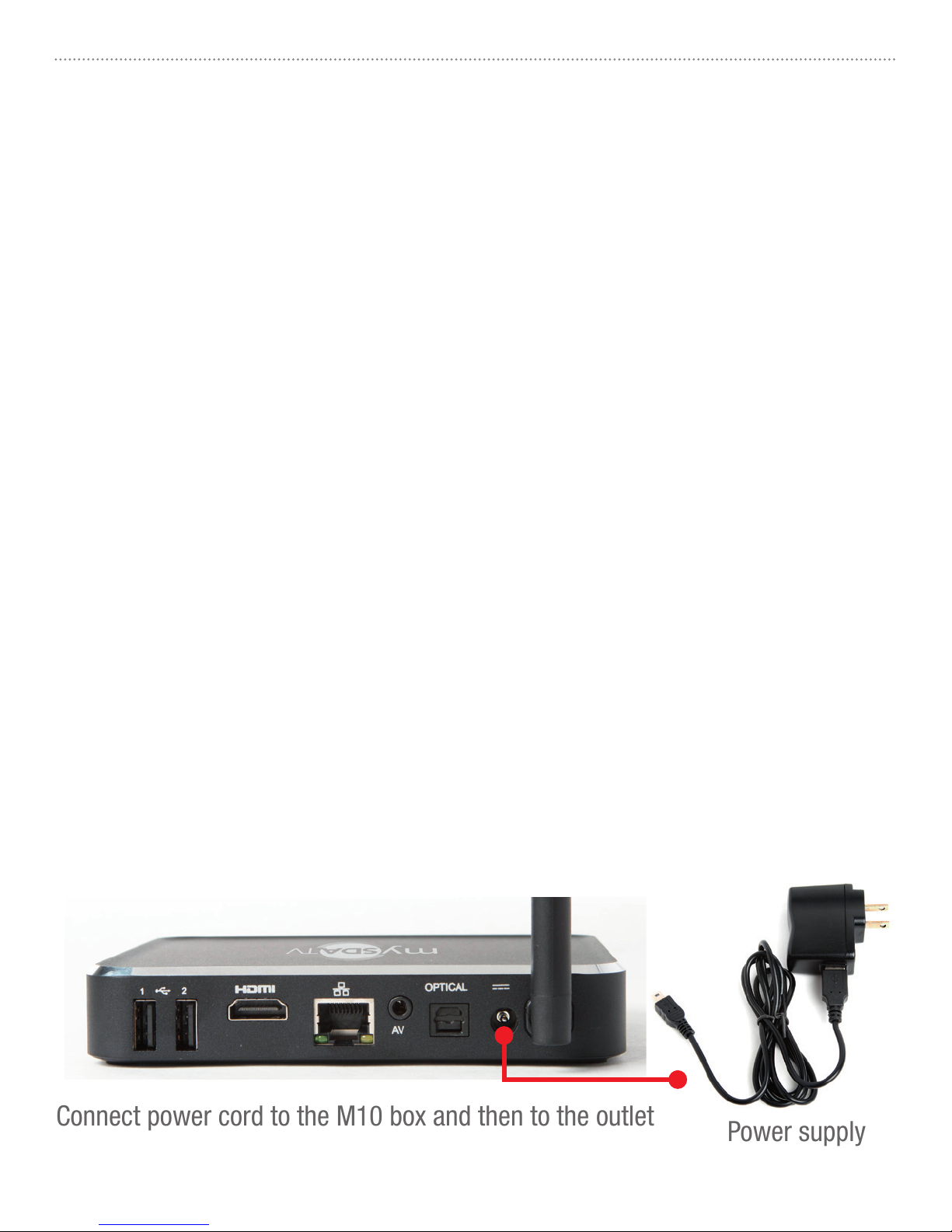
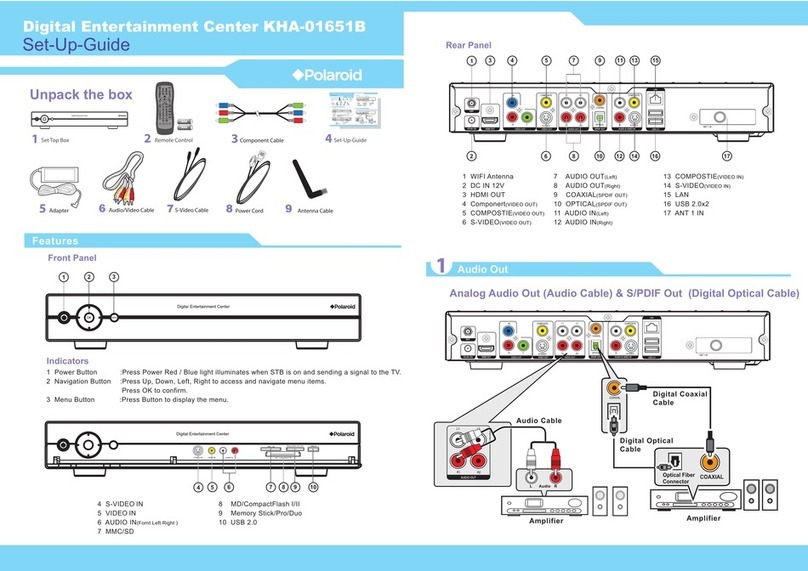
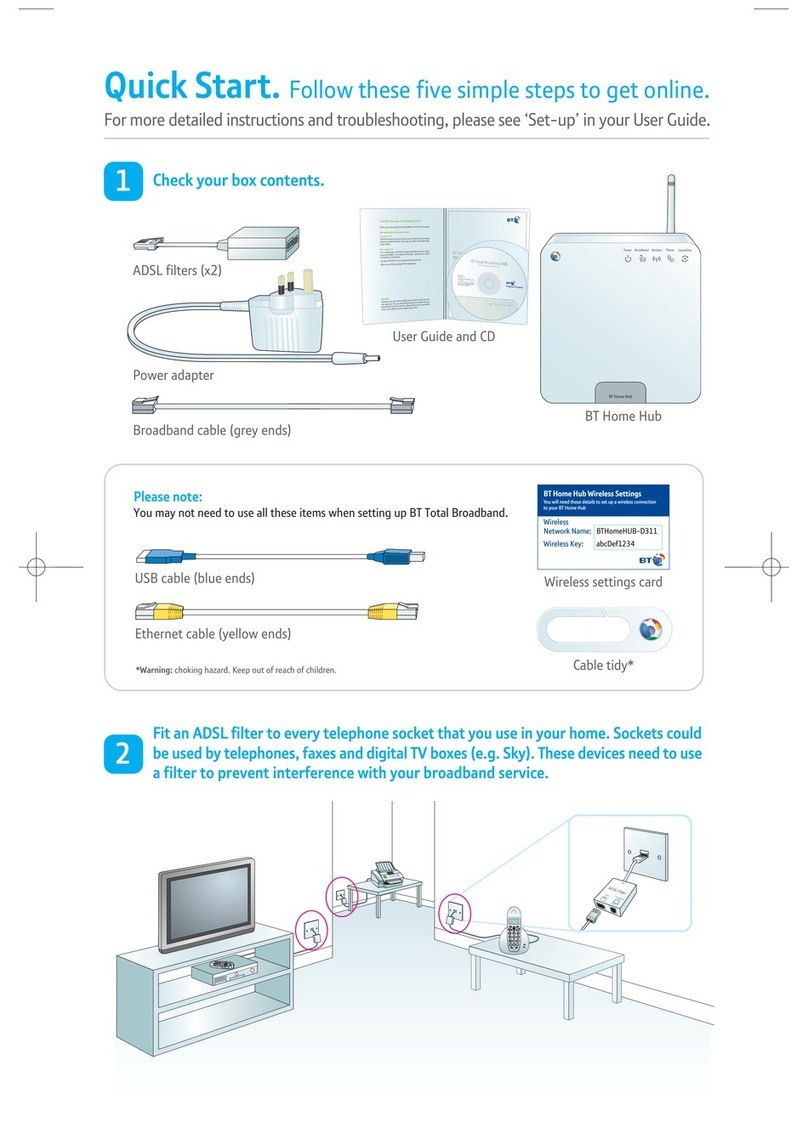
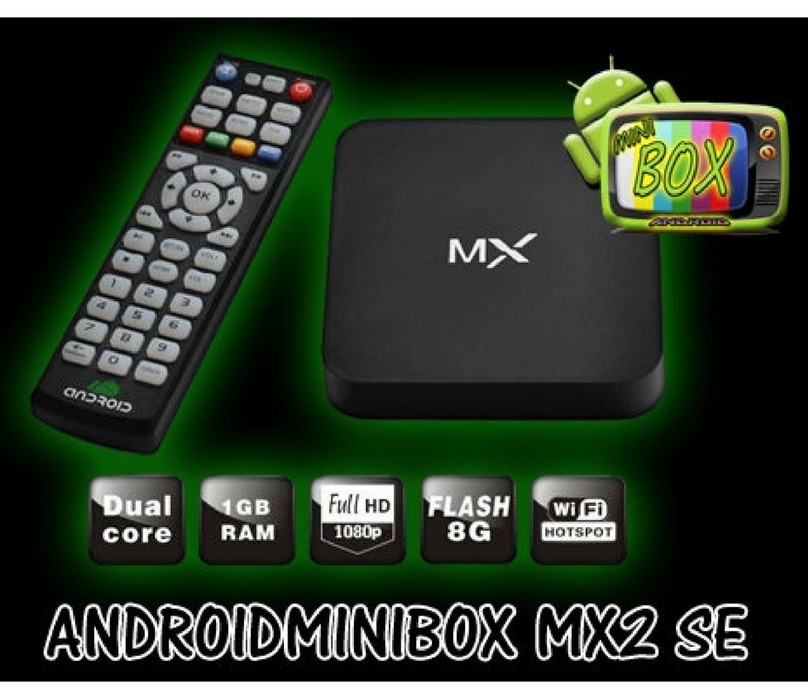
Power your box ON by connecting it to the wall outlet using included power adapter.
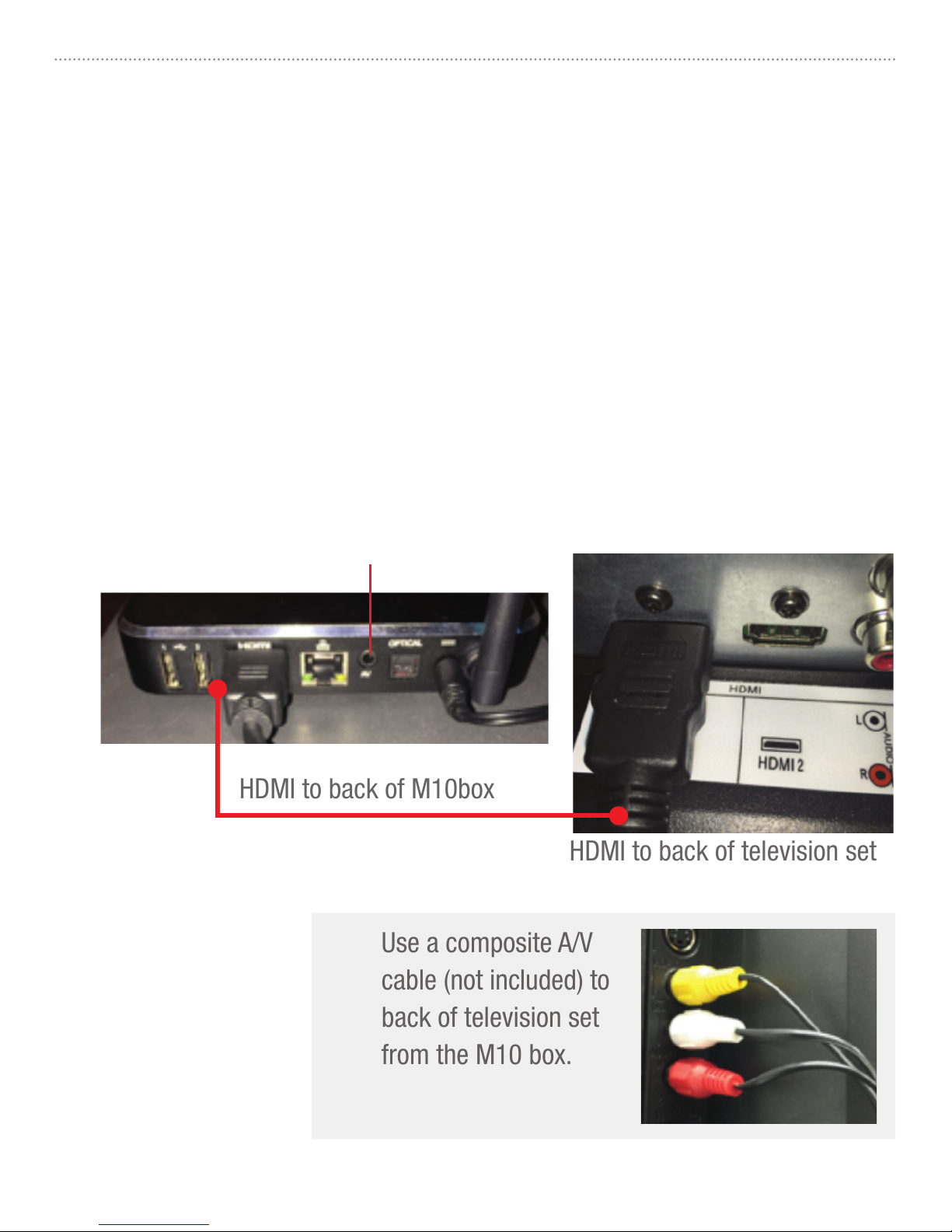
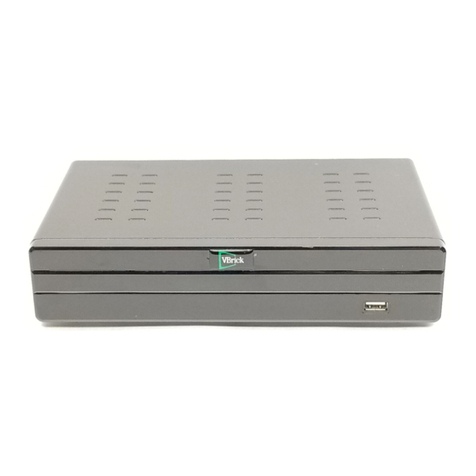
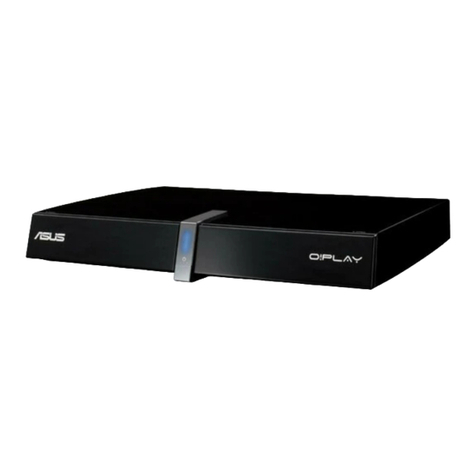
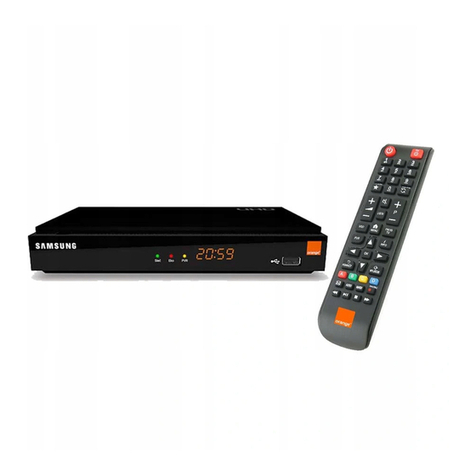
Refer to pictures below.
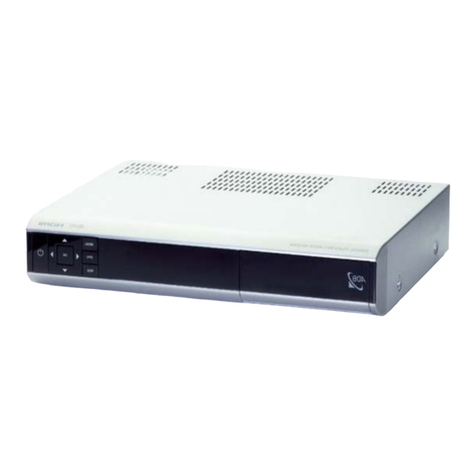
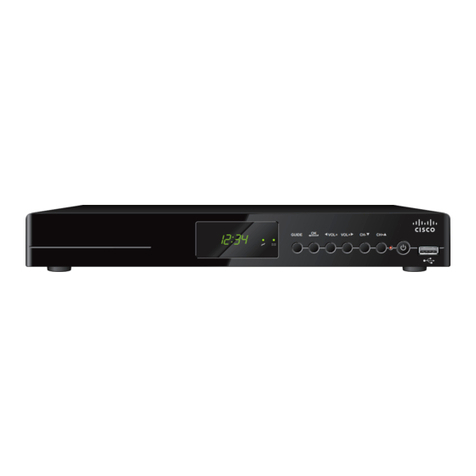
Do’s and don’ts on where to place your mySDATV box:
• DO place within range of WI-FI router network.
• DON’T place your mySDATV box beneath anything;
it may cause the box to overheat.
• DON’T place inside enclose cabinet; it might interfere
with remote or WI-FI signal.
At this point, if you want, you may read all the Terms and Conditions on the screen or
just arrow all the way down until you highlight the box marked “I ACCEPT,” then press
OK. If you select the “I DECLINE” box, you will not be able to continue any further. This
Terms and Conditions screen will only appear the first time you power the box ON and
you only have to accept once.
STEP 4
Wireless or Wired Internet
Wireless Internet connection: After the mySDATV introductory video completes
playing, and you have accepted the Terms and Conditions, configure your network
using the onscreen display.
• After the box finds all available Wi-Fi, select your Wi-Fi network name and
enter your Wi-Fi Password into the on-screen window. Use [UP, DOWN] and
[OK] buttons on remote control to highlight each letter on the virtual keyboard
until you finish entering your password. Then, click Return or the Connect
button to complete settings function.
mySDATV M10 Quick Start Guide 5
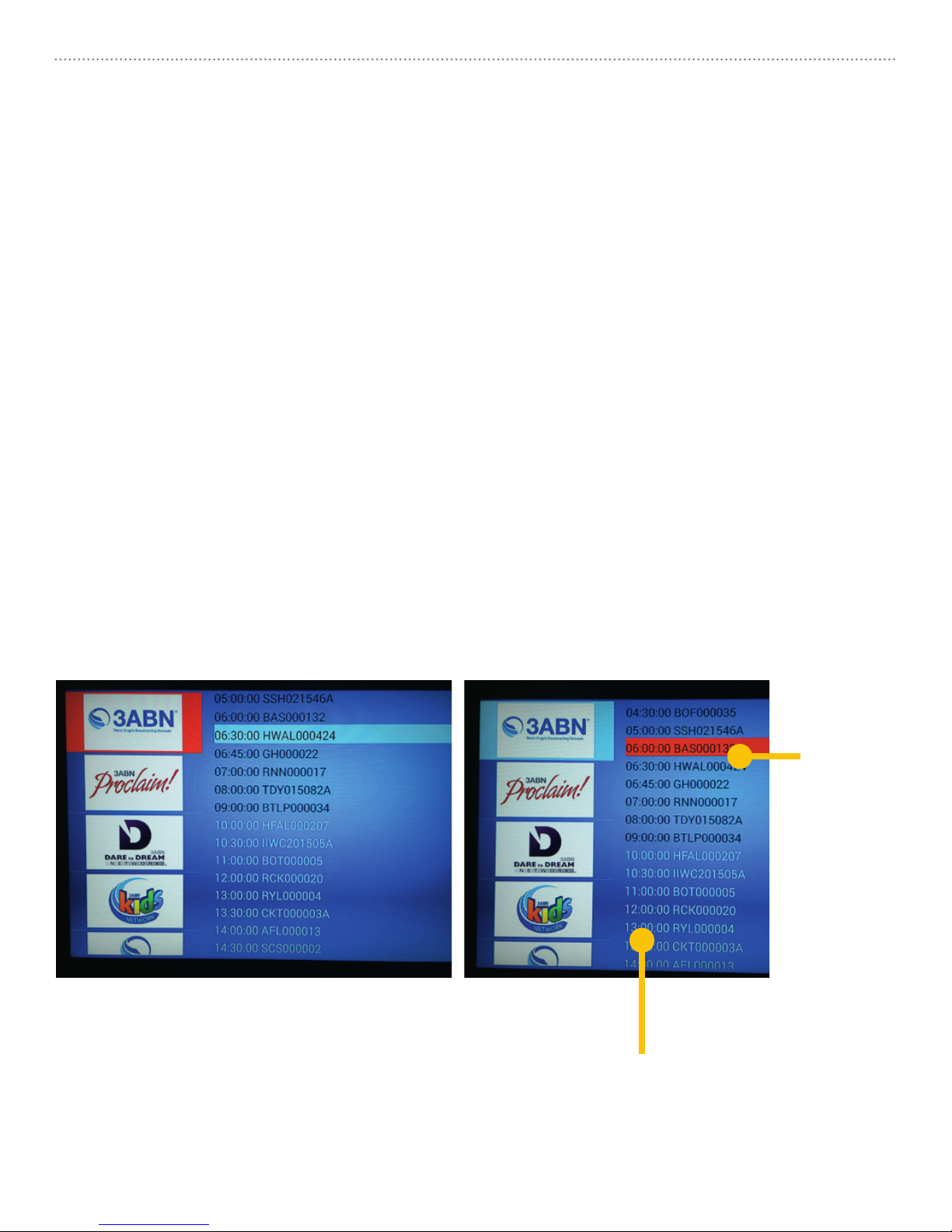
When completed: Press [BACK] button on remote control to go to mySDATV
Home page shown below to the left (1).
(1)