NI PXIe-5831 User manual

GETTING STARTED GUIDE
PXIe-5831
Up to 44 GHz, 1 GHz Bandwidth, Vector Signal Transceiver
Note Before you begin, install and configure your chassis and controller.
This document explains how to install, configure, and test the PXIe-5831. The PXIe-5831 is a
half-duplex RF communications instrument with up to 1 GHz of instantaneous bandwidth,
designed for testing 5G mmWave components. You can program the PXIe-5831 instrument
using RFmx or NI-RFSA and NI-RFSG driver software.
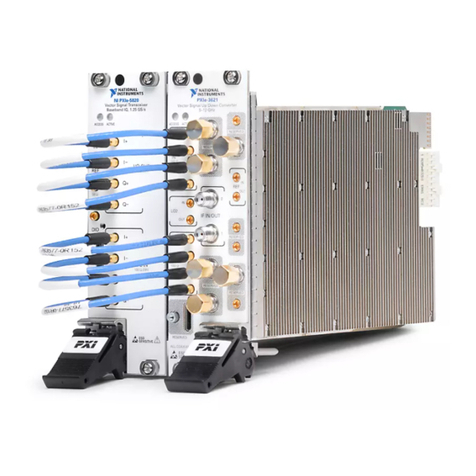
The PXIe-5831 IF only instrument configuration comprises the following modules:
• PXIe-5820 Vector Signal Transceiver
• PXIe-3622 Vector Signal Up/Down Converter
The PXIe-5831 IF and mmWave instrument configuration comprises the following modules:
• PXIe-5820 Vector Signal Transceiver
• PXIe-3622 Vector Signal Up/Down Converter
• PXIe-5653 RF Analog Signal Generator (LO source)
• One or two mmRH-5582 mmWave Radio Heads
There is no single instrument labeled "PXIe-5831."
Contents
Verifying the System Requirements..........................................................................................2
Unpacking the Kit..................................................................................................................... 2
Verifying the Kit Contents................................................................................................ 2
Preparing the Environment....................................................................................................... 4
Choosing and Installing the Software....................................................................................... 6
Software Options...............................................................................................................6
Installing the Software...................................................................................................... 6
Installing the PXIe-5831........................................................................................................... 7
Interconnecting the PXIe-5831 Modules.......................................................................... 9
Connecting mmWave Radio Heads................................................................................ 12
Configuring the PXIe-5831 in MAX...................................................................................... 15
Self-Calibration.......................................................................................................................16
Performing a Self-Calibration Using NI-RFSA..............................................................16
Locating the Software and Examples......................................................................................18
Software Locations......................................................................................................... 18
Programming Examples Locations................................................................................. 20
Making a First Measurement.................................................................................................. 21
Troubleshooting...................................................................................................................... 22
What Should I Do if the PXIe-3622 Does Not Appear in MAX?.................................. 22
Why Is the ACCESS LED Off When the Chassis Is On?...............................................22
What Should I Do if the Module Fails the Self-Test?..................................................... 23
What Should I Do if the Instrument Does Not Initialize?...............................................23
Hardware Connectors and Indicators......................................................................................24
PXIe-5820 Front Panel and LEDs.................................................................................. 24
PXIe-3622 Front Panel and LEDs.................................................................................. 28
PXIe-5653 Front Panel and LEDs.................................................................................. 31
mmRH-5582 Front Panel, Back Panel, and LEDs..........................................................33
Where to Go Next................................................................................................................... 37
Worldwide Support and Services............................................................................................ 37
Verifying the System Requirements
To use the PXIe-5831, your system must meet certain requirements. For more information
about minimum system requirements, recommended system, and supported application
development environments (ADEs), refer to the readme, which is installed or available at
ni.com/manuals.
Unpacking the Kit
Notice To prevent electrostatic discharge (ESD) from damaging the device, ground
yourself using a grounding strap or by holding a grounded object, such as your
computer chassis.
1. Touch the antistatic package to a metal part of the computer chassis.
2. Remove the device from the package and inspect the device for loose components or any
other sign of damage.
Notice Never touch the exposed pins of connectors.
Note Do not install a device if it appears damaged in any way.
3. Unpack any other items and documentation from the kit.
Store the device in the antistatic package when the device is not in use.
Verifying the Kit Contents
The kit contents for the PXIe-5831 varies by your instrument configuration.
2| ni.com | PXIe-5831 Getting Started Guide

Table 1. Kit Contents by Configuration
Configuration Included Items
Intermediate frequency (IF) only
instrument
• Modules:
– PXIe-5820
– PXIe-3622
• Cables:
– SMA (m)-to-SMA (m) cable, 304.8 mm
– MMPX (m)-to-MMPX (m) cable, 200 mm
– MMPX (m)-to-MMPX (m) cable, 152 mm (x8)
– MMPX (m)-to-SMA (m) cable, 152 mm (x2)
IF and mmWave instrument,
which includes one mmWave
radio head with one of the
following port configurations:
• Direct TRX Ports (0-1)
• Switched TRX Ports (0-7),
Direct TRX Port (8)
• Switched TRX Ports (0-15)
• Modules:
– PXIe-5820
– PXIe-3622
– PXIe-5653
– mmRH-5582
• Cables:
– SMA (m)-to-SMA (m) cable, 304.8 mm
– SMA (m)-to-SMA (m) cable, 1 m (x3)
– MMPX (m)-to-MMPX (m) cable, 200 mm
– MMPX (m)-to-MMPX (m) cable, 152 mm (x8)
– MMPX (m)-to-SMA (m) cable, 152 mm (x2)
– Mini HDMI-to-Mini HDMI cable
• AC power supply adapter for mmRH-5582
PXIe-5831 Getting Started Guide | © National Instruments | 3

Table 1. Kit Contents by Configuration (Continued)
Configuration Included Items
IF and mmWave instrument,
which includes two mmWave
radio heads, each with one of the
following port configurations:
• Direct TRX Ports (0-1)
• Switched TRX Ports (0-7),
Direct TRX Port (8)
• Switched TRX Ports (0-15)
• Modules:
– PXIe-5820
– PXIe-3622
– PXIe-5653
– mmRH-5582 (x2)
• Cables:
– SMA (m)-to-SMA (m) cable, 304.8 mm
– SMA (m)-to-SMA (m) cable, 1 m (x6)
– MMPX (m)-to-MMPX (m) cable, 200 mm
– MMPX (m)-to-MMPX (m) cable, 152 mm (x8)
– MMPX (m)-to-SMA (m) cable, 152 mm (x2)
– 1.85 mm (m)-to-1.85 mm (m) cable, 200 mm
– Mini HDMI-to-Mini HDMI cable (x2)
• AC power supply adapter for mmRH-5582 (x2)
Other Equipment
There are required items not included in your kit that you need to install or operate the
PXIe-5831. Your application may require additional items not included in your kit to install or
operate your hardware.
Required Items
• A PXI Express chassis and chassis documentation. To ensure specifications are valid, NI
recommends using the PXIe-1095 Chassis or PXIe-1092 Chassis for your hardware. For
more information about compatible chassis options, refer to ni.com.
• A PXI Express embedded controller or MXI controller system that meets the system
requirements specified in this guide and chassis documentation.
Optional Items
• A 0.9 N · m (8 lb · in.) calibrated torque wrench, 5/16 in. (NI part number 751120-01).
Preparing the Environment
Ensure that the environment you are using the PXIe-5831 in meets the following
specifications.
Operating ambient temperature 0 °C to 45 °C
Operating relative humidity 10% to 90%, noncondensing (IEC 60068-2-56)
4| ni.com | PXIe-5831 Getting Started Guide

Maximum altitude 2,000 m (800 mbar) (at 25 °C ambient
temperature)
Pollution Degree 2
Indoor use only.
Notice Clean the hardware with a soft, nonmetallic brush or lint free cloth. Make
sure that the hardware is completely dry and free from contaminants before returning
it to service.
Note Refer to the PXIe-5831 Specifications at ni.com/manuals for complete
specifications.
PXIe-5831 Getting Started Guide | © National Instruments | 5

Choosing and Installing the Software
Software Options
NI provides three software options for programming the PXIe-5831—RFmx, NI-RFSA and
NI-RFSG instrument driver software.
Table 2. PXIe-5831 Software Options
Software
Option
Description Use Case
RFmx Provides a single-handle instrument
driver with built-in measurements.
You can use instrument driver
FPGA extensions to customize the
device FPGA using precompiled
bitfiles.
Use RFmx SpecAn to perform spectral
measurements.
Use RFmx Demod to perform
modulation quality measurements,
such as EVM.
Use RFmx personalities to perform
physical layer analysis on supported
communications and connectivity
signals.
NI-RFSA and
NI-RFSG
instrument
driver
The NI-RFSA and NI-RFSG APIs
each provide a fixed API for
interacting with your hardware.
NI-RFSA and NI-RFSG provide
standard IVI-based functionality
needed for most vector signal
analyzer and vector signal generator
applications.
You can use NI-RFSA and
NI-RFSG instrument driver FPGA
extensions to customize the device
FPGA using precompiled bitfiles.
Use NI-RFSA to create custom
measurements or applications that
require I/Q data.
Use NI-RFSG to generate CW or
modulated waveforms.
Use NI-RFSA and NI-RFSG with the
NI Modulation Toolkit to develop
software-defined radio transmitters and
receivers.
Use NI-RFSG with the NI Modulation
Toolkit to create and generate
modulated signals to test receivers.
Related Information
Refer to the RFmx SpecAn Help, the RFmx Demod Help, the NI RF Vector Signal Analyzers
Help, or the NI RF Signal Generators Help for more information about using the RFmx, NI-
RFSA, and NI-RFSG instrument driver FPGA extensions.
Installing the Software
You must be an Administrator to install NI software on your computer.
1. Install an ADE, such as LabVIEW or LabWindows™/CVI™.
6| ni.com | PXIe-5831 Getting Started Guide

2. Install the driver software using NI Package Manager or by inserting your driver software
media into your computer.
If you do not already have NI Package Manager installed, visit ni.com/r/NIPMDownload
to download NI Package Manager. Refer to the NI Package Manager Manual for more
information about installing, removing, and upgrading NI software using NI Package
Manager.
3. Follow the instructions in the installation prompts.
Note Windows users may see access and security messages during
installation. Accept the prompts to complete the installation.
4. When the installer completes, select Restart in the dialog box that prompts you to restart,
shut down, or restart later.
Installing the PXIe-5831
Notice To prevent damage to the PXIe-5831 caused by ESD or contamination,
handle the module using the edges or the metal bracket.
You must install the software before installing the hardware.
Before you install the hardware, refer to the guidelines in the Maintain Forced-Air Cooling
Note to Users included with the module to ensure that the device can cool itself effectively.
To use the included cables, you must install the PXIe-5820 immediately to the left of the
PXIe-3622. If your kit included the PXIe-5653 to use as an LO source, you must install the
PXIe-5653 immediately to the right of the PXIe-3622.
Complete the following steps for each module in your instrument configuration.
1. Ensure the AC power source is connected to the chassis before installing the module.
The AC power cord grounds the chassis and protects it from electrical damage while you
install the module.
2. Power off the chassis.
3. Inspect the slot pins on the chassis backplane for any bends or damage prior to
installation. Do not install a module if the backplane is damaged.
4. Remove the black plastic covers from all the captive screws on the module front panel.
5. Identify a supported slot in the chassis. The following figure shows the symbols that
indicate the slot types.
PXIe-5831 Getting Started Guide | © National Instruments | 7

Figure 1. Chassis Compatibility Symbols
NI PXIe-1062Q
12 3 45
1. PXI Express System Controller Slot
2. PXI Peripheral Slot
3. PXI Express Hybrid Peripheral Slot
4. PXI Express System Timing Slot
5. PXI Express Peripheral Slot
The modules that comprise the PXIe-5831 can be placed in PXI Express peripheral slots,
PXI Express hybrid peripheral slots, or PXI Express system timing slots.
6. Touch any metal part of the chassis to discharge static electricity.
7. Ensure that the ejector handle is in the downward (unlatched) position.
8. Place the module edges into the module guides at the top and bottom of the chassis. Slide
the module into the slot until it is fully inserted.
Figure 2. Module Installation
2
3
NI PXIe-1075
1
1. Chassis
2. Hardware Module
3. Ejector Handle in Downward (Unlatched) Position
9. Latch the module in place by pulling up on the ejector handle.
10. Secure the module front panel to the chassis using the front-panel mounting screws.
Note Tightening the top and bottom mounting screws increases mechanical
stability and also electrically connects the front panel to the chassis, which can
improve the signal quality and electromagnetic performance.
11. Cover all empty slots using EMC filler panels or fill using slot blockers to maximize
cooling air flow, depending on your application.
8| ni.com | PXIe-5831 Getting Started Guide

12. Power on the chassis.
Related Information
Installing the Software on page 6
Interconnecting the PXIe-5831 Modules
Take the following considerations into account when interconnecting the PXI Express modules
that comprise the PXIe-5831.
• Inspect all RF connectors before attaching mating cables. Clean with dry compressed air,
if necessary, to remove any contaminants that may be present.
• Position RF cables with instrument connectors to ensure center pins are straight and
aligned before mating.
• Press MMPX connectors until they noticeably snap into place.
• For all threaded RF connectors (SMA, SMA 27 GHz, and 2.4 mm), engage and finger-
tighten the connector nuts. The connector nuts should thread easily without binding, but if
not, ensure the connector is straight and that center pins have not been damaged.
• Carefully complete tightening all threaded RF connectors to 0.9 N · m (8 lb · in) using an
appropriate torque wrench (not included) or torque screwdriver and driver bit. Tighten
only until the wrench clicks.
Notice Incorrect torque at SMA connections can damage device connectors and
degrade signal fidelity.
Connecting the PXIe-5820 and PXIe-3622
Complete the following steps for the baseband signal connections and Reference Clock
connection, as shown in the following figure.
PXIe-5831 Getting Started Guide | © National Instruments | 9

Figure 3. PXIe-5831 Equipment Setup (IF Only)
PXIe-3622
Vector Signal Up/Down Converter
5–21 GHz
LO2
LO1
AUX 1
LO1 0
mmWave
LO1 1
mmWave
REF
IN
OUT
IN
OUT
AUX 0
IF OUT
mmWave
IF IN
mmWave
DIO
ALL COAXIAL
PORTS 50
Ω
IF IN/OUT
0
1
0
1
0
1
IN
OUT
ACCESS ACTIVE
ESD
SENSITIVE
I/Q
IN
100
Ω
DIFF
I+
I–
Q+
Q–
I/Q
OUT
100
Ω
DIFF
I+
I–
Q+
Q–
NI PXIe-5820
Vector Signal Transceiver
Baseband IQ, 1.25 GS/s
REF
OUT
I/QOUT
PFI 0
DIO
REF
IN
I+
I–
Q+
Q–
ACCESS ACTIVE
ESD
SENSITIVE
50 Ω
100 Ω DIFF
I/QIN
I+
I–
Q+
Q–
100 Ω DIFF
50 Ω
2
1
1. MMPX (m)-to-MMPX (m) Cable, 152 mm
2. MMPX (m)-to-MMPX (m) Cable, 200 mm
1. Complete the following baseband signal cable connections between the PXIe-5820 and
PXIe-3622 front panels using the included eight 152 mm MMPX (m)-to-MMPX (m)
cables for transmit and receive I/Q signals.
Table 3. Baseband Signal Cable Connections
PXIe-5820 Connector PXIe-3622 Connector
I/Q OUT I+ I/Q IN I+
I/Q OUT I- I/Q IN I-
I/Q OUT Q+ I/Q IN Q+
I/Q OUT Q- I/Q IN Q-
I/Q IN I+ I/Q OUT I+
I/Q IN I- I/Q OUT I-
10 | ni.com | PXIe-5831 Getting Started Guide
Table of contents
Other NI Transceiver manuals