manuals.online logo
Brands
  1. Home
  2. •
  3. Brands
  4. •
  5. OneTouch
  6. •
  7. Blood Glucose Meter
  8. •
  9. OneTouch UltraMini User manual

OneTouch UltraMini User manual

Other manuals for UltraMini

7

Other OneTouch Blood Glucose Meter manuals
OneTouch UltraMini User manual

OneTouch

OneTouch UltraMini User manual

OneTouch VERIOPRO + Manual

OneTouch

OneTouch VERIOPRO + Manual
OneTouch VERIO SYNC User manual

OneTouch

OneTouch VERIO SYNC User manual
OneTouch Ultra Mini User manual

OneTouch

OneTouch Ultra Mini User manual

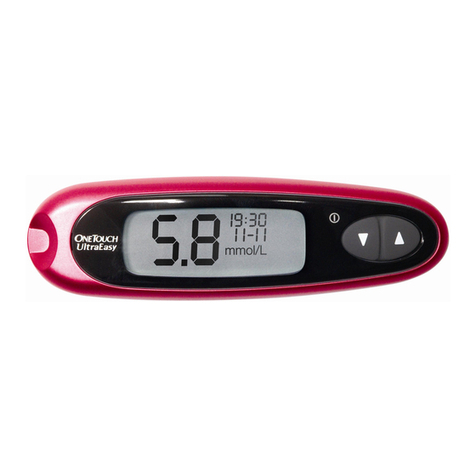
OneTouch ONETOUCH ULTRASMART User manual
OneTouch

OneTouch ONETOUCH ULTRASMART User manual

OneTouch UltraEasy User manual

OneTouch

OneTouch UltraEasy User manual
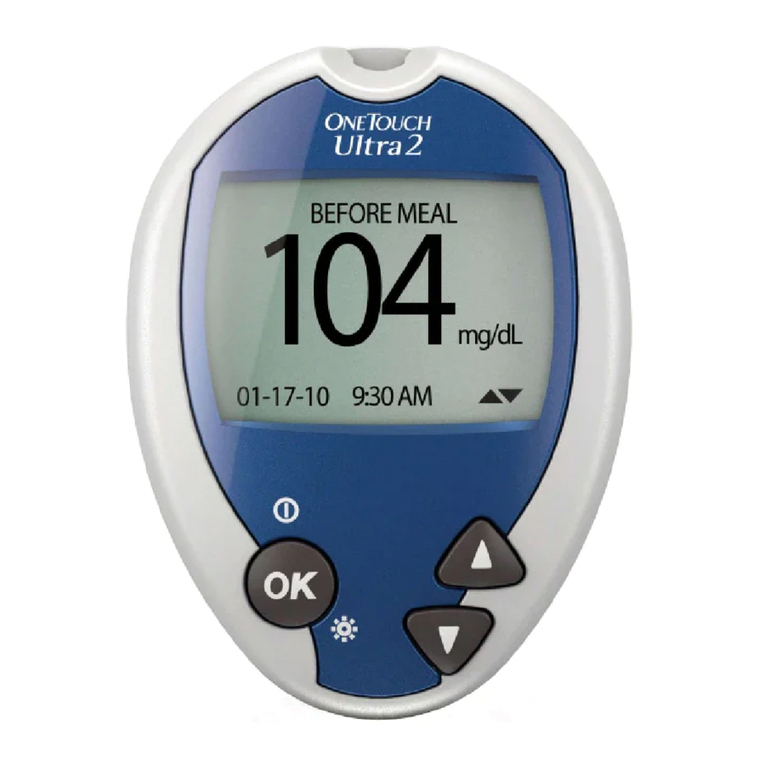
OneTouch ULTRA2 - REV 01-2007 User manual
OneTouch

OneTouch ULTRA2 - REV 01-2007 User manual

OneTouch ULTRA2 User manual

OneTouch

OneTouch ULTRA2 User manual

OneTouch VitA User manual

OneTouch

OneTouch VitA User manual
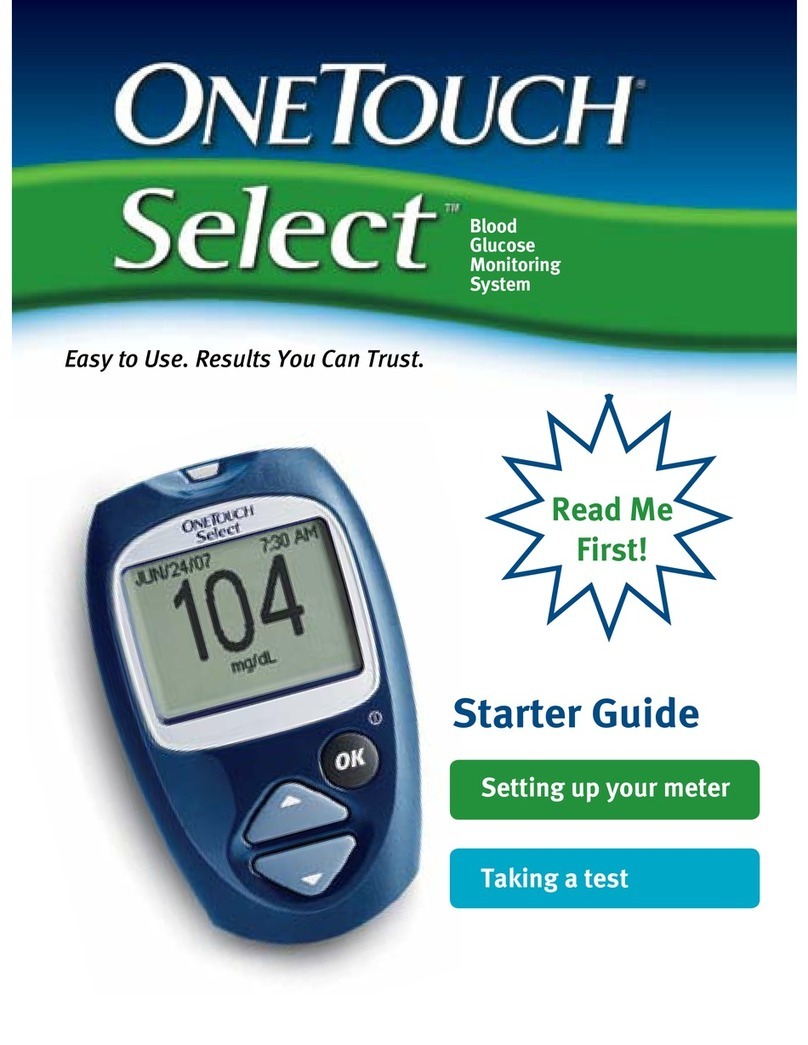
OneTouch ONETOUCH SELECT - CONTROL SOLUTION Safety guide
OneTouch

OneTouch ONETOUCH SELECT - CONTROL SOLUTION Safety guide

OneTouch ONETOUCH ULTRASMART User manual
OneTouch

OneTouch ONETOUCH ULTRASMART User manual

OneTouch UltraMini User manual

OneTouch

OneTouch UltraMini User manual
OneTouch Verio User manual

OneTouch

OneTouch Verio User manual
OneTouch UltraMini User manual

OneTouch

OneTouch UltraMini User manual
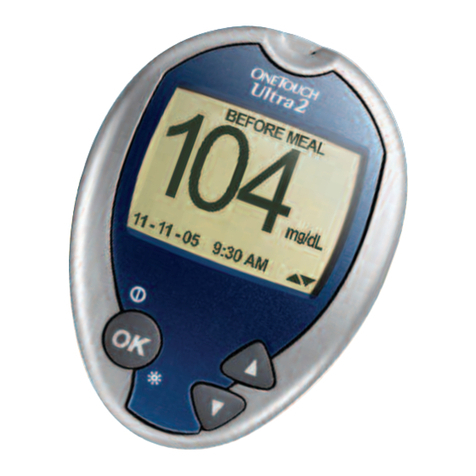
OneTouch ULTRA2 User manual

OneTouch

OneTouch ULTRA2 User manual
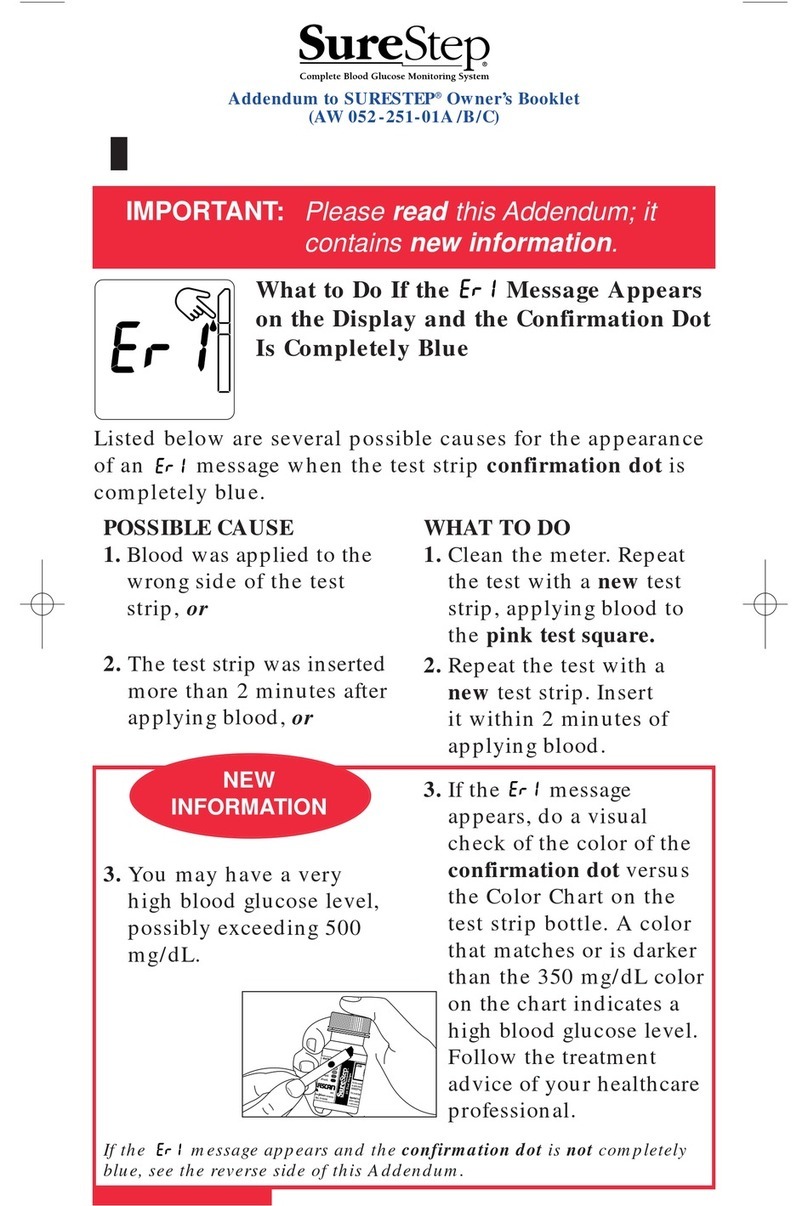
OneTouch SURESTEP User manual

OneTouch

OneTouch SURESTEP User manual
OneTouch Verio IQ User manual

OneTouch

OneTouch Verio IQ User manual
OneTouch Verio IQ User manual

OneTouch

OneTouch Verio IQ User manual
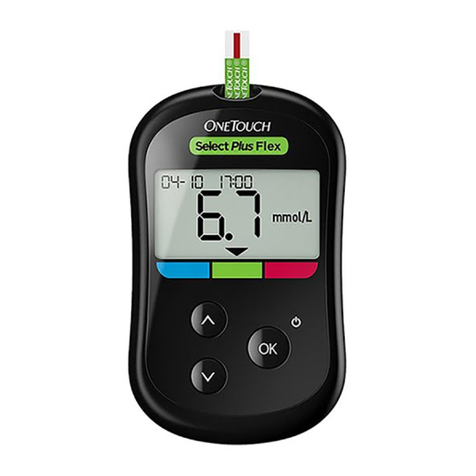
OneTouch Select Plus Flex User manual

OneTouch

OneTouch Select Plus Flex User manual
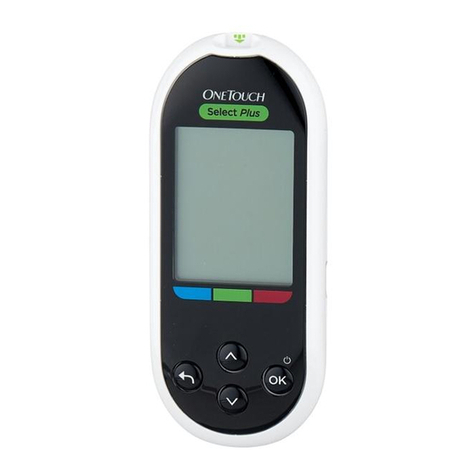
OneTouch Select PLUS User manual

OneTouch

OneTouch Select PLUS User manual
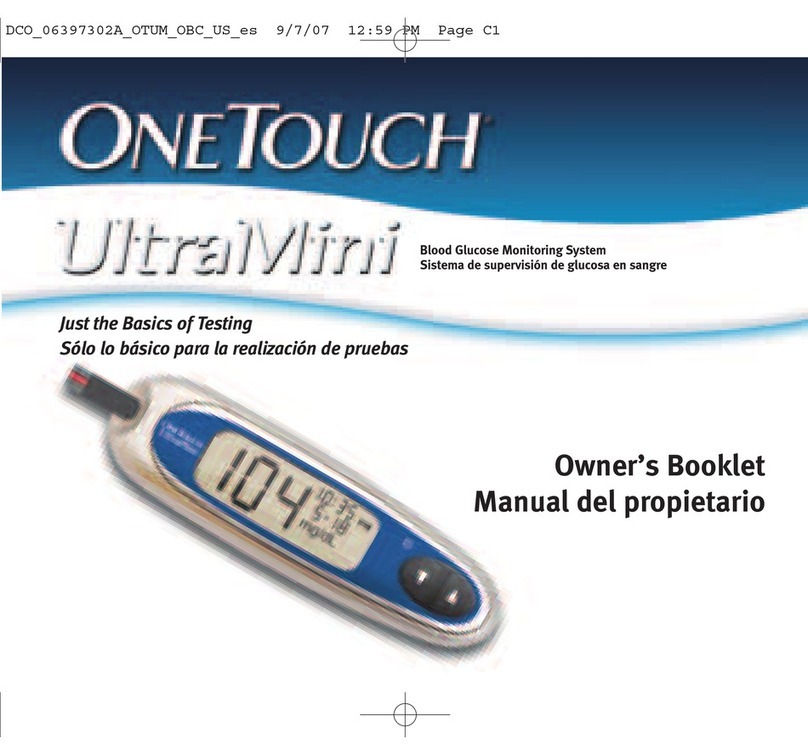
OneTouch ULTRAMINI - REV 08-2007 User manual

OneTouch

OneTouch ULTRAMINI - REV 08-2007 User manual

OneTouch ULTRA2 User manual

OneTouch

OneTouch ULTRA2 User manual

OneTouch OneTouch Ultra User manual

OneTouch

OneTouch OneTouch Ultra User manual

OneTouch ONETOUCH SELECT - CONTROL SOLUTION User manual

OneTouch

OneTouch ONETOUCH SELECT - CONTROL SOLUTION User manual

Popular Blood Glucose Meter manuals by other brands

Beurer GL50 Instructions for use

Beurer

Beurer GL50 Instructions for use

AgaMatrix Presto owner's guide

AgaMatrix

AgaMatrix Presto owner's guide

Medisana GlucoDock instruction manual

Medisana

Medisana GlucoDock instruction manual

Dexcom G4 Professional user guide

Dexcom

Dexcom G4 Professional user guide

Medisana MediTouch 2 instruction manual

Medisana

Medisana MediTouch 2 instruction manual

Infopia Element Instructions for use

Infopia

Infopia Element Instructions for use

ReliOn Prime User instruction manual

ReliOn

ReliOn Prime User instruction manual

Polymer Technology Systems A1C Now Self Check user manual

Polymer Technology Systems

Polymer Technology Systems A1C Now Self Check user manual

Contour TS user guide

Contour

Contour TS user guide

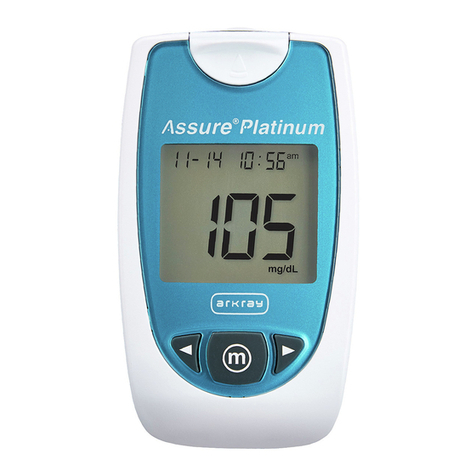
Arkray ASSURE PLATINUM quick start guide

Arkray

Arkray ASSURE PLATINUM quick start guide

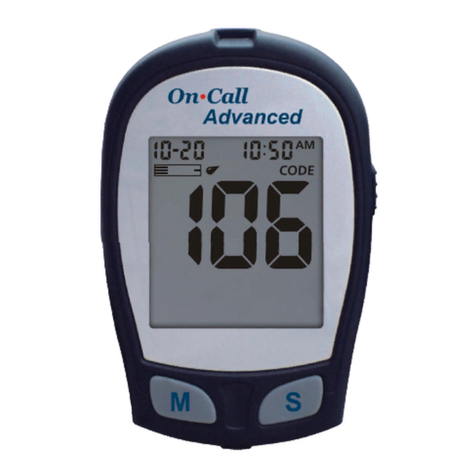
Acon On Call user manual

Acon

Acon On Call user manual

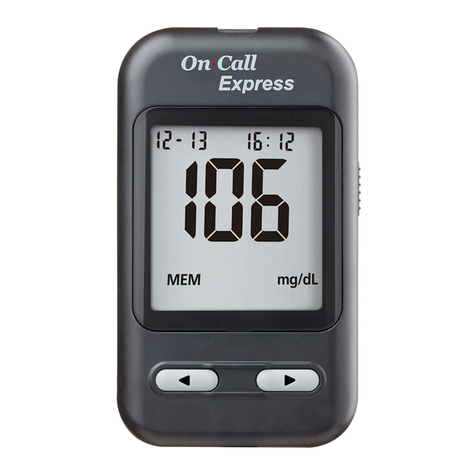
ACONLABS ON CALL EXPRESS user manual

ACONLABS

ACONLABS ON CALL EXPRESS user manual

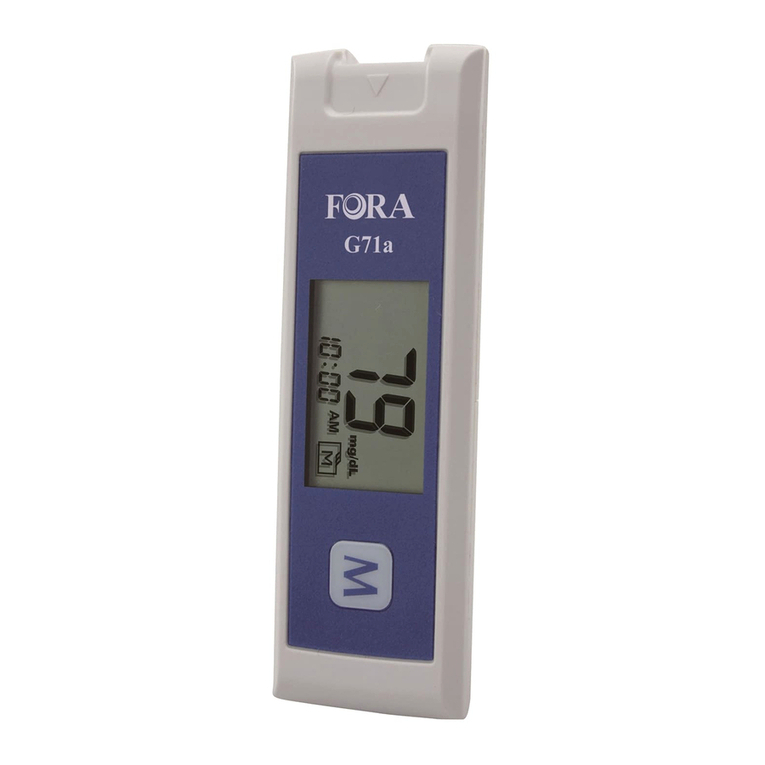
FOR-A G71a user manual

FOR-A

FOR-A G71a user manual

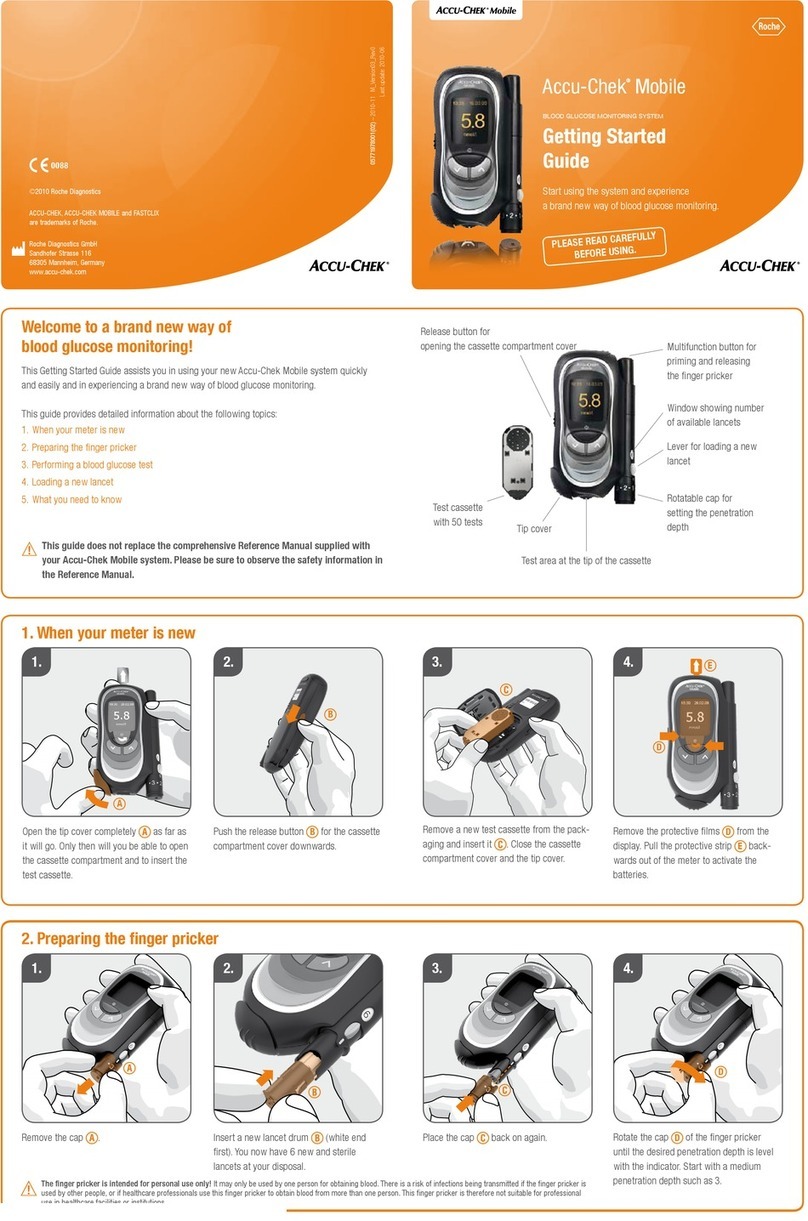
Accu-Chek Mobile Getting started guide

Accu-Chek

Accu-Chek Mobile Getting started guide

Avital 6276 user guide

Avital

Avital 6276 user guide

Roche Accu-Chek Aviva Combo manual

Roche

Roche Accu-Chek Aviva Combo manual

Acon on call vivid pal user manual

Acon

Acon on call vivid pal user manual

Accu-Chek Guide Me user manual

Accu-Chek

Accu-Chek Guide Me user manual

manuals.online logo
manuals.online logoBrands
  • About & Mission
  • Contact us
  • Privacy Policy
  • Terms and Conditions

Copyright 2025 Manuals.Online. All Rights Reserved.

USER GUIDE
®
Blood Glucose Monitoring System
AW 06629201B
Rev. date: 07/2009
Contents:
Getting to know your system 1
Setting the time and date, and coding your meter 4
Testing your blood glucose 8
Reviewing past results 16
Control solution testing 18
Caring for your system 20
Error messages and details about your system 24
Patent information
The system described herein is covered by one or more of the following U.S. patents: 5,708,247, 5,951,836, 6,241,862, 6,284,125,
7,112,265 and D546,216. Use of the monitoring device included herein is protected under one or more of the following U.S. patents:
6,413,410, 6,733,655, 7,250,105, 7,468,125. Purchase of this device does not act to grant a use license under these patents. Such
a license is granted only when the device is used with OneTouch® Ultra®Test Strips. No test strip supplier other than LifeScan is
authorized to grant such a license. The accuracy of results generated with LifeScan meters using test strips manufactured by anyone
other than LifeScan has not been evaluated by LifeScan.
OneTouch® Customer Care Line
Monday-Friday 9am-8pm Eastern Time, 6am-5pm Pacic Time
Canada 1 800 663-5521
USA 1 800 227-8862
Or,
Visit us at www.OneTouch.ca
If you cannot reach the OneTouch® Customer Care Line, contact your healthcare professional for advice.
Manufactured by:
LifeScan, Inc.
Milpitas, CA 95035 USA
© 2009 LifeScan, Inc.
Milpitas, CA 95035
Trademarks owned by Johnson & Johnson and used under license.
Version G
Distributed by:
LifeScan Canada Ltd.
Burnaby, B.C. V5C 6C6
Before you begin
Before using this product to test your blood glucose, carefully read this User Guide and the inserts that come with the OneTouch®
Ultra® Test Strips and OneTouch® Ultra® Control Solution. Take note of warnings and cautions throughout this User Guide, which are
identied with . Many people nd it helpful to practice the test with control solution before testing with blood for the rst time.
See Section 5, Control solution testing.
Intended use
The OneTouch® UltraMini® Blood Glucose Monitoring System is intended to be used for the quantitative measurement of glucose
(sugar) in fresh capillary whole blood. The OneTouch® UltraMini® System is intended for self-testing outside the body (in vitro
diagnostic use) by people with diabetes at home and by healthcare professionals in a clinical setting as an aid to monitor the
eectiveness of diabetes control. It should not be used for the diagnosis of diabetes or for testing newborns.
Test principle
Glucose in the blood sample mixes with special chemicals in the test strip and a small electric current is produced. The strength
of this current changes with the amount of glucose in the blood sample. Your meter measures the current, calculates your blood
glucose level, displays the result, and stores it in its memory.
1
GETTING TO KNOW YOUR SYSTEM
Getting to know your system
The OneTouch® UltraMini® Blood Glucose Monitoring System
Included with your kit:
a. OneTouch® UltraMini® Meter (battery included)
b. Lancing Device
c. Lancet(s)
d. Carrying Case
If any of these items are missing from your kit, call
OneTouch® Customer Care Line 1 800 663-5521.
Available separately:
e. OneTouch® Ultra® Test Strips
f. OneTouch® Ultra® Control Solution
g. Clear Cap for AST testing
Ask for control solution where you buy
your test strips or call the OneTouch®
Customer Care Line at 1 800 663-5521.
ef
gWARNING: Keep the meter and testing
supplies away from young children. Small
items such as the battery door, battery,
test strips, lancets, protective disks on the
lancets and control solution vial cap are
choking hazards.
a
bd
c
2
GETTING TO KNOW YOUR SYSTEM
Getting to know your system
METER
Display mmol/L is the pre-
set unit of measure
Up and down buttons
Turns the meter on or o
Select or change information
Test port
Insert test strip here to
turn meter on for testing
TEST STRIP Edge to
apply sample
Conrmation
window
Contact bars
Insert into test port
3
GETTING TO KNOW YOUR SYSTEM
Turning your meter on
To perform a test, insert a test strip as far as it will go. The display will turn on and
the meter will briey perform system checks. Or, to change the time and date,
start with the meter o, then press and hold ▼for ve seconds until the start-up
test screen appears. After the start-up test screen, the pre-set time and date will
appear on the display. Or, if you want to turn the meter on to review past results,
start with the meter o, then press and release ▼.
Every time you turn your meter on, a start-up test screen will appear for two seconds. All segments of the display should appear
briey on the start-up test screen to tell you that the meter is working properly. To check that all display segments are working, as
soon as the start-up test screen appears, press and hold ▲to keep the start-up test screen display on. Release ▲to proceed to the
next step. If the meter does not power on, try changing the meter battery. See Replacing the battery in Section 6.
Turning your meter o
There are several ways to turn your meter o:
• Press and hold ▼for two seconds, when reviewing past results.
• Your meter will turn o by itself if left alone for two minutes.
• Before or after completing a test, remove the test strip.
CAUTION: If any information is missing from the
start-up test screen, there may be a problem with
the meter. Call the OneTouch® Customer Care Line
at 1 800 663-5521.
Start-up Test Screen
4
SETTING THE TIME AND DATE, AND CODING YOUR METER
Setting the time and date, and coding your meter
Setting the time and date
Your OneTouch® UltraMini® Meter comes with the time, date and unit of measure pre-set. Before using your meter for the rst time or if
you change the meter battery, you should check and update the time and date. Make sure you complete steps 1 to 7 below to ensure your
desired settings are saved.
 Turn the meter on
Press and hold ▼for ve seconds until the start-up test screen appears.
After the test screen, the pre-set time and date will appear on the display for ve
seconds. The hour will now start ashing.
NOTE: If a setting does not need to be updated, simply wait ve seconds.
The meter display will automatically advance to the next setting.
 Set the hour
With the hour ashing on the display, press and release ▲or ▼to go forward or
backward one hour. To move faster, hold the ▲or ▼buttons down.
When the correct hour appears on the display, wait ve seconds. Your entry will be saved
and you will move to the next setting. The minutes will now start ashing.
 Set the minutes
Press ▲ or ▼to change the minutes. When you have the correct minutes on the
display, wait ve seconds to move to the next setting. AM or PM will now start ashing.
WARNING: If your display shows mg/dL rather than mmol/L, contact the OneTouch® Customer Care Line at
1 800 663-5521. You cannot change the unit of measure. Use of the wrong unit of measure may cause you to
misinterpret your blood glucose level, and may lead to incorrect treatment.
5
SETTING THE TIME AND DATE, AND CODING YOUR METER
 Set AM or PM
“AM” or “PM” will be displayed next to the minutes. Press ▲or ▼to set AM or PM, then
wait ve seconds to move to the next setting. The year (last two digits only), month and day
appear on the display and the year ashes.
 Set the year
Press ▲or ▼to change the year. When you have the correct year on the display, wait ve
seconds to move to the next setting. The month will now start ashing.
 Set the month
Press ▲or ▼to change the month. When you have the correct month on the display, wait
ve seconds to move to the next setting. The day will now start ashing.
 Set the day
Press ▲or ▼to change the day. When you have the correct day on the display, wait ve
seconds to move to the next screen.
Your time and date settings will be displayed for ve seconds. After the ve seconds, the
settings will be saved and the meter will then turn o. If you want to adjust your settings,
press ▲or ▼while the time and date are still on the display. You will be returned to the
rst set-up screen where you can begin with the hour.
6
SETTING THE TIME AND DATE, AND CODING YOUR METER
Coding your meter
Have these things ready when you test your blood glucose level:
NOTE:
• Use only OneTouch® Ultra® Test Strips with your OneTouch® UltraMini® Meter.
• Make sure your meter and test strips are about the same temperature before you test.
• Testing must be done within the operating temperature range (6–44°C). For the most accurate results, try to test as close to room
temperature (20–25°C) as you can.
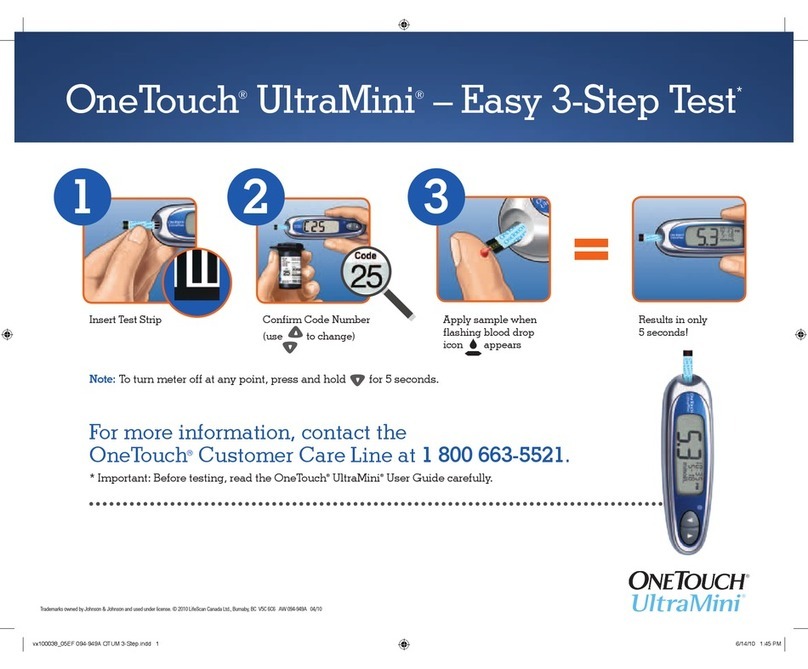
 Insert a test strip to turn on the meter
Start with the meter o. If you have turned the meter on to change settings or review past results, turn it o.
Remove a test strip from its vial. With clean, dry hands, you may touch the test strip anywhere on its surface.
Do Not bend, cut or modify the test strips in any way. Use each test strip immediately after removing it from
the vial.
Hold the meter as shown and insert the test strip into the test port. Make sure the three contact bars are facing
you. Push the test strip in as far as it will go. Do Not bend the test strip.
CAUTION: The test strip vial contains drying agents that are harmful if inhaled or swallowed
and may cause skin or eye irritation.
CAUTION: If you cannot test due to a problem with your testing supplies, contact your healthcare professional or the OneTouch®
Customer Care Line at 1 800 663-5521. Failure to test could delay treatment decisions and lead to a serious medical condition.
Check the code on the test strip vial before inserting the test strip
Code numbers are used to calibrate your meter with the test strips you are using to obtain accurate test results.
You must code the meter before using it for the rst time and then every time you change to another vial of
test strips.
• OneTouch® UltraMini® Meter
• OneTouch® Ultra® Test Strips
• Lancing device
• Sterile lancets with protective disks
• OneTouch® Ultra® Control Solution
7
SETTING THE TIME AND DATE, AND CODING YOUR METER
CAUTION: OneTouch® Ultra® Test Strips are for single use only. Never re-use a test strip that had either blood or control
solution applied to it.
After the start-up test screen appears, the meter will display the code from your
last test. If a constant and a ashing “––” appear instead of a code number,
such as when you are rst using the meter, follow the instructions in step 3 to
change to a numerical code.
 Match the code on the meter with the code on the test strip vial
If the code on the meter does not match the code on the test strip vial, press ▲or ▼to match the
code number on the test strip vial. The new code number will ash on the display for three seconds,
and then stay constant for three seconds. The display will advance to the screen with the ashing blood
drop icon R.
If the codes already match, wait three seconds. The display will advance to the
screen with the ashing blood drop icon R. The meter is now ready to perform a
blood glucose test.
NOTE:
• If the screen with the ashing blood drop icon Rappears before you are sure the codes match, remove the test strip, wait until
the meter turns o, then re-start from step 1 in Coding your meter.
• If you press ▲by mistake so that the control solution test symbol CtL appears on the display, press ▲again to change it back to
the screen with the ashing blood drop icon R.
CAUTION: Matching the code on the meter and the code on the test strip vial is essential to obtain accurate results.
Each time you test, check to make sure the code numbers match.