All Rights Reserved
No part of this manual may be reproduced or transmitted in any form or by any
means without prior written consent of Photobooth Emporium®.
It is agreed that all intellectual rights on the Software, including but not limited
to copyright and trademarks registration, shall remain the exclusive property of
Photobooth Emporium®
Notice
The information in this manual is subject to change without notice. Every effort
has been made in the preparation of this manual to ensure accuracy of the con-
tents, but all statements, information, and recommendations in this manual do
not constitute the warranty of any kind, expressed or implied.
Notes
- If you use a specific software to print, the software must use the Apple®iOS
Airprint genuine functionality
- Wifi credentials are not stored into the connecting device when scanned from
QR Code
- Compatible only with Apple®devices, iOS & macOS
- Compatible only with Apple®iOS AirPrint genuine software
- The WAN Mac Address is used for your network configuration
- Find on http://photoboothemporium.com/airkonv our latest info, start up guide
and updates
- In some venue it can happen that Wifi Signal is jammed because of the
concentration of wifi’s devices. You will need to use a customisable external wifi
router in DHCP Mode with a specific working signal and connect the Airkonv to it
with a LAN RJ45 cable. Connect your device to this external Wifi Router and the
device will have access to the Airkonv and its printers.
What’s included
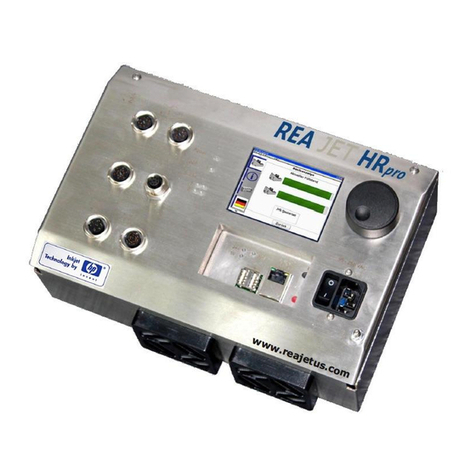
- 1 Airkonv
- 1 Airkonv Power supply
- 1 Start Up Guide
What’s Airkonv used for
Its main purpose is to print on a specialized photo printer from an Apple®
device : iOS or macOS.
It can be connected to via :
- Airkonv’s WIFI access point
- Airkonv’s LAN RJ45 cable connected in DCHP mode to an external router
with wifi or not.
Optionally, it can be used as a WIFI Router, but no configuration changes
are possible. When the Airkonv is connected to internet via its cable port to
a router in DHCP mode that has internet access, all the devices connected
to the Airkonv via wifi can access to internet also or you can also connect all
your devices directly to this external router via lan or its Wifi (if available) and
they will have access to the Airkonv and its printers.
Specification
- 4 x ports USB 2.0
- 1 x port 10/100 Mbit/s Ethernet
- Wi-Fi B (IEEE 802.11b), Wi-Fi G (IEEE 802.11g)
- Access Point Security : WPA2
INFO
STICKER
What can the Airkonv do ?
- It is a WiFi router
- WiFi Access Point with unique SSID and password
- It can print through iOS’s Apple® genuine Airprint on a photo printer
AIRKONV VERSION
V1.1
- Up to 4 printers USB connected
- Supports Printer DNP DS-620, DS-RX1, DS-RX1HS and only the most
recent DNP DS40
- iOS AirPrint 2 photos 5x15cm (2 photos 2x6”) with Auto Cut
1 photo 10x15cm (4x6”)
- macOS Print fully compatible for all sizes
- Airprint from WAN
- Airprint from Airkonv’s wi
- Auto-update not actived