logo
Brands
  1. Home
  2. •
  3. Brands
  4. •
  5. Playcore
  6. •
  7. Controllers
  8. •
  9. Playcore Colorado Time Systems WTTC-1 User manual

Playcore Colorado Time Systems WTTC-1 User manual

Other Playcore Controllers manuals

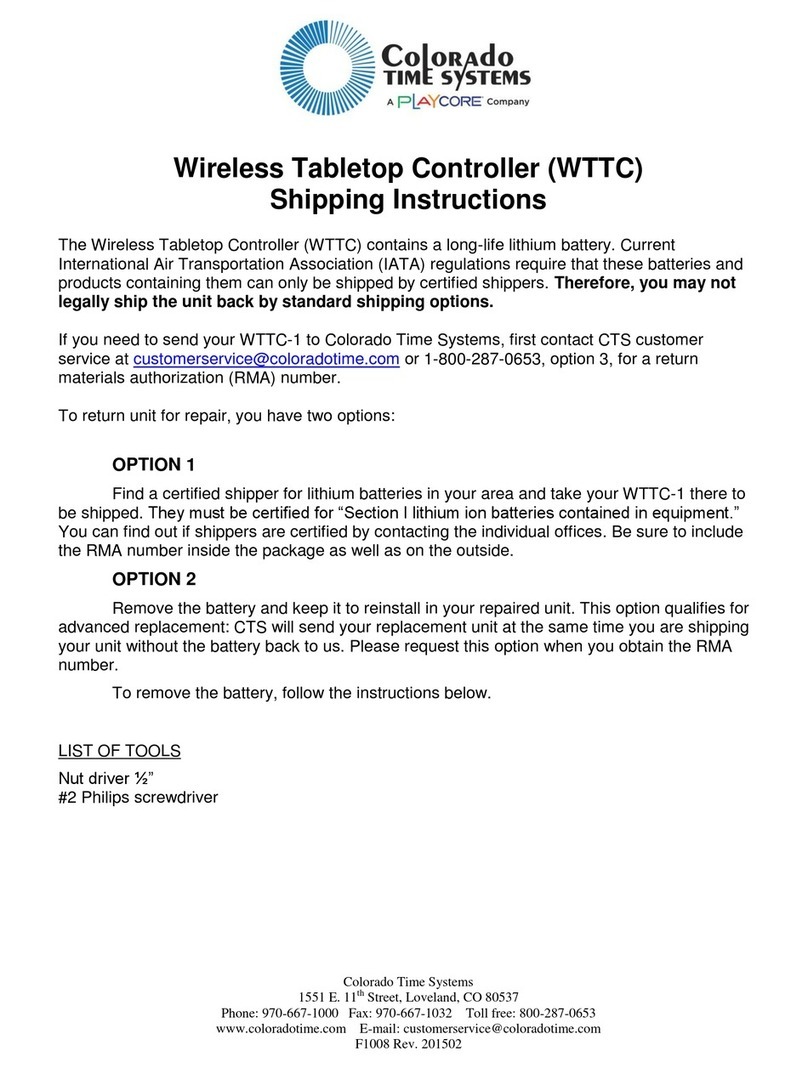
Playcore Colorado time systems WTTC User manual

Playcore

Playcore Colorado time systems WTTC User manual

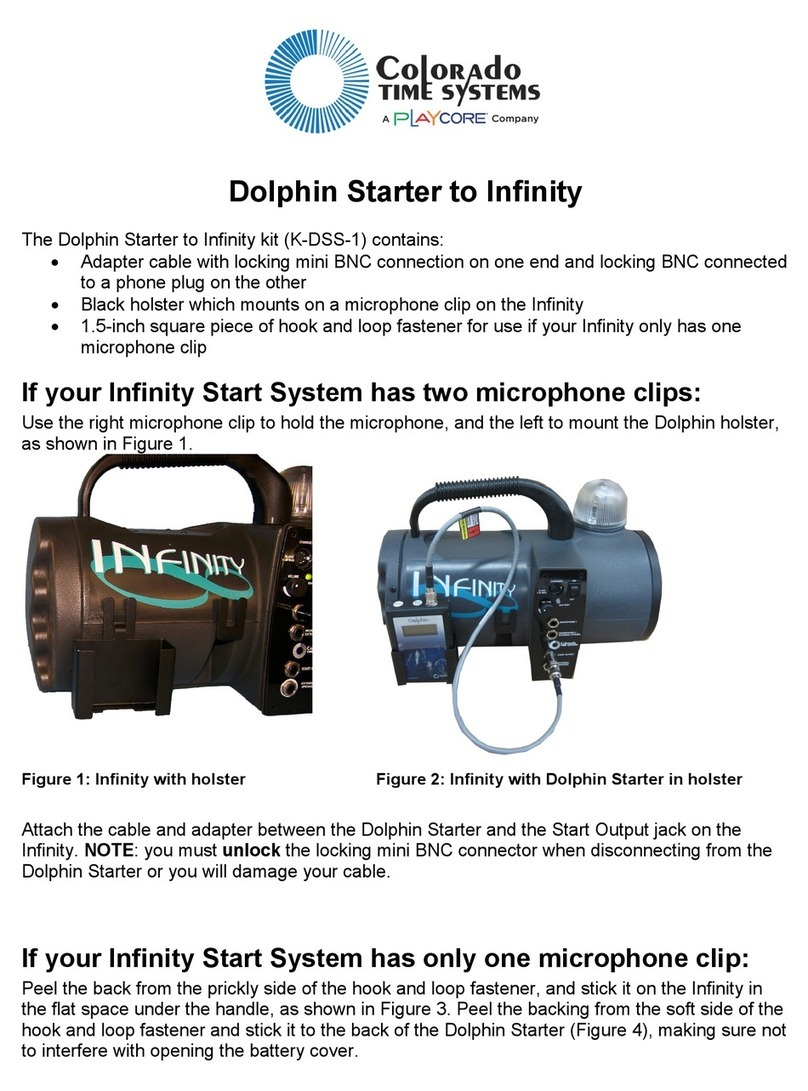
Playcore Colorado Time Systems Dolphin User manual

Playcore

Playcore Colorado Time Systems Dolphin User manual

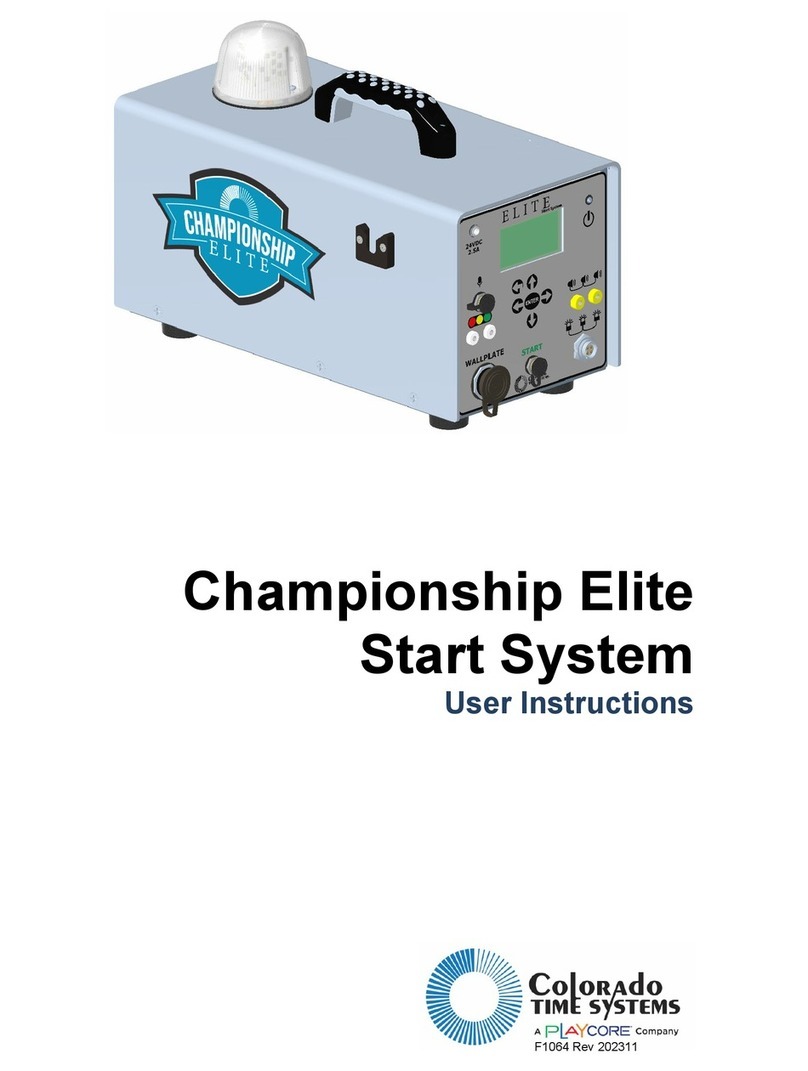
Playcore Colorado Time Systems Championship Elite Start... User manual

Playcore

Playcore Colorado Time Systems Championship Elite Start... User manual

Popular Controllers manuals by other brands

Digiplex DGP-848 Programming guide

Digiplex

Digiplex DGP-848 Programming guide

YASKAWA SGM series user manual

YASKAWA

YASKAWA SGM series user manual

Sinope Calypso RM3500ZB installation guide

Sinope

Sinope Calypso RM3500ZB installation guide

Isimet DLA Series Style 2 Installation, Operations, Start-up and Maintenance Instructions

Isimet

Isimet DLA Series Style 2 Installation, Operations, Start-up and Maintenance Instructions

LSIS sv-ip5a user manual

LSIS

LSIS sv-ip5a user manual

Airflow Uno hab Installation and operating instructions

Airflow

Airflow Uno hab Installation and operating instructions

ABB ACS580-01 drives Hardware manual

ABB

ABB ACS580-01 drives Hardware manual

Panasonic GM1 Series Reference manual

Panasonic

Panasonic GM1 Series Reference manual

Emerson SW93 owner's manual

Emerson

Emerson SW93 owner's manual

AutoAqua Smart ATO micro SATO-120P manual

AutoAqua

AutoAqua Smart ATO micro SATO-120P manual

Panasonic FP? Positioning Unit RTEX Technical manual

Panasonic

Panasonic FP? Positioning Unit RTEX Technical manual

Alpha IP MIOB 21001 manual

Alpha IP

Alpha IP MIOB 21001 manual

Siemens OpenAir GMA 1 Series Mounting instructions

Siemens

Siemens OpenAir GMA 1 Series Mounting instructions

Surecom SR-629 user manual

Surecom

Surecom SR-629 user manual

Regulus SRS1 T Installation and operation manual

Regulus

Regulus SRS1 T Installation and operation manual

3M MicroTouch EX113 reference guide

3M

3M MicroTouch EX113 reference guide

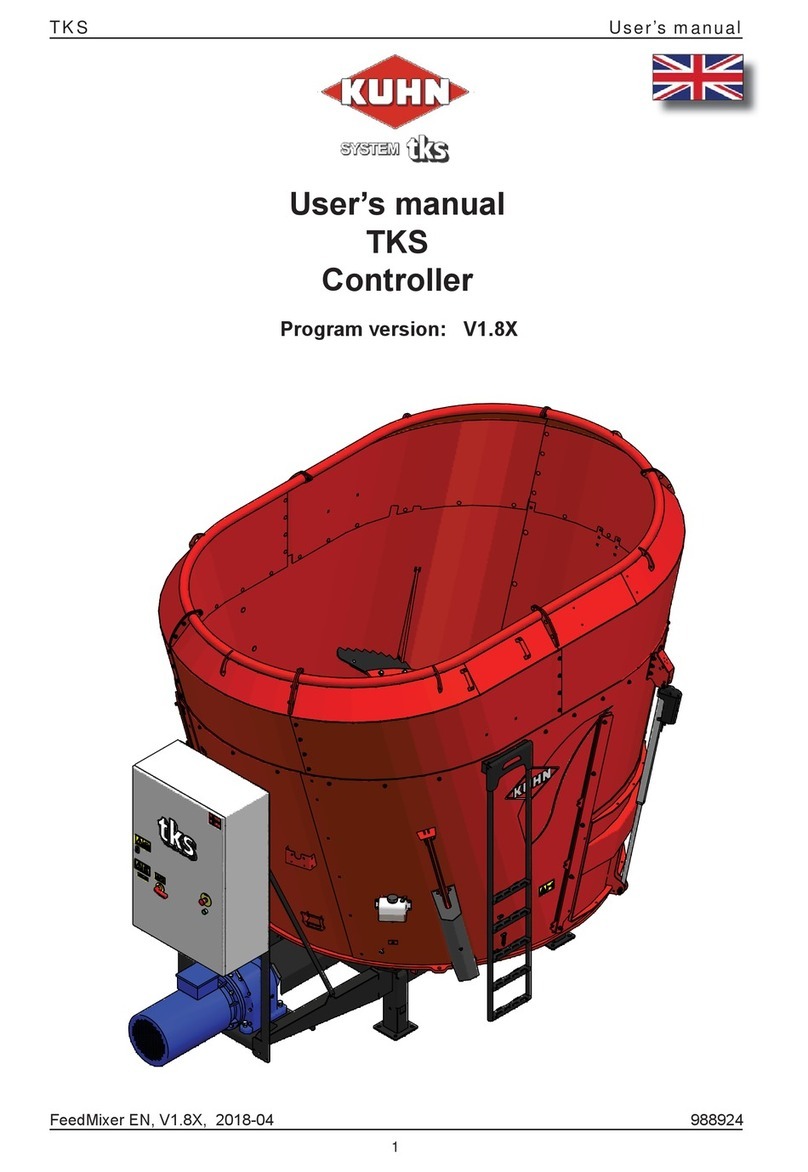
KUHN TKS user manual

KUHN

KUHN TKS user manual

S&C PMH Instructions for operation

S&C

S&C PMH Instructions for operation

https://manuals.online logo
https://manuals.online logoBrands
  • About & Mission
  • Contact us
  • Privacy Policy
  • Terms and Conditions

Copyright 2026 Manuals.Online. All Rights Reserved.

Basketball (WTTC-1 Tabletop Controller)
For the latest version of these instructions, and additional user instructions, go to the customer service section of www.ColoradoTime.com
Email: customerservice@coloradotime.com * 1-800-287-0653 or +1 970-667-1000 F979/202003
Easy instructions for running the scoreboard:
In all cases, operations for the
home team use the yellow keys;
those for the guest team use the
red keys.
Indicate possession of the ball with
Start the correct timeout with the timeout keys.
(These keys are only active when the clock is
stopped.) If pressed while a timeout is running, the
timeout will be ended prematurely.
Add points scored with the +1, +2 or +3 keys; subtract
mistakenly added points with the -1 key. If
prompted, enter the jersey number of the player
who scored and Enter.
To record a foul, press . If prompted, enter the
jersey number of the player who committed the foul and
Enter.
Press to start and stop the game clock. This can
also be done with an RSR; see RSR in the advanced
section, below.
Press to reset the shot clock. If you press this key
mistakenly, you can use to resume shot time.
The shot time can also be reset with an RSR-1; see RSR in the
advanced section, below.
Press to advance to the next period or break between
periods. (This key is only active while the clock is stopped.)
Press Run/Stop to start the clock.
If required to change the game or shot time, see Edit Mode
in the advanced section, below.
Press the HORN button to sound the horn
manually. It will sound automatically at the end of
a period, break/halftime and game, and optionally
at the end of a time out and as a time out warning if set in
the game set up menu.
More advanced options:
Starting a new game, editing game time, shot time, score,
number of fouls, number of time outs remaining
To start a new game, press , and select NEW GAME.
This cannot be undone, so you’ll be prompted to confirm this
action.
Press to activate Edit Mode. Next, press the key
corresponding to the value you want to edit. Enter
the new value with the numeric keypad and press Enter to
enact the change. Press Clear to exit Edit Mode without
making a change.
For example, to edit the home team score, press Edit Mode
and then press any of the 4 keys that modify the home team
score (+1, +2, +3 or -1). You can also edit number of fouls and
number of full and partial time outs by selecting those keys.
Press Edit Mode and then press Run/Stop to edit the game
time. Enter the new value with the numeric keypad, and
press enter to enact the change.
There are two ways to edit the shot clock time:
-Press , enter the new value with the numeric
keypad, and press enter to enact the change.
-Press , then the yellow Reset key. Enter the
new value with the numeric keypad, and press enter
to enact the change.
If you edit shot time mistakenly, you can use to resume
shot time.
When the numeric keypad is active for editing a data field,
the battery icon is replaced by “123”. When the entire
keyboard is active for alphanumeric input, the battery icon is
replaced by “ABC”. Slide the keyboard insert out and flip it
over for alphabetic entry.
Press to manually increment the bonus indicator. To
automatically increment the bonus indicators, adjust the
settings (see Stats Options in Game Setup, below)
Basketball (WTTC-1 Tabletop Controller)
For the latest version of these instructions, and additional user instructions, go to the customer service section of www.ColoradoTime.com
Email: customerservice@coloradotime.com * 1-800-287-0653 or +1 970-667-1000 F979/202003
The first time you press this in a game, you will enter
the 5 numbers for the starting players. Enter the
number and press enter to move to the next field. On
subsequent times you press this key, you will enter one
player number going in to the game and one coming out.
Press to see the game statistics. Set which statistics are
kept in the Stats Options, described in Game Setup, below.
When tracking fouls is enabled in the Stats menu
(see Game set up, below), the jersey number of the
player who committed the most recent foul will display on
the scoreboard. Press the Blank Player Foul when ready to
stop displaying this on the scoreboard.
When enabled through the “Alt Shot Reset” option
under the Shot Clock menu, this key resets the shot clock to a
length different than the main shot clock time. Set the length
with the “Alt Shot” option in the menu.
NOTE: If using an RSR-1, set the “Shot Length” to the time
you want to control by RSR (Shot or Alt Shot).
Run/Stop/Reset Units (RSR)
Using run/stop/reset (RSR) units for time keeping (optional):
Optional run-stop-reset units allow a second or third
operator to assist in controlling game time and shot time.
When a single button RSR is connected, the keyboard keys
Run/Stop and Reset are inactive. When a two button RSR is
connected, the Alt Shot Reset keyboard key is also inactive.
One RSR: Connect to either round phone plug input on the
back. The black rocker switch starts and stops the game time,
and the blue reset button resets the shot clock to its default
time. A two button RSR can also reset the shot clock to its
alternate time.
Two RSRs: The one connected to Input 1 controls the game
time with the rocker switch; the reset button(s) is inactive.
The one connected to Input 2 controls resetting the shot
clock with the reset button; the rocker switch is inactive. A
two button RSR can also reset the shot clock to its alternate
time.
Game setup (lengths of periods, lengths of time outs, horn
tones, etc):
Press to set up your game with the four main sub-
menus: Default Times, Shot Clock settings, Time Out
options and Statistics options.
Use the Default Times section to set number of periods,
period length, length of the break between periods, halftime
length, overtime length and whether to show tenths of a
second on the game clock when the time is below 1:00.
The break length is the time between quarters 1 and 2, and
between quarters 3 and 4. It has no effect if the game is set
to halves.
Use the Shot Clock section to:
-toggle the shot clock on or completely off
-set the default reset value for the shot clock
-set whether to show tenths of a second on the shot
clock when the shot time is below :10
-set whether the shot clock remains active or blank
when shot time is greater than the time remaining in
the period
Use the Time Out options to set the full and partial time outs
details, including number of each time out a team receives at
the beginning of each half, length, and horn details. Use Full
or Part TO Horn to toggle whether the game horn sounds
automatically at the end of a timeout. Use Full or Part TO
Warn to set the amount of time before the end of the
timeout that a warning horn will sound. Set to 0 for no
warning horn.
Use the Stats options to set whether to track fouls and points
by player number, and to set the thresholds for bonuses and
fouls: 1st (1-and-1), 2nd (2-shot), and number of fouls at which
a player fouls out of the game.
Set Horn tones in the Horn Options section of the Hardware
Options menu, as described in the Tabletop Quick Reference
Guide. For basketball, Horn 1 is the game horn, and Horn 2 is
the shot clock horn.
You can also choose Hardware Options to set the global
settings for all sports on this console. This menu is described
on the Tabletop Quick Reference guide, and includes
brightening and dimming your scoreboard, horn tones,
backlight setting on the console, and other scoreboard
configurations.