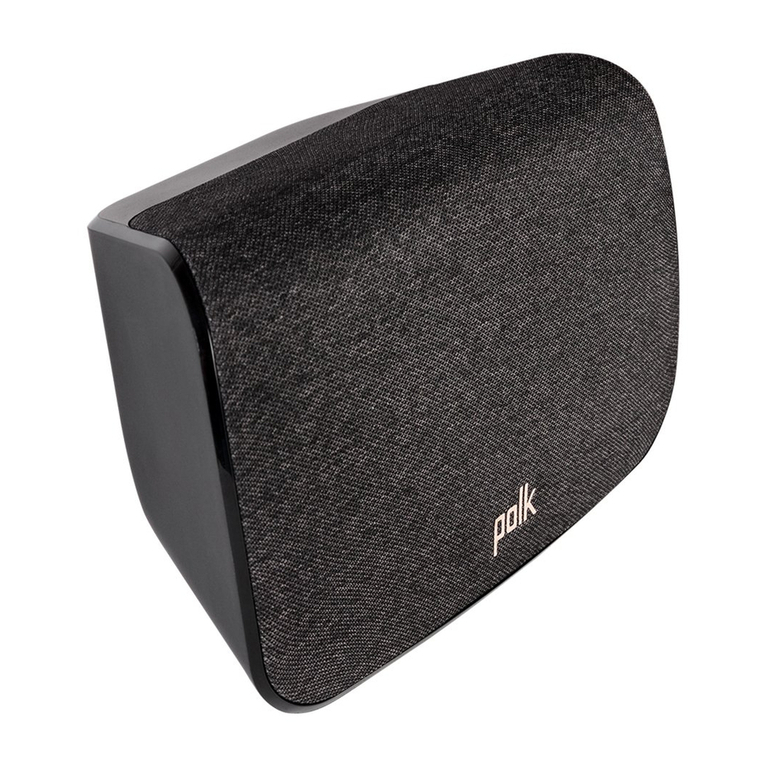
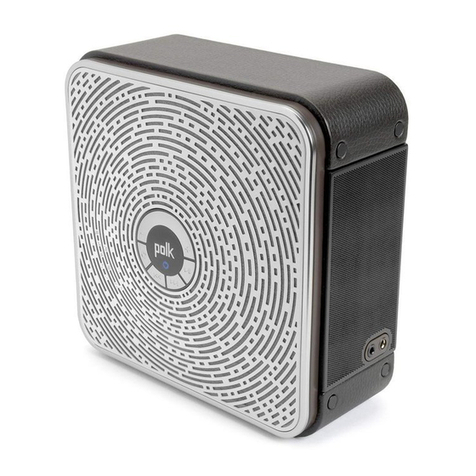
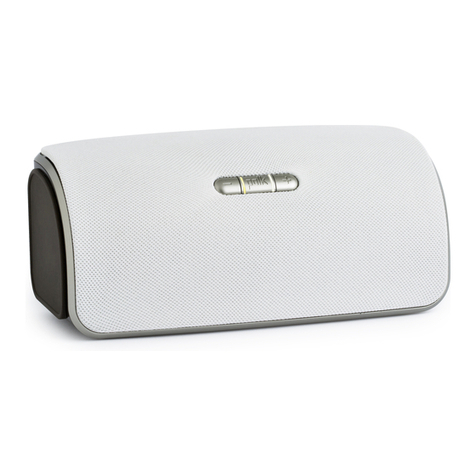
4 woodbourne: wireless speaker system
woodbourne setup options
The Woodbourne includes both AirPlay and
Bluetooth wireless technologies that allow you
to stream music from any compatible device.
Bluetooth setup
connecting devices
To pair and connect your music
player with the Woodbourne:
1. Make sure your music player
and Woodbourne are both powered on.
2. Make sure your music player has Bluetooth
turned on. See your manual for instructions.
3. Press the Bluetoothsourcebutton( )from
the Woodbourne remote or press the
source( )buttonontheWoodbourne
until the Bluetooth source is selected
(theBluetoothsymbolwillpulse).
4. Your Woodbourne will become listed on your
music player and will be available to pair &
connect.Select“polkwoodbourne”onyour
player to initiate the connection process.
note: Some Android devices require a separate
step after pairing has been completed.
5. Afterashortdelay(5seconds),thetwo
devices should now be connected. The
Bluetoothsourcesymbolwillbeasolidblue;
indicating a connection has been made.
6. Play your music from your device!
disconnecting devices
If your Woodbourne is in Bluetooth source and you
pressandholdthesourcebutton( )for3seconds,
then any Bluetoothdevicethat’sconnectedwillbe
disconnected automatically. The BluetoothLED
should ash 4 times within one second to indicate the
Bluetooth device was disconnected. The Woodbourne
will then become available for pairing and connecting.
AirPlay. Getting Started.
AirPlay technology allows you to stream music
fromyourPC(iTunes10.2orlater)oriOSdevice
(iOS4.3orlater)toyourWoodbournespeaker
using your home or ofce network. To take
advantage of this feature you need to rst get
your Woodbourne speaker connected to your
network. This can be done by directly connecting
yourWoodbournetoyourrouterwithanEthernet
cable or by utilizing the built-in wireless module
intheWoodbourne(seeinstructionsonp5).
OnceyourWoodbournespeakerisconnected
to the network you will see the AirPlay icon
near your music player controls: