manuals.online logo
Brands
  1. Home
  2. •
  3. Brands
  4. •
  5. RCA
  6. •
  7. DVD Recorder
  8. •
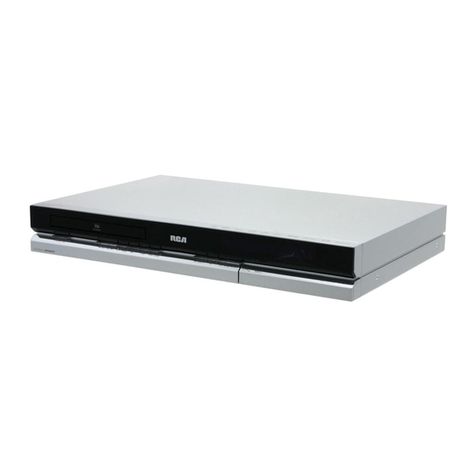
  9. RCA DRC8060 User manual

RCA DRC8060 User manual

This manual suits for next models

1

Other RCA DVD Recorder manuals

RCA DRC8320N User manual

RCA

RCA DRC8320N User manual

RCA DRC8000N - Progressive-Scan DVD... User manual

RCA

RCA DRC8000N - Progressive-Scan DVD... User manual

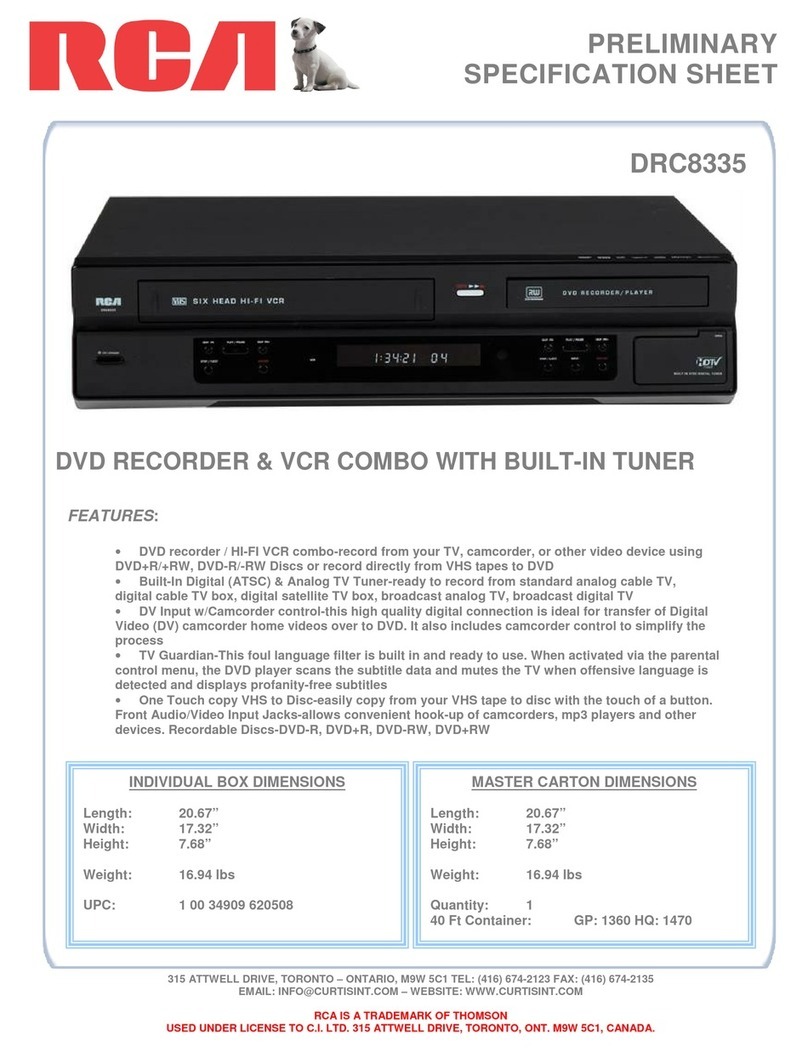
RCA DRC8335 - DVD Recorder & VCR Combo User manual

RCA

RCA DRC8335 - DVD Recorder & VCR Combo User manual

RCA GUIDEplus+ DRC8000N User manual

RCA

RCA GUIDEplus+ DRC8000N User manual

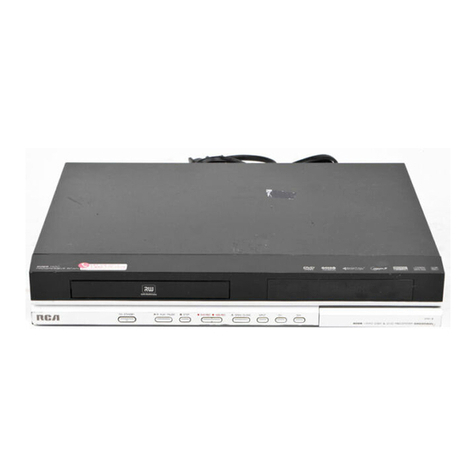
RCA DRC8060N User manual

RCA

RCA DRC8060N User manual

RCA DRC8000N - Progressive-Scan DVD... User manual

RCA

RCA DRC8000N - Progressive-Scan DVD... User manual

RCA DRC8052 User manual

RCA

RCA DRC8052 User manual

RCA DRC8052NB User manual

RCA

RCA DRC8052NB User manual

RCA DRC8030N User manual

RCA

RCA DRC8030N User manual

RCA DRC8005N - Progressive-Scan DVD... User manual

RCA

RCA DRC8005N - Progressive-Scan DVD... User manual

RCA DRC8335 - DVD Recorder & VCR Combo User manual

RCA

RCA DRC8335 - DVD Recorder & VCR Combo User manual

RCA DRC8040N User manual

RCA

RCA DRC8040N User manual

Popular DVD Recorder manuals by other brands

Philips DVD Recorder user manual

Philips

Philips DVD Recorder user manual

Sony DRX-840U user manual

Sony

Sony DRX-840U user manual

Philips DVDR3455H/37B quick start guide

Philips

Philips DVDR3455H/37B quick start guide

JVC DR-MH300BEK instructions

JVC

JVC DR-MH300BEK instructions

Panasonic Diga DMR-EX80S operating instructions

Panasonic

Panasonic Diga DMR-EX80S operating instructions

LG LRM-519 Warranty

LG

LG LRM-519 Warranty

Samsung DVD-R130/XAA Service manual

Samsung

Samsung DVD-R130/XAA Service manual

Pioneer DVR-65H-S Training guide

Pioneer

Pioneer DVR-65H-S Training guide

Daewoo DHD-4000D owner's manual

Daewoo

Daewoo DHD-4000D owner's manual

Medion MD 40570 user manual

Medion

Medion MD 40570 user manual

FUNAI HD-B2735 owner's manual

FUNAI

FUNAI HD-B2735 owner's manual

Sony RDR-GX355 - Tunerless DVD Recorder operating instructions

Sony

Sony RDR-GX355 - Tunerless DVD Recorder operating instructions

Panasonic DMR-EH54DEG Service manual

Panasonic

Panasonic DMR-EH54DEG Service manual

Sony DVDirect VRD-MC3 quick start guide

Sony

Sony DVDirect VRD-MC3 quick start guide

Pioneer PRV-LX1 System update

Pioneer

Pioneer PRV-LX1 System update

Philips DVDR610/05 Specifications

Philips

Philips DVDR610/05 Specifications

JVC DR-M10 instructions

JVC

JVC DR-M10 instructions

Samsung SV-DVD40 user manual

Samsung

Samsung SV-DVD40 user manual

manuals.online logo
manuals.online logoBrands
  • About & Mission
  • Contact us
  • Privacy Policy
  • Terms and Conditions

Copyright 2025 Manuals.Online. All Rights Reserved.

Changing Entertainment. Again.
DVD Recorder
User’s Guide
DRC8060N
Important Disc Information
This Product Can Record on the Following
Disc Types:
DVD+R (2.4x, 4x, 8x, and 16x)
DVD+RW (2.4x and 4x)
This recorder cannot record on DVD-R or DVD-RW
discs. Please make sure to purchase discs with the plus “+”
symbol on the package.
Note:
This device is protected by U.S. patent numbers 5,333,091;
5,692,093; 5,696,866 for Commerical Advance; other
patents pending.
Important Information
WARNING
To reduce the risk of fire or shock hazard, do not expose
this DVD Recorder to rain or moisture.
CAUTION
RISK OF ELECTRIC
SHOCK DO NOT OPEN
This symbol indicates that this product incorporates double
insulation between hazardous mains voltage and user
accessible parts.
This symbol indicates “dangerous
voltage” inside the product that
presents a risk of electric shock or
personal injury.
This symbol indicates
important instructions
accompanying the product.
FCC INFORMATION
This equipment has been tested and found to comply with the limits for a Class B digital device,
pursuant to Part 15 of the FCC rules.These limits are designed to provide reasonable protection
against harmful interference in a residential installation.This equipment generates, uses and can radiate
radio frequency energy and, if not installed and used in accordance with the instructions, may cause
harmful interference to radio communications. However, there is no guarantee that interference
will not occur in a particular installation. If this equipment does cause harmful interference to radio
or television reception, which can be determined by turning the equipment off and on, the user is
encouraged to try to correct the interference by one or more of the following measures.
• Reorient or relocate the receiving antenna.
• Increase the separation between the equipment and receiver.
• Connect this equipment into an outlet on a circuit different from that to which the receiver is
connected.
• Consult the dealer or an experienced radio/TV technician for help.
This class B digital apparatus meets all requirements of the Canadian Interference – Causing Equipment
Regulations.This class B digital apparatus complies with Canadian CES-003.
Cet appareil numérique de la class B est conforme á la norme du NMB-003 du Canada.
Refer to the identification/rating label located on the back panel of your product for its proper
operating voltage.
Product Registration
Please fill out the product registration card and return it immediately. Returning the product registration
card allows us to contact you if needed.
Keep your sales receipt to obtain warranty parts and service and for proof of purchase.Attach it here and
record the serial and model numbers in case you need them.The numbers are located on the back of the
DVD Recorder.
Model No. __________________________ Serial No. __________________________
Purchase Date: ___________________________________________________________
Dealer/Address/Phone: ____________________________________________________
The AC power cord is polarized (one blade is wider than the other) and only fits
into AC outlets one way. If the plug won’t go into the outlet completely, turn the
plug over and try to insert it the other way. If it still won’t fit, contact a qualified
electrician to change the outlet or use a different one. Do not attempt to bypass
this safety feature.
Ventilation:
You must adequately ventilate the product. Make sure there is adequate space around the DVD
Recorder/VCR to provide proper air flow for ventilation.Also, do not block the cooling fan. See diagram.
CAUTION
THIS PRODUCT UTILIZES A LASER. USE OF
CONTROLS OR ADJUSTMENTS OR PERFORMANCE
OF PROCEDURES OTHER THAN THOSE SPECIFIED
HEREIN MAY RESULT IN HAZARDOUS RADIATION
EXPOSURE. DO NOT OPEN COVERS AND DO NOT
REPAIR YOURSELF. REFER SERVICING TO QUALIFIED
PERSONNEL.
CAUTION
FCC Regulations state that unauthorized changes or
modifications to this equipment may void the user’s
authority to operate it.
Note:
This DVD Recorder is designed and manufactured to
respond to the Region Management Information. If the
Region number of a DVD disc does not correspond to the
Region number of this DVD Recorder this DVD Recorder
cannot play the disc.The Region number for this DVD
Recorder is Region No 1.
Note:
This device is protected by U.S. patent numbers 4,631,603
and 4,577,216 and 4,819,098 and other intellectual property
rights.The use of Macrovision’s copy protection technology
in the device must be authorized by Macrovision and is
intended for home and other limited pay-per-view uses only,
unless otherwise authorized in writing by Macrovision.
Reverse engineering or disassembly is prohibited.
The apparatus shall not be exposed to dripping or splashing
and that no objects filled with liquids, such as vases, shall be
placed on the apparatus.
CLASS 1
LASER
PRODUCT
Table of Contents
Chapter 1: Connections and Setup
Types of Discs . . . . . . . . . . . . . . . . . . . . . . . . . . . . . . . . . . . . . . . . . . . . . . . . . . . . . . . . . . . .2
Things to Consider BeforeYou Connect . . . . . . . . . . . . . . . . . . . . . . . . . . . . . . . . . . . . . .2
Unpack the Box . . . . . . . . . . . . . . . . . . . . . . . . . . . . . . . . . . . . . . . . . . . . . . . . . . . . . . . . . .2
ChooseYour Connection . . . . . . . . . . . . . . . . . . . . . . . . . . . . . . . . . . . . . . . . . . . . . . . . . . .3
Explanation of Input Jacks and Cables . . . . . . . . . . . . . . . . . . . . . . . . . . . . . . . . . . . . . . . .4
Back of the DVD recorder . . . . . . . . . . . . . . . . . . . . . . . . . . . . . . . . . . . . . . . . . . . . . . . . . .5
Front of the DVD recorder . . . . . . . . . . . . . . . . . . . . . . . . . . . . . . . . . . . . . . . . . . . . . . . . .7
Connection: DVD recorder +TV . . . . . . . . . . . . . . . . . . . . . . . . . . . . . . . . . . . . . . . . . . . . .9
Connection: DVD recorder +TV + Basic Cable Box . . . . . . . . . . . . . . . . . . . . . . . . . . . .11
Connection: DVD recorder +TV + Satellite Receiver . . . . . . . . . . . . . . . . . . . . . . . . . . .13
Connection: DVD recorder +TV + Basic Cable Box + Audio Receiver . . . . . . . . . . . . .15
Install Batteries in the Remote . . . . . . . . . . . . . . . . . . . . . . . . . . . . . . . . . . . . . . . . . . . . .16
Point the Remote in the Right Direction and Put It in DVD Mode. . . . . . . . . . . . .16
Turn on the TV and DVD recorder . . . . . . . . . . . . . . . . . . . . . . . . . . . . . . . . . . . . . . . . . .16
Complete the Interactive Setup . . . . . . . . . . . . . . . . . . . . . . . . . . . . . . . . . . . . . . . . . . . .16
1) Select on-screen menu language. . . . . . . . . . . . . . . . . . . . . . . . . . . . . . . . . . . . . .16
2) Select the Signal that’s connected to the CABLE/ANTENNA INPUT jack . . .17
3) Channel Search. . . . . . . . . . . . . . . . . . . . . . . . . . . . . . . . . . . . . . . . . . . . . . . . . . . .17
4) Channel List . . . . . . . . . . . . . . . . . . . . . . . . . . . . . . . . . . . . . . . . . . . . . . . . . . . . . .17
5) Time Zone. . . . . . . . . . . . . . . . . . . . . . . . . . . . . . . . . . . . . . . . . . . . . . . . . . . . . . . .17
6) Daylight SavingsTime . . . . . . . . . . . . . . . . . . . . . . . . . . . . . . . . . . . . . . . . . . . . . .17
7) Time and Date . . . . . . . . . . . . . . . . . . . . . . . . . . . . . . . . . . . . . . . . . . . . . . . . . . . .18
WatchTV . . . . . . . . . . . . . . . . . . . . . . . . . . . . . . . . . . . . . . . . . . . . . . . . . . . . . . . . . . . . . .18
What to Expect . . . . . . . . . . . . . . . . . . . . . . . . . . . . . . . . . . . . . . . . . . . . . . . . . . . . . . . . .18
How to find yourTV’s Video Input Channel . . . . . . . . . . . . . . . . . . . . . . . . . . . . . . . . . . .19
Next Steps. . . . . . . . . . . . . . . . . . . . . . . . . . . . . . . . . . . . . . . . . . . . . . . . . . . . . . . . . . . . . .19
Chapter 2:The Remote Control
Explanation of Buttons. . . . . . . . . . . . . . . . . . . . . . . . . . . . . . . . . . . . . . . . . . . . . . . . . . . .21
Find out if the remote can operate your TV . . . . . . . . . . . . . . . . . . . . . . . . . . . . . . . . . .22
Programming the remote to operate your TV . . . . . . . . . . . . . . . . . . . . . . . . . . . . . . . .22
Direct Entry . . . . . . . . . . . . . . . . . . . . . . . . . . . . . . . . . . . . . . . . . . . . . . . . . . . . . . . . .22
Automatic Code Search . . . . . . . . . . . . . . . . . . . . . . . . . . . . . . . . . . . . . . . . . . . . . . .22
Programming the Remote to Operate Other Components . . . . . . . . . . . . . . . . . . . . .23
Direct Entry . . . . . . . . . . . . . . . . . . . . . . . . . . . . . . . . . . . . . . . . . . . . . . . . . . . . . . . . .23
Automatic Code Search . . . . . . . . . . . . . . . . . . . . . . . . . . . . . . . . . . . . . . . . . . . . . . .23
Using the Remote’s Features. . . . . . . . . . . . . . . . . . . . . . . . . . . . . . . . . . . . . . . . . . . . . . .23
Very Important: Know the mode . . . . . . . . . . . . . . . . . . . . . . . . . . . . . . . . . . . . . . . .23
Understanding the INPUT button . . . . . . . . . . . . . . . . . . . . . . . . . . . . . . . . . . . . . . .23
Low Battery Indicator . . . . . . . . . . . . . . . . . . . . . . . . . . . . . . . . . . . . . . . . . . . . . . . . .23
Volume Punchthrough Feature . . . . . . . . . . . . . . . . . . . . . . . . . . . . . . . . . . . . . . . . .24
Deleting ALL Volume Punchthrough Commands. . . . . . . . . . . . . . . . . . . . . . . . . . .24
Remote Code List . . . . . . . . . . . . . . . . . . . . . . . . . . . . . . . . . . . . . . . . . . . . . . . . . . . . . . .25
Chapter 3: Recording, Playback & Features
WatchingTV . . . . . . . . . . . . . . . . . . . . . . . . . . . . . . . . . . . . . . . . . . . . . . . . . . . . . . . . . . . .30
The Channel Banner . . . . . . . . . . . . . . . . . . . . . . . . . . . . . . . . . . . . . . . . . . . . . . . . . .30
Recording . . . . . . . . . . . . . . . . . . . . . . . . . . . . . . . . . . . . . . . . . . . . . . . . . . . . . . . . . . . . . .30
Express Recording . . . . . . . . . . . . . . . . . . . . . . . . . . . . . . . . . . . . . . . . . . . . . . . . . . . .30
Watching one channel while you record another channel
(cable with no cable box or off-air antenna only) . . . . . . . . . . . . . . . . . . . . . . . .31
Timer Recordings. . . . . . . . . . . . . . . . . . . . . . . . . . . . . . . . . . . . . . . . . . . . . . . . . . . . . . . .31
Setting up timer recordings to record programs automatically . . . . . . . . . . . . . . .31
Disc Library. . . . . . . . . . . . . . . . . . . . . . . . . . . . . . . . . . . . . . . . . . . . . . . . . . . . . . . . . . . . .32
Finding a title (movie, program, etc) by using the Sort Feature . . . . . . . . . . . . . . .32
Other Sorting Options—Show All Discs . . . . . . . . . . . . . . . . . . . . . . . . . . . . . . . . . .32
Erasing the Disc Library . . . . . . . . . . . . . . . . . . . . . . . . . . . . . . . . . . . . . . . . . . . . . . .32
Turning Off Commercial Advance . . . . . . . . . . . . . . . . . . . . . . . . . . . . . . . . . . . . . . .33
Watching Commercials or Skipping Them Manually . . . . . . . . . . . . . . . . . . . . . . . .33
Playback. . . . . . . . . . . . . . . . . . . . . . . . . . . . . . . . . . . . . . . . . . . . . . . . . . . . . . . . . . . . . . . .34
Disc Information . . . . . . . . . . . . . . . . . . . . . . . . . . . . . . . . . . . . . . . . . . . . . . . . . . . . .34
Editing DVD+R and DVD+RW discs. . . . . . . . . . . . . . . . . . . . . . . . . . . . . . . . . . . . . .35
Copying a digital video camcorder tape to a DVD disc . . . . . . . . . . . . . . . . . . . . . .36
Chapter 4: Playing Discs
Regional Coding . . . . . . . . . . . . . . . . . . . . . . . . . . . . . . . . . . . . . . . . . . . . . . . . . . . . . . . . .38
Types of discs you can play. . . . . . . . . . . . . . . . . . . . . . . . . . . . . . . . . . . . . . . . . . . . . . . . .38
How to Load and Play Discs . . . . . . . . . . . . . . . . . . . . . . . . . . . . . . . . . . . . . . . . . . . . . . .38
Using Different Menus . . . . . . . . . . . . . . . . . . . . . . . . . . . . . . . . . . . . . . . . . . . . . . . . . . . .39
Search Options . . . . . . . . . . . . . . . . . . . . . . . . . . . . . . . . . . . . . . . . . . . . . . . . . . . . . . . . . .39
Playback options . . . . . . . . . . . . . . . . . . . . . . . . . . . . . . . . . . . . . . . . . . . . . . . . . . . . . . . . .39
Using the On-screen Info Display . . . . . . . . . . . . . . . . . . . . . . . . . . . . . . . . . . . . . . . . . . .40
Time Display (DVD,Video CD, and Audio CD) . . . . . . . . . . . . . . . . . . . . . . . . . . . . .41
Selecting a Title on DVDs or aTrack on Audio CDs orVideo CDs . . . . . . . . . . . . .41
Chapter Icon (DVD) . . . . . . . . . . . . . . . . . . . . . . . . . . . . . . . . . . . . . . . . . . . . . . . . . .41
Repeat Icon (DVD,Video CD, and Audio CD) . . . . . . . . . . . . . . . . . . . . . . . . . . . . . .42
Repeating Titles, Chapters, or Tracks . . . . . . . . . . . . . . . . . . . . . . . . . . . . .42
AB Repeat . . . . . . . . . . . . . . . . . . . . . . . . . . . . . . . . . . . . . . . . . . . . . . . . . . . . . . . . . .42
Audio Icon (DVD andVideo CD) . . . . . . . . . . . . . . . . . . . . . . . . . . . . . . . . . . . . . . . .42
Subtitle Icon (DVD). . . . . . . . . . . . . . . . . . . . . . . . . . . . . . . . . . . . . . . . . . . . . . . . . . .42
Camera Angle Icon (DVD) . . . . . . . . . . . . . . . . . . . . . . . . . . . . . . . . . . . . . . . . . . . . .43
Play Mode Icon (Audio CD) . . . . . . . . . . . . . . . . . . . . . . . . . . . . . . . . . . . . . . . . . . . .43
IntroScan Icon (Audio CD). . . . . . . . . . . . . . . . . . . . . . . . . . . . . . . . . . . . . . . . . . . . .43
Playback Control (PBC) Icon (Video CD) . . . . . . . . . . . . . . . . . . . . . . . . . . . . . . . . .43
Playing DiscsYou Recorded (DVD+R and DVD+RW) . . . . . . . . . . . . . . . . . . . . . . . . . . .44
Playing mp3,WMA, or JPEG files . . . . . . . . . . . . . . . . . . . . . . . . . . . . . . . . . . . . . . . . . . .44
Creating an mp3 Disc onYour Computer . . . . . . . . . . . . . . . . . . . . . . . . . . . . . . . . .44
JPEG Index Screen. . . . . . . . . . . . . . . . . . . . . . . . . . . . . . . . . . . . . . . . . . . . . . . . . . . .44
JPEG Info Display . . . . . . . . . . . . . . . . . . . . . . . . . . . . . . . . . . . . . . . . . . . . . . . . . . . . .45
Chapter 5:The Menu System
Overview of the DVD recorder’s Menu System. . . . . . . . . . . . . . . . . . . . . . . . . . . . . . . .47
How to navigate through on-screen menus. . . . . . . . . . . . . . . . . . . . . . . . . . . . . . . .47
The Main Menu . . . . . . . . . . . . . . . . . . . . . . . . . . . . . . . . . . . . . . . . . . . . . . . . . . . . . .47
WatchTV . . . . . . . . . . . . . . . . . . . . . . . . . . . . . . . . . . . . . . . . . . . . . . . . . . . . . . . . . . . . . .48
Disc . . . . . . . . . . . . . . . . . . . . . . . . . . . . . . . . . . . . . . . . . . . . . . . . . . . . . . . . . . . . . . . . . . .48
Disc Library. . . . . . . . . . . . . . . . . . . . . . . . . . . . . . . . . . . . . . . . . . . . . . . . . . . . . . . . . . . . .49
Timers . . . . . . . . . . . . . . . . . . . . . . . . . . . . . . . . . . . . . . . . . . . . . . . . . . . . . . . . . . . . . . . . .49
Setup . . . . . . . . . . . . . . . . . . . . . . . . . . . . . . . . . . . . . . . . . . . . . . . . . . . . . . . . . . . . . . . . . .49
Parental Controls. . . . . . . . . . . . . . . . . . . . . . . . . . . . . . . . . . . . . . . . . . . . . . . . . . . . .49
Recording Options. . . . . . . . . . . . . . . . . . . . . . . . . . . . . . . . . . . . . . . . . . . . . . . . . . . .51
System Options . . . . . . . . . . . . . . . . . . . . . . . . . . . . . . . . . . . . . . . . . . . . . . . . . . . . . .51
DV-CAM. . . . . . . . . . . . . . . . . . . . . . . . . . . . . . . . . . . . . . . . . . . . . . . . . . . . . . . . . . . . . . . .52
Chapter 6:Additional Information
Troubleshooting . . . . . . . . . . . . . . . . . . . . . . . . . . . . . . . . . . . . . . . . . . . . . . . . . . . . . . . . .54
Handling Cautions . . . . . . . . . . . . . . . . . . . . . . . . . . . . . . . . . . . . . . . . . . . . . . . . . . . . . . .57
Maintenance of Cabinet . . . . . . . . . . . . . . . . . . . . . . . . . . . . . . . . . . . . . . . . . . . . . . . . . . .57
Limited Warranty . . . . . . . . . . . . . . . . . . . . . . . . . . . . . . . . . . . . . . . . . . . . . . . . . . . . . . . .58
Accessory Information. . . . . . . . . . . . . . . . . . . . . . . . . . . . . . . . . . . . . . . . . . . . . . . . . . . .59
Copying content from a DVD+R or DVD+RW disc to aVCR videocassette . . . . . . . . .60
Copying content from aVCR videocassette to a DVD+R or DVD+RW disc . . . . . . . . .61

Graphics contained within this publication are for representation only.
2
Chapter 1: Connections and Setup
Types of Discs
DISCSYOU CAN USE FOR RECORDING
DVD+R 2.4x, 4x, or 8x, and 16x ONLY;
DVD+RW 2.4x and 4x ONLY.
IMPORTANT NOTES:
This recorder is not compatible with DVD-R or DVD-RW discs for recording. Please make sure to purchase discs with
the plus “+” symbol on the package. Also, it is NOT possible to record on CD-R or CD-RW discs.
IMPORTANT: It is NOT possible to record content that is copy-protected. This is usually true for most pre-recorded
DVD discs and most pre-recorded VHS tapes.
TYPES OF DISCSYOU CAN PLAY
• DVD discs – DVD movie discs (DVD-ROM); DVD+R; DVD+RW; DVD-RW (must be recorded using video mode orVM); DVD-R
(must be recorded using video mode or VM and must be finalized).
• CDs (Audio CDs, CD-R, CD-RW) – Audio CDs contain musical or sound content only. mp3 discs are CDs (CD-R or CD-RW)
that contain mp3 files.This product also plays CDs that contain JPEG files and Multisession CDs.
• Video CD (VCD) – Like DVD video discs,VCDs contain picture and sound content.The difference is the amount of information
that can be stored on the disc.VCDs typically have lower picture and sound quality than DVD discs.You must use DVD+R or
DVD+RW discs to record on your unit not VCDs.
Things to consider before you connect
Protect components from overheating
• Don’t block ventilation holes on any of the components or the fan on the back of this product.Arrange the components so that air can circulate freely.
• Don’t stack components.
• When you place components in a stand, make sure you allow adequate ventilation.
• If you connect an audio receiver or amplifier, place it on the top shelf.
Position cables properly to avoid audio interference
• Insert each cable firmly into the designated jack.
• If you place components above the TV, route all cables down the side of the back of the TV instead of straight down the middle of the back of the TV.
Connection Pictures
Audio/video cables are usually bundled together. For better visibility, the connection pictures in this book show each cable separately (audio left, audio right, and video).
Graphics contained within this publication are for representation only.
Some discs may not be compatible
due to laser pickup and disc design.
DVD+Rewritable
DVD+R
DVD recorder
GO
BACK
VOL CH
MUTE
TV
ON-OFF
DVD/VCR CABLE
AUX AUDIO
CLEAR MENU
OK
LIVE
RECORD STOP
PLAY
INPUT ANTENNA
PAUSE
FORWARDREVERSE
7
123
456
8
0
9
ADVANCE
AGAIN
INFOTIMER•GUIDE
SAT
ZOOM EDIT OPEN
CLOSE
ANGLE
Remote control and
batteries (part number
261387)
1 set of audio video cables (part number 233086)
S-Video cable (part number 257982) RF Coaxial cable (part
number 221396)
Power cord (part number 218104)
Unpack the Box
Your DVD recorder came with the following items:
DVD+RW
Blank Disc
1 DVD+RW Blank Disc
Graphics contained within this publication are for representation only. 3
Chapter 1: Connections and Setup
Choose Your Connection
There are several ways to connect your DVD recorder. Please use the following chart to determine which connection is best for you.Turn to the appropriate page for
specific instructions.
• Coaxial
• Audio/video
• S-Video
• Component
• HDMI
Components Cables Needed Connection Go to
Satellite Receiver
TVDVD recorder
STOP
CH+/SKIP+
CH-/SKIP-FWD
REVP
LAY/PAUSE
OPEN/CLOSERECORD
INPUT
Cable Box
TV
DVD recorder
STOP
CH+/SKIP+
CH-/SKIP-FWD
REVP
LAY/PAUSE
OPEN/CLOSERECORD
INPUT
DVD recorder
STOP
CH+/SKIP+
CH-/SKIP-FWD
REVPLAY/PAUSE
OPEN/CLOSERECORD
INPUT
TV
TV page 8
• Coaxial
• Audio/video
• S-Video
• Component
TV + cable
box
page 10
• Coaxial
• Audio/video
• S-Video
• Component
TV +
satellite
receiver
page 12
DVD recorder
STOP
CH+/SKIP+
CH-/SKIP-FWD
REVP
LAY/PAUSE
OPEN/CLOSERECORD
INPUT
TV
• Coaxial
• Audio/video
• S-Video
• Digital Audio
• Component
• HDMI
TV + cable
box + audio
receiver
Cable Box
page 14
Audio Receiver
VCR Connection go to pages 60 and 61
If you want to copy content from a DVD to a videotape or
vice versa, go to page 60 and 61 for general information.
Note: You can’t transfer copy protected content.
Graphics contained within this publication are for representation only.
4
Chapter 1: Connections and Setup
Explanation of Input Jacks and Cables
This section describes the jacks and cables you can use to make connections. Some cables are supplied with your product or you can purchase other cables by calling
1-800-338-0376, order online at www.rca.com, or go to your local electronics store).There are several ways to connect your DVD recorder to your TV depending upon the
cables you have and the jacks that are on the back of your TV.
Different jacks and cables provide a different level of performance. It’s important to remember, we’re talking about degrees of picture improvement for comparison. If your
TV has HDMI, Component jacks (Y, Pb, Pr), S-VIDEO, and composite video (often color-coded yellow); HDMI or Component (Y, Pb, Pr), would be considered excellent, S-
Video would be very good, and the composite video jack (yellow) would be considered good.
HDMI™ OUTPUT (High-Definition Multimedia Interface)
Provides an uncompressed digital interface that carries both video and audio data to your TV by way
of an integrated mini-plug cable (HDMI cable not supplied).When connected to a compatible high
definition digital TV, the DVD recorder will convert standard definition signals to higher resolution (high
definition) signals.
Note: If your HDTV set has a DVI input and is HDCP (High Definition Copy Protection) compatible, you can
connect your recorder to the TV using an optional HDMI cable and HDMI/DVI adapter. Remember to connect
the left and right audio cables because the DVI cable carries only the picture signal, not the sound.
Component Video (Y, Pb, Pr) Jacks and Cables
The Y, Pb, Pr jacks provide optimum picture quality because the video is separated into three signals (two signals
are dedicated to the color portion of the image, and the other signal is dedicated to the black and white part of the
image).
To ensure maximum picture quality, use three video-grade cables (not supplied) for the connection.You can purchase
bundled component video cables that are color-coded to match the Y, Pb, Pr jacks (red, green, and blue). Component
Video Input jacks are usually found on high-end TVs, such as HDTVs; multimedia monitors; and some of the “flat”
LCD and Plasma TVs or monitors.
Note: Also, remember to connect the left and right audio cables because the Y, Pb, Pr jacks and cables carry
only the picture signal, not the sound.
S-Video Jacks and Cables
The S-Video (separate video) jack provides better picture quality than a composite video jack (sometimes labeled
VIDEO and color-coded yellow on TVs) because S-Video keeps the color part of the picture separate from the
black and white part of the picture. If your TV has an S-VIDEO jack, connect the DVD recorder to the TV with an
S-Video cable for a better quality picture.
One S-Video cable is supplied with your DVD recorder.
Note: Remember to connect the left and right audio cables because the S-Video cable carries only the picture
signal, not the sound.
Audio/Video Jacks and Cables (RCA-type)
Video
The basic Video jack (usually color-coded yellow) is also referred to as composite video. Composite video doesn’t
keep color information separated (like S-Video), but it’s better than the video quality you get from an RF coaxial
cable (the type used to connect a cable signal or off-air antenna).
Audio
These jacks are used to send the audio from the disc you’re playing in the DVD recorder to the TV.The audio jacks
and cables (supplied) are often color-coded (red for right audio, and white for left audio).You must connect audio
cables to the AUDIO L and R jacks on the DVD recorder and the corresponding Audio Input Jacks on the TV no
matter which Video jack you connect (VIDEO; S-VIDEO;Y, Pb, Pr).
Note: If your TV has only one input for audio (mono), connect it to the left (white) audio jack on the DVD
recorder and don’t connect the right (red) audio part of the cable.
Digital Audio Output
Use a digital optical cable (or SPDIF cable- not supplied) to connect your DVD recorder to a compatible Dolby
Digital or PCM receiver or decoder. Dolby Digital offers theatre-quality sound (six audio channels). If you own a
receiver that uses an optical cable input, you can use an optical cable to connect the DVD recorder to that receiver
for the best sound quality. Go to the Digital Audio Out screen in the System Options menu to select Dolby Digital
or DTS as the output for this jack.
Note: This DVD recorder’s optical digital output jack fully complies with the international standard governing
this type of jack (IEC958), and is designed for connection to a Dolby Digital (AC-3® or PCM) receiver or
decoder. Older equipment, some of which is not fully compliant with IEC958, may not be compatible with the
Dolby Digital bitstream. Such a connection using anything other than a Dolby Digital (AC-3 or PCM) receiver
or decoder could create a high noise level, causing damage to headphones or speakers.
Y
Pb
Pr
S-VIDEO
VIDEO
INPUT
L
R
AUDIO
OPTICAL
DIGITAL
AUDIO OUT
HDMI OUT
Graphics contained within this publication are for representation only. 5
Chapter 1: Connections and Setup
Back of the DVD recorder
The back of your recorder might look a little overwhelming at first.This section explains what goes where and why.There are two sets of jacks on the back of your DVD
recorder—INPUT jacks and OUTPUT jacks.
Each jack is explained individually below, but the basic idea is about sending and receiving information to be played on or through your DVD recorder and displaying that
information on your TV screen.
INPUT The cables connected to the INPUT jacks bring pictures and sound INTO the DVD recorder, such as the cable signal (programming) from the cable company or
satellite programming from a satellite receiver.
OUTPUT The cables connected to the OUTPUT jacks are sending pictures and sound from the DVD recorder OUT TO your TV so you can see it on the screen.The
correct cables must be connected to the DVD recorder’s Output jacks and the corresponding Input Jacks on the TV so you can see the program on the TV.You must also
tune the TV to the correct channel, called a Video Input Channel (for details, go to page 19).
Explanation of Jacks (from left to right)
AC-IN – This is where you attach the power cord.
HDMI OUT Connect an HDMI-compatible TV to this jack for optimum audio/ video quality.
PROG. SCAN switch – If you’ve connected your DVD recorder to a TV that uses progressive scanning to display the image via theY, Pb, Pr jacks, turn the switch to the
“on” position for progressive scan playback of DVD discs.Typically, only some High Definition Televisions and high-end multimedia monitors use progressive scanning. Leave
the switch in the OFF position for S-VIDEO or regular VIDEO (yellow) connections.
Note: If you turn the PROG SCAN switch on, and your TV isn’t capable of progressive scanning you won’t see a clear picture on the TV screen. Additionally, when
playing DVDs you won’t see any picture—press STOP (the main menu appears) and turn the PROG SCAN switch to the OFF position. Try playing the disc again.
INPUT: These jacks receive audio and video from a compatible component, such as a satellite receiver.Another set of Input Jacks (INPUT 2) are on the front of the DVD
recorder for temporarily connecting components such as a camcorder or a video game unit.
VIDEO: Color coded yellow, the video cable you use with this jack provides better quality than an RF coaxial cable but isn’t as good as S-Video. Connect
corresponding video cable to the output jack of a compatible component, such as a satellite receiver or cable box.
AUDIO L (left): Color coded white, connect corresponding audio cable to the output jack of a compatible component, such as a satellite receiver or cable box.
AUDIO R (right): Color coded red, connect corresponding audio cable to the output jack of a compatible component, such as a satellite receiver or cable box.
COMPONENT VIDEO OUTPUT (Y, Pb, Pr): Some high-end TVs and monitors have Component Video Input jacks.The cables that send the video signal through these
Output Jacks provide the highest resolution because the video signal is divided into 3 separate parts (cables not supplied with DVD recorder).As with VIDEO and S-VIDEO,
COMPONENT VIDEO (Y, Pb, Pr) only carries the picture signal so you need to connect the audio cables so you’ll hear the sound. If your TV has COMPONENT INPUT
jacks, use three video grade cables to connect the DVD recorder to these jacks on the TV to get the best picture quality.
S-VIDEO
IN: If your satellite receiver or cable box has an S-VIDEO output jack, connect the S-Video cable to this jack because it provides better picture quality than standard
video (the yellow jack).
OUT: If your TV has an S-Video jack, connect an S-Video cable to the TV’s S-VIDEO jack and to this S-VIDEO OUT jack on the DVD recorder to achieve better
picture quality than standard video (the yellow jack).
continues on next page…
OPTICAL
ON
OFF
OUTPUT
L
R
PROG.
SCAN
AUDIO
OUT
IN
INPUT
CABLE/ANTENNA
CH4
CH3
AC IN
DIGITAL
AUDIO OUT
INPUT S-VIDEO
VIDEO
OUTPUT
Y
Pb
Pr
COMPONENT VIDEO OUT
L
R
AUDIO
VIDEO
HDMI OUT
HDMI and High-Definition Multimedia Interface are trademarks of registered trademarks of HDMI Licensing LLC.
Graphics contained within this publication are for representation only.
6
Chapter 1: Connections and Setup
OUTPUT: These jacks send the content (audio and video) from your DVD recorder OUT to the TV so you can see it on the TV screen and hear it through the TV’s
speakers.
VIDEO: Color coded yellow, the video cable you use with this jack provides better quality than an RF coaxial cable but isn’t as good as S-Video.
AUDIO L (left): Color coded white, connect corresponding audio cable to TV’s Audio Left Input jack.
AUDIO R (right): Color coded red, connect corresponding audio cable to TV’s Audio Right Input jack.
DIGITAL AUDIO OPTICAL OUT - DVD PLAYBACK ONLY: If you have a Dolby Digital or DTS receiver or decoder
with a Digital Audio Optical Input jack, you can achieve enhanced sound quality during DVD playback by connecting a
digital optical cable (not supplied).
OPTICAL
ON
OFF
OUTPUT
L
R
PROG.
SCAN
AUDIO
OUT
IN
INPUT
CABLE/ANTENNA
CH4
CH3
AC IN
DIGITAL
AUDIO OUT
INPUT S-VIDEO
VIDEO
OUTPUT
Y
Pb
Pr
COMPONENT VIDEO OUT
L
R
AUDIO
VIDEO
HDMI OUT
CH3/Ch4 Switch This switch is also found on VCRs—it corresponds to the TV channel you would use to watch a disc if you only have your TV connected to the DVD
recorder with an RF coaxial cable via the CABLE/ANTENNA OUTPUT jack (if the switch is set to CH3, you would tune the TV to channel 3). However, the connections
illustrated in the User’s Guide show a preferred connection using audio/video cables or an S-Video cable.
CABLE/ANTENNA INPUT: Connect an RF coaxial cable from an off-air antenna, cable box, or cable outlet to this jack.The cable is sending the programming from the
source to the DVD recorder.
CABLE/ANTENNA OUTPUT: Connect an RF coaxial cable (provided) to this jack and to the Cable/Antenna Input jack on your TV. It is important to connect this cable
so that your TV receives programming even when the DVD recorder is turned off.
Graphics contained within this publication are for representation only. 7
Chapter 1: Connections and Setup
Front of the DVD recorder
STANDBY/ON – Turns the DVD recorder on and off.
REV (reverse) – Searches backwards through the disc.
FWD (forward) – Searches forwards through a disc.
PLAY/PAUSE – Starts playback of a disc. Pauses recording or playback.
REC – Records content to a DVD disc (DVD+R or DVD+RW discs only).
STOP – Stops playback and/or recording.
OPEN/CLOSE – Opens and closes the disc tray.
REC QUALITY – Allows you to choose the record quality of the disc.
INPUT – Just like a TV has Video Input Channels (page 19), the DVD recorder has one Video Input Channel for each set of INPUT jacks.The Video Input Channel is the
“channel” to which you tune the DVD recorder so you can see the picture and hear the sound that’s coming from the component that is connected to the DVD recorder’s
INPUT jacks. For example, if you connected your camcorder to the Audio and Video Input jacks on the front of the DVD recorder, you would press the INPUT button until
INPUT 2-Front appears.
CH-/SKIP- (channel down/skip reverse) – Goes to the previous channel in the channel list when you’re watching TV.When playing a disc, goes to the beginning of the
current chapter or track unless you’re within the first minute of a chapter or the first 15 seconds of a track—then, you’ll skip to the beginning of the preceding chapter or
track.
CH+/SKIP+ (channel up/skip forward) – Goes to the next channel in the channel list when you’re watching TV.When playing a disc, goes to the beginning of the next
title, chapter, or track on a disc (in effect,“skipping” the title, chapter, or track).
Front Input Jacks:
DV IN – This jack is provided when you’re connecting a DV camcorder through a IEEE 1394 Firewire connection.
USB – This jack is provided when connecting a USB device, such as a USB flash drive or card reader.
INPUT 2: Audio/Video jacks – These Input jacks are provided for convenience when you’re connecting a temporary component, such as a camcorder.
S-VIDEO IN – If a component you’re connecting, such as a camcorder, has an S-Video Output jack connect it to this jack for picture quality that is better than
regular video (yellow). Remember, you still have to connect audio cables to hear sound.
Graphics contained within this publication are for representation only.
8
Chapter 1: Connections and Setup
In from cable
or antenna
TV
The back of yourTV might look
different than the one pictured here.
To watch one program while you record another:
Tune the TV to its Input 1 channel or Vid 1 channel
Tune the DVD recorder to the channel you want to record, and press RECORD.
Use the buttons on the TV (or the TV’s remote control*) to tune the TV to the channel you want to
watch. For example, change the channel on the TV to channel 8 to watch a program on channel 8.
To play a disc: Tune the TV to its Input 1 channel or Vid 1 channel.
If you need help finding your TV’s various Video Input Channels, go to page 19.
* The remote control packed with your DVD recorder is capable of being programmed to operate many brands and models of TVs and VCRs.
For instructions, go to page 22. If the remote operates your TV, press TV and INPUT to access the Video Input Channel.
Details about the different kinds of cables used to connect your DVD recorder are on page 4.
DVD recorder +TV
OPTICAL
ON
OFF
OUTPUT
L
R
PROG.
SCAN
AUDIO
OUT
IN
INPUT
CABLE/ANTENNA
CH4
CH3
AC IN
DIGITAL
AUDIO OUT
INPUT S-VIDEO
VIDEO
OUTPUT
Y
Pb
Pr
COMPONENT VIDEO OUT
L
R
AUDIO
VIDEO
HDMI OUT
VIDEO L R
INPUT1
INPUT2
S-VIDEO
S-VIDEO
CABLE/ANTENNA
1
3a
3b
3c
4
2
HDMI/DVI INPUT
Use menu for DVI audio.
3e
DVD
Recorder