1) Insert the optional SD card into the SD card socket.
2) Before you use an SD card with this meter for the rst time, it is
recommend to format the SD card. See Advanced Settings section
of this manual for instructions.
3) If this is the rst time the meter is used you need to adjust the
clock. See Advanced Settings section of this manual for instruc-
tions.
4) Now you need to set the decimal format. The numerical data struc-
ture downloaded to the SD card is defaulted used the “.” as the
decimal, for example “20.6” “1000.53”. But in certain countries the
“,” is used as the decimal point, for example “20, 6” “1000,53”. See
Advanced Settings section of this manual for instructions on how
to change the Decimal Character.
Auto Datalogger (Set sampling time ≥1 second)
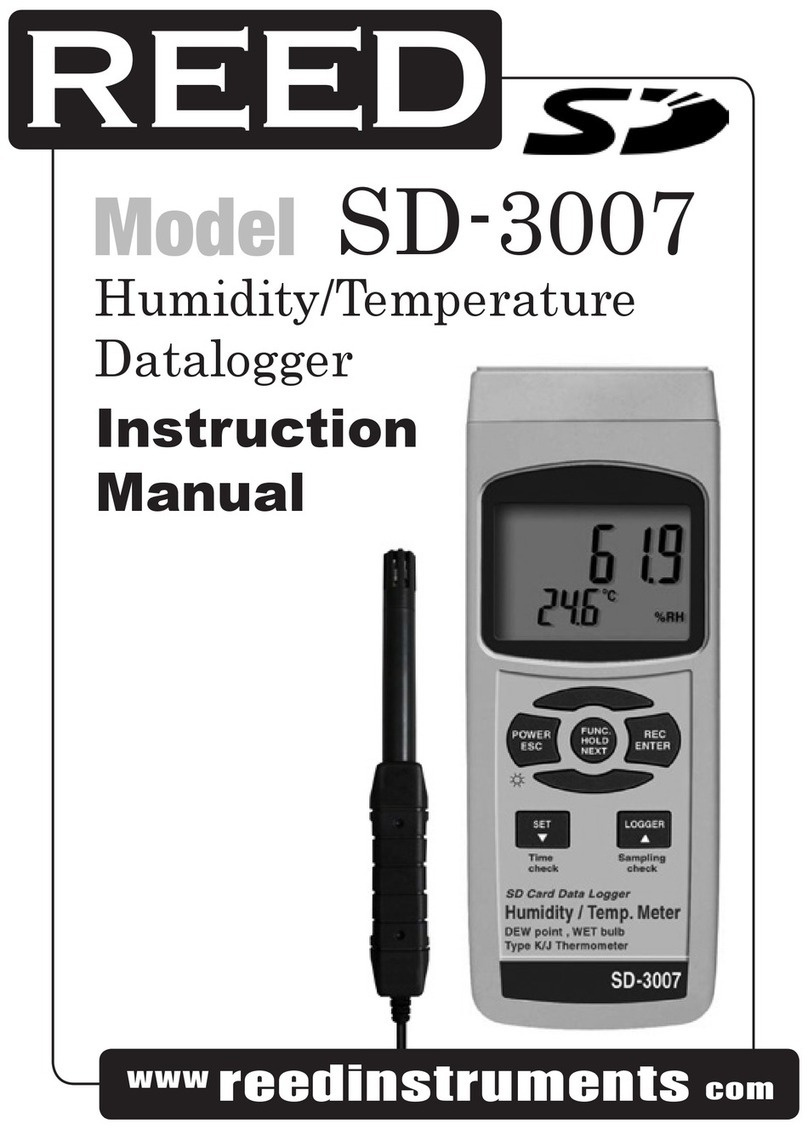
1) Start Datalogging; press the REC Button, and the “REC” symbol
will appear on the LCD screen, then press the Logger Button, the
“REC” symbol will ash while the measuring data and time informa-
tion is being saved in memory. To set the sampling time, and to
toggle the beeper sound on or off, refer to the Advanced Settings
section of this manual.
2) Pause the Datalogging; while Datalogging, if press the Logger But-
ton once. While paused, the “REC” symbol will stop ashing. Press
the Logger Button again to resume Datalogging, and the “REC”
symbol will begin to ash again.
3) Stop Datalogging; while the Datalogger function is paused, press
the REC Button for 2 seconds. The “REC” symbol will disappear
indicating the Datalogging function has stopped.
Manual Datalogger (Set sampling time = 0 seconds)
1) Set sampling time is to 0 second; Press the REC Button, and the
“REC” symbol will appear on the LCD screen.
Press the Logger Button, and the “REC” symbol will ash once and
one Beep will sound, at the same time the measuring data along
continued...
1.888.475.5235info@REED-Direct.com REED-Direct.com