manuals.online logo
Brands
  1. Home
  2. •
  3. Brands
  4. •
  5. Rubicon
  6. •
  7. Gateway
  8. •
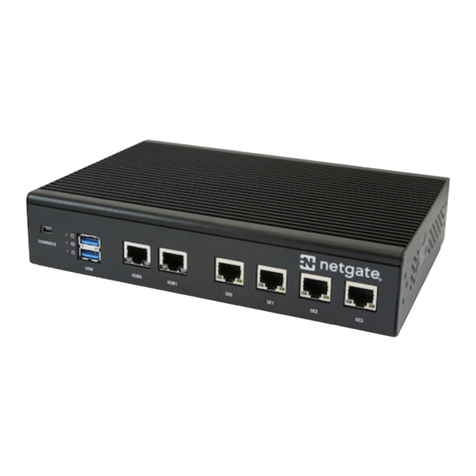
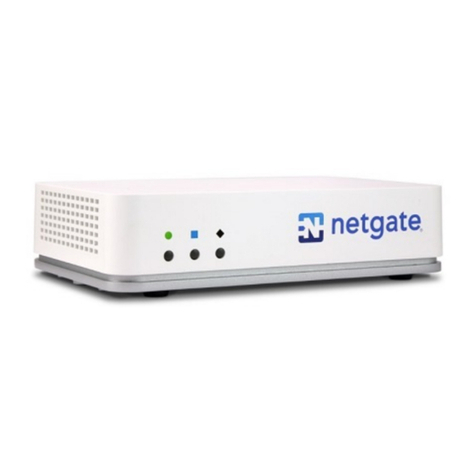
  9. Rubicon netgate SG-1100 User manual

Rubicon netgate SG-1100 User manual

Other Rubicon Gateway manuals

Rubicon Netgate-8200 User manual

Rubicon

Rubicon Netgate-8200 User manual

Rubicon Netgate SG-5100 User manual

Rubicon

Rubicon Netgate SG-5100 User manual

Rubicon Netgate SG-2100 User manual

Rubicon

Rubicon Netgate SG-2100 User manual

Rubicon netgate XG-7100 User manual

Rubicon

Rubicon netgate XG-7100 User manual

Rubicon Netgate-4200 User manual

Rubicon

Rubicon Netgate-4200 User manual

Popular Gateway manuals by other brands

Telecom FM onestream gfx Programming guide

Telecom FM

Telecom FM onestream gfx Programming guide

UfiSpace LoRa GPE810U Quick setup guide

UfiSpace

UfiSpace LoRa GPE810U Quick setup guide

Merak MMk-736F Quick setup guide

Merak

Merak MMk-736F Quick setup guide

Robustel R3010 user guide

Robustel

Robustel R3010 user guide

turck BL20-PG-EN-V3 user manual

turck

turck BL20-PG-EN-V3 user manual

IBM Security Web Gateway Appliance quick start guide

IBM

IBM Security Web Gateway Appliance quick start guide

SSS Siedle Smart Gateway Commissioning instructions

SSS Siedle

SSS Siedle Smart Gateway Commissioning instructions

ADTRAN 424RG Installation

ADTRAN

ADTRAN 424RG Installation

Chorus Hyperfibre XGS-250WX-A user guide

Chorus

Chorus Hyperfibre XGS-250WX-A user guide

Dragino G308 user manual

Dragino

Dragino G308 user manual

Data Domain DD690g Installation and setup guide

Data Domain

Data Domain DD690g Installation and setup guide

Raritan Laptop Release notes

Raritan

Raritan Laptop Release notes

Haivision Torpedo quick start guide

Haivision

Haivision Torpedo quick start guide

ATCOM AG-268 user manual

ATCOM

ATCOM AG-268 user manual

LST M500RFE-AS Specification sheet

LST

LST M500RFE-AS Specification sheet

Vega VEGA BS-3 user manual

Vega

Vega VEGA BS-3 user manual

Kinnex Media Gateway quick start guide

Kinnex

Kinnex Media Gateway quick start guide

2N Telekomunikace 2N StarGate user manual

2N Telekomunikace

2N Telekomunikace 2N StarGate user manual

manuals.online logo
manuals.online logoBrands
  • About & Mission
  • Contact us
  • Privacy Policy
  • Terms and Conditions

Copyright 2025 Manuals.Online. All Rights Reserved.

Security Gateway Manual
SG-1100
© Copyright 2021 Rubicon Communications LLC
Mar 29, 2021
CONTENTS
1 Out of the Box 2
2 How-To Guides 20
3 References 55
i
Security Gateway Manual SG-1100
This Quick Start Guide covers the first time connection procedures for the Netgate® SG-1100 Firewall Appliance and
will provide the information needed to keep the appliance up and running.
Tip: Before getting started, we recommend downloading the PDF version of the Product Manual and the PDF version
of the pfSense Documentation in case you lose Internet access.
© Copyright 2021 Rubicon Communications LLC 1
CHAPTER
ONE
OUT OF THE BOX
1.1 Getting Started
The basic firewall configuration begins with connecting the Netgate® appliance to the Internet. The Netgate appliance
should be unplugged at this time.
Connect one end of an Ethernet cable to the WAN port (shown in the Input and Output Ports section) of the Netgate
appliance. The other end of the same cable should be inserted into a port of the Cable or DSL modem. The modem
provided by the ISP should have multiple LAN ports. Any port should work.
Next, connect one end of a second Ethernet cable to the LAN port (shown in the Input and Output Ports section) of
the Netgate appliance. Connect the other end to the computer.
2
Security Gateway Manual SG-1100
Warning: The default IP Address on the LAN subnet on the Netgate firewall is 192.168.1.1/24. The same
subnet cannot be used on both WAN and LAN, so if the default IP address on the ISP-supplied modem is also
192.168.1.1/24,disconnect the WAN interface until the LAN interface on the firewall has been renumbered
to a different subnet (like 192.168.2.1/24) to avoid an IP Address conflict.
To change an interface IP address, choose option 2 from the Console Menu and walk through the steps to change
it, or from the WebGUI, go through the Setup Wizard (opens at first boot, also found at System -> Setup Wizard)
and change the IP address on Step 5. Complete the Wizard and save the changes.
1.2 Initial Configuration
Plug the power cable into the power port (shown in the Input and Output Ports section) to turn on the Netgate®
Firewall. Allow 4 or 5 minutes to boot up completely.
Warning: If your DSL or Cable Modem has a default IP Address of 192.168.1.1, please disconnect the Ethernet
cable from the WAN port on your SG-1100 Netgate Security Gateway before proceeding. You will need to change
the default IP Address of the device during a later step in the configuration.
1. From the computer, log into the Web Interface
Open a web browser (Google Chrome in this example) and type in 192.168.1.1 on the address bar. Press
Enter.
Fig. 1: Enter the Default LAN IP Address
2. A warning message may appear. If this message or similar message is encountered, it is safe to proceed. Click
the Advanced Button and the click Proceed to 192.168.1.1 (unsafe) to continue.
3. At the Sign In page, enter the default pfSense®Plus username and password and click Next.
• Default Username: admin
• Default Password: pfsense
1.2.1 The Setup Wizard
The following steps will step through the Setup Wizard for the initial configuration of the firewall.
Note: Ignore the warning to reset the ‘admin’ account password. One of the steps in the Setup Wizard is to change
the default password.
1. Click Next to start the Setup Wizard.
2. Click Next after you have read the information on Netgate Global Support.
© Copyright 2021 Rubicon Communications LLC 3

Security Gateway Manual SG-1100
Fig. 2: Click Advanced and then Proceed to 192.168.1.1 (unsafe)
Fig. 3: Click Next
© Copyright 2021 Rubicon Communications LLC 4
Security Gateway Manual SG-1100
3. On the General Information page, use the following as a guide to configure the firewall.
Hostname: Any desired name can be entered. For the purposes of this guide, the default hostname pfsense
is used.
Domain: The default localdomain is used for the purposes of this tutorial.
DNS Servers: For purposes of this setup guide, use the Google public DNS servers (8.8.8.8 and 8.8.4.4).
Fig. 4: Type in the DNS Server information and Click Next
4. Use the following information for the Time Server Information page.
Time Server Hostname: Use the default time server address.
Timezone: Select the time zone for the location of the firewall. For this guide, the Timezone will be set to
America/Chicago for US Central time.
5. The WAN interface is the Public IP address the network will use to communicate with the Internet. Use the
following information for the WAN configuration page.
DHCP is the default and is the most common type of interface for home cable modems.
Default settings for the other items on this page should be acceptable for normal home users.
6. Configuring LAN IP Address & Subnet Mask. The default LAN IP address of 192.168.1.1 and subnet mask
of 24 is usually sufficient.
Tip: If your DSL or Cable Modem has a default IP Address of 192.168.1.1, change the IP Address of your
SG-1100 Netgate Security Gateway to a different subnet, such as 192.168.2.1 with a subnet mask of 24 to
avoid an IP Address conflict.
© Copyright 2021 Rubicon Communications LLC 5
Security Gateway Manual SG-1100
Fig. 5: Change the Timezone and Click Next
Fig. 6: Default Settings Should be Acceptable. Click Next
© Copyright 2021 Rubicon Communications LLC 6
Security Gateway Manual SG-1100
7. Change the Admin Password. Enter the same password in both fields.
8. Click Reload to save the configuration.
9. After a few seconds, a message will indicate the Setup Wizard has completed. To proceed to the pfSense®Plus
dashboard, click Finish.
10. A final notification screen will appear with the Copyright and Trademark Notices. Read and click Accept
to continue to the dashboard.
Fig. 7: Read and Click Accept
If you unplugged the Ethernet cable at the beginning of this configuration, reconnect it to the WAN port now.
This completes the basic configuration for the Netgate appliance.
© Copyright 2021 Rubicon Communications LLC 7
Security Gateway Manual SG-1100
1.3 pfSense Plus Overview
This page provides an overview of the pfSense®Plus dashboard and navigation. It also provides information on how to
perform frequent tasks such as backing up the pfSense®Plus software and connecting to the Netgate firewall console.
1.3.1 The Dashboard
pfSense®Plus software is highly configurable, all of which can be done through the dashboard. This orientation will
help to navigate and further configure the firewall.
Fig. 8: The pfSense®Plus Dashboard
Section 1 shows important system information such as the model, Serial Number, and Netgate Device ID for this
Netgate firewall.
Section 2 identifies what version of pfSense®Plus software is installed, and if an update is available.
Section 3 describes Netgate Service and Support.
Section 4 shows the various menu headings. Each menu heading has drop-down options for a wide range of configu-
ration choices.
© Copyright 2021 Rubicon Communications LLC 8