manuals.online logo
Brands
  1. Home
  2. •
  3. Brands
  4. •
  5. Ruckus Wireless
  6. •
  7. Network Router
  8. •
  9. Ruckus Wireless MediaFlex NG User manual

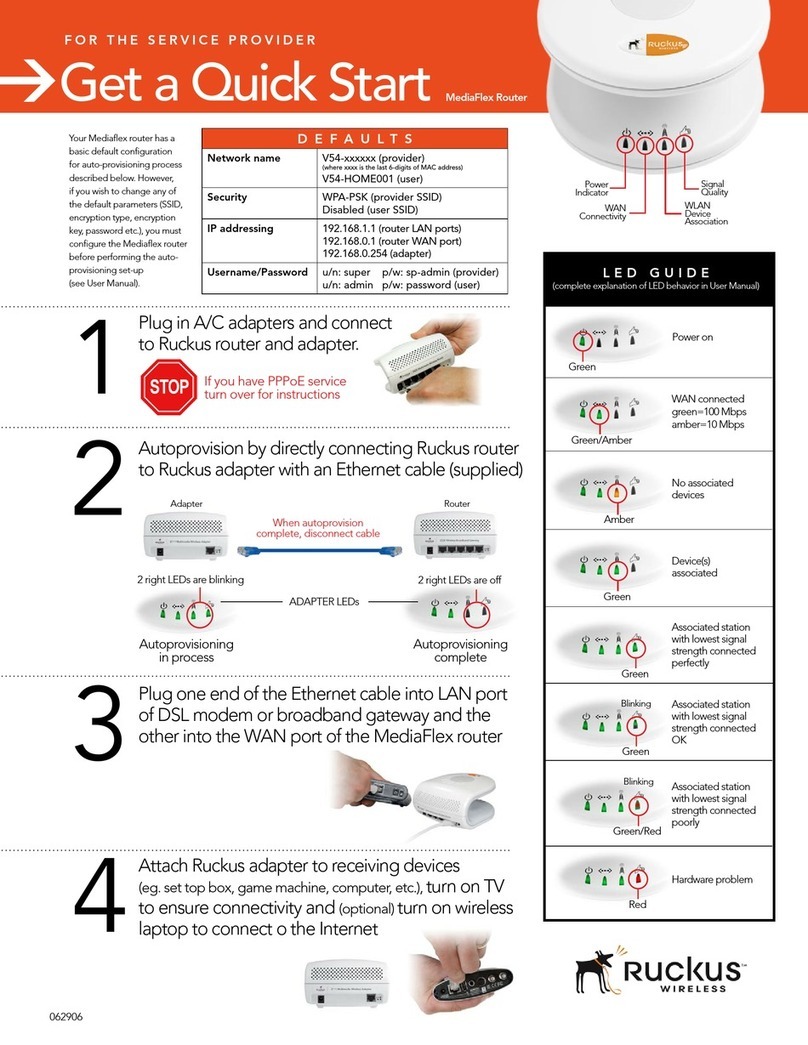
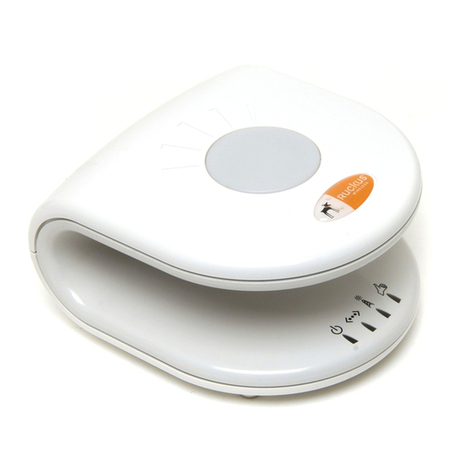
Ruckus Wireless MediaFlex NG User manual

Other Ruckus Wireless Network Router manuals

Ruckus Wireless ZoneFlex P300 Installation instructions manual

Ruckus Wireless

Ruckus Wireless ZoneFlex P300 Installation instructions manual

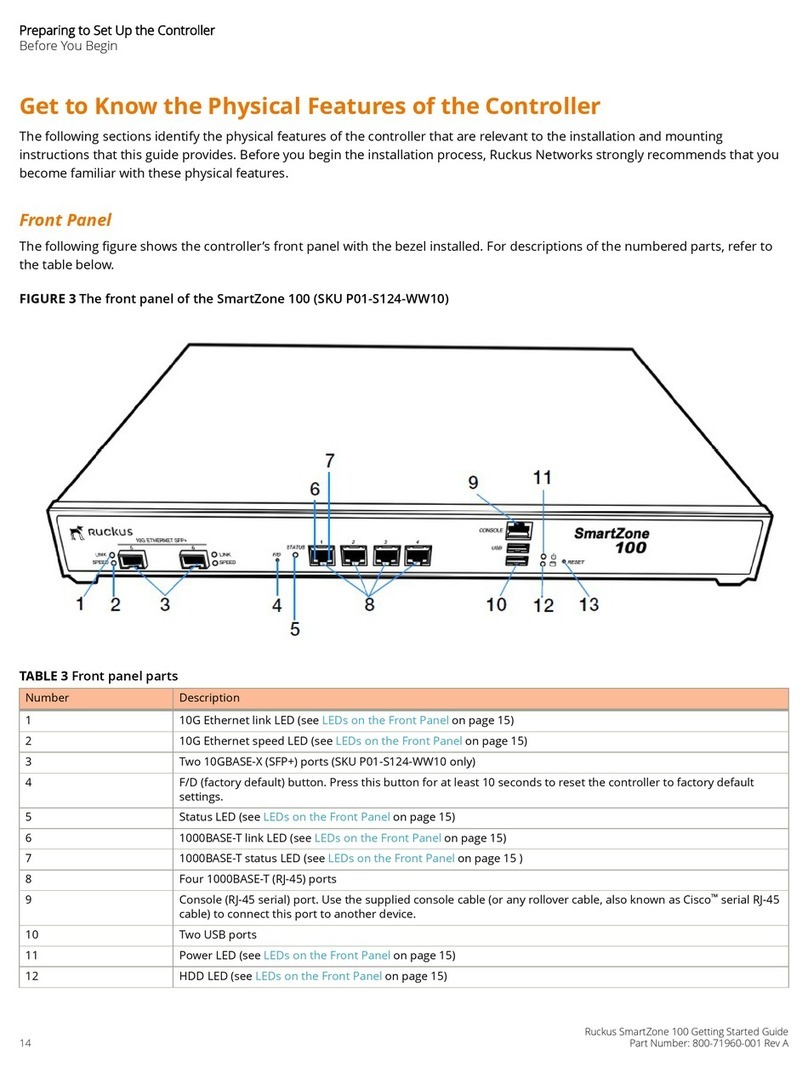
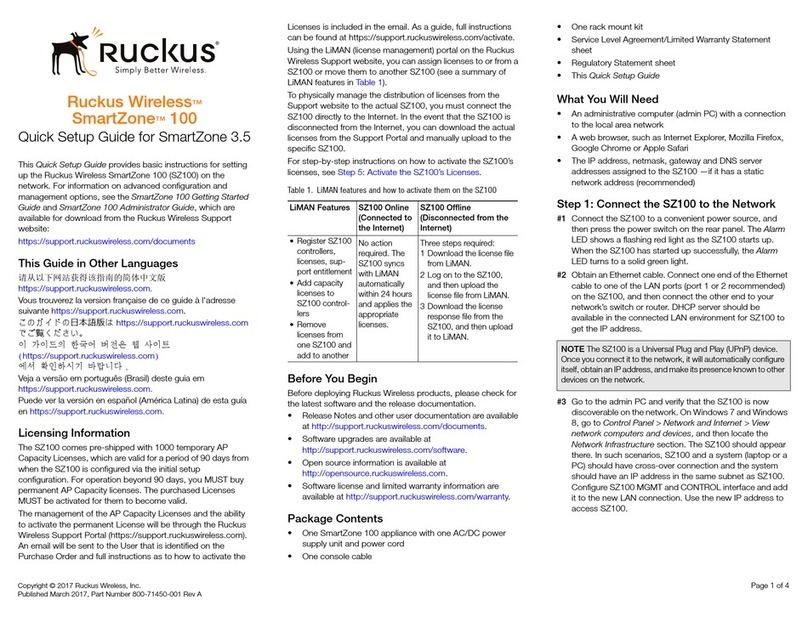
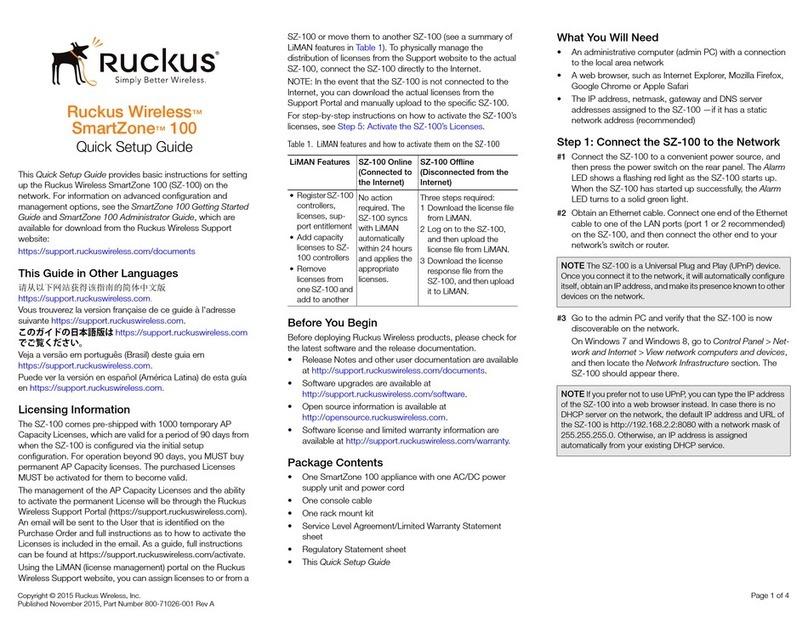
Ruckus Wireless SmartZone 100 User manual

Ruckus Wireless

Ruckus Wireless SmartZone 100 User manual

Ruckus Wireless SmartZone 100 User manual

Ruckus Wireless

Ruckus Wireless SmartZone 100 User manual

Ruckus Wireless 2825 User manual

Ruckus Wireless

Ruckus Wireless 2825 User manual

Ruckus Wireless SmartZone 100 User manual

Ruckus Wireless

Ruckus Wireless SmartZone 100 User manual

Ruckus Wireless 2825 User manual

Ruckus Wireless

Ruckus Wireless 2825 User manual

Ruckus Wireless ICX 7150-C12P Manual

Ruckus Wireless

Ruckus Wireless ICX 7150-C12P Manual

Ruckus Wireless ZoneDirector 1200 User manual

Ruckus Wireless

Ruckus Wireless ZoneDirector 1200 User manual

Ruckus Wireless SmartZone 3.2 User manual

Ruckus Wireless

Ruckus Wireless SmartZone 3.2 User manual

Ruckus Wireless Ruckus ICX 7150 Series Manual

Ruckus Wireless

Ruckus Wireless Ruckus ICX 7150 Series Manual

Ruckus Wireless MediaFlex 2111 User manual

Ruckus Wireless

Ruckus Wireless MediaFlex 2111 User manual

Ruckus Wireless ZoneFlex 7731 User manual

Ruckus Wireless

Ruckus Wireless ZoneFlex 7731 User manual

Ruckus Wireless ZoneDirector Series User manual

Ruckus Wireless

Ruckus Wireless ZoneDirector Series User manual

Ruckus Wireless ICX Series User manual

Ruckus Wireless

Ruckus Wireless ICX Series User manual

Ruckus Wireless SmartZone 100 User manual

Ruckus Wireless

Ruckus Wireless SmartZone 100 User manual

Ruckus Wireless MF2900 User manual

Ruckus Wireless

Ruckus Wireless MF2900 User manual

Popular Network Router manuals by other brands

TRENDnet TEW-435BRM - 54MBPS 802.11G Adsl Firewall M Quick installation guide

TRENDnet

TRENDnet TEW-435BRM - 54MBPS 802.11G Adsl Firewall M Quick installation guide

Siemens SIMOTICS CONNECT 400 manual

Siemens

Siemens SIMOTICS CONNECT 400 manual

Alfa Network ADS-R02 Specifications

Alfa Network

Alfa Network ADS-R02 Specifications

Barracuda Networks Link Balancer quick start guide

Barracuda Networks

Barracuda Networks Link Balancer quick start guide

ZyXEL Communications ES-2024PWR Support notes

ZyXEL Communications

ZyXEL Communications ES-2024PWR Support notes

HPE FlexNetwork 5510 HI Series Openflow configuration guide

HPE

HPE FlexNetwork 5510 HI Series Openflow configuration guide

Allied Telesis AT-AR236E quick start guide

Allied Telesis

Allied Telesis AT-AR236E quick start guide

ADTRAN NetVanta 3458-PoE quick start

ADTRAN

ADTRAN NetVanta 3458-PoE quick start

C&H Technologies EM405-8 manual

C&H Technologies

C&H Technologies EM405-8 manual

Huawei WiFi Mesh 3 Product description

Huawei

Huawei WiFi Mesh 3 Product description

Addonics Technologies ISC8P2G-S Quick install guide

Addonics Technologies

Addonics Technologies ISC8P2G-S Quick install guide

Atel W02 Arch+ Faqs

Atel

Atel W02 Arch+ Faqs

Allnet ALL0333AU user guide

Allnet

Allnet ALL0333AU user guide

Sercomm Genesis OC3505D Quick installation guide

Sercomm

Sercomm Genesis OC3505D Quick installation guide

Billion BIPAC 5102 Series user manual

Billion

Billion BIPAC 5102 Series user manual

TP-Link TD-8817 QIG

TP-Link

TP-Link TD-8817 QIG

Motorola MR1900 user guide

Motorola

Motorola MR1900 user guide

Cisco SOHO Series Regulatory compliance and safety information

Cisco

Cisco SOHO Series Regulatory compliance and safety information

manuals.online logo
manuals.online logoBrands
  • About & Mission
  • Contact us
  • Privacy Policy
  • Terms and Conditions

Copyright 2025 Manuals.Online. All Rights Reserved.

PREPARE YOUR COMPUTER
1
MediaFlex NG 802.11b/g Wireless Multimedia Router Model VF2825
Quick Installation Guide
IMPORTANT: The full Ruckus Wireless MediaFlex NG User Manual is
available at: http://support.ruckuswireless.com/documents
• Ruckus VF2825 5-port multimedia wireless router
• AC power adapter
• Category 5 Ethernet cable
• Quick installation guide (this document)
• SupportMinds support card (for additional technical support)
BEFORE YOU BEGIN
Your Ruckus MediaFlex NG is a full-function wireless router and has a basic default
configuration (see table). However, if you wish to change any of the default parameters
such as SSID (network name), encryption type, encryption key, password, etc., you
must log into the device.
PLEASE NOTE: If you have a connection that requires you to configure a static IP address
or a type of connection that requires a PPPoE username and password, you must log into
the Ruckus MediaFlex NG SETTINGS -> NETWORK to configure these parameters.
4. Within the LOCAL AREA NETWORK CONNECTION dialog box, scroll
down to Internet Protocol (TCP/IP) and double-click on it to bring up the
Properties for this setting.
5. Select the radio button marked OBTAIN an IP ADDRESS AUTOMATICALLY
then click OK to close the dialog box. Then click OK to close the LOCAL
AREA CONNECTIONS Properties dialog box.
Perform one of the following procedures on your PC/laptop based on the
operating system you are running:
Windows 2000:
1. Click START and choose SETTINGS -> NETWORK AND DIAL-UP
CONNECTIONS to open the control panel. When the Network and
Dial-up Connections dialog box appears, proceed to Step 2.
Windows XP:
1. Click START and choose SETTINGS -> CONTROL PANEL. (Note: If the
"PICK A CATEGORY" dialog box appears, click "Switch to Classic View".)
2. Within the CONTROL PANEL dialog box, double-click NETWORK
CONNECTIONS.
3. Within the NETWORK CONNECTIONS dialog box, right-click on the
LOCAL AREA CONNECTION icon and choose Properties.
ALERT! Make sure you do not open the Properties dialog box for the
wireless network.
1. Open your Web
brower and enter:
http://192.168.20.1
into the address
field (bar).
2. Depending on the
type of browser
used, a “Certificate
Warning” dialog
box may appear,
click OK to proceed
Network Name (SSID) V54-HOME001
Security Disabled
IP Addressing 192.168.20.1 (router LAN ports) 192.168.0.1 (router WAN port)
Username/Password Username: admin Password: password
CONNECT THE RUCKUS MEDIAFLEX NG TO YOUR PC
2
CONFIGURE THE RUCKUS MEDIAFLEX NG
3
3. A second “Domain
Warning” dialog box
may appear, click OK
to proceed.
4. A Ruckus log-in
page will appear.
To proceed, enter
"admin" in the user
field and "password"
in the password field
(omitting quotation
marks).
WHAT’S INSIDE THE BOX
Before beginning this step, ensure that your PC is configured to obtain an
IP address automatically (see Step 1) and that you have the setup information
for your specific type of Internet connection (e.g., PPPoE or DHCP). If not,
contact your ISP to request the settings (e.g., PPPoE login/password or static
IP address).
1. Power off all network hardware, including your broadband gateway, PCs,
cable or DSL modems.
2. Connect one end of an Ethernet cable to the LAN port labeled “1” on the
back of the Ruckus MediaFlex NG and connect the other end of the cable
to your PC.
3. Connect another Ethernet cable from the WAN port (the farthest right) on
the Ruckus MediaFlex NG to your cable or DSL modem.
4. Power on your cable or DSL modem.
5. Connect the power cable to the Ruckus MediaFlex NG.
6. After approximately 60 seconds, check to see that the far two left LEDs
on the Ruckus MediaFlex NG are illuminated solid green (if not, repeat
Step 2).
MediaFlex
PC
MediaFlex
DSL
modem

CONFIGURE YOUR WIRELESS NETWORK
4
5. Within the left-hand navigation under CONFIGURATION, click INTERNET.
6. Within the "Configure :: Internet" screen, click the Connection Type
radio button that corresponds with the type of Internet service you
have (e.g., DHCP, Static IP, or PPPoE).
PLEASE NOTE: If DHCP or PPPoE is selected, you do not have to
enter any addressing information (e.g., Gateway, DNS, etc.). Please
ignore the 192.168.0.1 address that has been pre-populated within
the Gateway field
a. DHCP: If you are using DHCP, ensure the DHCP radio button is
highlighted. Once this is complete, click UPDATE SETTINGS.
b. PPPoE: If you are using a PPPoE connection, click the PPPoE radio
button, then enter the username and password provided by your ISP.
Once this is complete, click UPDATE SETTINGS.
c. STATIC IP: If you are using a static IP address connection, click on the Static IP
radio button. Enter the IP address,Subnet Mask, Gateway and DNS server
information as provided by your ISP. Once this is complete,click UPDATE
SETTINGS.
1. Within the "Configure :: Wireless" screen, under COMMON settings,choose
your appropriate Country Code (if necessary). NOTE: It is recommended that
you leave the Wireless and Channel settings at their defaults.
2. Click on the Data WLAN tab within the "Configure :: Wireless" screen.
3. Configure your SSID (network name) and desired security settings (consult
the online user manual for detailed information regarding options for these
settings).
NOTE: If broadcast SSID is set to "enable",it can be seen by other Wi-Fi
devices.If it is off,users will need to enter the name of the network to connect.
4. Click UPDATE SETTINGS.
Your Ruckus MediaFlex NG is now able to accept client connections
and is ready for use.
NOTE: If connection problems occur,additional configuration may need to be
performed locally on your PC or other Wi-Fi clients.
Part# 800-70110-001
Power Indicator
WAN Connectivity WLAN Device
Association
Signal Quality
MediaFlex NG
802.11b/g Wireless Multimedia Router
Model VF2825