manuals.online logo
Brands
  1. Home
  2. •
  3. Brands
  4. •
  5. Samsung
  6. •
  7. All In One Printer
  8. •
  9. Samsung SCX-5112 User manual

Samsung SCX-5112 User manual

This manual suits for next models

1

Other Samsung All In One Printer manuals

Samsung SCX-3400 User manual

Samsung

Samsung SCX-3400 User manual

Samsung SCX 4500 - B/W Laser - All-in-One User guide

Samsung

Samsung SCX 4500 - B/W Laser - All-in-One User guide

Samsung SF-830 User manual

Samsung

Samsung SF-830 User manual

Samsung scx-4100 series User manual

Samsung

Samsung scx-4100 series User manual

Samsung SCX-4720FN User manual

Samsung

Samsung SCX-4720FN User manual

Samsung MultiXpress C8380ND User manual

Samsung

Samsung MultiXpress C8380ND User manual

Samsung M387 User manual

Samsung

Samsung M387 User manual

Samsung SCX-4521FG - B/W Laser - All-in-One User guide

Samsung

Samsung SCX-4521FG - B/W Laser - All-in-One User guide

Samsung CLX-9250ND User manual

Samsung

Samsung CLX-9250ND User manual

Samsung SCX-4x24 Series User manual

Samsung

Samsung SCX-4x24 Series User manual

Samsung SF-565PR User manual

Samsung

Samsung SF-565PR User manual

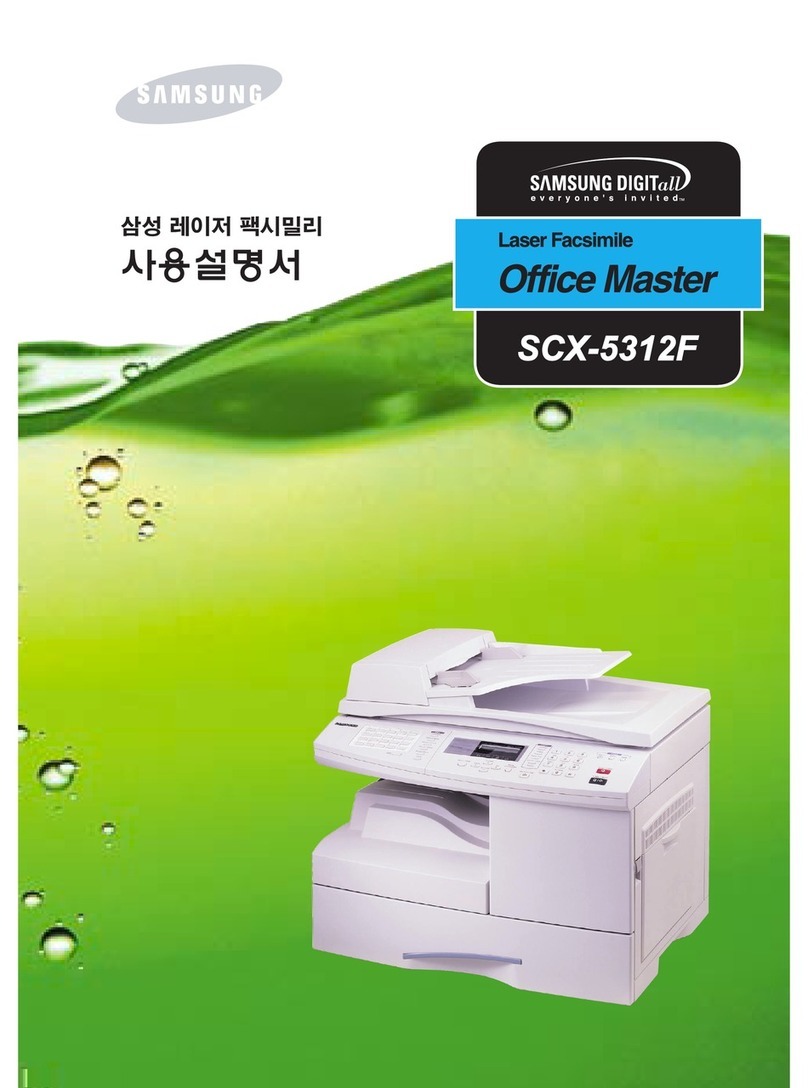
Samsung Office Master SCX-5312F User guide

Samsung

Samsung Office Master SCX-5312F User guide

Samsung SF-5800P User manual

Samsung

Samsung SF-5800P User manual

Samsung CLX-4195FW User manual

Samsung

Samsung CLX-4195FW User manual

Samsung SCX 6555N - MultiXpress Mono Multifunction User manual

Samsung

Samsung SCX 6555N - MultiXpress Mono Multifunction User manual

Samsung SL-M2875FD User manual

Samsung

Samsung SL-M2875FD User manual

Samsung SCX-5x30 User manual

Samsung

Samsung SCX-5x30 User manual

Samsung CLX-3175FW - Color Laser Multifunction... User manual

Samsung

Samsung CLX-3175FW - Color Laser Multifunction... User manual

Samsung CLX-3300 User manual

Samsung

Samsung CLX-3300 User manual

Samsung SF 560R - ELECTRONICS , INC. Laser... User guide

Samsung

Samsung SF 560R - ELECTRONICS , INC. Laser... User guide

Samsung SF 560R - ELECTRONICS , INC. Laser... User manual

Samsung

Samsung SF 560R - ELECTRONICS , INC. Laser... User manual

Samsung SCX 4500W - Personal Wireless Laser Multi-Function... User manual

Samsung

Samsung SCX 4500W - Personal Wireless Laser Multi-Function... User manual

Samsung Xpress C480 Series User manual

Samsung

Samsung Xpress C480 Series User manual

Samsung SCX-5635FN - Mono Laser P/s/c/f USB Enet 1200X1200 128MB... User manual

Samsung

Samsung SCX-5635FN - Mono Laser P/s/c/f USB Enet 1200X1200 128MB... User manual

Popular All In One Printer manuals by other brands

Brother MFC-J220 Basic user's guide

Brother

Brother MFC-J220 Basic user's guide

Brother MFC-8510DN Basic user's guide

Brother

Brother MFC-8510DN Basic user's guide

Ricoh Aficio FX200 Service training

Ricoh

Ricoh Aficio FX200 Service training

Olivetti d-Copia 16W Operation manual

Olivetti

Olivetti d-Copia 16W Operation manual

Konica Minolta bizhub C3850FS user guide

Konica Minolta

Konica Minolta bizhub C3850FS user guide

Konica Minolta bizhub 758 manual

Konica Minolta

Konica Minolta bizhub 758 manual

Lexmark MX310 Series Service manual

Lexmark

Lexmark MX310 Series Service manual

Ricoh Aficio 3224C operating instructions

Ricoh

Ricoh Aficio 3224C operating instructions

Sagem MF 3625 user manual

Sagem

Sagem MF 3625 user manual

Epson Epson Stylus NX530 quick guide

Epson

Epson Epson Stylus NX530 quick guide

Brother MFC9800 - MFC 9800 B/W Laser owner's manual

Brother

Brother MFC9800 - MFC 9800 B/W Laser owner's manual

Konica Minolta 7033 instruction manual

Konica Minolta

Konica Minolta 7033 instruction manual

Ricoh Aficio MP 161F operating instructions

Ricoh

Ricoh Aficio MP 161F operating instructions

Epson WorkForce WF-2510 Basic guide

Epson

Epson WorkForce WF-2510 Basic guide

Epson Stylus Scan 2000 Product information guide

Epson

Epson Stylus Scan 2000 Product information guide

Epson PictureMate Snap PM 240 Start here

Epson

Epson PictureMate Snap PM 240 Start here

Brother MFC-J430w user guide

Brother

Brother MFC-J430w user guide

Konica Minolta BIZHUB 558 Quick reference guide

Konica Minolta

Konica Minolta BIZHUB 558 Quick reference guide

manuals.online logo
manuals.online logoBrands
  • About & Mission
  • Contact us
  • Privacy Policy
  • Terms and Conditions

Copyright 2025 Manuals.Online. All Rights Reserved.

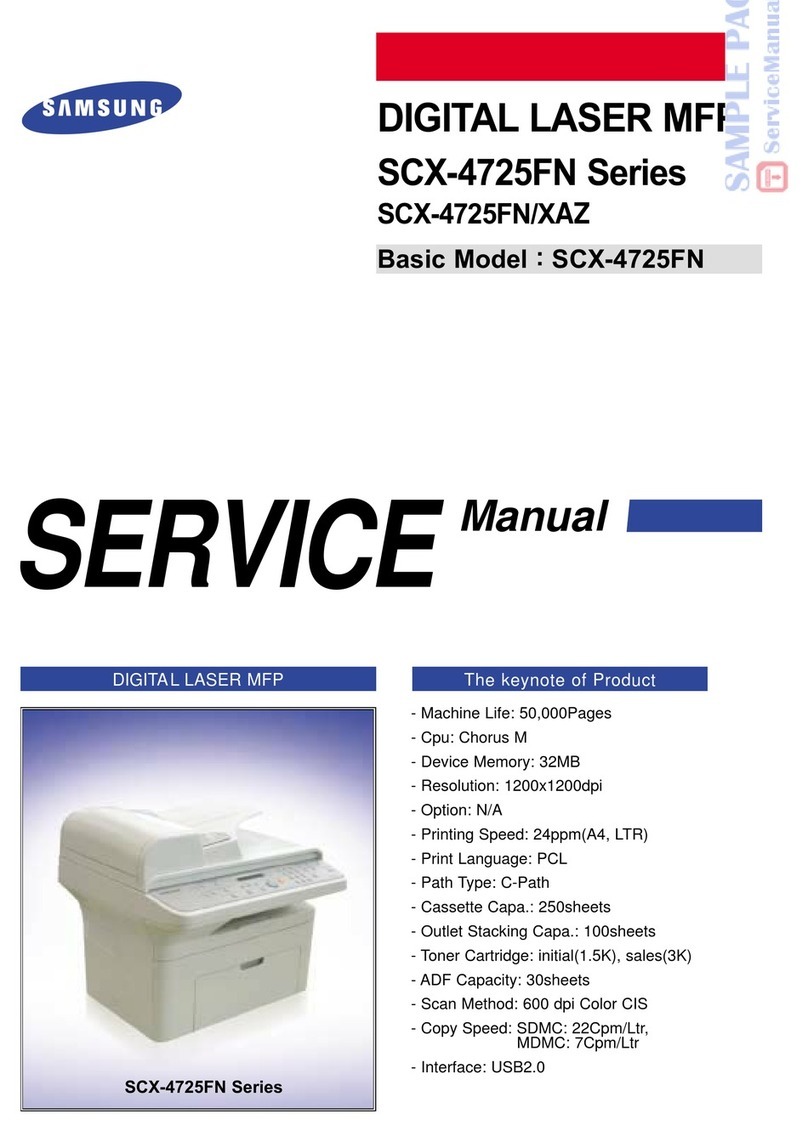
SCX-5312F/5112 User’s Guide
Home
Visit us at:
www.samsungelectronics.com/mfp P/N: JC68-00851A Rev. 2.00
i
C
ONTENTS
Chapter 1:
G
ETTING
STARTED
Unpacking .......................................................... 1.2
Component Location ............................................ 1.4
Front View ..................................................... 1.4
Rear View ...................................................... 1.5
Control Panel Functions ........................................ 1.6
SC -5312F .................................................... 1.6
SC -5112 ...................................................... 1.9
Making Connections ............................................ 1.11
Installing Drum and Toner Cartridges .................... 1.14
Turning the Product On ....................................... 1.17
Loading Paper .................................................... 1.17
Setting the Paper Size ......................................... 1.20
Changing the Display Language ............................ 1.20
Using Save Mode ................................................ 1.21
Toner Save ................................................... 1.21
Paper Save ................................................... 1.21
Power Save ................................................... 1.22
Chapter 2:
I
NSTALLING
S
OFTWARE
About Samsung Software ..................................... 2.2
MFP Driver ..................................................... 2.2
SmarThru Software ......................................... 2.2
OCR Software (AnyPage Lite) ........................... 2.2
System Requirements .......................................... 2.3
Installing Samsung Software ................................. 2.4
Configuring Fax and Internet Gates ........................ 2.8
Uninstalling Samsung Software ............................ 2.12
Uninstalling the MFP Driver ............................. 2.12
Uninstalling Samsung SmarThru ...................... 2.14
Using the SmarThru CD-ROM .......................... 2.16
ii
Chapter 3:
P
APER
H
ANDLING
Selecting Print Media ............................................ 3.2
Paper Guidelines .................................................. 3.3
Loading Paper in Cassette ..................................... 3.4
Using the Bypass Tray .......................................... 3.6
Setting the Paper Size for Copying ......................... 3.9
Chapter 4:
C
OPYING
Loading Paper for Copy Output .............................. 4.2
Selecting Paper Tray ............................................ 4.2
Making Copies from the Automatic Document Feeder 4.3
Making Copies on the Document Glass .................... 4.4
Setting Copy Options ........................................... 4.6
Image ........................................................... 4.6
Contrast ........................................................ 4.6
Set ............................................................... 4.7
Zoom ............................................................ 4.7
Auto Fit .............................................................. 4.8
Clone ................................................................. 4.9
Duplex Copy ...................................................... 4.10
Collation Copy .................................................... 4.11
Chapter 5:
P
RINTING
Printing a Document ............................................ 5.2
Printer Settings ................................................... 5.3
Accessing Printer Settings ................................ 5.3
Printer Properties Tabs .................................... 5.4
Printer Properties Buttons & Icons .................... 5.12
Chapter 6:
S
CANNING
Scanning using the Samsung SmarThru .................. 6.2
Scanning Process with TWAIN-enabled Software ...... 6.4
iii
Chapter 7:
M
AINTENANCE
Cleaning the Scan Unit ......................................... 7.2
Expected Cartridge Life ........................................ 7.3
Replacing the Toner Cartridge ............................... 7.3
Setting to Notify Toner Low ................................... 7.7
Cleaning the Drum ............................................... 7.8
Replacing the Drum Cartridge ............................... 7.8
Consumables and Replacement Parts .................... 7.11
Chapter 8:
T
ROUBLESHOOTING
Document Jams ................................................... 8.2
Input Misfeed ................................................. 8.2
Exit Misfeed ................................................... 8.3
Roller Misfeed ................................................ 8.3
Paper Jams ......................................................... 8.4
Paper Feed Area ............................................. 8.4
Fuser Area ..................................................... 8.6
Paper Exit Area .............................................. 8.7
Duplex Jam .................................................... 8.9
Bypass Jam .................................................. 8.10
LCD Error Messages ............................................ 8.11
Solving Problems ................................................ 8.13
Copier Problem Solution Chart ......................... 8.13
Printing Problem Solution Chart ....................... 8.15
Fax Problem Solution Chart ............................. 8.18
Chapter 9:
A
PPENDIX
General Specifications .......................................... 9.2
Scanner and Copy Specifications ............................ 9.3
Printer Specifications ............................................ 9.4
Facsimile Specifications ........................................ 9.4
I
NDEX
iv
Important Preca tions and Safety Information
When using this product, these basic safety precautions should always be followed to
reduce risk of fire, electric shock, and injury to persons:
1. Read and understand all instructions.
2. Use common sense whenever operating electrical appliances.
3. Follow all warnings and instructions marked on the product and in the literature
accompanying the product.
4. If an operating instruction appears to conflict with safety information, heed the
safety information. You may have misunderstood the operating instruction. If you
cannot resolve the conflict, contact your sales or service representative for
assistance.
5. Unplug the product from the AC wall socket and/or telephone jack before
cleaning. Do not use liquid or aerosol cleaners. Use only a damp cloth for
cleaning.
6. Do not place the product on an unstable cart, stand, or table. It may fall, causing
serious damage.
7. Your product should never be placed on, near, or over a radiator, heater, air
conditioner, or ventilation duct.
8. Do not allow anything to rest on the power. Do not locate your product where the
cords will be abused by persons walking on them.
9. Do not overload wall outlets and extension cords. This can diminish performance,
and may result in the risk of fire or electric shock.
10. Do not allow pets to chew on the AC power, telephone, or PC interface cords.
11. Never push objects of any kind into the product through case or cabinet openings.
They may touch dangerous voltage points, creating a risk of fire or shock. Never
spill liquid of any kind onto or into the product.
12. You product may have a heavy cover for optimal pressure on the document for
the best scanning and/or faxing (usually the flatbed-type product). In this case,
replace the cover after placing document on the scan glass, by holding and
moving it down slowly until it seats on its location.
13. To reduce the risk of electric shock, do not disassemble the product. Take it to a
qualified service technician when repair work is required. Opening or removing
covers may expose you to dangerous voltages or other risks. Incorrect
reassembly could cause electric shock when the unit is subsequently used.

v
14. Unplug the product from the telephone jack, PC and AC wall outlet, and refer
servicing to qualified service personnel under the following conditions:
• When any part of the power cord, plug, or connecting cable is damaged or
frayed.
• If liquid has been spilled into the product.
• If the product has been exposed to rain or water.
• If the product does not operate properly after instructions have been followed.
• If the product has been dropped, or the cabinet appears damaged.
• If the product exhibits a sudden and distinct change in performance.
15. Adjust only those controls covered by the operating instructions. Improper
adjustment of other controls may result in damage, and may require extensive
work by a qualified service technician to restore the product to normal operation.
16. Avoid using this product during a lightning storm. There may be a remote risk of
electric shock from lightning. If possible, unplug the AC power and telephone cord
for the duration of the lightning storm.
17. SAVE THESE INSTRUCTIONS.
Laser Safety Statement
The printer is certified in the U.S. to conform to the requirements of DHHS 21 CFR,
chapter 1 Subchapter J for Class I(1) laser products, and elsewhere is certified as a
Class I laser product conforming to the requirements of IEC 825.
Class I laser products are not considered to be hazardous. The laser system and
printer are designed so there is never any human access to laser radiation above a
Class I level during normal operation, user maintenance, or prescribed service
condition.
WARNING
Never operate or service the printer with the protective cover removed from Laser/
Scanner assembly. The reflected beam, although invisible, can damage your eyes.
CAUTION - INVISIBLE LASER RADIATION WHEN THIS COVER OPEN.
DO NOT OPEN THIS COVER.
VORSICHT - UNSICHTBARE LASERSTRAHLUNG, WENN ABDECKUNG
GEÖFFNET. NICHT DEM STRAHL AUSSETZEN.
ATTENTION - RAYONNEMENT LASER INVISIBLE EN CAS D’OUVERTURE.E POSITION
DAN GEREUSE AU FAISCEAU.
ATTENZIONE -RADIAZIONE LASER INVISIBILE IN CASO DI APERTURA. EVITARE
L’ESPOSIZIONE AL FASCIO.
vi
PRECAUCION -RADIACION LASER IVISIBLE CUANDO SE ABRE. EVITAR E PONERSE
AL RAYO.
ADVARSEL - USYNLIG LASERSTRÅLNING VED ÅBNING NÅR SIKKERHEDSBRYDERE
ER UDE AF FUNKTION. UNDGÅ UDSAETTELSE FOR STRÅLNING.
ADVARSEL - USYNLIG LASERSTRÅLNING NÅR DEKSEL ÅPNES. STIRR IKKE INN I
STRÅLEN. UNNGÅ EKSPONERING FOR STRÅLEN.
VARNING - OSYNLIG LASERSTRÅLNING NÄR DENNA DEL ÄR ÖPPAND OCH SPÄRREN
ÄR URKOPPLAD. BETRAKTA EJ STRÅLEN. STRÅLEN ÄR FARLIG.
VARO! - AVATTAESSA JA SUOJALUKITUS OHITETTAESSA OLET ALTTIINA
NÄKYMÄTTÖMÄLLE LASERSÄTEILYLLE ÄLÄ KATSO SÄTEESEEN.
Ozone Safety
During normal operation, this product produces ozone. The
ozone produced does not present a hazard to the operator.
However, it is advisable that the product be operated in a well
ventilated area.
If you need additional information about ozone, please request
your nearest Samsung dealer.
Power Saver
This product contains advanced energy conservation
technology that reduces power consumption when it is not
in active use.
When the product does not receive data for an extended
period of time, power consumption is automatically
lowered.
The energy star emblem does not represent EPA
endorsement of any product or service.
vii
Radio Freq ency Emissions
FCC Information to the User
This equipment has been tested and found to comply with the limits for a Class A
digital device, pursuant to Part 15 of the FCC Rules. These limits are designed to
provide reasonable protection against harmful interference when the equipment is
operated in a commercial environment. This equipment generates, uses and can
radiate radio frequency energy and, if not installed and used in accordance with the
instruction manual, may cause harmful interference to radio communications.
Operation of this equipment in a residential area is likely to cause harmful
interference in which case the user will be required to correct the interference at his
own expense.
Canadian Radio Interference Reg lations
This digital apparatus does not exceed the Class A limits for radio noise emissions
from digital apparatus as set out in the interference-causing equipment standard
entitled “Digital Apparatus”, ICES-003 of the Industry and Science Canada.
Cet appareil numérique respecte les limites de bruits radioélectriques applicables aux
appareils numériques de Classe A prescrites dans la norme sur le matériel brouilleur:
“Appareils Numériques”, ICES-003 édictée par l’Industrie et Sciences Canada.
Fax Branding
The Telephone Consumer Protection Act of 1991 makes it unlawful for any person to
use a computer or other electronic device to send any message via a telephone
facsimile machine unless such message clearly contains in a margin at the top or
bottom of each transmitted page or on the first page of the transmission the following
information:
(1) the date and time of transmission
(2) identification of either business, business entity or individual sending the
message; and
(3) telephone number of either the sending machine, business, business entity or
individual.
Refer to the Facsimile User’s Guide for instructions on how to enter this information
into your product’s memory.
viii
The Telephone Company may make changes in its communications facilities,
equipment operations, or procedures where such action is reasonably required in the
operation of its business and is not inconsistent with the rules and regulations in FCC
Part 68. If such changes can be reasonably expected to render any customer terminal
equipment incompatible with telephone company communications facilities, or
require modification or alteration of such terminal equipment, or otherwise materially
affect its use or performance, the customer shall be given adequate notice in writing,
to allow the customer an opportunity to maintain uninterrupted service.
Ringer Eq ivalence N mber
The Ringer Equivalence Number and FCC Registration Number for this product may
be found on the label located on the bottom or rear of the product. In some instances
you may need to provide these numbers to the telephone company.
The Ringer Equivalence Number (REN) is a measure of the electrical load placed on
the telephone line, and is useful for determining whether you have “overloaded” the
line. Installing several types of equipment on the same telephone line may result in
problems making and receiving telephone calls, especially ringing when your line is
called. The sum of all Ringer Equivalence Numbers of the equipment on your
telephone line should be less than five in order to assure proper service from the
telephone company. In some cases, a sum of five may not be usable on your line. If
any of your telephone equipment is not operating properly, you should immediately
remove it from your telephone line, as it may cause harm to the telephone network.
WARNING:
FCC Regulations state that changes or modifications to this equipment not expressly
approved by the manufacturer could void the user’s authority to operate this
equipment. In the event that terminal equipment causes harm to the telephone
network, the telephone company should notify the customer that service may be
stopped. However, where prior notice is impractical, the company may temporarily
cease service, providing that they:
a) Promptly notify the customer.
b) Give the customer an opportunity to correct the equipment problem.
c) Inform the customer of the right to bring a complaint to the Federal
Communication Commission pursuant to procedures set out in FCC Rules and
Regulations Subpart E of Part 68.
ix
Yo sho ld also know that:
• Your product is not designed to be connected to a digital PB system.
• If you intend to use a computer modem or fax modem on the same phone line as
your product, you may experience transmission and reception problems with all
the equipment. It is recommended that no other equipment, except for a regular
telephone, share the line with your product.
• If your area experiences a high incidence of lightning or power surges, we
recommend that you install surge protectors for both the power and the telephone
lines. Surge protectors can be purchased from your dealer or telephone and
electronic specialty stores.
• When programming emergency numbers and/or making test calls to emergency
numbers, use a non-emergency number to advise the emergency service
dispatcher of your intentions. The dispatcher will give you further instructions on
how to actually test the emergency number.
• This product may not be used on coin service or party lines.
• This product provides magnetic coupling to hearing aids.
• You may safely connect this equipment to the telephone network by means of a
standard modular jack, USOC RJ-11C.
Declaration of Conformity (E ropean Co ntries)
Approvals and Certifications
The CE marking applied to this product symbolises Samsung
Electronics Co., Ltd. Declaration of Conformity with the following
applicable 93/68/EEC Directives of the European Union as of the
dates indicated:
Jan ary 1, 1995
: Council Directive 73/23/EEC Approximation of the laws of the
member states related to low voltage equipment.
Jan ary 1, 1996
: Council Directive 89/336/EEC (92/31/EEC), approximation of the
laws of the Member States related to electromagnetic compatibility.
March 9, 1999
: Council Directive 1999/5/EC on radio equipment and
telecommunications terminal equipment and the mutual recognition of their
conformity.
A full declaration, defining the relevant Directives and referenced standards can be
obtained from your Samsung Electronics Co., Ltd. representative.