manuals.online logo
Brands
  1. Home
  2. •
  3. Brands
  4. •
  5. Samsung
  6. •
  7. Cell Phone
  8. •
  9. Samsung Rant SPH-m540 User manual

Samsung Rant SPH-m540 User manual

Other manuals for Rant SPH-m540

2

Other Samsung Cell Phone manuals

Samsung SGH-M140 User manual

Samsung

Samsung SGH-M140 User manual

Samsung Galaxy A12 User manual

Samsung

Samsung Galaxy A12 User manual

Samsung SM-A426B/DS User manual

Samsung

Samsung SM-A426B/DS User manual

Samsung SM-A500G/DS User manual

Samsung

Samsung SM-A500G/DS User manual

Samsung SCH-W480 User manual

Samsung

Samsung SCH-W480 User manual

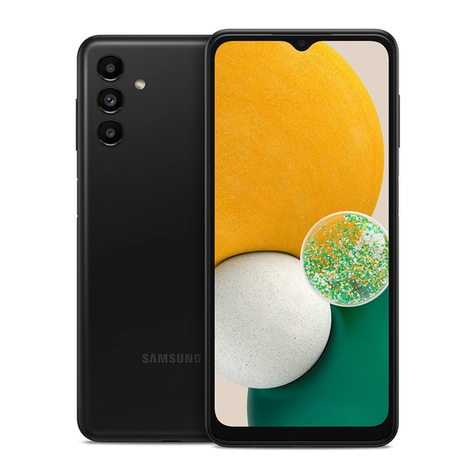
Samsung Galaxy A13 5G User manual

Samsung

Samsung Galaxy A13 5G User manual

Samsung Galaxy S6 G920T User manual

Samsung

Samsung Galaxy S6 G920T User manual

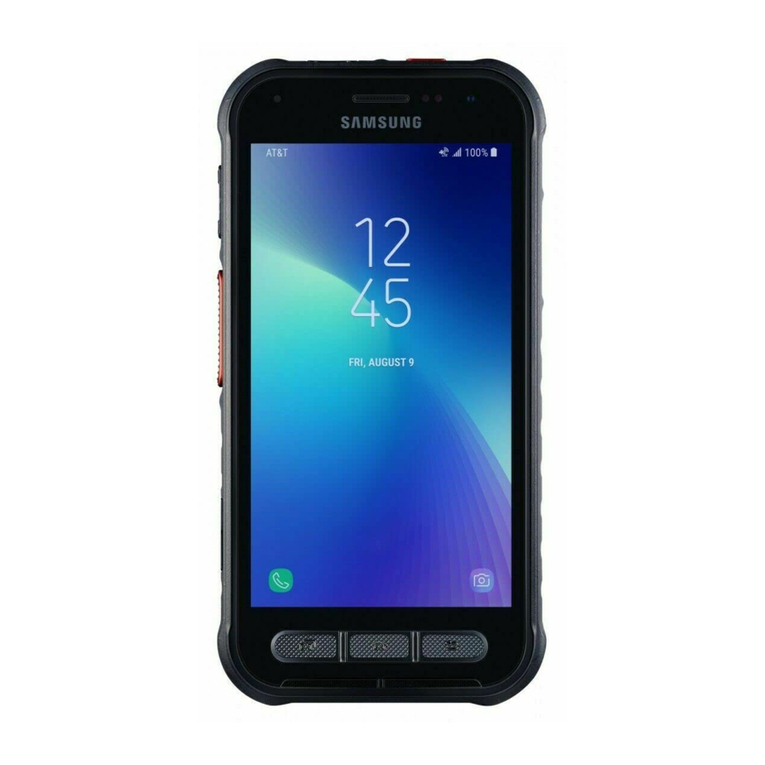
Samsung Galaxy XCover FieldPro User manual

Samsung

Samsung Galaxy XCover FieldPro User manual

Samsung SM-G925W8 User manual

Samsung

Samsung SM-G925W8 User manual

Samsung Serene User manual

Samsung

Samsung Serene User manual

Samsung SM-A505GN User manual

Samsung

Samsung SM-A505GN User manual

Samsung GALAXY SPICA GT-I5700L User manual

Samsung

Samsung GALAXY SPICA GT-I5700L User manual

Samsung SGH-S200 User manual

Samsung

Samsung SGH-S200 User manual

Samsung SPH-a640 Series User manual

Samsung

Samsung SPH-a640 Series User manual

Samsung Galaxy Note Edge User manual

Samsung

Samsung Galaxy Note Edge User manual

Samsung GT-I9300T User manual

Samsung

Samsung GT-I9300T User manual

Samsung SM-A5260 User manual

Samsung

Samsung SM-A5260 User manual

Samsung SGH-T599N User guide

Samsung

Samsung SGH-T599N User guide

Samsung Alias 2 User manual

Samsung

Samsung Alias 2 User manual

Samsung SM-G950N User manual

Samsung

Samsung SM-G950N User manual

Samsung GT-C6620 User manual

Samsung

Samsung GT-C6620 User manual

Samsung SM-N915F User manual

Samsung

Samsung SM-N915F User manual

Samsung SM-A510M/DS User manual

Samsung

Samsung SM-A510M/DS User manual

Samsung SM-G530H/DS User manual

Samsung

Samsung SM-G530H/DS User manual

Popular Cell Phone manuals by other brands

Nokia 6700 classic user guide

Nokia

Nokia 6700 classic user guide

LG L34C user guide

LG

LG L34C user guide

Ericsson T60d manual

Ericsson

Ericsson T60d manual

Zte Score M user manual

Zte

Zte Score M user manual

Sony Xperia Z1 Compact Startup guide

Sony

Sony Xperia Z1 Compact Startup guide

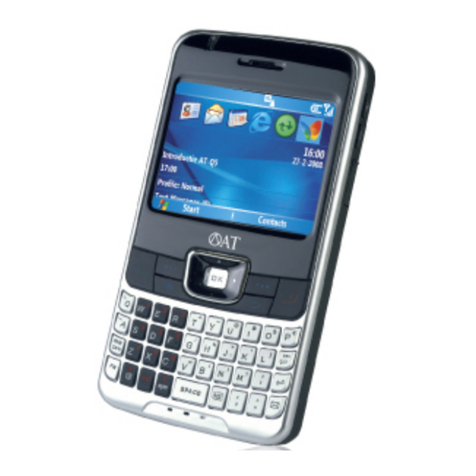
AT AT-Q5 user manual

AT

AT AT-Q5 user manual

Vingtor ACM-M-A-V2 Installation/configuration

Vingtor

Vingtor ACM-M-A-V2 Installation/configuration

Olitech EasyFlip 2 Quick setup guide

Olitech

Olitech EasyFlip 2 Quick setup guide

Zte Atrium Z793C user manual

Zte

Zte Atrium Z793C user manual

Alcatel IDEAL manual

Alcatel

Alcatel IDEAL manual

Zte BLADE A520 quick start guide

Zte

Zte BLADE A520 quick start guide

switel M222 user manual

switel

switel M222 user manual

LG LG-P503 user guide

LG

LG LG-P503 user guide

LG F2410 user guide

LG

LG F2410 user guide

Argom E500 manual

Argom

Argom E500 manual

Hisense U30 user manual

Hisense

Hisense U30 user manual

Argom Tech E401 user manual

Argom Tech

Argom Tech E401 user manual

Nokia 3595 - Cell Phone - GSM Manual Del Usuario

Nokia

Nokia 3595 - Cell Phone - GSM Manual Del Usuario

manuals.online logo
manuals.online logoBrands
  • About & Mission
  • Contact us
  • Privacy Policy
  • Terms and Conditions

Copyright 2025 Manuals.Online. All Rights Reserved.

Samsung Rant™
SPH-m540
INFORMATION GUIDE
SAMSUNG TELECOMMUNICATIONS AMERICA
1301 E. Lookout Drive | Richardson, TX 75082 | 1.800.SAMSUNG
http://training.samsungtelecom.com password: ahead
www.samsungmobileusa.com
Samsung Rant™
PRODUCT SPECIFICATIONS
FEATURES
• Pull Out QWERTY Keyboard
• Stereo Bluetooth® Wireless
Technology**
• MP3 Player
• External Memory Support (microSD™)
of up to 16GB
• 2.0 Megapixel Camera
• Messaging Services
- Text Messaging, Multimedia
Messaging
- Email*, IM*
• Advanced Voice Recognition
• Tools (Calendar, Memo Pad, Alarm
Clock, World Time, Calculator, Tip
Calculator)
• T9TM Text Input for easy text entry
• Multiple Dialing Fonts
• Vibration Alert
• Power Save Mode
• 72 Note Polyphonic Ring Tones
- 10 Melody Ringers
- 2 Alert Ringers
- 3 Bell Ringers
- Downloadable Ringers
• Any Key Answer
• Multilingual (English, Spanish)
• Backlight Keypad Control Options
(8 Sec., 15 Sec., 30 Sec., Slide Open)
• Speakerphone
• Airplane Mode
• Quick Search
TECHNICAL SPECIFICATIONS
• Dual-Band: CDMA 800 MHz, CDMA
PCS 1900 MHz
• Dimensions: 4.45” x 2.05” x .7”
(standard battery)
• Weight: 4.81 ounces
(standard battery)
• Internal Display: TFT (176 x 220)
• 260K colors in display
• Battery: 3.7 Volt Lithium Ion, 960 mAh
• Talk Time: Up to 5.6 hours
(standard battery)
• Hearing Aid Compatibility Rating:
M4/T4
MEMORY
• microSD™ Memory Card Slot
- Holds up to 16GB
• Internal Phone Book
- Holds up to 1200 numbers
for a total of 599 entries
(1 saved for voicemail)
• Last 20 Incoming, Outgoing and
Missed Call Logs
• Speed Dial
• Mass Storage (64MB available
for users)
CALL MANAGEMENT
AND SERVICES
• Voicemail*
• Caller ID*
• Call Forwarding*
• Call Waiting*
• Three-Way Calling*
CAMERA FEATURES
• 2.0 Megapixel Camera and
Camcorder with Night Shot
• Picture Messaging* (MMS)
• Picture Caller ID
• Self-Timer: (2 Sec., 5 Sec., 10 Sec.)
• Multi Shot
• Resolution Settings: 2M, 1.3M, High,
Med, Low
• White Balance Settings: Auto, Sunny,
Cloudy, Tungsten, Fluorescent
• Color Effects: Normal, Monochrome,
Aqua, Sepia, Negative, Green
• Settings: Resolution, Quality, Shutter
Sound, Status Bar, Storage
ACCESSORIES
• Standard Lithium Ion Battery
• Travel Charger
• Tattoo Battery Cover
• Vehicle Power Charger
• Mono & Stereo Wired Headset
(3.5mm)
• Bluetooth®Accessories
- Mono & Stero Bluetooth®Headset
- Bluetooth® Car Kit
• Holster/Leather Cases
• Memory Cards
ORDER
Genuine Samsung Accessories
samsungmobileusa.com/accessories
1-800-SAMSUNG
STANDARD PACKAGE CONTENTS
• Handset
• Standard Lithium Ion Battery
• Tattoo Battery Cover
• AC Phone Charger
• microSD™ Card & Adapter
• USB Cable
• User Guide
* Many of the services and features described above are network dependent and may require additional subscription and/or usage charges. Not all features are available for purchase or use in all areas. Other
conditions and restrictions apply. See carrier for more information. All talk and standby times are approximate. Battery performance depends on network configuration, signal strength, operating temperature, features
selected, and voice, data, and other application usage patterns. Internet content/services designed for mobile devices.
** Rant™ supports Bluetooth®Profiles for wireless handsets, hands-free accessories, and object exchange. Both devices must be compatible with object exchange profile. Copyrighted material cannot be transferred.
© 2008 Samsung Telecommunications America, LLC. Samsung is a registered trademark of Samsung Electronics Co., Ltd. and its related entities. All product and brand names are trademarks or registered trademarks
of their respective companies. Screen images simulated.
9/2008
“number one in brand loyalty seven years in a row” Samsung mobile phones have been rated number
one in brand loyalty by consumers seven years in a
row, according to Brand Keys,a leading independent
authority on brand loyalty.
HIGH-SPEED MESSAGING WITH PULL OUT QWERTY
KEYBOARD
Stay in touch instantly with high-speed messaging. The slide out
QWERTY keyboard on the Rant makes messaging even faster. Text,
Voice SMS, IM or access your personal email including AOL®,
Yahoo!®, Windows Live™, Gmail™, Hotmail®, Sprint mail and more!
2.0 MEGAPIXEL CAMERA AND CAMCORDER WITH
NIGHT SHOT
Capture and share photographs with family and friends with the
Rant’s built-in camera. Supports PictBridge printing. Want to get
closer? You can with its 4x digital zoom. Camcorder features video,
long video and night shot.
SPRINT NAVIGATION*
Enjoy the convenience of Sprint Navigation*. GPS lets you map out
directions to your destination so that you never get lost, ever.
STEREO BLUETOOTH® ENABLED
Enjoy the convenience of hands-free communication by using
headsets, car kits and other Bluetooth® compatible devices including
printers. Supports HFP, HFP 1.5, PBAP and HSP pro les.
*May require additional charges with Carrier.
Samsung Rant™
MENU NAVIGATION
1. WEB
2. MAPS
1: Sprint Navigation
2: Sprint Family Locator
3. ENTERTAINMENT
1: Sprint Music
2: Sprint TV
4. HISTORY
5. MISSED ALERTS
6. MY STUFF
1: Application Manager
2: Games
3: Ringers
4: Screen Savers
5: Applications
6: Call Tones
7. PHOTOS
1: Camera
Press the right soft key to view the
following options:
1: Self-Timer
2: Multi Shot
3: Fun Tools
4: Controls
5: Settings
6: Launch
2: Camcorder (Video Mail/Long Video)
Press the right soft key to view the
following options:
1: Self-Timer
2: Fun Tools
3: Controls
4: Settings
5: Launch
3: Picture Mail
4: My Albums
5: PictBridge
6: Order Prints
7: Settings and Info
1: Auto Save to
2: Status Bar (On/Off)
3: Account Info
8. MESSAGES
1: Voicemail
2: Send Message
3: Text Message
4: Picture Mail
5: Email
6: IM
7: Chat & Dating
8: VoiceSMS
9: Settings
1: General
2: Text Message
3: VoiceSMS Option
9. CONTACTS (RIGHT SOFTKEY)
10. SETTINGS
1: Display
1: Main Screen
2: Brightness
3: Backlight
4: Dialing Font Size
5: PowerSave Mode
6: Keypad Light
7: Language
2: Sounds
1: Volume
2: Ringer Type
3: Alerts
4: Key Tone
3: Bluetooth®
1: On/Off
2: Visibility
3: My Device Name
4: My Device Info
5: Exchange Folders
6: Voice Priority
4: Messages
1: Notication
2: Message Reminder
3: Callback Number
4: Auto-Delete
5: Signature
6: Pre-Set Message
7: Draft Alert
8: Priority
9: Save in Outbox
10: Voice SMS Option
5: Text Entry
1: Auto-Capital
2: Auto-Space
3: Dual Language
4: Personal Dictionary
5: Used Word Dictionary
6: Display Candidate
7: Prediction Start
8: Auto Word Insertion
9: Help
6: Phone Info
1: Phone Number
2: Icon Glossary
3: Version
4: Advanced
7: More...
1: Auto Keyguard
2: Accessibility
3: Airplane Mode
4: Browser
5: Call Setup
6: Contacts
7: Data
8: Headset Mode
9: Location
10: Restrict and Lock
11: Roaming
12: Security
13: Wireless Backup
11. TOOLS
1: Alarm
2: Bluetooth®
3: Calculator
4: Tip Calculator
5: Calendar
6: Mass Storage
7: Memo Pad
8: World Time
9: Update Phone
10: Voice Memo
11: Voice Service
12. GET STUFF
Get to know the Samsung Rant™
TAKE A PICTURE WITH THE 2.0 MEGAPIXEL CAMERA &
CAMCORDER
Pictures can be taken with the slide either open or closed.
1. In Standby mode, press the camera icon key on the
lower right side of the phone.
2. The message “Loading,” followed by a camera viewfinder
screen appears in the display.
3. Press the Options soft key. Use the Navigation keys
to scroll left to right to access the following options:
Self-Timer, Multi Shot, Quality, Resolution, White
Balance, Color Effects, and Settings. Highlight the
desired option, use the up and down Navigation keys
to select settings for each option, and press the OK key.
4. Once you have your desired picture in the viewfinder
press the OK key for Take; then you will have the option
to Save, Send, or Erase the picture.
TIPS & TRICKS
Tip: Add / remove a bubble
Go to Personalize My Phone > Personalize Home
Screen > Add (left soft key). Choose from Finance,
Horoscope, News and other categories. Select ADD (left
soft key) or PREVIEW (right soft key). For example if you
chose News, you will then be prompted to choose from Top
Stories, Breaking News, Politics, etc. Choose INSERT (left
soft key) to place your bubble on the home screen.
Note: You can save up to 8 bubbles (quick access to sports, weather, news,
finance...).
Tip: Add a tile on the carousel
Go to Personalize My Phone > Personalize Home
Screen > Add (left soft key). Then select from tile
categories: All, Featured, Communication, Entertainment or
Favorites. Select a tile from the dropdown list and choose
ADD (left soft key) or PREVIEW (right soft key). Then scroll
through the carousel and select INSERT (left soft key) to
place the tile where you want it.
Note: You can have up to 15 tiles.
Tip: Turn on speakerphone
When you’re on a call press the right soft key to turn
speakerphone on. Use the up/down arrows on left side of
phone to adjust volume.
USE THE BUILT-IN QWERTY KEYBOARD TO SEND
A TEXT MESSAGE
1. To access the QWERTY keyboard, from the Standby
mode, slide it open from beneath the top left section of
the phone.
2. The keyboard will slide out from the left side of the phone
and the display will automatically rotate to a wider,
landscape format. To access the QWERTY keyboard,
rotate the phone 90 degrees to view landscape display.
3. To access the Main Menu using the QWERTY keyboard,
press the Enter key (located on the right). To send a
message, use the up arrow key to highlight Messages
and press the OK key.
4. Press 1 (on either the QWERTY keyboard or phone
keypad) for Send Message, then press 1for
Text Message.
5. In the Create Text Message menu, enter the recipient’s
number and press the OK key.
6. Enter the body of the text message using the QWERTY
keyboard and press the OK key for Send.
NOTE:
 • The(Fn)key(locatedatthebottomofthekeyboard)allowsyouto 
  togglebetweentheAbc(alphabetic)and123(numeric)textmodes.
 • Theshiftkey(locatedleftofthe(Fn)key)allowsyoutotogglethe
  capitalizationbetweenthealphabeticmodes:ABC,Abc,andabc.You 
  mustpressandholdtheshiftkeyforseveralsecondstotoggle
  betweenmodes.
PAIR BLUETOOTH®WITH PHONE
The Rant supports Bluetooth® Wireless Technology for use
with a headset or hands-free profile, and car kits.
1. In Standby mode, press the OK key to access the
Main Menu.
2. Use the Navigation keys to highlight Tools and press
the OK key. Press 2for Bluetooth®. You must enable
Bluetooth® before pairing (to enable Bluetooth®go to
Settings > Bluetooth®> On/Off > On).
3. Press 1 for “Pair with Hands Free”. The Trusted
Devices menu will display, “Place device you are
connecting to in discoverable mode.” Press the OK key.
Phone will display “Searching.” Press Add New (left soft
key) to add a new device.
4. In the Add New Device screen, you will see a list of
compatible devices. Use the Navigation keys to scroll
to and highlight the device you wish to communicate with
and press the OK key for Pair.
5. Enter the Passkey for the new device and press the OK
key. These two devices will then be paired and able
to connect.