manuals.online logo
Brands
  1. Home
  2. •
  3. Brands
  4. •
  5. Samsung
  6. •
  7. Cell Phone
  8. •
  9. Samsung SGH-S108 User manual

Samsung SGH-S108 User manual

Other manuals for SGH-S108

3

Other Samsung Cell Phone manuals

Samsung C5212 User manual

Samsung

Samsung C5212 User manual

Samsung SM-J337W User manual

Samsung

Samsung SM-J337W User manual

Samsung GT-S5830 User manual

Samsung

Samsung GT-S5830 User manual

Samsung Wafer SCH-R510 User manual

Samsung

Samsung Wafer SCH-R510 User manual

Samsung SGH-p777 Series User manual

Samsung

Samsung SGH-p777 Series User manual

Samsung A847M User manual

Samsung

Samsung A847M User manual

Samsung SGH-Z140 User manual

Samsung

Samsung SGH-Z140 User manual

Samsung SGH-F218 User manual

Samsung

Samsung SGH-F218 User manual

Samsung E2100 User manual

Samsung

Samsung E2100 User manual

Samsung SCH-n330 Series User manual

Samsung

Samsung SCH-n330 Series User manual

Samsung Galaxy S4 User manual

Samsung

Samsung Galaxy S4 User manual

Samsung SGH-J700V User manual

Samsung

Samsung SGH-J700V User manual

Samsung Galaxy TAB4 User manual

Samsung

Samsung Galaxy TAB4 User manual

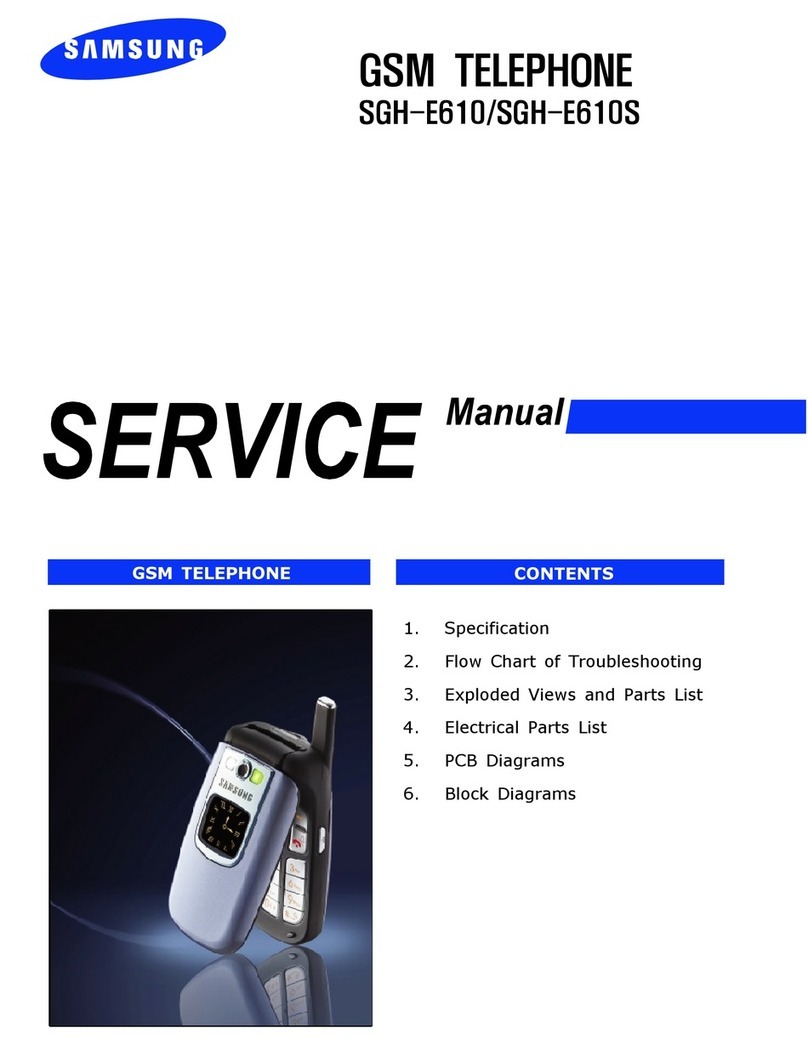
Samsung SGH-E610 User manual

Samsung

Samsung SGH-E610 User manual

Samsung TracFone SGH-T155G Series User manual

Samsung

Samsung TracFone SGH-T155G Series User manual

Samsung GT-I9060I User manual

Samsung

Samsung GT-I9060I User manual

Samsung Galaxy S III User manual

Samsung

Samsung Galaxy S III User manual

Samsung SGH-S410i User manual

Samsung

Samsung SGH-S410i User manual

Samsung SCH-F679 User manual

Samsung

Samsung SCH-F679 User manual

Samsung SM-T530/NU User manual

Samsung

Samsung SM-T530/NU User manual

Samsung GT-S3510G User manual

Samsung

Samsung GT-S3510G User manual

Samsung SCH-I200PP User manual

Samsung

Samsung SCH-I200PP User manual

Samsung Omnia Pro User manual

Samsung

Samsung Omnia Pro User manual

Samsung SM-A307GN User manual

Samsung

Samsung SM-A307GN User manual

Popular Cell Phone manuals by other brands

Nokia 6700 classic user guide

Nokia

Nokia 6700 classic user guide

LG L34C user guide

LG

LG L34C user guide

Ericsson T60d manual

Ericsson

Ericsson T60d manual

Zte Score M user manual

Zte

Zte Score M user manual

Sony Xperia Z1 Compact Startup guide

Sony

Sony Xperia Z1 Compact Startup guide

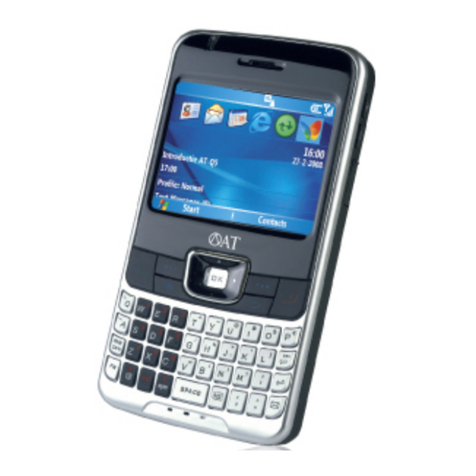
AT AT-Q5 user manual

AT

AT AT-Q5 user manual

Vingtor ACM-M-A-V2 Installation/configuration

Vingtor

Vingtor ACM-M-A-V2 Installation/configuration

Olitech EasyFlip 2 Quick setup guide

Olitech

Olitech EasyFlip 2 Quick setup guide

Zte Atrium Z793C user manual

Zte

Zte Atrium Z793C user manual

Alcatel IDEAL manual

Alcatel

Alcatel IDEAL manual

Zte BLADE A520 quick start guide

Zte

Zte BLADE A520 quick start guide

switel M222 user manual

switel

switel M222 user manual

LG LG-P503 user guide

LG

LG LG-P503 user guide

LG F2410 user guide

LG

LG F2410 user guide

Argom E500 manual

Argom

Argom E500 manual

Hisense U30 user manual

Hisense

Hisense U30 user manual

Argom Tech E401 user manual

Argom Tech

Argom Tech E401 user manual

Nokia 3595 - Cell Phone - GSM Manual Del Usuario

Nokia

Nokia 3595 - Cell Phone - GSM Manual Del Usuario

manuals.online logo
manuals.online logoBrands
  • About & Mission
  • Contact us
  • Privacy Policy
  • Terms and Conditions

Copyright 2025 Manuals.Online. All Rights Reserved.

TRI BAND
GPRS TELEPHONE
SGH-S108
* Some of the contents in this manual may differ from your phone,
depending on the software installed or your service provider.
Printed in Korea
Code No.: GH68-03183A
English. 10/2002. Rev. 1.0
3
Contents
Important Safety Precautions . . . . . . . . 7
Unpacking . . . . . . . . . . . . . . . . . . . . . . . 9
Your Phone . . . . . . . . . . . . . . . . . . . . . 10
Phone Layout. . . . . . . . . . . . . . . . . . . . . 10
Display . . . . . . . . . . . . . . . . . . . . . . . . . 13
Service Light . . . . . . . . . . . . . . . . . . . . . 16
Getting Started . . . . . . . . . . . . . . . . . . 17
Installing the SIM Card . . . . . . . . . . . . . . 17
Charging a attery . . . . . . . . . . . . . . . . . 19
Low attery Indicator . . . . . . . . . . . . . . . 20
Switching the Phone On/Off . . . . . . . . . . . 21
Ca Functions . . . . . . . . . . . . . . . . . . . 22
Making a Call. . . . . . . . . . . . . . . . . . . . . 22
Adjusting the Volume . . . . . . . . . . . . . . . 24
Answering a Call . . . . . . . . . . . . . . . . . . 25
Viewing Missed Calls . . . . . . . . . . . . . . . . 26
Switching Quickly to the Silent Mode . . . . . 28
Se ecting Functions and Options . . . . . 29
Example: Setting the Display Language . . . 31
Phonebook . . . . . . . . . . . . . . . . . . . . . 33
Storing a Number with a Name. . . . . . . . . 33
Using Phonebook Entry Options . . . . . . . . 35
Searching for a Number
in the Phonebook . . . . . . . . . . . . . . . . . . 37
Editing a Caller Group . . . . . . . . . . . . . . . 39
Speed-Dialling . . . . . . . . . . . . . . . . . . . . 40
Checking the Memory Status . . . . . . . . . . 41
Entering Text. . . . . . . . . . . . . . . . . . . . 42
Changing the Text Input Mode . . . . . . . . . 43
Using the Chinese Pinyin Mode . . . . . . . . . 45
Using the Chinese Stroke Mode . . . . . . . . 47
Using the Quick English Mode . . . . . . . . . . 50
5
4
Contents Contents
Entering Text (continued)
Using the English Mode . . . . . . . . . . . . . . 52
Using the Number Mode . . . . . . . . . . . . . 54
Using the Symbolic Mode. . . . . . . . . . . . . 54
Using Help . . . . . . . . . . . . . . . . . . . . . . 54
Options During a Ca . . . . . . . . . . . . . 55
Putting a Call on Hold . . . . . . . . . . . . . . . 55
Switching the Microphone Off (Mute) . . . . . 56
Muting/Sending Key Tones . . . . . . . . . . . . 57
Searching for a Number
in the Phonebook . . . . . . . . . . . . . . . . . . 57
Using the SMS Service . . . . . . . . . . . . . . 58
Answering a Second Call . . . . . . . . . . . . . 58
Making a Multiparty Call . . . . . . . . . . . . . 59
Using the Menus . . . . . . . . . . . . . . . . . 61
Accessing Menu Functions by Scrolling . . . . 61
Accessing Menu Functions
by Using Shortcuts . . . . . . . . . . . . . . . . . 62
List of Menu Functions . . . . . . . . . . . . . . 62
Messages. . . . . . . . . . . . . . . . . . . . . . . 67
Read Messages (Menu 1.1) . . . . . . . . . . . 67
Write Messages (Menu 1.2). . . . . . . . . . . 69
Templates (Menu 1.3) . . . . . . . . . . . . . . 71
Setup (Menu 1.4) . . . . . . . . . . . . . . . . . 71
roadcast (Menu 1.5) . . . . . . . . . . . . . . 73
Voice Mail (Menu 1.6) . . . . . . . . . . . . . . 74
My Contents (Menu 1.7) . . . . . . . . . . . . . 75
Memory Status (Menu 1.8) . . . . . . . . . . . 75
Ca Records. . . . . . . . . . . . . . . . . . . . . 76
Missed Calls (Menu 2.1) . . . . . . . . . . . . . 76
Received Calls (Menu 2.2) . . . . . . . . . . . 76
Dialled Calls (Menu 2.3) . . . . . . . . . . . . . 77
Call Time (Menu 2.4) . . . . . . . . . . . . . . . 77
Call Cost (Menu 2.5) . . . . . . . . . . . . . . . 78
Sound Settings . . . . . . . . . . . . . . . . . . 79
Ring Tone (Menu 3.1) . . . . . . . . . . . . . . 79
Ring Volume (Menu 3.2). . . . . . . . . . . . . 79
Alert Type (Menu 3.3) . . . . . . . . . . . . . . 80
Keypad Tone (Menu 3.4) . . . . . . . . . . . . 80
Message Tone (Menu 3.5) . . . . . . . . . . . . 81
Extra Tones (Menu 3.6) . . . . . . . . . . . . . 82
Phone Settings . . . . . . . . . . . . . . . . . . 83
Infrared Activate (Menu 4.1) . . . . . . . . . . 83
My Settings (Menu 4.2) . . . . . . . . . . . . . 84
Greeting Message (Menu 4.3) . . . . . . . . . 85
Own Number (Menu 4.4) . . . . . . . . . . . . 85
Language (Menu 4.5). . . . . . . . . . . . . . . 86
Security (Menu 4.6). . . . . . . . . . . . . . . . 86
Display Settings (Menu 4.7) . . . . . . . . . . 89
Extra Settings (Menu 4.8). . . . . . . . . . . . 91
Short Cut (Menu 4.9). . . . . . . . . . . . . . . 92
Reset Settings (Menu 4.10). . . . . . . . . . . 92
Organiser . . . . . . . . . . . . . . . . . . . . . . 93
Calendar (Menu 5.1) . . . . . . . . . . . . . . . 93
To Do List (Menu 5.2) . . . . . . . . . . . . . . 95
Time & Date (Menu 5.3). . . . . . . . . . . . . 98
Alarm (Menu 5.4) . . . . . . . . . . . . . . . . . 99
Calculator (Menu 5.5). . . . . . . . . . . . . . 100
Currency Exchange (Menu 5.6) . . . . . . . 101
Network Services. . . . . . . . . . . . . . . . 102
Call Diverting (Menu 6.1) . . . . . . . . . . . 102
Call arring (Menu 6.2) . . . . . . . . . . . . 104
Call Waiting (Menu 6.3) . . . . . . . . . . . . 106
Network Selection (Menu 6.4) . . . . . . . . 107
Caller ID (Menu 6.5) . . . . . . . . . . . . . . 108
Closed User Group (CUG) (Menu 6.6) . . . 108
and Selection (Menu 6.7) . . . . . . . . . . 110

7
6
Contents
Important Safety
Precautions
Read these guidelines before using your wireless
phone. Failure to comply with them may be
dangerous or illegal. For more detailed safety
information, see “Health and Safety Information”
on page 120.
Road Safety at A Times
Do not use a hand-held phone while driving;
park the vehicle first.
Switching Off When Refue ing
Do not use the phone at a refuelling point
(service station) or near fuels or chemicals.
Switching Off in Aircraft
Wireless phones can cause interference. Using
them in aircraft is both illegal and dangerous.
Switching Off in Hospita s
Switch off your phone near medical equipment.
Follow any regulations or rules in force.
Interference
All wireless phones may be subject to
interference, which could affect their
performance.
Specia Regu ations
Meet any special regulations in force in any area
and always switch off your phone whenever it is
forbidden to use it, or when it may cause
interference or danger (in a hospital for
example).
Sensib e Use
Use only in the normal position (held to the ear).
Avoid unnecessary contact with the antenna
when the phone is switched on.
Funbox . . . . . . . . . . . . . . . . . . . . . . . 111
Games (Menu 7.1). . . . . . . . . . . . . . . . 111
WAP rowser (Menu 7.2) . . . . . . . . . . . 111
Downloads (Menu 7.3) . . . . . . . . . . . . . 111
So ving Prob ems . . . . . . . . . . . . . . . . 113
Access Codes . . . . . . . . . . . . . . . . . . . 116
Phone Password . . . . . . . . . . . . . . . . . . 116
PIN . . . . . . . . . . . . . . . . . . . . . . . . . . 117
PUK . . . . . . . . . . . . . . . . . . . . . . . . . . 117
PIN2. . . . . . . . . . . . . . . . . . . . . . . . . . 118
PUK2 . . . . . . . . . . . . . . . . . . . . . . . . . 118
arring Password . . . . . . . . . . . . . . . . . 119
Hea th and Safety Information. . . . . . 120
Precautions When Using atteries . . . . . . 120
Road Safety. . . . . . . . . . . . . . . . . . . . . 122
Operating Environment . . . . . . . . . . . . . 124
Potentially Explosive Atmospheres . . . . . . 126
Emergency Calls. . . . . . . . . . . . . . . . . . 127
Other Important Safety Information . . . . 128
Care and Maintenance . . . . . . . . . . . . . . 129
G ossary . . . . . . . . . . . . . . . . . . . . . . 131
Quick Reference Card . . . . . . . . . . . . 135
9
8
Important Safety Precautions
Unpacking
Your package contains the following items.
In addition, you can obtain the following
accessories for your phone from your local
Samsung dealer:
• Desktop charger • Ear-microphone
• Simple hands-free kit • Car holder
• Standard/slim batteries
• Cigarette lighter adapter
Accessories and Batteries
Use only Samsung-approved accessories and
batteries.
Qua ified service
Only qualified service personnel may install or
repair your phone.
Handset
attery
User’s Manual
Software CD-ROM
Travel Adapter
Ear-Microphone
Data Cable
Hand Strap
Leather Case
11
10
Your Phone
Your Phone
Phone Layout
The following illustrations show the main
elements of your phone.
Key Description
In menu mode, scroll through the
menu options and phonebook memory.
In idle mode, allow you to access your
favourite menu options directly (for
more information on shortcuts, see
page 92).
In menu mode, return to the previous
menu level and select the current
menu respectively.
When entering text, move the cursor
left and right respectively.
In idle mode, the key enters the
Read Messages menu and the key
enters the Ring Tone menu.
Perform functions indicated by the text
above them (on the bottom line of the
display).
In idle mode, launches the WAP
browser directly.
Deletes characters from the display.
In menu mode, returns to the previous
menu level.
Makes or answers a call.
When held down in idle mode, recalls
the last number dialled or received.
In menu mode, selects a menu
function or stores information that you
have entered (such as a name) in the
phone or SIM memory.
Earpiece
Display
Navigation keys
Folder
Soft key (right)
WAP rowser
key
Antenna
Service light
External display
Power on/off /
menu exit key
Alphanumeric
keys
Special function
keys
(soft keys)
Volume/menu
browse keys
Soft key (left)
Dial/menu
confirmation key
Cancel/
correction key
Microphone
Ear-microphone
jack
IrDA port
13
12
Your Phone Your Phone
Key Description
(continued)
Ends a call. Also switches the phone on
and off when held down.
In menu mode, cancels your input and
returns to the idle mode.
When held down in idle mode,
accesses your voice mail.
Enter numbers, letters and some
special characters.
Enter special characters.
Perform the various functions.
(on the side of the phone)
During a call, adjust the earpiece
volume.
In idle mode, adjust the key volume.
In menu mode, scroll through the
menu options and phonebook memory.
Disp ay
Disp ay Layout
The display comprises three areas.
Area Description
First line Displays various icons (see page
14).
Middle lines Display messages, instructions
and any information that you
enter (number to be dialled, for
example).
Last line Shows the functions currently
assigned to the two soft keys.
~
Menu Name
Icons
Text and
graphic area
Soft keys
15
14
Your Phone Your Phone
Icons
Icon Description
Shows the received signal strength. The
greater the number of bars, the better
the signal strength.
Appears when a call is in progress.
Appears when you are connected to the
GPRS network.
Appears when you are out of your home
area and have registered onto a
different network, when travelling in
other countries, for example.
Appears when you set the alarm.
Appears when a new text message has
been received.
Appears when a new voice mail
message has been received.
Appears when you are entering text to
indicate the current text input mode.
Appears when the Silent mode is active
or you set the A ert Type menu option
(Menu 3.3), so that the phone vibrates
when you receive a call; for further
details, see page 80.
Shows the level of your battery. The
more bars you see, the more power you
have left.
Appears when the IrDA port is active.
For details, see page 83.
Appears when the Mute mode is active.
Back ight
The display is illuminated by a backlight. When
you press any key or open the phone, the
backlight illuminates. It turns off if no key is
pressed within a given period of time, depending
on the Back Light menu option.
To specify the length of time for which the
backlight is active, set the Back Light menu
option (Menu 4.7.2); see page 89 for further
details.
You can also set the phone to use the backlight
only during a specified period of time, via the
Auto Light menu option (Menu 4.7.3); see
page 90 for further details.
Externa Disp ay
Your phone has an external display on the cover.
It indicates that you have an incoming call or a
message, and notifies you at the specified time
when you set an alarm.
17
16
Your Phone
Service Light
The service light is in the top right-hand corner
of the phone. It flashes when services are
available on the phone.
To activate or deactivate use of the service light,
set the Service Light menu option (Menu
4.7.4); see page 90 for further details.
Service light
Getting Started
Insta ing the SIM Card
When you subscribe to a cellular network, you
are provided with a plug-in SIM card loaded with
your subscription details, such as your PIN, any
optional services available and so on.
Important! The plug-in SIM card and its
contacts can be easily damaged by
scratching or bending, so be careful
when handling, inserting or
removing the card.
Keep all SIM cards out of the reach
of small children.
1. If necessary, switch off the phone by holding
down the key until the power-off image
is displayed.
2. Remove the battery. To do so:
➀Press down the catch above the battery
and hold it in this position.
➁Slide the battery and lift it away, as shown.
➀
➁
19
Getting Started
18
Getting Started
3. Slide the SIM card into the SIM card holder so
that the holder locks the card in position.
Make sure that the cut corner is top right and
the gold contacts of the card face into the
phone.
Note: When you need to remove the SIM card,
slide it, as shown, and take it out of the
holder.
4. Place the battery back, taking care to match
the tabs on the battery with the grooves on
the phone.
5. Slide the battery towards the top of the phone
until it clicks into place. Make sure that the
battery is properly installed before switching
on the power.
Charging a Battery
Your phone is powered by a rechargeable Li-ion
battery. A travel adapter is provided with your
phone. Use only approved batteries and
chargers. Ask your local Samsung dealer for
further details.
The phone can be used while the battery is
charging, but this will cause the phone to charge
more slowly.
Note: You must fully charge the battery before
using your phone for the first time. A
discharged battery is fully recharged in
approximately 200 minutes.
1. With the battery in position on the phone,
connect the lead from the travel adapter to
the bottom of the phone.