6
Important note:
- This instruction manual explains the basic instruction of this unit using the remote control.
- Some DVD or VCD discs have different functions that may not be explained in this instruction manual. You may need extra instructions. In this
case, please follow the instructions displayed on the TV screen or jacket or case of the disc.
-“” may appear on the TV screen during operation. This icon means that the function is not available on the disc now.
Preparations
- Turn on the TV and select the video input for this unit.
Select the playback picture size according to the aspect ratio of the
TV. (See “Setting display” on Page 13.)
- Turn on the AV amplifier, etc. and select the audio input for this unit.
- Selectthedesired language for the on-screenmenusifrequired. The
following languages can be selected.
English (default), Spanish, French, German, Portuguese
(See “Setting language” on Page 13.)
Note:
- Do not touch the disc tray while it is moving.
- Never place anything except a disc on the disc tray. Foreign objects
can damage the unit.
- Do not apply excessive force to the disc tray.
- Only one disc must be placed on the disc tray at a time.
- To open or close the disc tray, be sure to use the OPEN/CLOSE (or
qon the main unit) button. Do not press the disc tray with your hand.
When operation buttons are pressed, that operation is displayed
on the TV screen for several seconds.
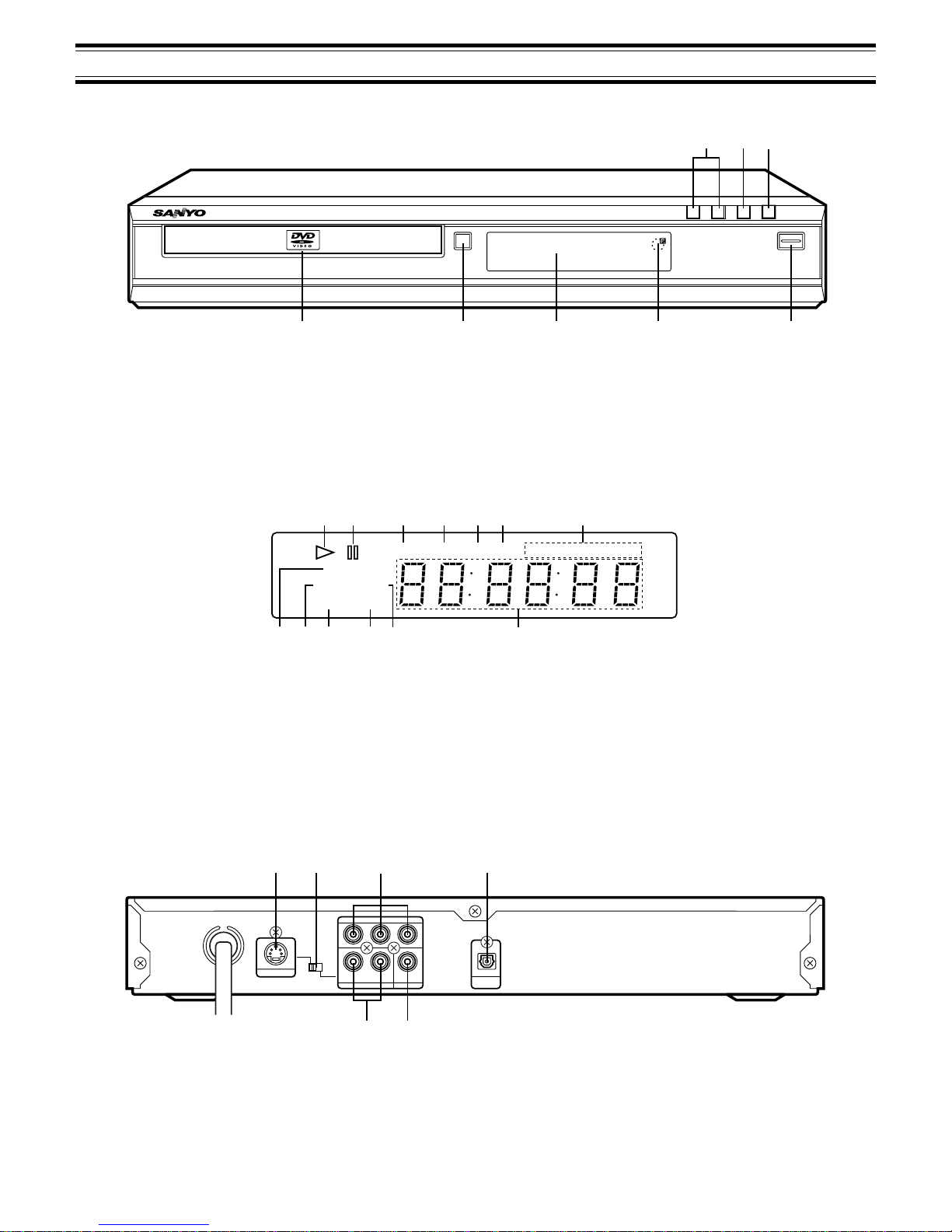
1. Press the z/ON button. “SANYO” logo appears on the TV screen.
“------” blinks, then “NO dISC” appears on the display.
2. PresstheOPEN/CLOSEbutton. “OPEN”appearsonthe displayand
the disc tray opens.
- When using the main unit, use the qbutton.
3. Place the disc with the label facing up on the disc tray.
4. Press the OPEN/CLOSE button again. The disc tray closes.
Note:
Some discs may start play automatically.
Starting play
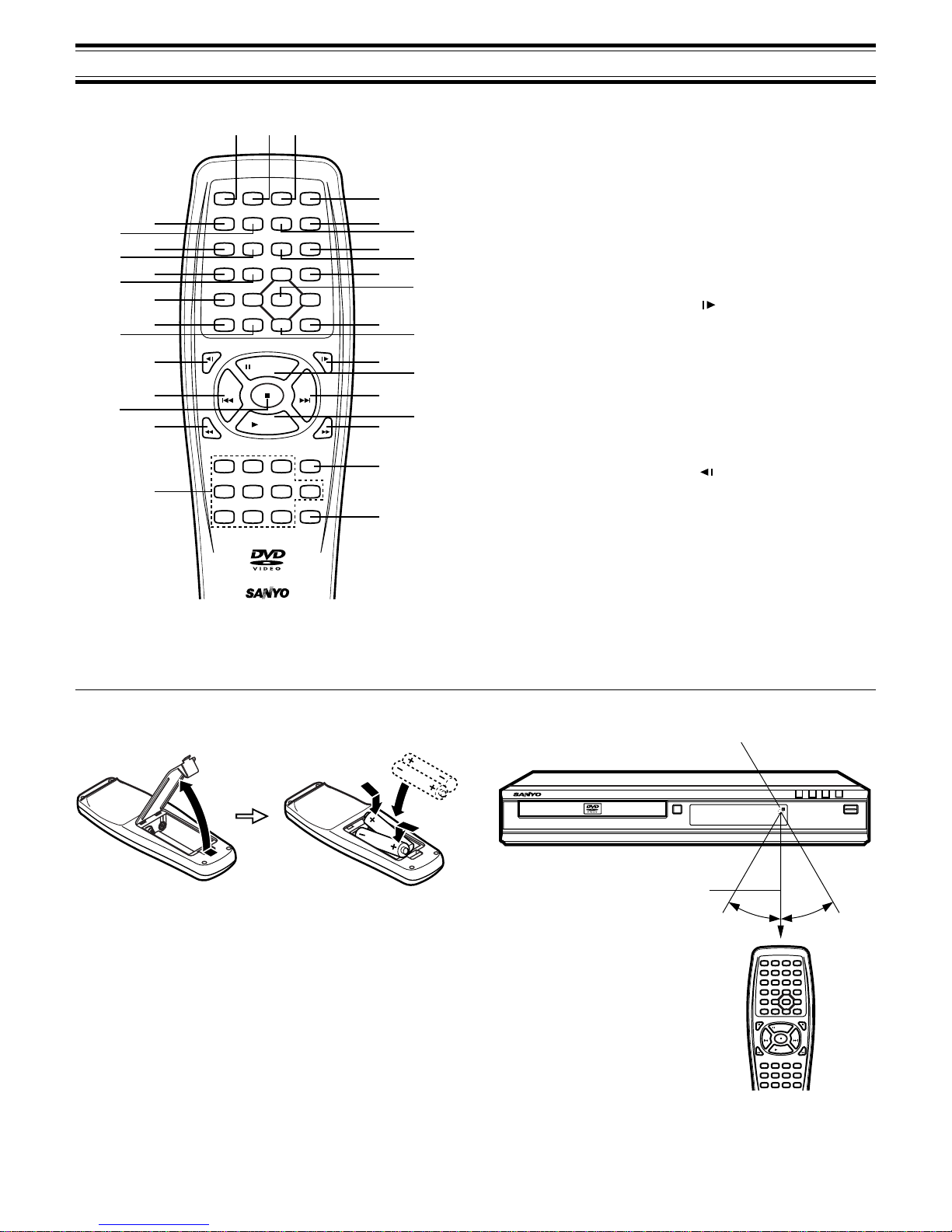
Press the aPLAY button.
- When using the main unit, use the abutton.
Example:
Note:
If the disc is loaded with the label side downward (and it is a single sided
disc), or if a badly scratched disc is loaded, “No Play” appears. If this
occurs, load the disc correctly or replace the disc.
8 cm disc
If a menu appears on the TV screen...
Press the 4, a, 5or bbutton (or the number buttons),
then press the ENT button to select the desired menu.
Playback of the selected menu starts.
Note:
For more details, please refer to the jacket or case of the disc.
Stopping play
[DVD] [VCD]
- Press the nbutton once.
WhenyoupresstheaPLAYbutton,playstartsautomaticallyfromthe
point where you stopped.
Note:
Some discs may not resume play.
- Press the nbutton twice. The unit stops completely and “StOP”
appears on the display.
When you press the aPLAYbutton,playstartsfrom the beginning of
the disc.
[CD]
- Press the nbutton. The unit stops completely.
To turn off the power, press the z/ON button.
Continuing play from where you stopped watching (Last memory
play) [DVD]
1. Duringplay,presstheLASTMEMObuttonatthepointfromwhichyou
want to resume play later. “LM StOP” appears on the display. Play
stops automatically.
2. Remove the disc or turn off the power.
3. Load the disc (and press the aPLAY button), or turn on the power.
“Last Memo Play?” screen appears.
4. Press the 4button to select “Yes”.
5. Press the ENT button. Play resumes from the point where you
stopped. (If desired, press the LAST MEMO button again.)
Note:
- Points on up to 3 discs can be memorized.
- TheLast MemoryPlaymode maynotwork correctly withsome discs.
What is “PBC”?
“PBC”isanabbreviationfor“PlaybackControl”thatreferstocontrolcodes
prerecorded on Video CDs.
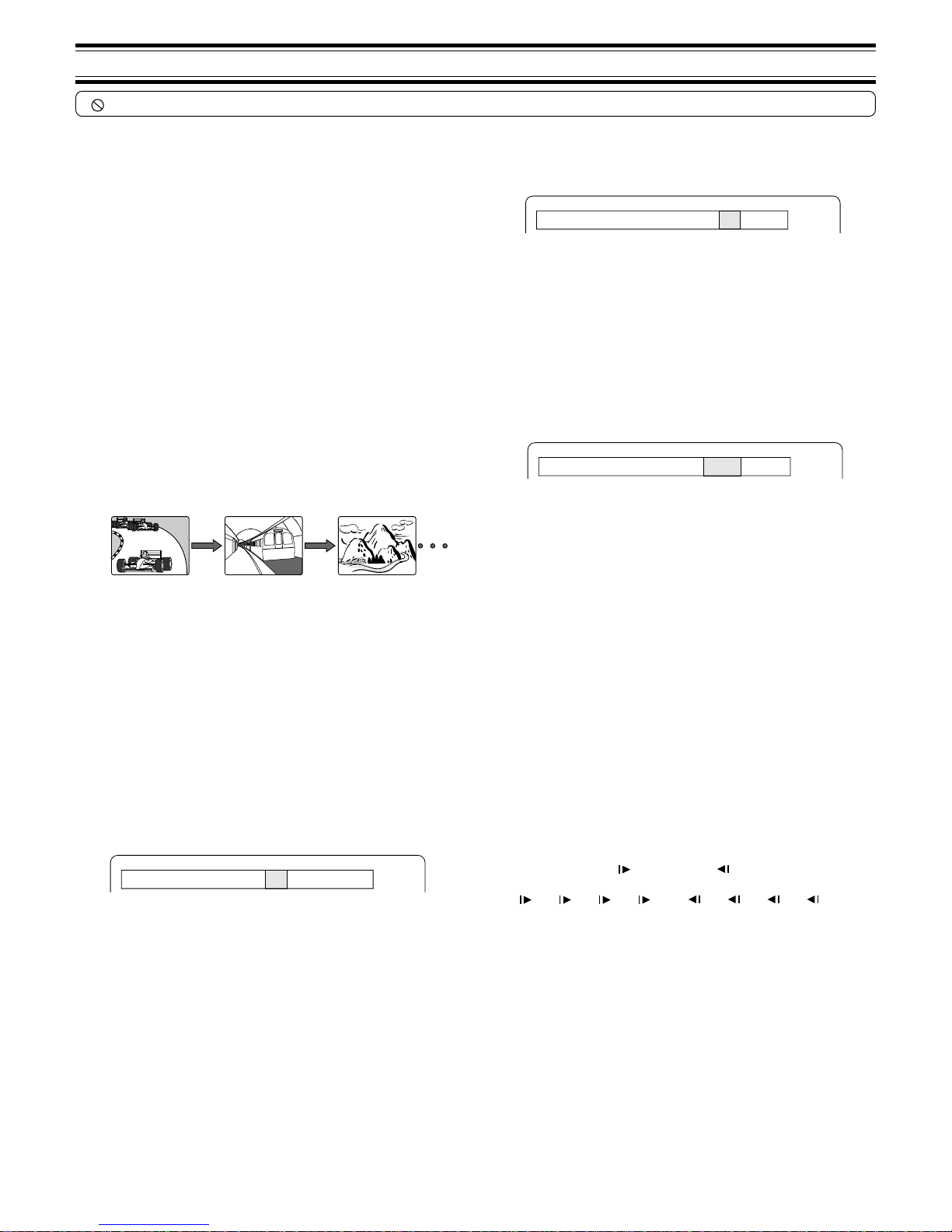
During playback of Video CD with PBC, “PbC” appears on the display.
To lock the disc tray (Main unit only)
You can lock the disc tray to prevent misuse by young children.
While the disc tray is opened, press the qbutton until “LOC” appears
on the display. (The disc tray closes.)
- The q(or OPEN/CLOSE on the remote control) button will not
function.
Toreleasethismode,presstheqbuttonuntil“Un-LOC”appearsonthe
display.
12 cm disc
Elapsed playing time
(The memory is released.)
BASIC OPERATION