manuals.online logo
Brands
  1. Home
  2. •
  3. Brands
  4. •
  5. Scanadu
  6. •
  7. Personal Care Product
  8. •
  9. Scanadu Scout User manual

Scanadu Scout User manual

Popular Personal Care Product manuals by other brands

DC-Connex DCX-L201 user manual

DC-Connex

DC-Connex DCX-L201 user manual

MPVTruma MicroDrop CalimeroJet instruction manual

MPVTruma

MPVTruma MicroDrop CalimeroJet instruction manual

Bosch PHA230 instruction manual

Bosch

Bosch PHA230 instruction manual

Beautify 4000001 care guide

Beautify

Beautify 4000001 care guide

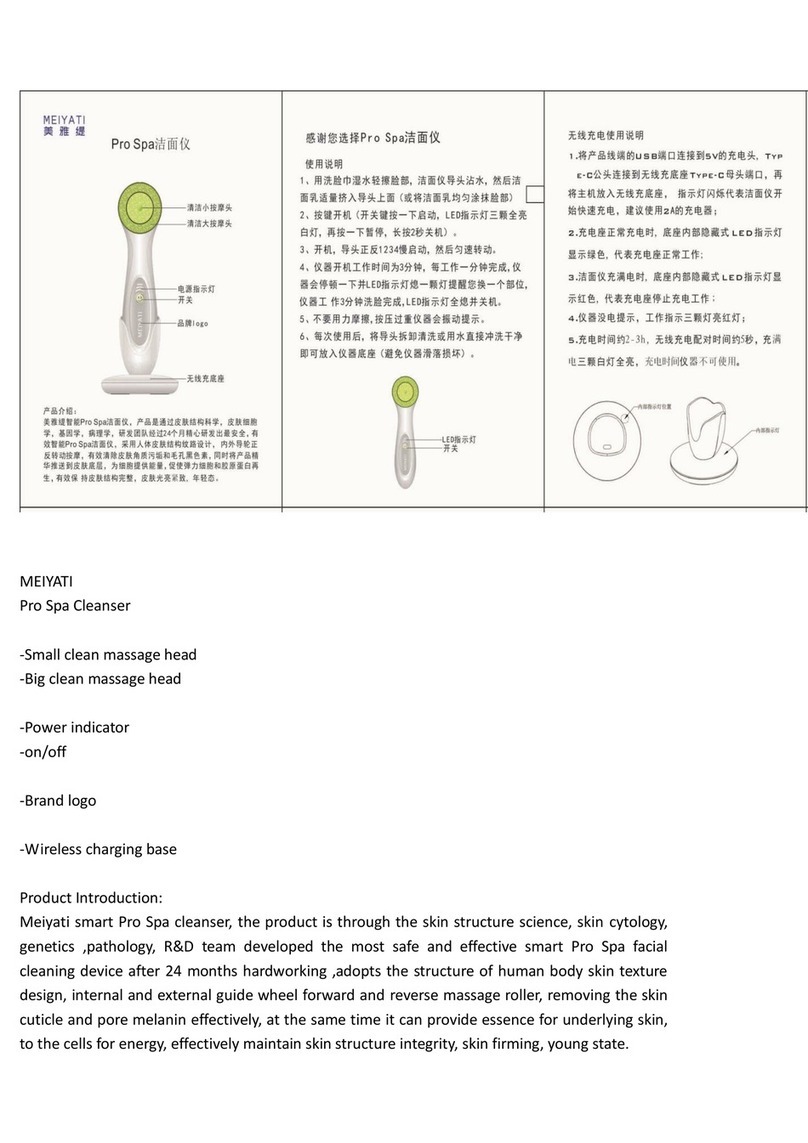
MEIYATI Pro Spa quick start guide

MEIYATI

MEIYATI Pro Spa quick start guide

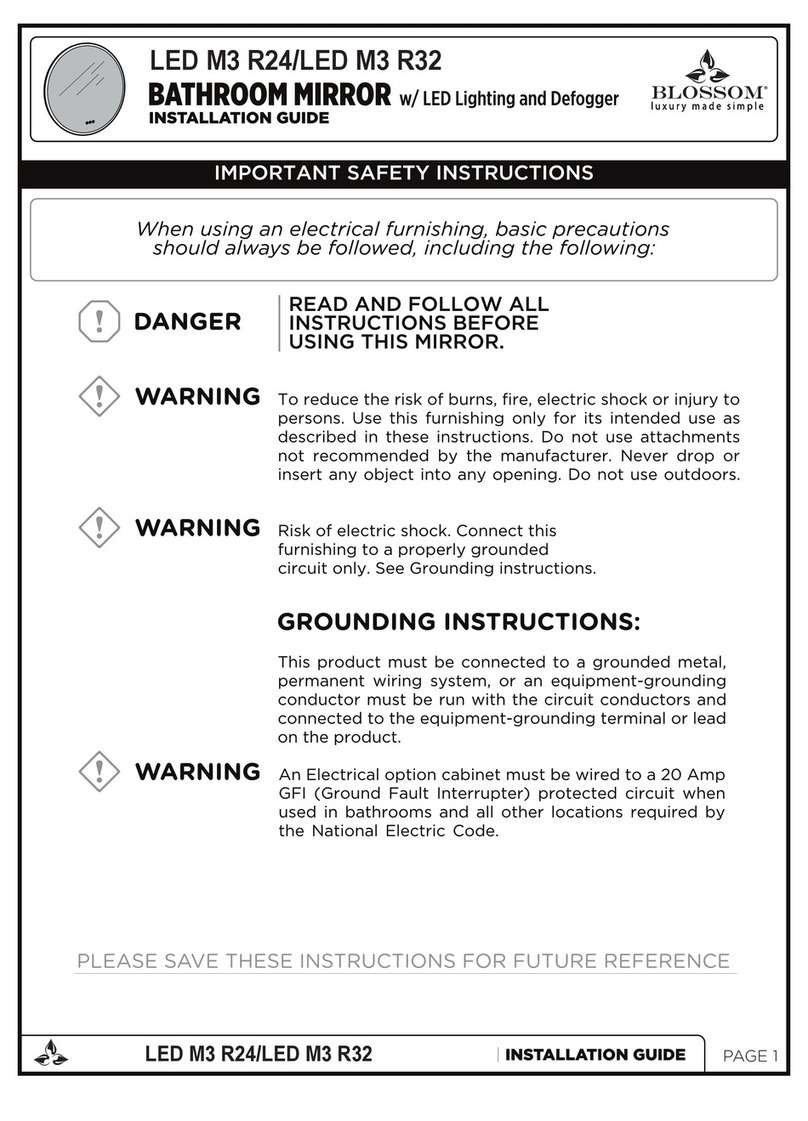
Blossom LED M3 R24 installation guide

Blossom

Blossom LED M3 R24 installation guide

Philips HB875/01 user manual

Philips

Philips HB875/01 user manual

Orliman SITLIVE OSL3120 INSTRUCTIONS FOR USE AND PRESERVATION

Orliman

Orliman SITLIVE OSL3120 INSTRUCTIONS FOR USE AND PRESERVATION

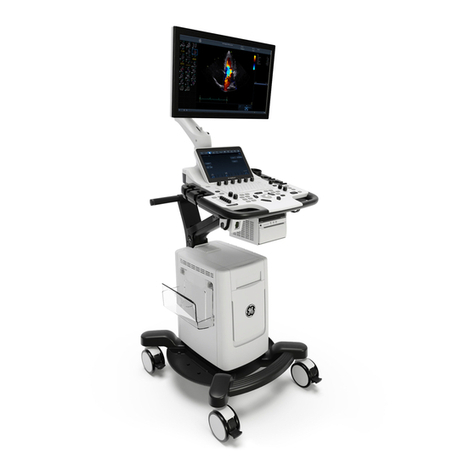
GE T8 Basic service manual

GE

GE T8 Basic service manual

Pretika ST102 Instructions for use & warranty information

Pretika

Pretika ST102 Instructions for use & warranty information

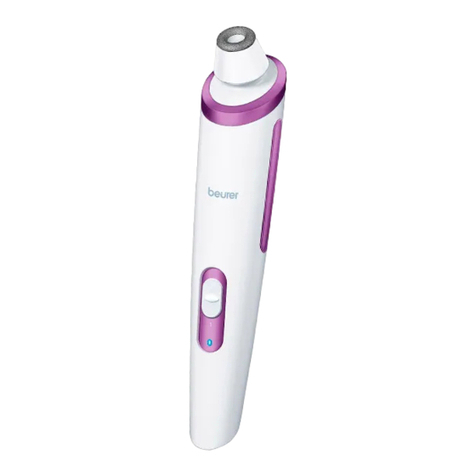
Beurer FC 76 Instructions for use

Beurer

Beurer FC 76 Instructions for use

Pebble Grey 500.40.70-75 manual

Pebble Grey

Pebble Grey 500.40.70-75 manual

PUSH ortho quick start guide

PUSH

PUSH ortho quick start guide

Dermlite DL3N instructions

Dermlite

Dermlite DL3N instructions

DERMAPEN SEMI user manual

DERMAPEN

DERMAPEN SEMI user manual

Carex SunLite user guide

Carex

Carex SunLite user guide

Roper Rhodes Intense Installation & Aftercare Instructions

Roper Rhodes

Roper Rhodes Intense Installation & Aftercare Instructions

Interacoustics Titan IMP440 Setup & installation

Interacoustics

Interacoustics Titan IMP440 Setup & installation

manuals.online logo
manuals.online logoBrands
  • About & Mission
  • Contact us
  • Privacy Policy
  • Terms and Conditions

Copyright 2025 Manuals.Online. All Rights Reserved.

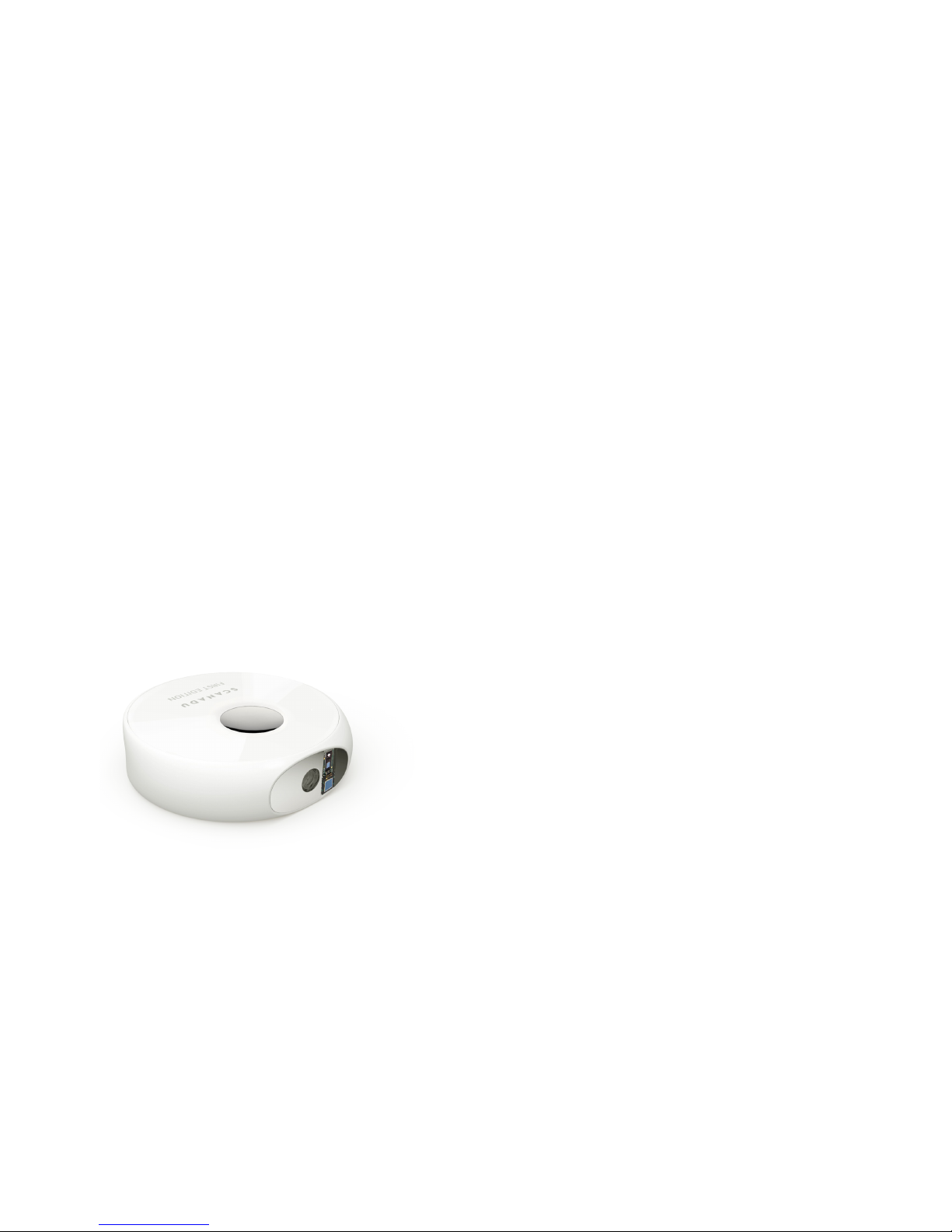
Scanadu Scout™
User Guide
2
WELCOME TO
SCANADU SCOUT™
The Scanadu Scout™ is a non-invasive
system measuring the following physiological
parameters: temperature, heart rate, pulse
oximetry and blood pressure. The Scanadu
Scout™ obtains these vital signs from a gentle
touch on the forehead and sends them via
Bluetooth to the user’s smartphone.
Scanadu believes there is an unmet need in
healthcare to develop products and services
for consumers to better engage in their own
health. The Scanadu Scout™ is designed to
meet that need, aiming to be the change agent
of healthcare.
We Are The Last Generation to
Know So Little About Our Health
3
TABLE OF CONTENTS
1. At a Glance
2. Meet Your Scanadu Scout™
3. Setup and Your First Scan
4. App Navigation
5. Troubleshooting
6. Safety, Warnings and Maintenance
This User Guide includes information and instructions about the
Scanadu Scout™ investigational device. Please take a moment to
read it carefully before you begin using the device.
IMPORTANT SAFETY INFORMATION
INDICATIONS FOR USE
The Scanadu Scout™ is intended for use by adults to track and trend
a variety of physiological measurements such as temperature, SpO2,
heart rate and non-invasive blood pressure on a holistic basis, for the
purpose of enabling adults to manage their health. It is not intended for
diagnostic purposes.
CAUTION – The Scanadu Scout™ is currently an investigational device,
limited by Federal (United States) law to investigational use only.
The Scanadu Scout™ has not yet been clinically tested for accuracy
compared to devices taking one or more similar measurements. Its
performance characteristics have not yet been established.
You should always consult your healthcare provider with any questions
you may have regarding a medical condition or symptom.
INTENDED USER
The device is intended to be used by adults age 18 and over.

4
The Scanadu Scout™ system consists of
three components:
1. The Scanadu Scout™ Device
Contains sensors and electronics used to
collect all measurements.
2. The Scanadu Scout™ Application
A mobile app used to condentially collect,
view, save and wirelessly transmit data to
the Scanadu server.
3. Your Smartphone
The system currently supports the
following devices:
•Apple iPhone 4s, 5, 5s*
•Samsung Galaxy S4, S5
•Nexus 4, 5
*iPhone 6 and 6 Plus testing in progress
AT A GLANCE
Scanadu Scout™ App
Smartphone
SCANADU
SCOUT
SYSTEM
™
5
FRONT BACK
Touch
Sensor
Charging
Port
Infrared
Thermometer
SP02
Sensor
Power
Button
Power
Indicator
MEET YOUR
SCANADU SCOUT™
6
Let’s get you all set up for your rst scan!
There are 2easy steps to complete:
1. Open your Scanadu Scout™ Box.
2. Download the app.
1. Open your
Scanadu Scout™ Box
In the box you’ll nd:
•Basic Quick Start Instructions (on box)
•Scanadu Scout™ Investigational Device
•USB Charging Cable
•Pamphlet
GETTING PREPARED
7
1. Turn on Bluetooth™.
• Make sure your phone can discover
Bluetooth™ devices.
2. Launch the Scanadu Scout™ app.
• The app will walk you through connecting
the Scanadu Scout™ investigational device
to your phone and setting up a prole.
• The device will turn off automatically after
you connect - this is normal.
2. Download the
Scanadu Scout™ Application
1. Using your smartphone, access the
appropriate mobile application store:
• For iPhones, go to the App Store.
• For Android devices (Samsung, Nexus),
go to Google Play.
2. Search for “Scanadu Scout.”
3. Install the Scanadu Scout™ app.
Now you are ready to
launch the app.
Let’s go!
CONNECT YOUR
SCANADU SCOUT™
8
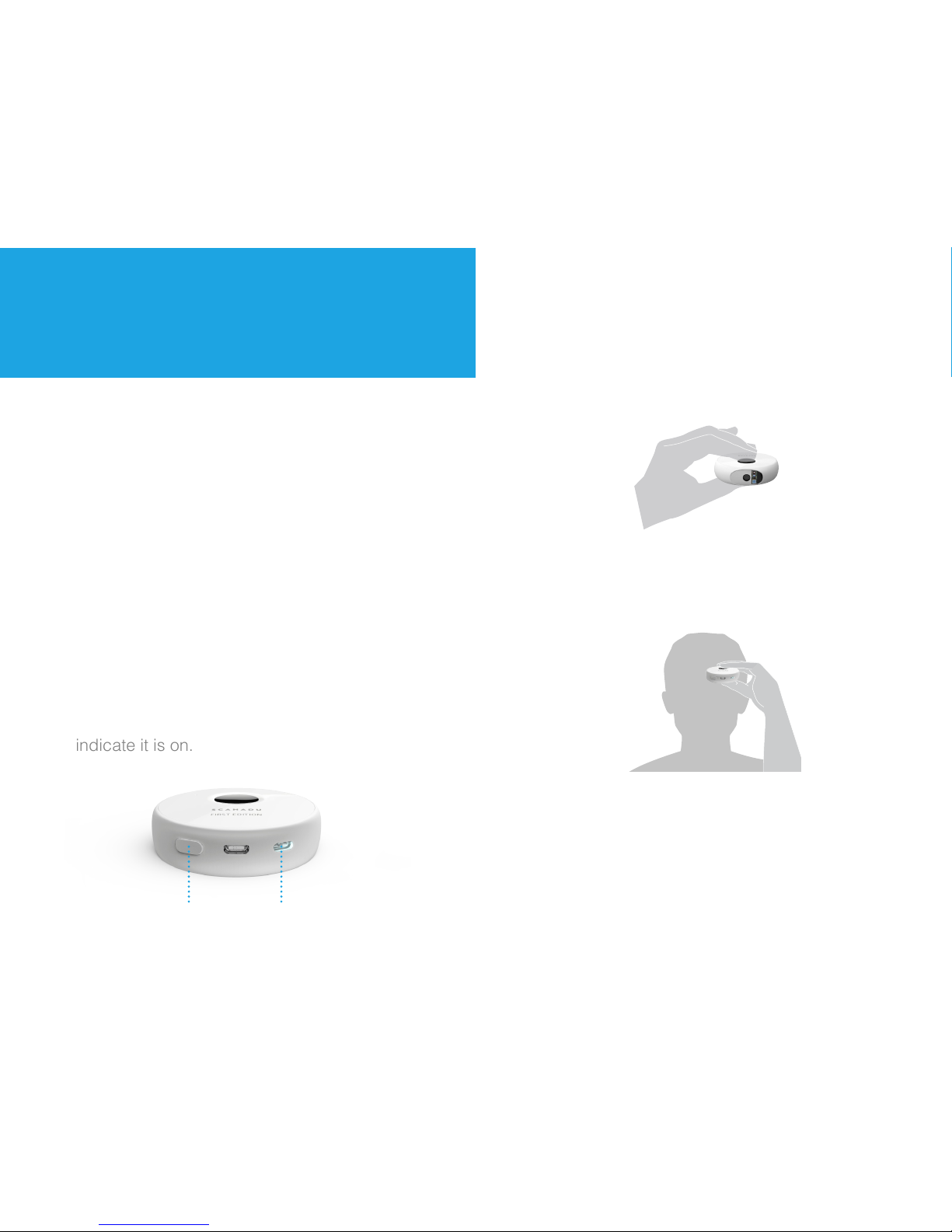
Before taking your rst scan, read these
instructions carefully.
For best results:
•Make sure the two sensors are clean.
• Have a seat and keep both feet at on the
ground.
• Brace your left elbow on a table or armrest.
•Press the power button. A white light will
indicate it is on.
Power
Button
Power
Indicator
YOUR FIRST SCAN
•Hold device with the oval sensor area facing
you.
•To get the best scan, hold the device in your
left hand and place your index nger on the
round touch sensor on the top of the device.
• Push hair aside, hold the oval sensor area at
against the left side of your forehead until the
scan is complete.
• Hold the device with gentle and steady
pressure to the forehead.
• Keep your head, body and hand steady to
obtain the clearest scan.
• Remain quiet during the scan.
9
In this section, we will cover the following areas
of the Scanadu Scout™ app:
1. Menu Page
2. New Scan
3. Trends
4. History
5. Settings
APP NAVIGATION
1. Menu Page
Tap to start
new scan
Tap or slide screen to
the right to reveal menu
Menu Button
10
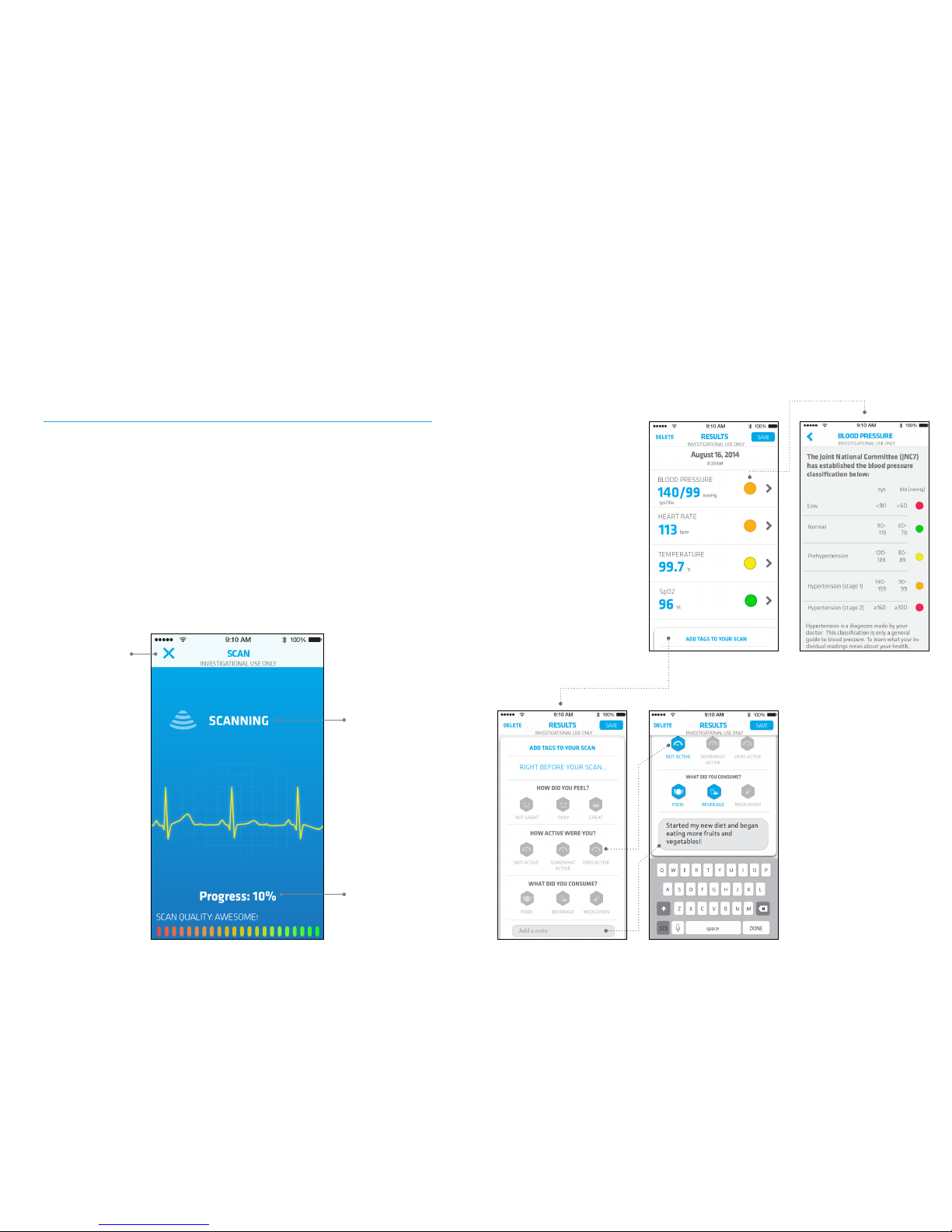
2. Scanning
Cancel
Scan
Scan
Stage
Scan
Progress
Scan Progress Page
You’ll see this page during a scan. If the scan appears to
stall, cancel and start over. As you get more familiar, the scan
duration will decrease while the scan quality will increase.
• Results that may
need attention can
easily be identied
by the colored
circles.
• Tap on the circles
to learn more
about what the
results mean.
• Scroll up to add
context to your
scans by tagging
prior activities.
• Tap to activate
tags.
• Add notes about
specic events or
thoughts.
Scanning: New Scan Results
This page appears after your scans are completed, revealing the
results of your most recent scan.