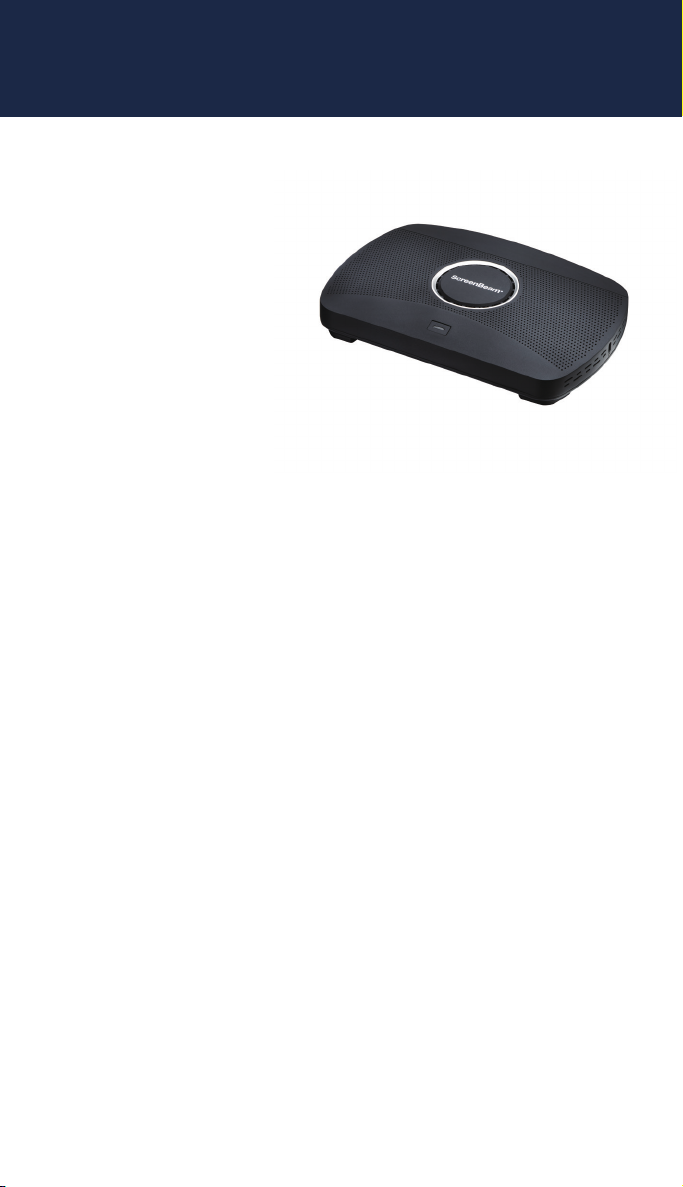
ScreenBeam®
|
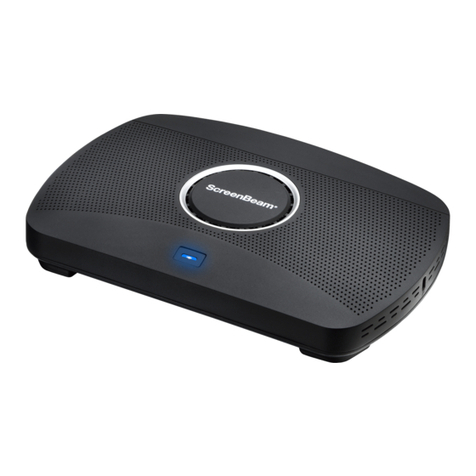
1100 Plus
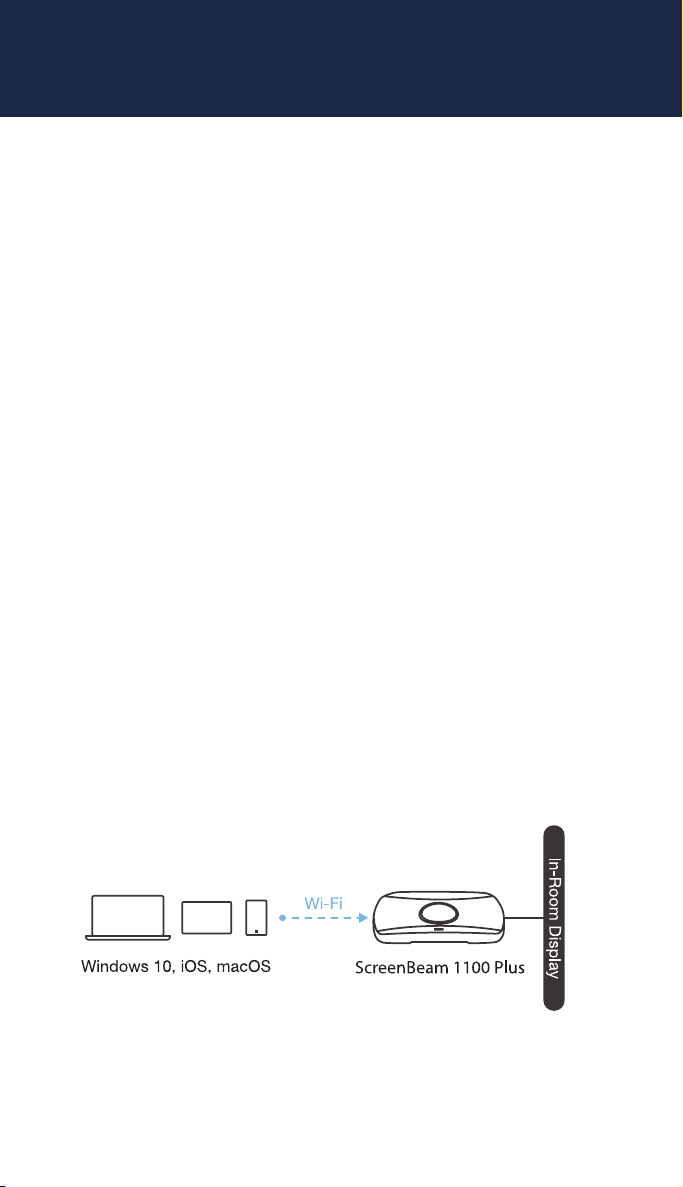
To connect via Miracast
1. Open your native Miracast Application
zOn a Windows device, hit the Windows Key + K at the same time.
zEach Android device may call their Miracast a unique name
like All Share Cast, Screen Cast, Smart Share, etc.
2. Select the receiver name for the receiver you wish to connect to
(name is on Ready to connect screen).
3. Enter in the PIN if required. If the PIN code is not displayed, try
the default PIN 1234.
4. Select duplicate or extended screen mode if prompted.
5. Optional: If on a Windows 10 device and you have an interactive
flat panel connected, select check box to allow HID, keyboard,
Pen, and Touch.
Note: Some Android devices do not support PIN and
will fail to connect. Refer to the deployment guide for
instructions on how to configure ScreenBeam and disable
PIN enforcement.
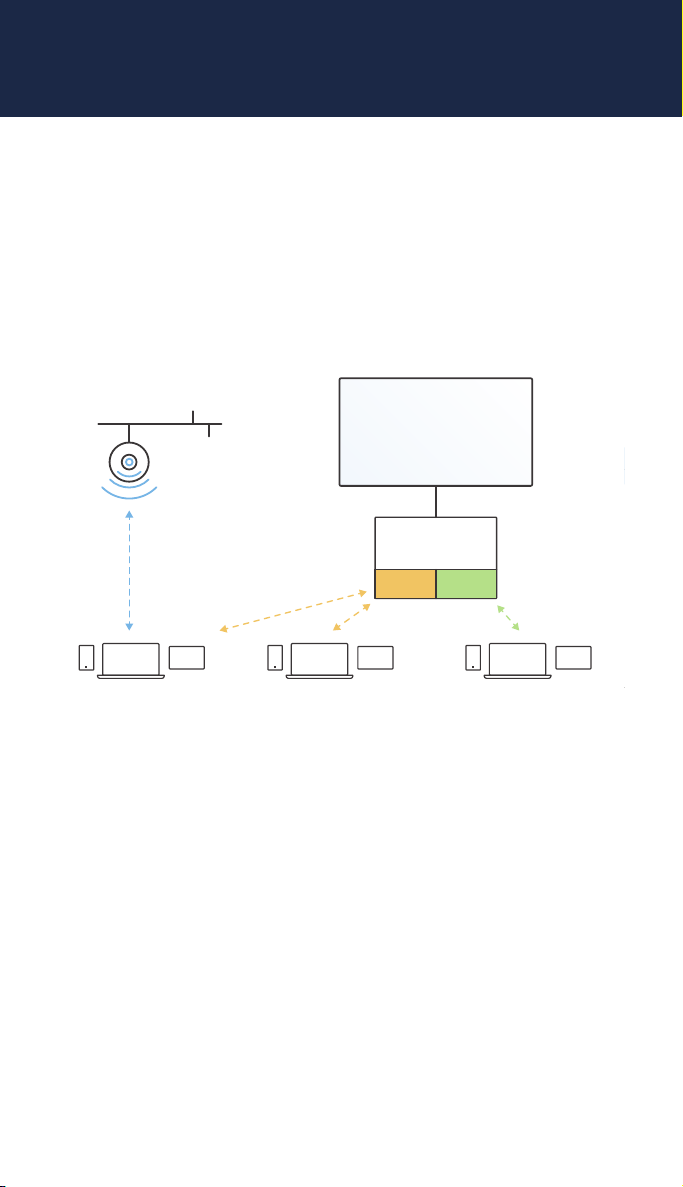
Local Wi-Fi Connection
The ScreenBeam Wi-Fi mode is similar to Miracast but uses the
ScreenBeam device as a local Wi-Fi hotspot or network, providing a
simple way for client devices to connect and project. In this mode,
users need to connect their client devices to the ScreenBeam Wi-Fi
network.
screenbeam.com | 7