manuals.online logo
Brands
  1. Home
  2. •
  3. Brands
  4. •
  5. Seagate
  6. •
  7. Storage
  8. •
  9. Seagate ST330631A User manual

Seagate ST330631A User manual

This manual suits for next models

4

Other Seagate Storage manuals

Seagate BARRACUDA 50 User manual

Seagate

Seagate BARRACUDA 50 User manual

Seagate 1AYBA4 Manual

Seagate

Seagate 1AYBA4 Manual

Seagate ironwolf PRO ST8000NE0021 User manual

Seagate

Seagate ironwolf PRO ST8000NE0021 User manual

Seagate Backup Plus Desktop User manual

Seagate

Seagate Backup Plus Desktop User manual

Seagate Exos X 4006 Series User manual

Seagate

Seagate Exos X 4006 Series User manual

Seagate Exos Enterprise ST8000NM000A User manual

Seagate

Seagate Exos Enterprise ST8000NM000A User manual

Seagate Barracuda 5400.1 ST340015ACE User manual

Seagate

Seagate Barracuda 5400.1 ST340015ACE User manual

Seagate ST336706LW User manual

Seagate

Seagate ST336706LW User manual

Seagate SPINPOINT F3 HD164GJ User manual

Seagate

Seagate SPINPOINT F3 HD164GJ User manual

Seagate STCB4000102 User manual

Seagate

Seagate STCB4000102 User manual

Seagate Duet User manual

Seagate

Seagate Duet User manual

Seagate Joy Drive User manual

Seagate

Seagate Joy Drive User manual

Seagate Expansion STEB6000403 User manual

Seagate

Seagate Expansion STEB6000403 User manual

Seagate Barracuda 7200.9 ST3120211AS User manual

Seagate

Seagate Barracuda 7200.9 ST3120211AS User manual

Seagate ST3500641NS User manual

Seagate

Seagate ST3500641NS User manual

Seagate Business Storage 4-Bay NAS User manual

Seagate

Seagate Business Storage 4-Bay NAS User manual

Seagate MEDALIST 1270 User manual

Seagate

Seagate MEDALIST 1270 User manual

Seagate ST3120020A User manual

Seagate

Seagate ST3120020A User manual

Seagate ST8000NM0055 User manual

Seagate

Seagate ST8000NM0055 User manual

Seagate ST2000NX0243 User manual

Seagate

Seagate ST2000NX0243 User manual

Seagate ST303204N1A1A-RK - Hard Drive Retail User manual

Seagate

Seagate ST303204N1A1A-RK - Hard Drive Retail User manual

Seagate Barracuda ST1000DM003 User manual

Seagate

Seagate Barracuda ST1000DM003 User manual

Seagate One Touch SRD0VN2 User manual

Seagate

Seagate One Touch SRD0VN2 User manual

Seagate BARRACUDA COMPUTE ST4000DMZ04 User manual

Seagate

Seagate BARRACUDA COMPUTE ST4000DMZ04 User manual

Popular Storage manuals by other brands

IBM 40/80 GB HH DLTVS user guide

IBM

IBM 40/80 GB HH DLTVS user guide

Synology DiskStation DS716+II Quick installation guide

Synology

Synology DiskStation DS716+II Quick installation guide

Vantec NexStar-HX4 user manual

Vantec

Vantec NexStar-HX4 user manual

LaCie Christofle Galet datasheet

LaCie

LaCie Christofle Galet datasheet

LaCie Rugged Thunderbolt user manual

LaCie

LaCie Rugged Thunderbolt user manual

OCZ IBIS datasheet

OCZ

OCZ IBIS datasheet

Transcend JetFlash 110 Brochure & specs

Transcend

Transcend JetFlash 110 Brochure & specs

QNAP TS 32PXU Series user guide

QNAP

QNAP TS 32PXU Series user guide

LaCie RUGGED RAID user manual

LaCie

LaCie RUGGED RAID user manual

Freecom CLS DOCK Quick install guide

Freecom

Freecom CLS DOCK Quick install guide

PNY Attache P-FD64MBATT3 install guide

PNY

PNY Attache P-FD64MBATT3 install guide

OWC Mercury Elite Pro Dual mini Assembly manual

OWC

OWC Mercury Elite Pro Dual mini Assembly manual

OLT 6x6 Maximizer Assembly manual

OLT

OLT 6x6 Maximizer Assembly manual

Transcend JetFlash 160 Specifications

Transcend

Transcend JetFlash 160 Specifications

Thunderbolt 600 user manual

Thunderbolt

Thunderbolt 600 user manual

Intel RAID High Availability user guide

Intel

Intel RAID High Availability user guide

LaCie 12big Thunderbolt 3 Quick install guide

LaCie

LaCie 12big Thunderbolt 3 Quick install guide

Spectra Logic T-Series Spectra T50e quick start guide

Spectra Logic

Spectra Logic T-Series Spectra T50e quick start guide

manuals.online logo
manuals.online logoBrands
  • About & Mission
  • Contact us
  • Privacy Policy
  • Terms and Conditions

Copyright 2025 Manuals.Online. All Rights Reserved.

Barracuda
®
ATA
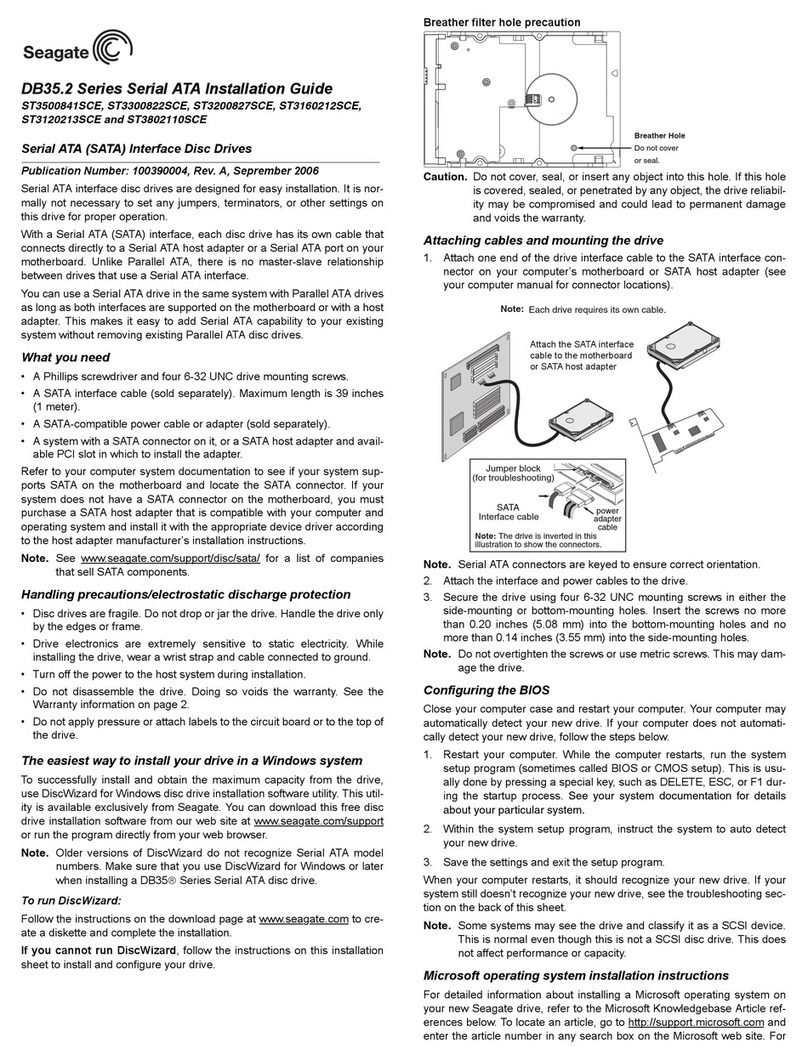
II100 Family InstallationGuide
ST330631A, ST320424A, ST315324A, ST310216A
The Easiest Way to Install Your Drive
DiscWizardis Seagate’s exclusive Windows program that is included with
your drive for easy drive installation.You can use this software if you
already have a bootable hard drive in your computer and you are running
Windows 98 or Windows 95.
Run DiscWizard
before
installing your drive for customized step-by-step
instructions for your system.
To run DiscWizard:
• Select Run from the Windows Start menu and type
x
:\setup, where
x
is
the drive letter of your CD-ROM.
If you cannot run DiscWizard, follow the instructions on this installation
sheet to install and configure your drive.
What You Need
•Phillips screwdriver and four 6-32 UNC drive mounting screws
•A standard 40-pin ATA interface cable,
or
an 80-conductor cable to run
Ultra ATA 66 or Ultra ATA 100 (max length: 18 inches)
•An unused drive power cable for your new drive
Ultra ATA/100 Requirements
The drive can support transfer rates up to 100 Mbytes per second
(UDMA 5) in Ultra ATA/100 mode. For your drive to run in this mode, you
need the following:
•A computer that supports UDMA mode 5
•A 40-pin 80-conductor cable (available from your dealer)
•A software utility to confirm and activate Ultra ATA/100. Seagate®provides
a utility called UATA100.exe.You can download the latest version from our
Web site at www.seagate.com or find it on your CD.
•The Windows 98 operating system
Handling Precautions
Disc drives are extremely fragile.
Do not
drop or jar the drive.
Keep the drive in the protective SeaShellcontainer until you are
ready to install it.This will minimize handling damage.
The drive has a protective cover called SeaShield®. Do not remove
this permanent cover—it protects the drive from electrostatic
discharge (ESD) and minor impact damage.
Protect your drive from static discharge by wearing a grounded wrist
strap throughout the installation process.
Always handle the drive by the edges or frame.
Do not apply pressure or attach labels to the circuit board or the
top of the drive.
Setting the Jumpers
Refer to the jumper settings below to configure the drive for your system.
•Master or single-drive: The drive is shipped configured for a master
or a single drive with a jumper set on pins 7 and 8.
•Drive is slave: To configure the drive as a slave, or second drive on
the cable, remove all the jumpers.

•Master with non-ATA compatible slave: Use this setting if the slave
drive is not recognized. Configure the master drive with a jumper set on
pins 5 and 6 and pins 7 and 8 to enable this option.
•Cable-select option: Computers that use cable-select determine the
master and slave drives by selecting or deselecting pin 28, CSEL, on
the interface bus.To enable cable select, set a jumper on pins 5 and 6.
•Alternate capacity jumper: Limits drive capacity to 2.1 Gbytes.
Attaching Cables and Mounting the Drive
1. Attach one end of the drive interface cable to the interface connector
on your computer’s motherboard
(see your computer manual for
connector locations).
!
Caution. Align pin 1 on the motherboard connector with pin 1 on
your drive connector. Pin 1 is marked by a stripe on one side of the cable.
2. Attach the interface connector and the power connector to the drive.
Note. You can mount the drive in any orientation. Usually it is mounted
with the circuit board down.
3. Secure the drive in the computer using four 6-32 UNC mounting
screws in either the side-mounting or bottom-mounting holes. Insert
the screws no more than 0.20 inch (5.08 mm) into the bottom-mounting
holes and no more than 0.14 inch (3.55 mm) into the side-mounting holes.
!
Caution. Do not overtighten the screws or use metric screws. This
may damage the drive.
Configuring the BIOS
For your computer to recognize your new drive, configure your
computer’s BIOS as follows:
1. Run the system setup program.
2. Enable LBA mode and UDMA mode, if available.
3. Select the auto-detect option. If this is not available, select “User-
defined drive type” and enter the CHS (cylinder, head, sectors)
parameters for your drive from the table listed below. The CHS
addressing supports capacities up to 8.4 Gbytes only. To access the
full capacity of the drive, use LBA mode.
4. Save and exit the system setup program.
BIOS Settings
CHS Mode LBA Mode
Drive Model Cylinders Heads Sectors Total Sectors*
ST330631A 16,383 16 63 59,777,640
ST320424A 16,383 16 63 39,851,760
ST315324A 16,383 16 63 29,888,820
ST310216A 16,383 16 63 19,925,880
*One sector equals 512 bytes.
PublicationNumber:21200298-001,Rev.A
Pin 1
Interface
connector
Power
connector
Computer
Motherboard
Pin 1
Master
Slave
Note. If you are using a 40-pin 80-conductor
cable, attach the
blue
connector to the
motherboard, the
black
connector to the
master drive, and the
grey
connector
to the slave.
Options jumper block
Circuit Board
2
684
1753
Master or single drive
Drive is slave
Cable select
Master with non ATA-
compatible slave
Alternate capacity
(AC)
Preparing the Drive with Disk Manager
InstallingaSingleDrive
If you are installing a single drive, we recommend using Disk Manager
to automatically partition and format your drive.This software is stored
on the CD provided with your drive.To run Disk Manager:
1. Boot your computer from your Windows 98 or 95 startup diskette.
2. Insert the DiscWizard CD and change the drive letter of your CD-ROM.
3. At the prompt, type dm. Then press ENTER. Disk Manager will guide
you through the installation process.
4. Proceed to the section on “Loading the Operating System.”
InstallingaSlaveDrive
If you are installing a second drive, or slave, to your system, use the
DiscWizard software provided with your drive.
Note. If you
do not
want to install your drive using Disk Manager,
see “Standard DOS installation” below to partition and format
your drive.
Standard DOS Installation
!
Caution.Partitioning or formatting a drive erases all data on it.
Seagate assumes no liability if you erase your data.
DrivePartitioning
Partitioning divides the drive into sections or partitions that function as
separate logical drives (labeled C,D,E, etc.). To partition your new drive:
1. Insert a bootable DOS diskette and restart your computer.
2. Type fdisk and press ENTER. If you have two drives installed,
select your new drive from option five of the FDISK menu.
3. Select “Create DOS partition or logical DOS drive” by pressing 1.
Then press ENTER.
4. Select “Create Primary DOS partition” by pressing 1 again. Create
your first drive partition. To make the partition bootable, mark the
partition as
active.
5. Verify that all space on your new drive has been partitioned. If neces-
sary, create an extended partition with additional logical drives.
DriveFormatting
!
Caution. Use the correct drive letters to prevent formatting a drive
that already contains data.
At the A: prompt, type format
x
:/s. where
x
is the letter of your first new
partition. Repeat the format process for all new partitions. Proceed to
“Loading the Operating System” below.
Loading the Operating System
1. Boot your computer from your Windows 98 or 95 startup diskette with
the Windows CD loaded.
2. At the prompt, type
x
:\setup, where
x
is the drive letter of your CD-
ROM drive. Continue with the Windows setup instructions.
Troubleshooting
If your drive is not working properly, follow these troubleshooting steps.
1. Does the drive spin up? A spinning drive produces a faint whine
and clicking noise that begins when power is applied. If your drive
does not spin, check that the power connector and interface cable
are securely attached and the jumpers are installed correctly.
2. Does the computer recognize the drive? Verify that the drive is
enabled in the system CMOS or setup program. If not, select the
autodetect option and enable it. If your drive has a problem, it may not
be recognized by the system.
3. Does FDISK detect the drive? Run the FDISK program located on
your Windows startup diskette. Type fdisk/status to verify that
your hard drive is present.
4. Does Scandisk find the drive defect-free? Scandisk is a utility
located on your Windows startup diskette that scans the drive for de-
fects. If defects are detected, this may be an indication of a problem.
5. Why won’t the drive format to full capacity? Verify that your BIOS
has autodetect and LBA mode enabled. Otherwise you may need to
use Disk Manager, located on your CD, to achieve the full capacity of
your drive.
6. The computer hangs on startup. Verify that your system is ATA/100
compatible. Some Legacy BIOS can cause hangs on startup or other
problems if not ATA/100 compatible. For more information, see earlier
section on Ultra ATA/100 Requirements.
Note. If the above steps do not solve the problem, contact your
dealer or visit www.seagate.com to download SeaTools disc
diagnostics software and for more troubleshooting advice.
Seagate Support Services
Internet
For online information about Seagate products, visit www.seagate.com or
e-mail your disc questions to: [email protected].
TechnicalSupport
If you need further help installing your drive, first consult your dealer. Dealers are
familiar with their unique system configurations and can help you with system
conflicts and other technical issues. If you need additional help, you can talk to a
Seagate technical support specialist. Before calling, note your system configuration
anddrive model number.
Africa +31-20-316-7222 Poland 00800-3111238
Australia +61-2-9725-3366 Spain 900-98 31 24
Austria 0 800-20 12 90 Sweden 0 207 90 073
Belgium 0 800-74 876 Switzerland 0 800-83 84 11
Denmark 80 88 12 66 Singapore +65-488-7584
France 0 800-90 90 52 Taiwan +886-2-2514-2237
Germany 0 800-1826831 Turkey 00 800-31 92 91 4
Hong Kong +852 2368 9918 United Kingdom 0 800-7835177
Ireland 1 800-55 21 22 USA/Canada/ 1-800SEAGATE
or
Italy 800-790695 LatinAmerica +1-405-936-1234
MiddleEast +31-20-316-7222 OtherEuropean
Netherlands 0 800-7324283 Countries +31-20-316-7222
Norway 800-11391
Warranty To determine the warranty status of your Seagate disc drive, contact your
place of purchase or visit our Web site at www.seagate.com for more information.
RMA (Return Merchandise Authorization) Before requesting a returnauthorization,
run SeaTools to diagnose your drive.In addition, please verify that your drive is
defective by following the troubleshooting checklist in this guide. Seagate offers
comprehensive customer support for all Seagate drives worldwide. Seagate customer
service centers are the only facilities authorized to service Seagate drives. Drive
return procedures vary depending on geographical location and are subject to current
InternationalTrade Regulations.
Shipping Your Drive
Caution. Back up the data on your drive before shipping it. Seagate assumes no
responsibility for data lost during shipping or drive repair. Shipping a drive in an
unapproved container voids the warranty. Pack the drive with foam rubber only.Do not
use peanuts, bubble wrap or newspapers.
Keep your original box and packing materials for storing or shipping your drive.To
preserve the warranty status of your drive, any product returned to Seagate must be
properly packaged in the original box or a Seagate-approved container to prevent
physical and electrical damage while in transit.

Electromagnetic Compliance for the European Union Thismodelcomplieswiththe
European Union requirements of the Electromagnetic Compatibility Directive 89/336/
EEC of 03 May 1989 as amended by Directive 92/31/EEC of 28 April 1992 and
Directive 93/68/EEC of 22 July 1993. Compliance of this drive, as a system
component, was confirmed with a test system. We cannot guarantee that your system
will comply.The drive is not meant for external use (without properly designed
enclosure, shielded I/O cable, etc.). Sicherheitsanleitung 1. Das Gerrät ist ein
Einbaugerät, das für eine maximale Umgebungstemperatur von 55°C vorgesehen ist.
2. Zur Befestigung des Laufwerks werden 4 Schrauben 6-32 UNC-2A benötigt. Bei
seitlicher Befestigung darf die maximale Länge der Schrauben im Chassis nicht mehr
als 3,3 mm und bei Befestigung an der Unterseite nicht mehr als 5,08 mm betragen.
3. AlsVersorgungsspannugen werden benötigt: +5V ± 5% 0,6A;+12V ±% 0,8A (1,9A
fur ca.30 Sek.fur ± 10%) 4. DieVersorgungsspannung muss SELV entsprechen.
5. Alle Arbeiten auf dem Festplatte dürfen nur von Ausgebildetem Servicepersonal
durchgeführt werden. Bitte entfernen Sie nicht die Aufschriftenschilder des
Laufwerkes.6. Der Einbau des Laufwerkes muss den Anforderungen gemäss DIN IEC
950 VDE 0805/05.90 entspreche.
© 2000 Seagate Technology, LLC All rights reserved.
Publication Number: 21200298-001, Rev.A, June 2000
Seagate, SeagateTechnology, the Seagate logo, Barracuda, DiscWizard, SeaShell and
SeaShield are either registered trademarks or trademarks of SeagateTechnology, Inc.
Other product names are registered trademarks or trademarks of their respective owners.