SeaLevel LATCH-16 User manual
Other SeaLevel Computer Hardware manuals
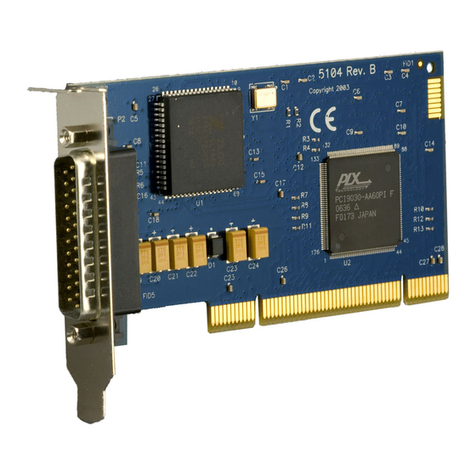
SeaLevel
SeaLevel ACB-MP.LPCI User manual
SeaLevel
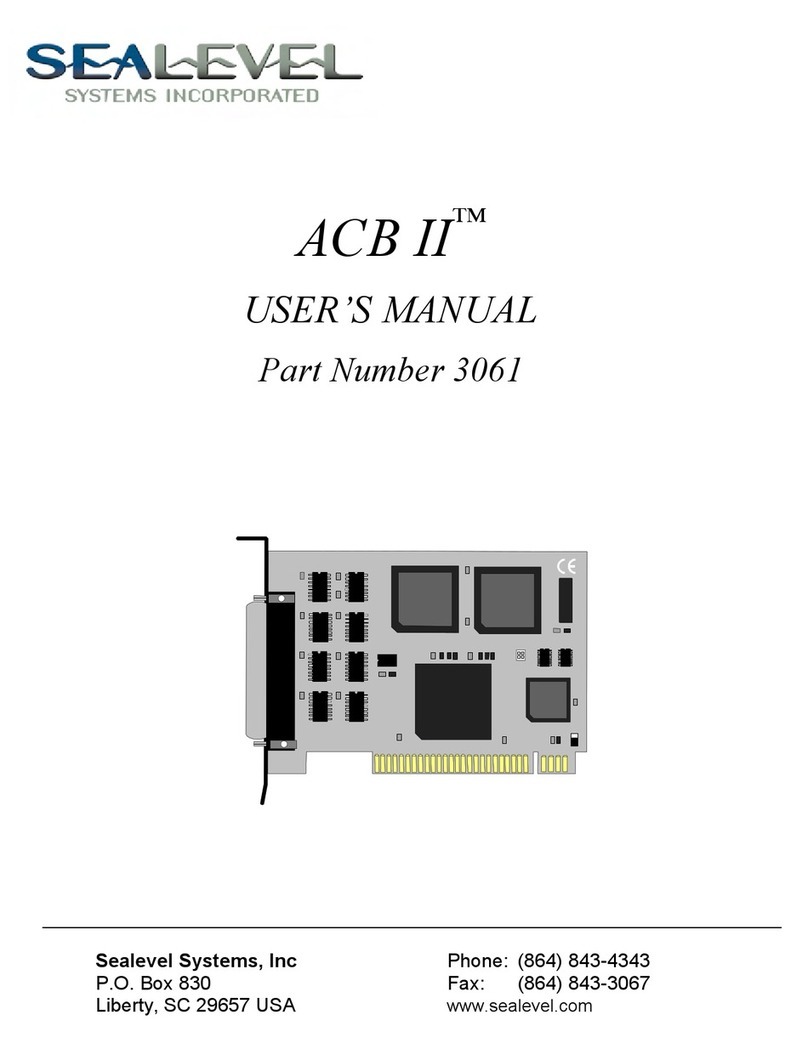
SeaLevel ACB II 3061 User manual
SeaLevel
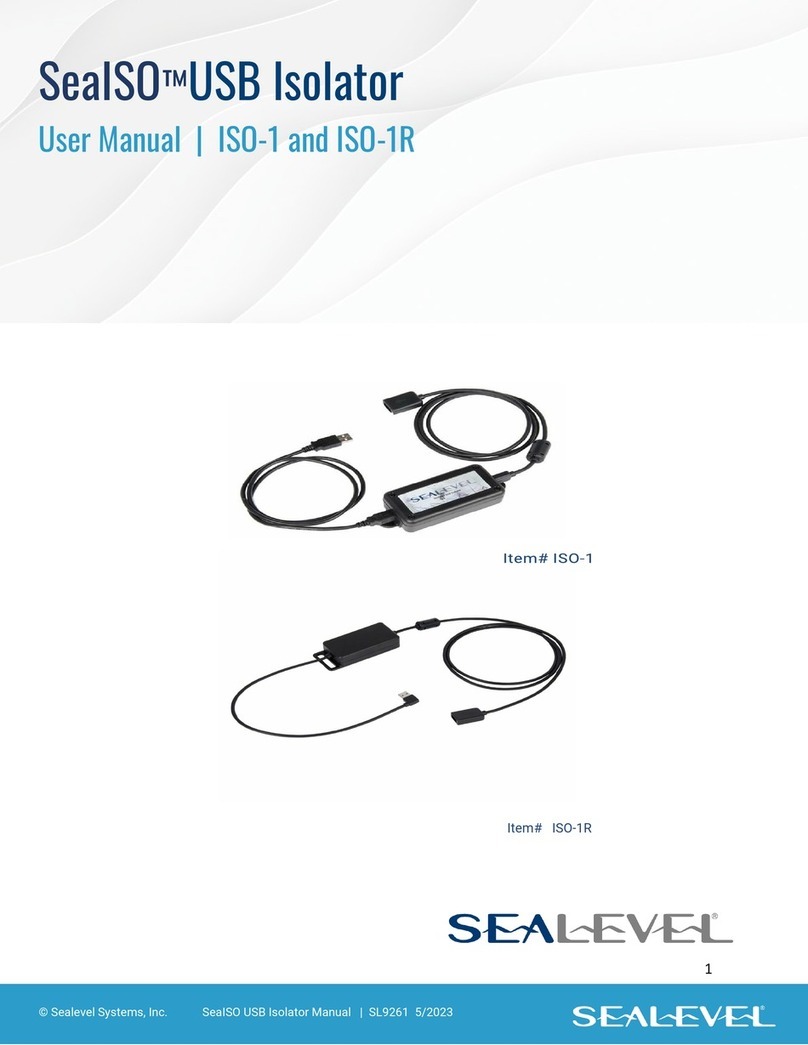
SeaLevel SeaISO ISO-1 User manual

SeaLevel
SeaLevel PIO-48 4030 User manual

SeaLevel
SeaLevel PROM-III User manual
SeaLevel
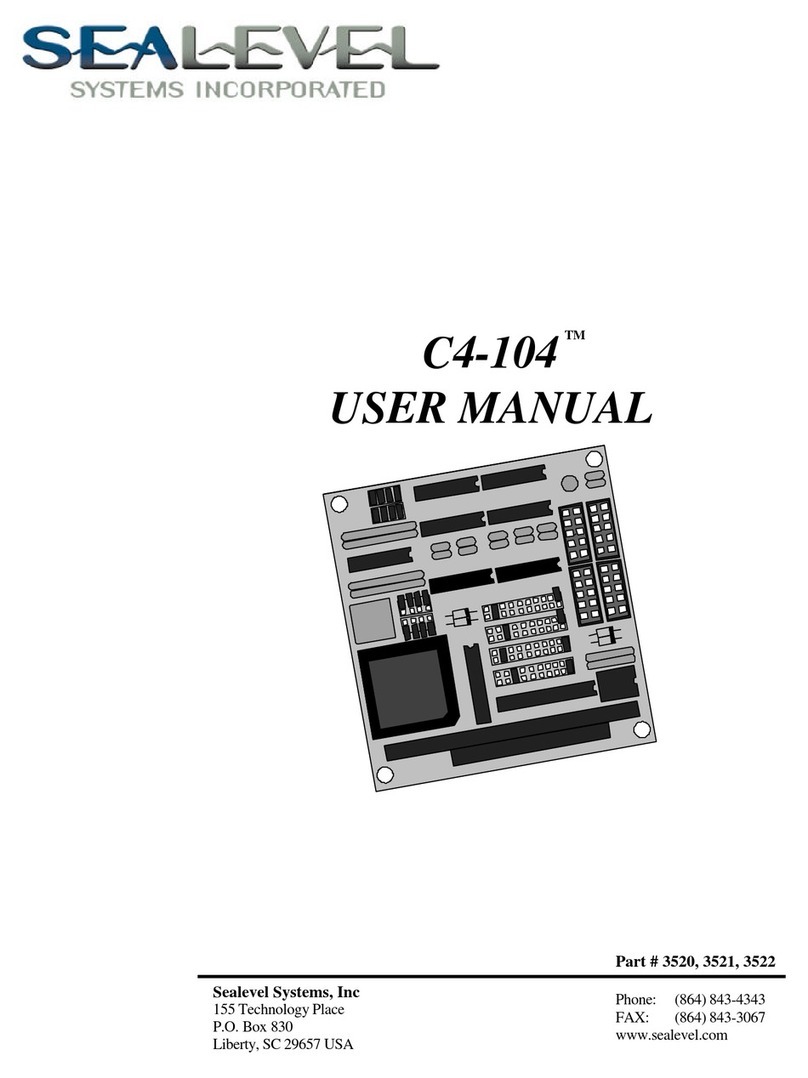
SeaLevel C4-104 Series User manual
SeaLevel
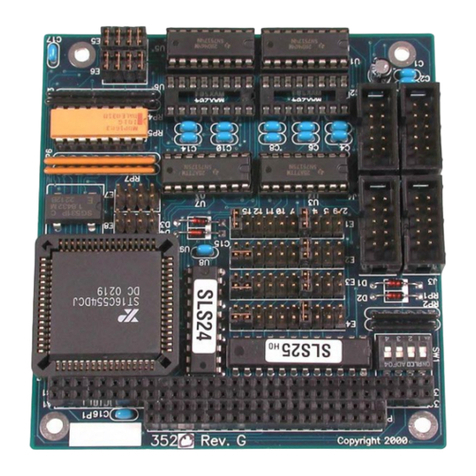
SeaLevel C4-104 Series User manual
SeaLevel
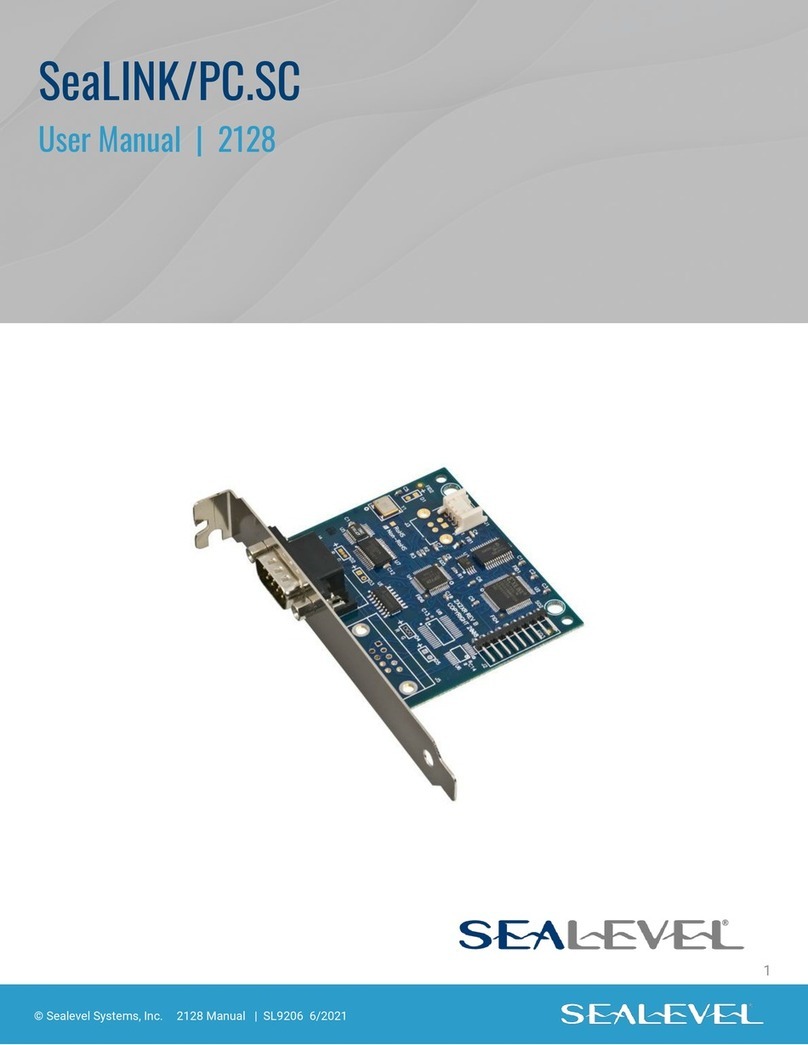
SeaLevel SeaLINK/PC.SC User manual
SeaLevel
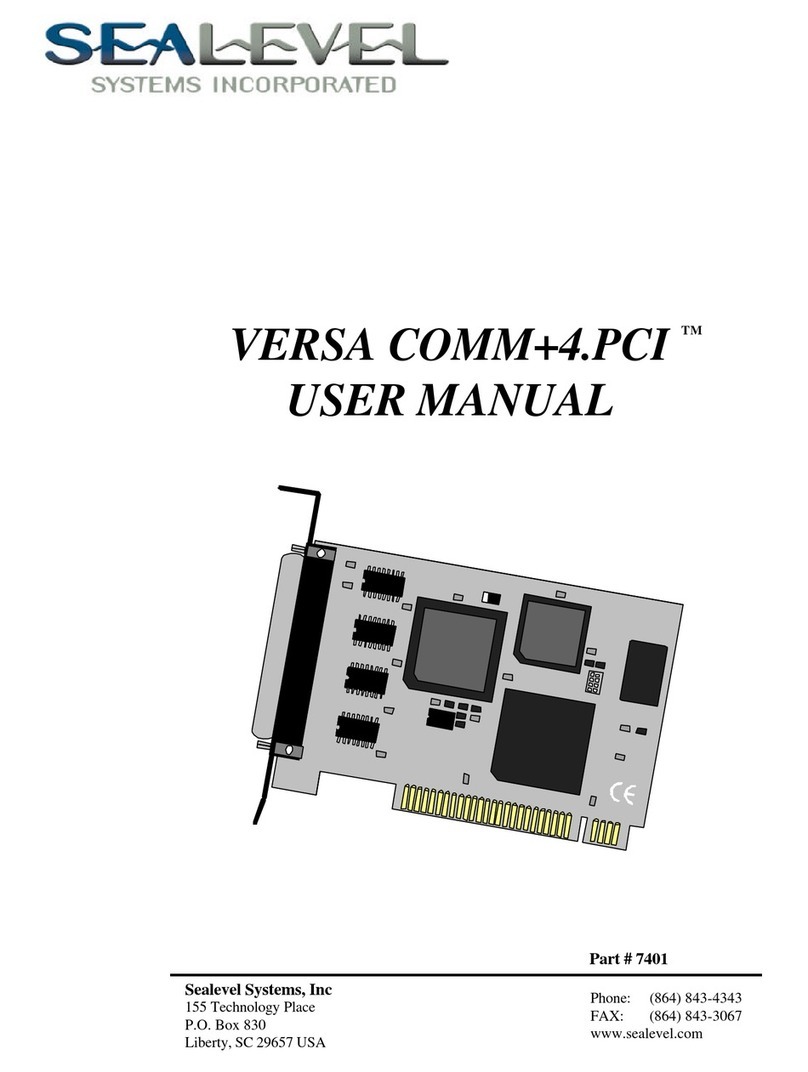
SeaLevel COMM+4.PCI User manual
SeaLevel
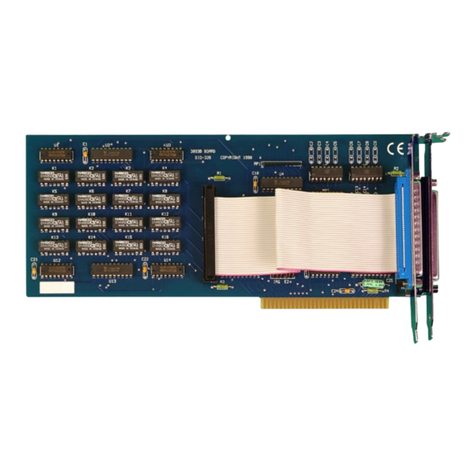
SeaLevel DIO-32B User manual
SeaLevel
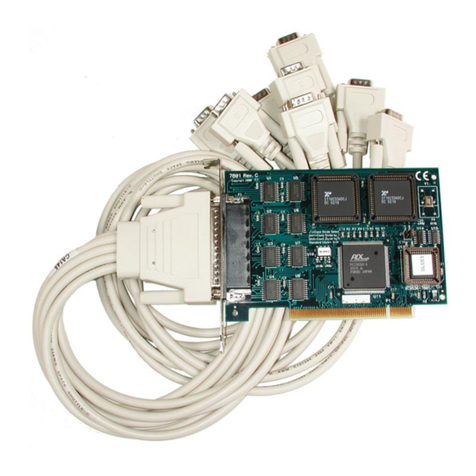
SeaLevel COMM+8.PC User manual
SeaLevel
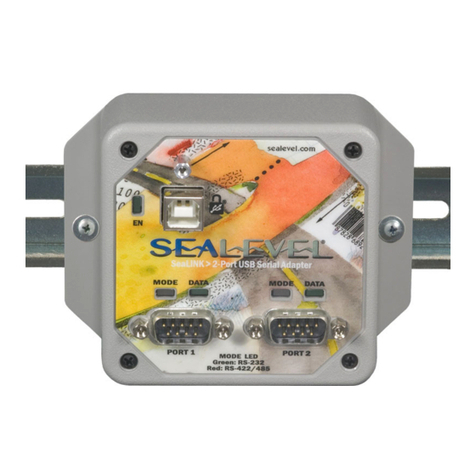
SeaLevel SeaLINK +2.SC User manual
SeaLevel
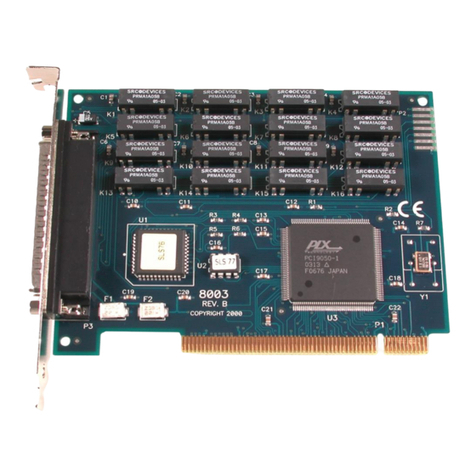
SeaLevel REL-16.PCI User manual
SeaLevel
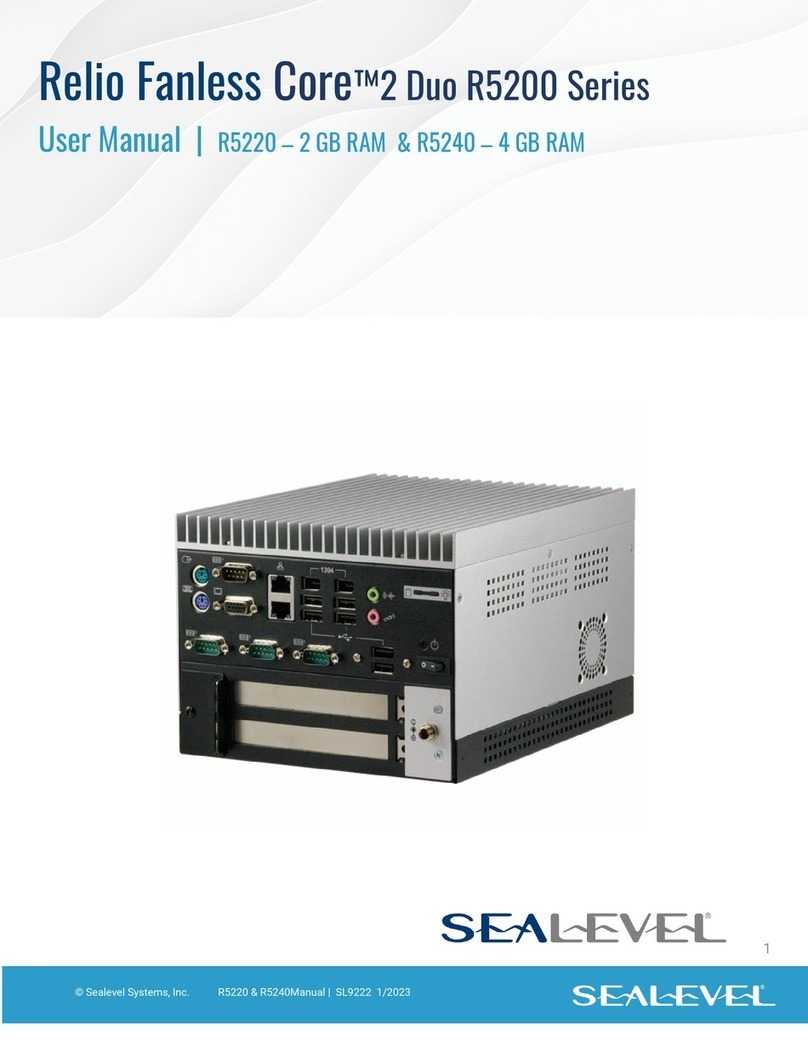
SeaLevel Relio Fanless Core 2 Duo R5200 Series User manual
SeaLevel
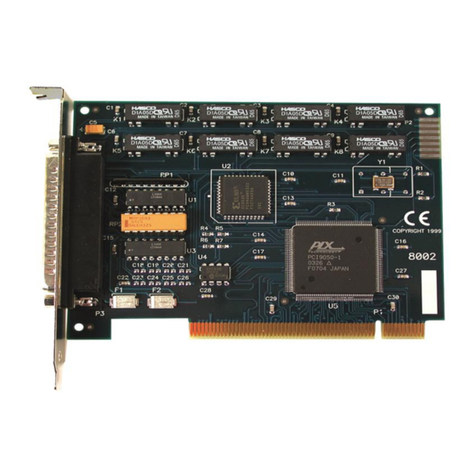
SeaLevel DIO-16.PCI User manual
SeaLevel
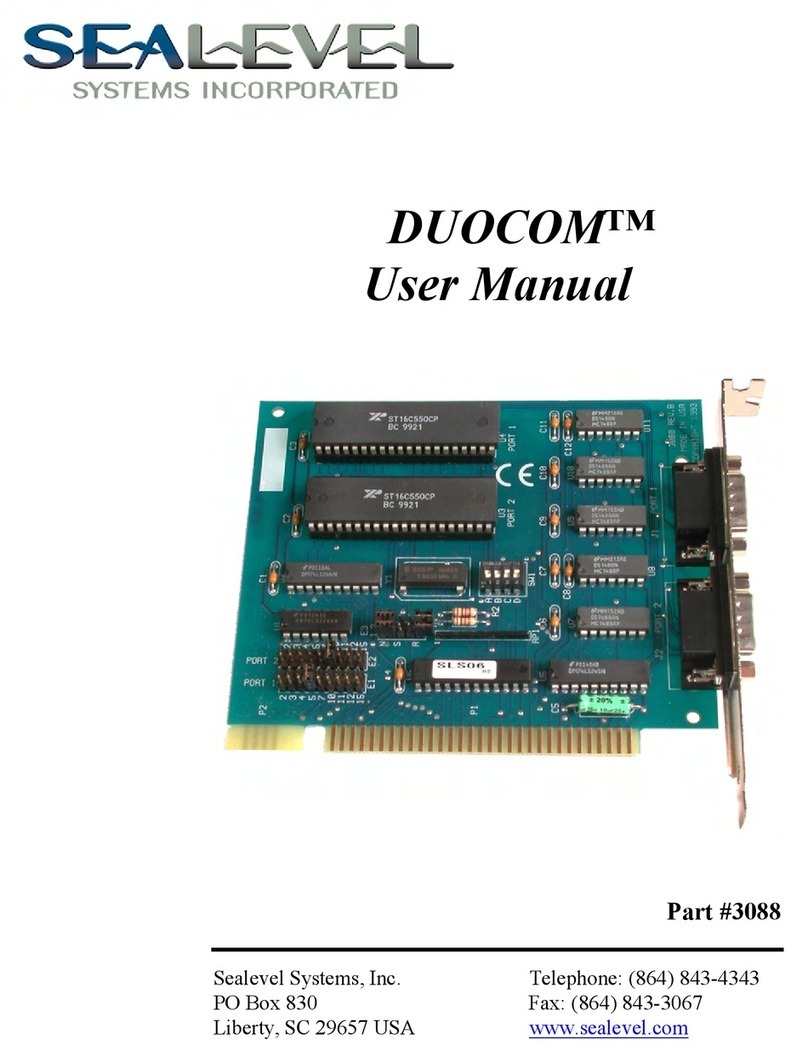
SeaLevel DuoCom User manual
SeaLevel
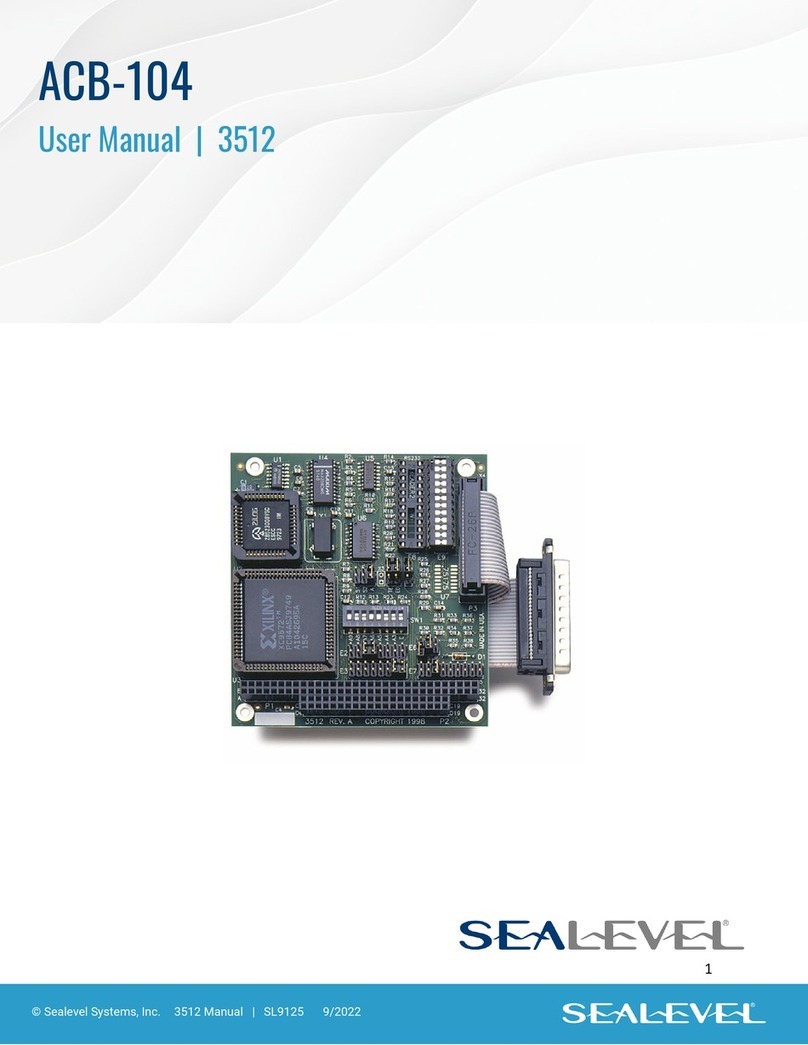
SeaLevel ACB-104 User manual
SeaLevel
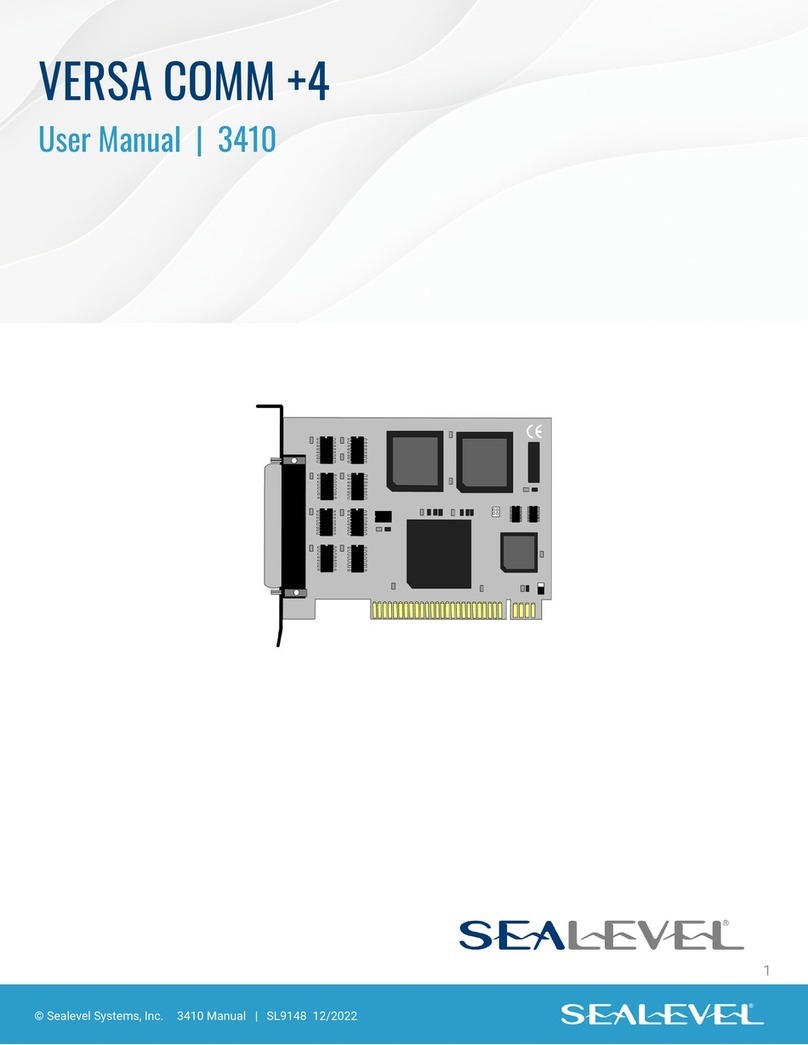
SeaLevel VERSA COMM +4 User manual
SeaLevel
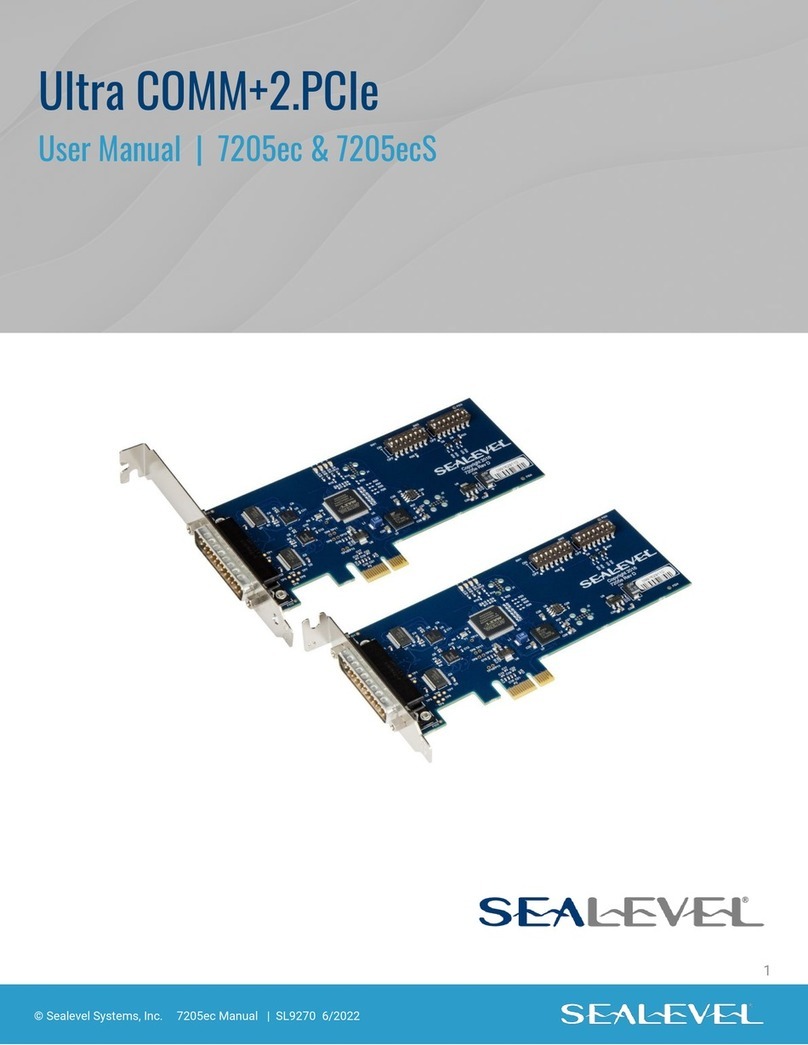
SeaLevel Ultra COMM+2.PCIe 7205ec User manual

SeaLevel
SeaLevel Ultra 485.OPT022 User manual
Popular Computer Hardware manuals by other brands

EMC2
EMC2 VNX Series Hardware Information Guide

Panasonic
Panasonic DV0PM20105 Operation manual

Mitsubishi Electric
Mitsubishi Electric Q81BD-J61BT11 user manual

Gigabyte
Gigabyte B660M DS3H AX DDR4 user manual

Raidon
Raidon iT2300 Quick installation guide

National Instruments
National Instruments PXI-8186 user manual