1 About this Guide
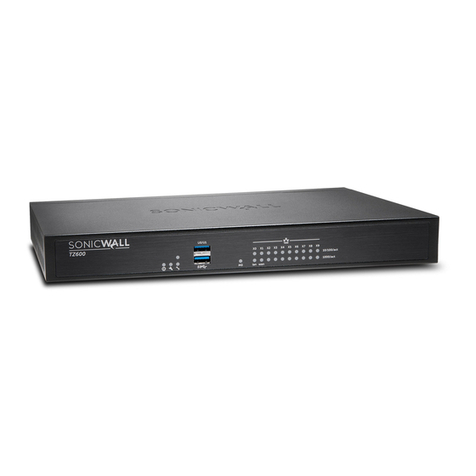
This SonicWall
®
NSa 4650/5650/6650 Quick Start Guide provides instructions for
basic installation and configuration of SonicWall NSa 4650/5650/6650 appliances.
Topics:
•NS
a
4650/5650/6650 Hardware verview
•Checking Package Contents
•Determining the WAN Type
•System Requirements
•SonicWall NS
a
LED Activity
•Connecting and Powering n
•Using the Setup Wizard
•Connecting the LAN and WAN Interfaces
•Testing and Troubleshooting Connectivity
•Registering the Appliance
•Upgrading to the Latest Firmware
•Licensing Services
•Rack Mounting the Appliance
•Safety and Regulatory Information
2 NS
a
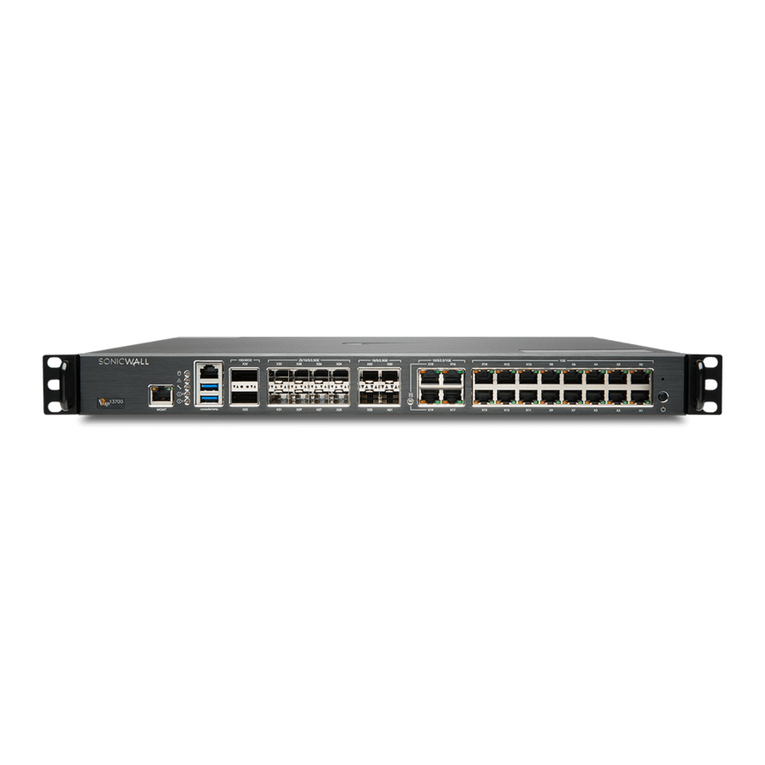
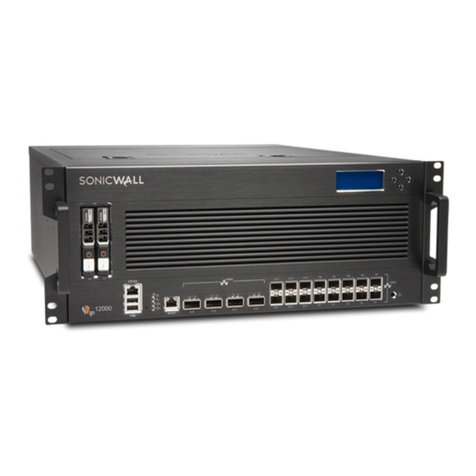
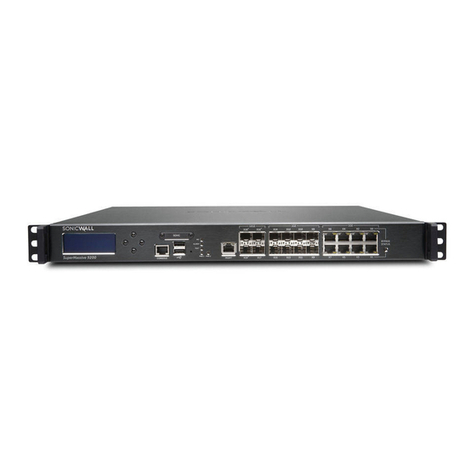
4650/5650/6650 Hardware Overview
NSa 4650 Front Panel
1 Gigabit Ethernet
Copper Ports
2.5/1 GE Copper Ports
2.5/1 GE SFP Ports
10/5/2.5 GE SFP+ Ports
MGMT
Port
System
Status LEDs
USB
Ports
Console
Port
SafeMode
Button
Power
Button
LAN
Bypass
LED
NSa 5650 Front Panel
NSa 6650 Front Panel
NSa 4650/5650/6650 Back Panel
1 Gigabit Ethernet
Copper Ports
2.5/1 GE Copper Ports
2.5/1 GE SFP Ports
10/5/2.5 GE SFP+ Ports
MGMT
Port
System
Status
LEDs
USB
Ports
Console
Port
SafeMode
Button
Power
Button
10/5/2.5 GE Copper Ports
LAN
Bypass
LED
2.5/1 GE
Copper Ports
1 GE Copper Ports
2.5/1 GE SFP Ports
10/5/2.5/1 GE
SFP+ Ports
10/5/2.5 GE Copper Ports
Console
Port
USB
Ports
MGMT
Port
System
Status
LEDs
SafeMode
Button
Power
Fans (2) Slot for Redundant
Power Supply
Primary Power Supply
Slot for Flexible Storage
Expansion Module
Built-in Storage
Module
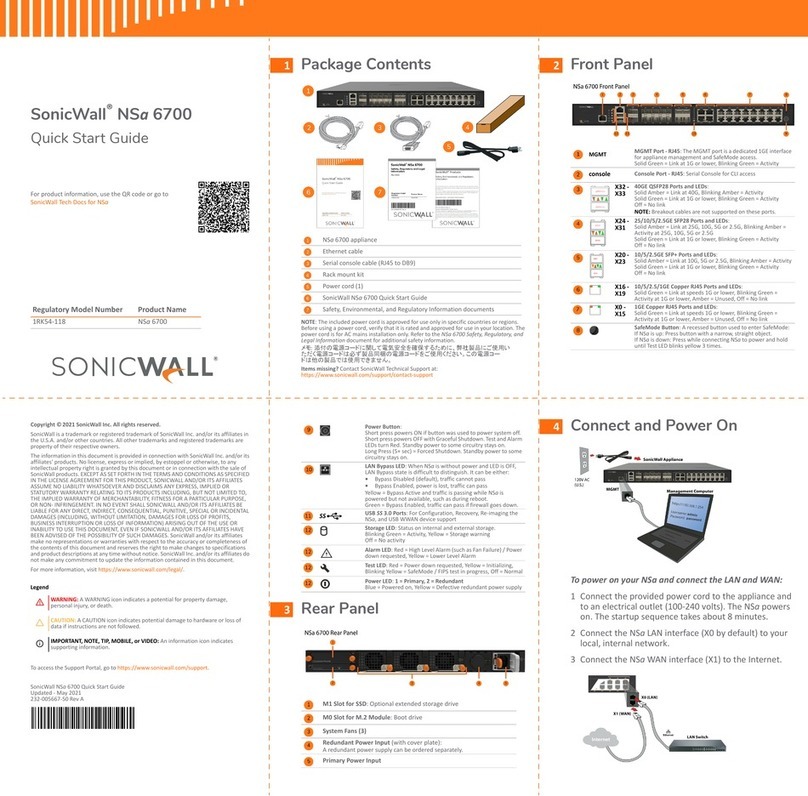
3 Checking Package Contents
Before you begin the setup process, verify that your package contains the
following items:
1 ne NSa 4650/5650/6650 appliance
2 ne power cord
3 ne Ethernet cable
4 ne serial console cable
5 ne torx wrench
6 ne rack mount kit
7 ne SonicWall NSa 4650/5650/6650 Quick Start Guide
8 ne Safety, Environmental, and Regulatory nformation document
Package Contents
NOTE: The included power cord is approved for use only in specific countries or
regions. Before using a power cord, verify that it is rated and approved for use in
your location.
4 etermining the WAN Type
Before configuring your SonicWall NSa appliance, you need to determine the type
of WAN connection that your setup uses. SonicWall supports the following types:
• Stat c—Configures the appliance for a network that uses static IP addresses.
• DHCP—Configures the appliance to request IP settings from a DHCP server on the
Internet.
• PPPoE—Point-to-Point Protocol over Ethernet (PPPoE) is typically used with a DSL
modem. If your ISP requires desktop software with a username and password, select
NAT with PPPoE mode.
• PPTP—Point-to-Point Tunneling Protocol (PPTP) is used to connect to a remote server.
PPTP typically supports older Microsoft Windows implementations that require
tunneling connectivity.
• L2TP—Layer 2 Tunneling Protocol (L2TP) is used to transmit Layer 2 data over IP or
other Layer 3 routed networks. Internet Service Providers (ISPs) often use it to enable
virtual private networks (VPNs) for customers over the Internet. It does not encrypt
network traffic itself. If L2TP is not available in the Setup Wizard, you can configure it
later in the SonicOS management interface
• W re Mode (2-Port W re)—Inserts the appliance into the network using two paired
interfaces. Available Wire Mode types include Bypass, Inspect, and Secure. Bypass
mode allows for quick and non-disruptive insertion into the data path. Inspect mode
extends Bypass mode with traffic inspection for classification and flow reporting. Secure
mode provides full SonicWall ReAssembly-Free Deep Packet Inspection™ (RF-DPI) and
control of network traffic.
Secure Mode also affords the same level of visibility and enforcement as conventional
NAT or L2 Bridged Mode deployments, but without any L3/L4 transformations, and with
no alterations of ARP or routing behavior. If Wire Mode is not available in the Setup
Wizard, you can configure it later in the SonicOS management interface
• Tap Mode (1-Port Tap)—Using a single interface, the firewall connects to and receives
mirrored packets from an adjacent switch SPAN port. Similar to Inspect mode in Wire
Mode, but with a single port and not in the physical path of traffic. If Tap Mode is not
available in the Setup Wizard, you can configure it later in the SonicOS management
interface
For more information about WAN types including Wire Mode, Tap Mode, L2TP,
and others, refer to the SonicOS 6.5 Administration documentation or online help.
NOTE: When operating in Wire Mode, the firewall's MGMT interface is used for
local management. To enable remote management and dynamic security
services and application intelligence updates, a WAN interface (separate from
the Wire Mode interfaces) must be configured for Internet connectivity.
5 System Requirements
Before beginning the setup process, verify that you have:
•An Internet connection
•A web browser supporting Java Script and HTTP uploads
The following browsers are supported for Sonic S management:
•Chrome, version 45 and higher
•Firefox, version 38 and higher
•Internet Explorer, version 10 and higher
•Edge, all versions
•pera, version 32 and higher
•Safari (running on non-Windows machines), version 10 and higher
6 SonicWall NS
a
LE Activity
The system LEDs provide essential status information about the appliance.
The Power 1 LED is the bottom LED next to the MGMT port. It is for the primary
power supply. The Power 2 LED for the redundant power supply is above the
Power 1 LED.
NOTE: Mobile device browsers are not recommended for SonicWall appliance
system administration.
Power 1 and Power 2 LEDs
LED Color Descr pt on
ff Respective power supply is not detected in the chassis. If both power
supply LEDs are off, the system is not powered on.
NOTE: When the optional power supply is not installed, it might take 1
to 2 minutes until the system detects the absence of the optional power
supply. The LED may appear yellow at first, but will turn off once booting
is finished.
Blue Respective power supply is on and operating properly.
Yellow Respective power supply is defective, not connected to an AC source, or
switched off.
NOTE: There may be a 10-20 second delay from the moment when a
power LED becomes yellow. This is normal and associated with voltage
decay.
Test/Wrench LED
LED Color Descr pt on
ff System booted and is operational.
Solid Yellow System booting is in progress.
Slow blinking yellow System is in SafeMode.
Rapid blinking yellow System is shutting down.
CAUTION: Do not remove power dur ng the shutdown
process. You r sk damag ng your appl ance.
Alarm LED
LED Color Descr pt on
ff No alarms present.
Blinking or solid yellow Minor system alarm.
Blinking or solid red Major or critical system alarm (thermal, fan, etc).
Module 0 / Module 1 LEDs
LED Color Descr pt on
ff Module is not detected in respective slot.
Solid green Module is present in the slot and operational.
Solid yellow Module warning.
MGMT Port LEDs
LED Color Descr pt on
ff No link.
Solid green Linked at 1 Gbps, 100 Mbps, or 10 Mbps.
Blinking yellow Traffic is active.
LAN Bypass LED
LED Color Descr pt on
ff LAN Bypass is disabled, ports are isolated from each other.
Solid green LAN Bypass is armed, but not active. Ports are isolated until
event such as power failure/reboot, which will activate bypass.
Solid yellow LAN Bypass is active, ports are connected together. LED will
appear ff if power has failed, but bypass is still active.
7 Connecting and Powering On
1 G gab t Ethernet Copper Ports LEDs
LED Color Descr pt on
ff No link.
Solid green Linked at 1 Gbps, 100 Mbps, or 10 Mbps.
Blinking yellow Traffic is active.
2.5 / 1 GE Copper Ports and SFP Ports LEDs
LED Color Descr pt on
ff No link.
Solid green Linked at 1 Gbps or 100 Mbps.
Solid amber Linked at 2.5 Gbps.
Blinking yellow Traffic is active.
10 / 5 / 2.5 GE Copper Ports and SFP+ Ports LEDs
LED Color Descr pt on
ff No link.
Solid green Linked at 1 Gbps or 100 Mbps.
Solid amber Linked at 10 Gbps, 5 Gbps, or 2.5 Gbps.
Blinking yellow Traffic is active.
SonicWall Appliance
120V AC
(U.S.) MGMT
To connect your management computer to the NSa appliance for initial setup:
1 Using the provided Ethernet cable, connect one end to your management computer
and the other to the MGMT port on the appliance.
The MGMT port is a dedicated 1 Gigabit Ethernet interface for appliance management
and SafeMode access.
2 Connect the power cord to the appliance and to an appropriate electrical outlet (100-
240 volts).
8 Using the Setup Wizard
The Sonic S setup wizard helps you quickly configure the SonicWall appliance to
secure your Internet connection.
To use the setup wizard:
1 Configure the Local Area Connection IPv4 properties on your management computer
with a static IP address on the 192.168.1.0/24 subnet, such as 192.168.1.20, and set the
subnet mask to 255.255.255.0.
This allows your computer to connect to Sonic S via the MGMT interface.
2 In a web browser on your computer, navigate to the default MGMT IP address:
http://192.168.1.254
3 In the initial screen, launch the Sonic S setup wizard by clicking the first link, To launch
the Son cWall Setup Gu de, cl ck here.
4 The Sonic S Startup Guide opens. Click NEXT.
TIP: ptionally connect the
appliance WAN interface (X1) to your Internet connection
at this point. Since the WAN type is DHCP by default, this will prevent an error message
during IP configuration in the setup wizard. See Connecting the LAN and WAN Interfaces.
5 In the Credent als screen, optionally configure the admin password and settings, and
then click NEXT.
6 In the IP Conf gurat on screen, the wizard defaults to DHCP for the WAN type and
requests IP settings from the DHCP server on the network. Do one of the following:
•Click NEXT to accept these settings.
•Click Manual Conf g to configure a different WAN type and then click NEXT.
For example, change the WAN type to Stat c using the drop-down list and manually
enter a static IP address and other settings.
For information about WAN types, see Determining the WAN Type.
7 In the Manual Conf gurat on screen, click RETRY if you want to revert to DHCP.
8 In the Setup Complete screen:
a Review the settings.
b ptionally select Automat c secure crash analys s report ng.
c ptionally select Per od c secure d agnost c report ng for support purposes.
9 If the settings are correct, click DONE to apply the configuration.
The Setup Guide exits and the appliance displays the login page.
10 ptionally log in with the username and password that you set up in Step 5 (the default
credentials are admin / password).
NOTE: The default administrator credentials are:
Username: admin
Password: password
9 Connecting the LAN and WAN Interfaces
After initial setup is complete, physically connect the LAN and WAN interfaces to
the appropriate network devices in your environment to provide access to your
networks or the Internet.
LAN and WAN Connect ons
To connect the interfaces:
1 Using a standard Ethernet cable, connect the appliance LAN interface (X0) to your local
network switch or device, or to your computer.
2 Using another Ethernet cable, connect the appliance WAN interface (X1) to your
Internet connection.
If you have a router, DSL modem, or cable modem, connect the Ethernet cable to a LAN
port on the router or modem.
NOTE: Internet connectivity is needed for the recommended product
registration process. For initial Internet access, connect your computer to the
NSa X0 interface or to the LAN subnet. You cannot reach the Internet or other
external destinations while connected to the MGMT interface without first
configuring a default gateway in its interface settings.
X0
X1
X2
X3
X4
X5
X7X9
X0 (LAN)
X1 (WAN)
Internet
Ethernet
NOTE: If X1 is configured in Wire Mode, you can configure a different interface
with one of the other WAN types for use in this step.
SonicWall
®
NS
a
4650/5650/6650
Quick Start Guide
Regulatory Model Numbers:
1RK39-0C9 NSa 4650
1RK39-0CA NSa 5650
1RK39-0CB NSa 6650
Copyr ght © 2018 Son cWall Inc. All r ghts reserved.
SonicWall is a trademark or registered trademark of SonicWall Inc. and/or its affiliates in
the U.S.A. and/or other countries. All other trademarks and registered trademarks are
property of their respective owners.
The information in this document is provided in connection with SonicWall Inc. and/or its
affiliates' products. No license, express or implied, by estoppel or otherwise, to any
intellectual property right is granted by this document or in connection with the sale of
SonicWall products. EXCEPT AS SET F RTH IN THE TERMS AND C NDITI NS AS SPECIFIED
IN THE LICENSE AGREEMENT F R THIS PR DUCT, S NICWALL AND/ R ITS AFFILIATES
ASSUME N LIABILITY WHATS EVER AND DISCLAIMS ANY EXPRESS, IMPLIED R
STATUT RY WARRANTY RELATING T ITS PR DUCTS INCLUDING, BUT N T LIMITED T ,
THE IMPLIED WARRANTY F MERCHANTABILITY, FITNESS F R A PARTICULAR PURP SE,
R N N- INFRINGEMENT. IN N EVENT SHALL S NICWALL AND/ R ITS AFFILIATES BE
LIABLE F R ANY DIRECT, INDIRECT, C NSEQUENTIAL, PUNITIVE, SPECIAL R INCIDENTAL
DAMAGES (INCLUDING, WITH UT LIMITATI N, DAMAGES F R L SS F PR FITS,
BUSINESS INTERRUPTI N R L SS F INF RMATI N) ARISING UT F THE USE R
INABILITY T USE THIS D CUMENT, EVEN IF S NICWALL AND/ R ITS AFFILIATES HAVE
BEEN ADVISED F THE P SSIBILITY F SUCH DAMAGES. SonicWall and/or its affiliates
make no representations or warranties with respect to the accuracy or completeness of
the contents of this document and reserves the right to make changes to specifications
and product descriptions at any time without notice. SonicWall Inc. and/or its affiliates do
not make any commitment to update the information contained in this document.
For more information, visit https://www.sonicwall.com/legal/.
To access the Support Portal, go to https://www.sonicwall.com/support.
SonicWall NSa 4650/5650/6650 Quick Start Guide
Updated - May 2018
232-004309-50 Rev A
Legend
WARNING: A WARNING icon indicates a potential for property damage,
personal injury, or death.
CAUTION: A CAUTI N icon indicates potential damage to hardware or loss of
data if instructions are not followed.
IMPORTANT, NOTE, TIP, MOBILE, or VIDEO: An information icon indicates
supporting information.