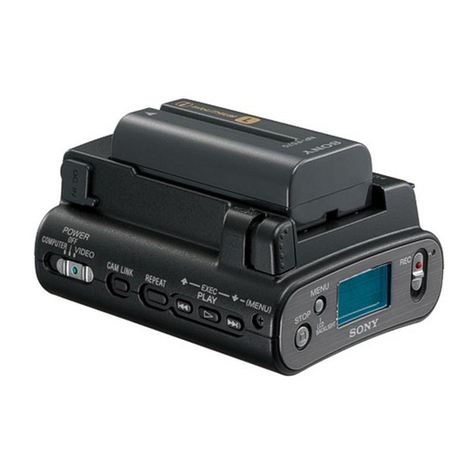
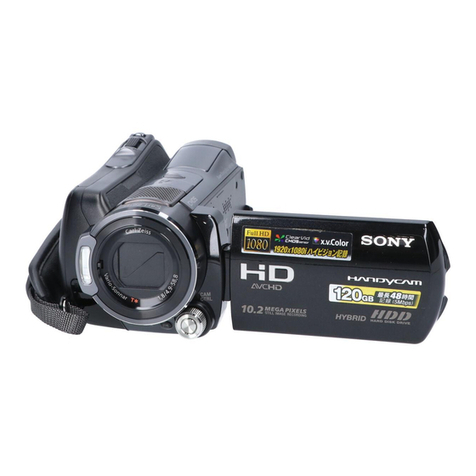
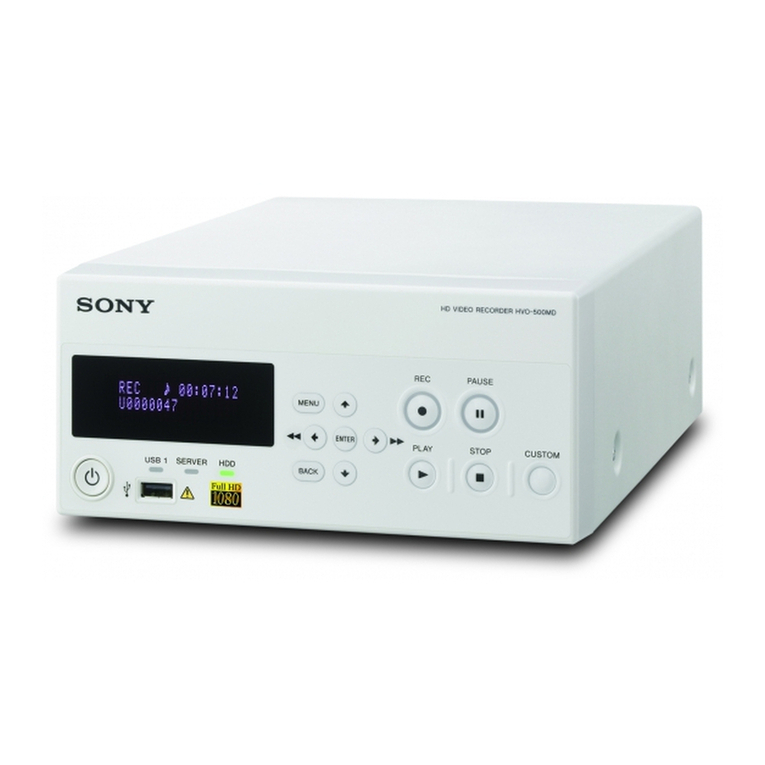
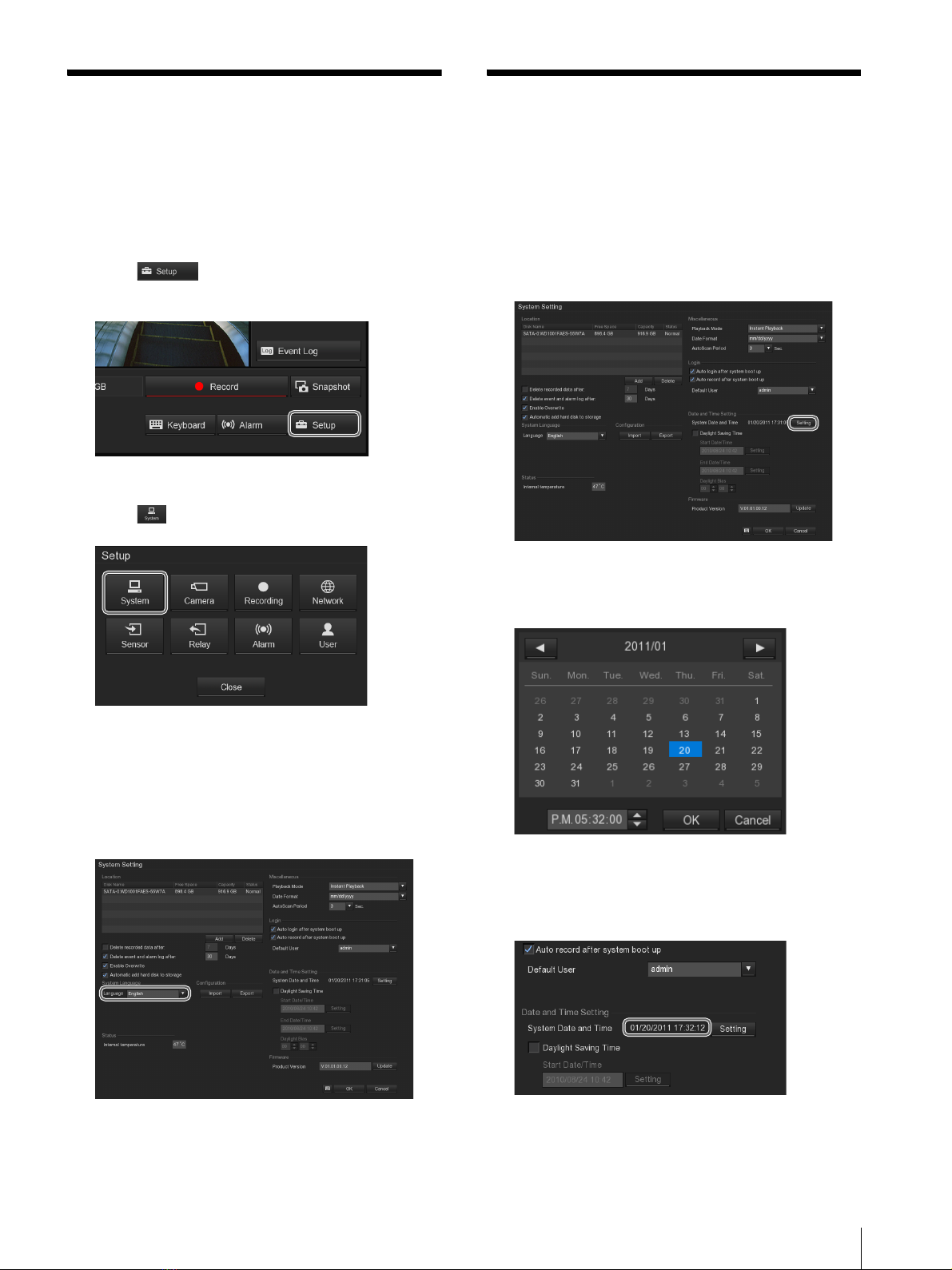
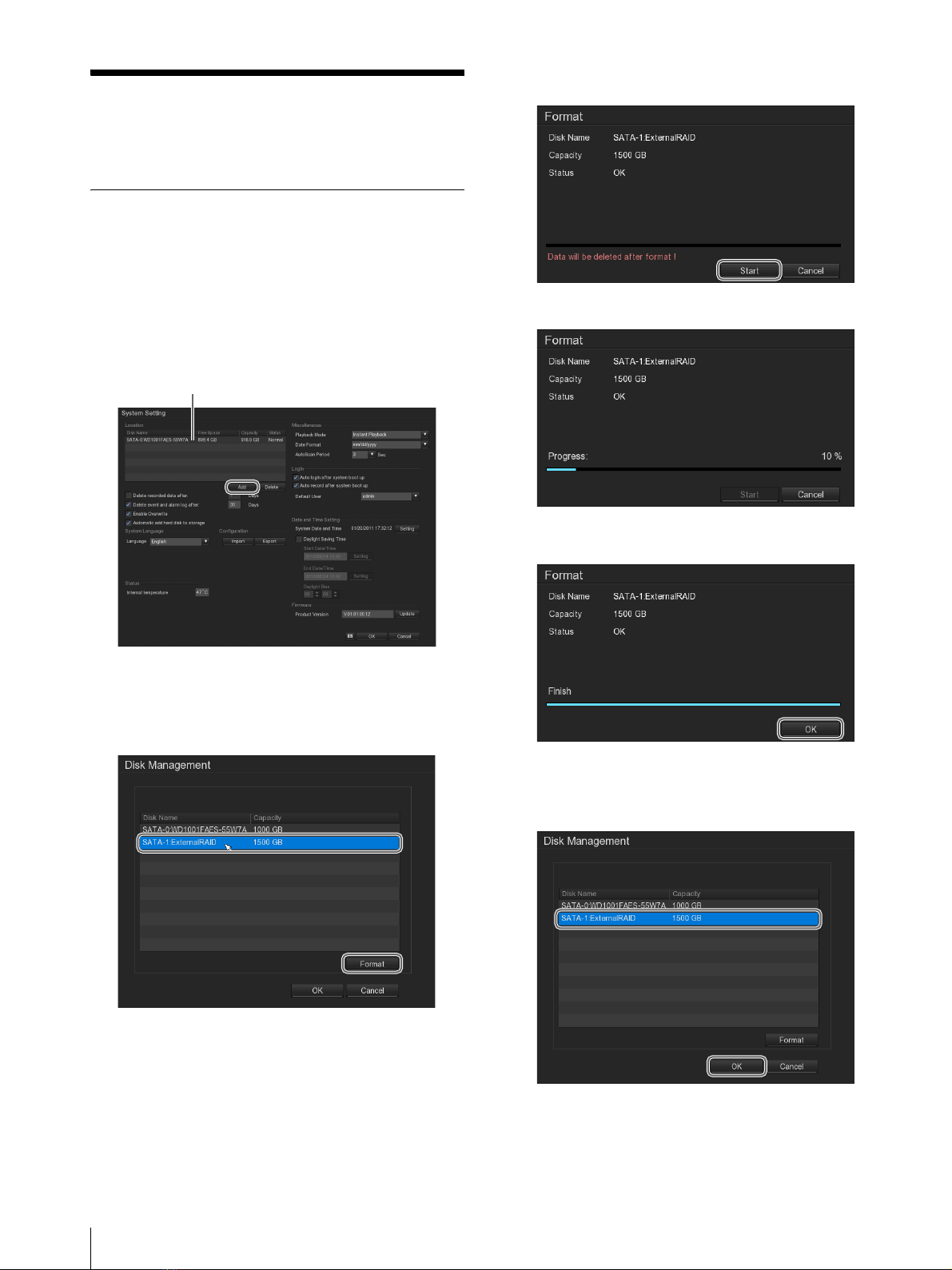
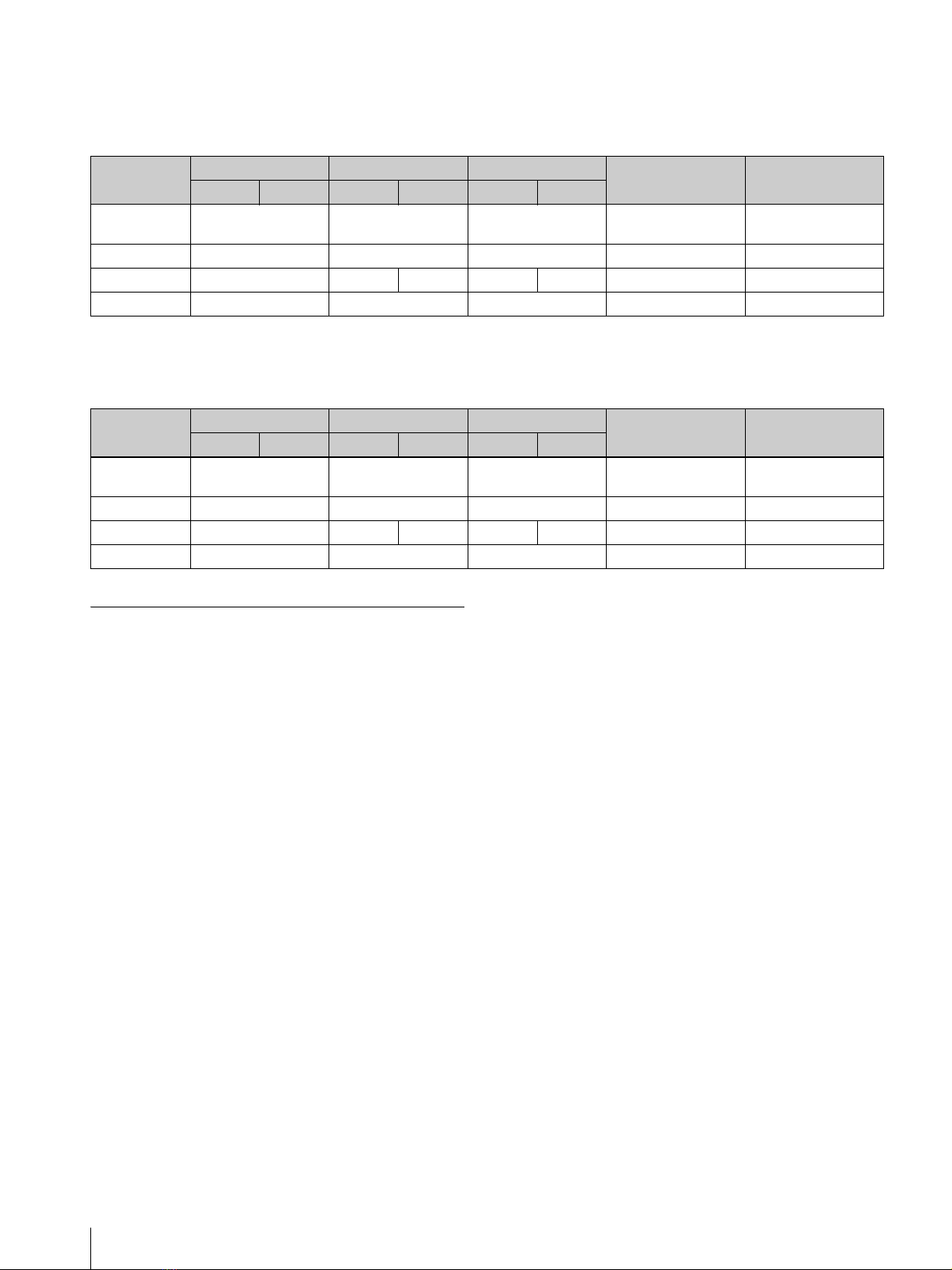
Sony Ipela NSR-S10 User manual
Other Sony DVR manuals

Sony
Sony SVR-3000 - Digital Network Recorder User manual
Sony
Sony Ipela NSR-S10 User manual
Sony
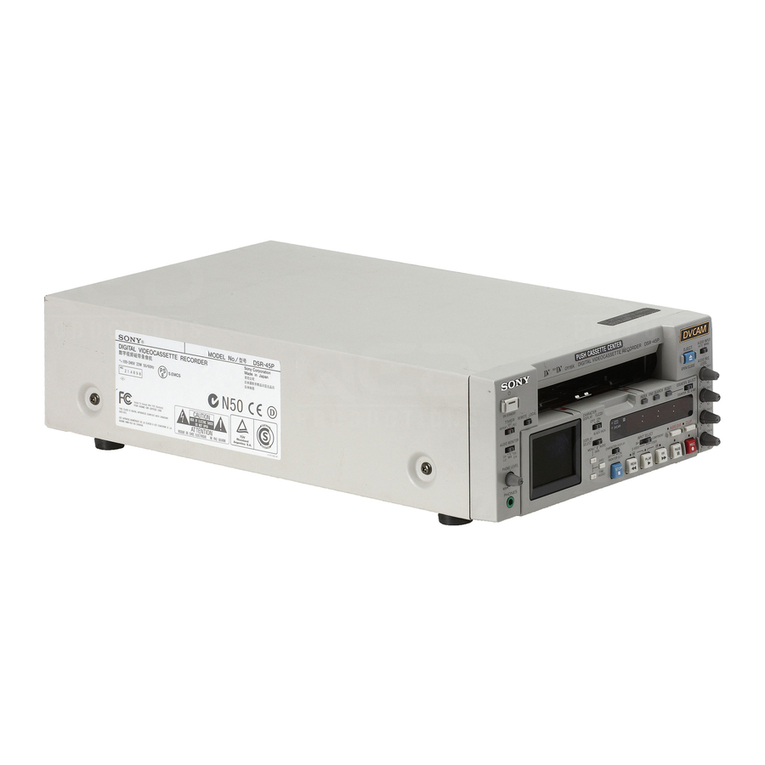
Sony DSR-45/45P User manual

Sony
Sony Video Walkman GV-M20 User manual

Sony
Sony DHG-HDD250 - 30-Hour High-Definition Digital Video... User manual
Sony
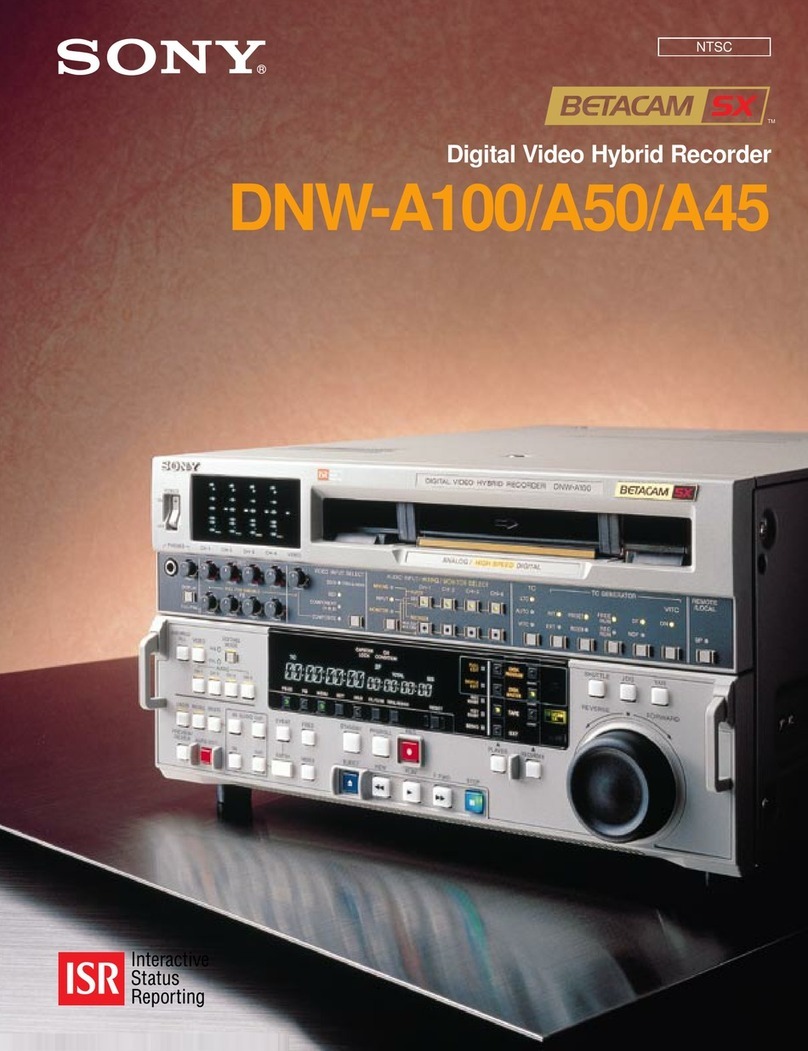
Sony DNW-A100 User manual
Sony
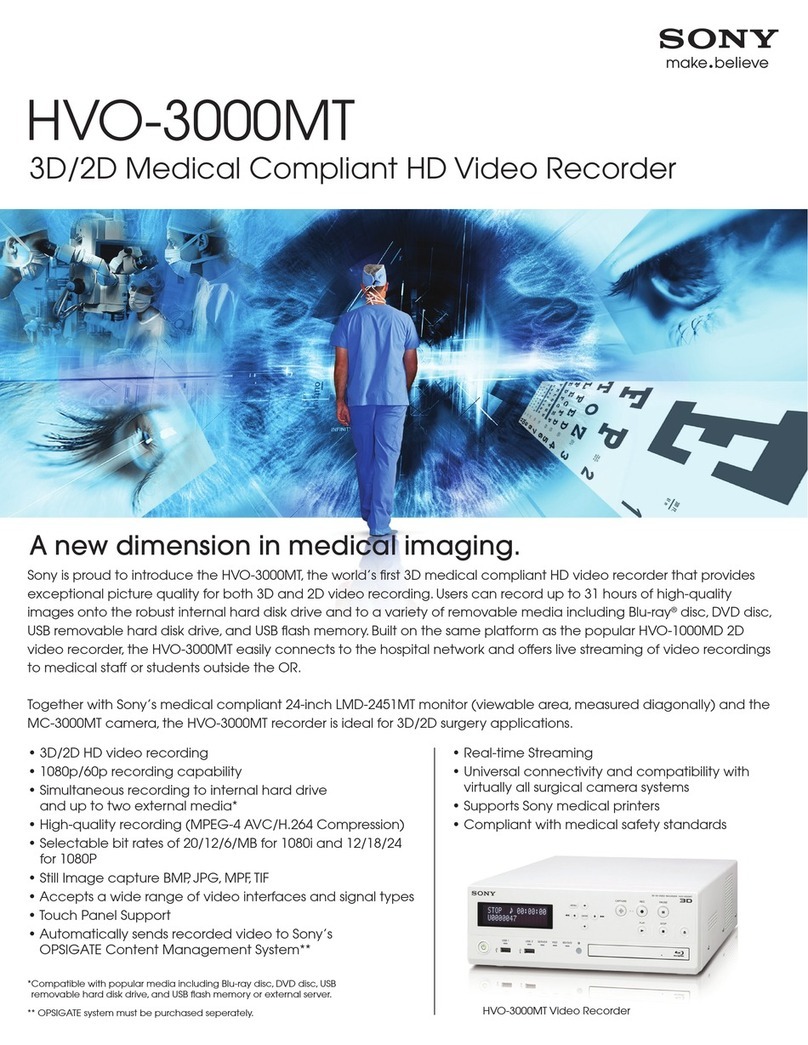
Sony HVO3000MT User manual
Sony
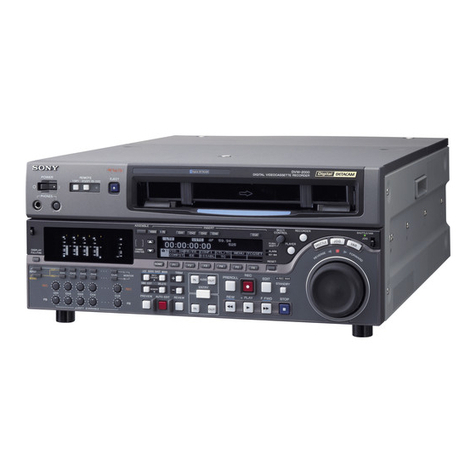
Sony Digital Betacam DVW-2000 User manual

Sony
Sony Handycam HDR-CX240 User manual

Sony
Sony Giga Pocket User manual
Sony
Sony PSX DESR-7500 Technical manual

Sony
Sony DHG-HDD250 - 30-Hour High-Definition Digital Video... User manual
Sony
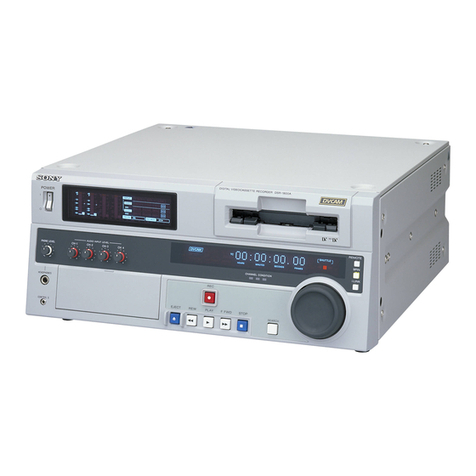
Sony DSR-1800AP User manual
Sony
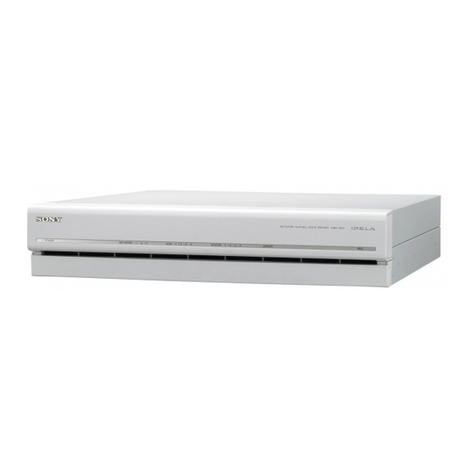
Sony NSR-1000 Series How to use

Sony
Sony Walkman GV-8 User manual
Sony
Sony DNW-A100 User manual

Sony
Sony HVO-500MD User manual

Sony
Sony SVR-3000 - Digital Network Recorder User manual
Sony
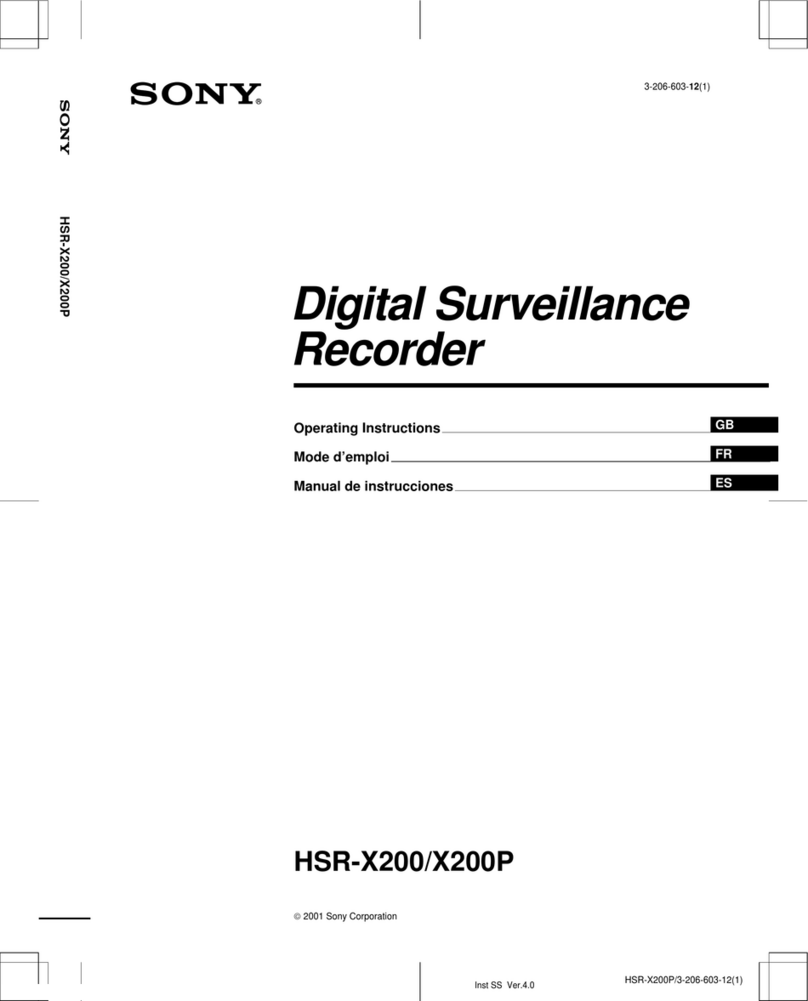
Sony HSR-X200P User manual
Sony
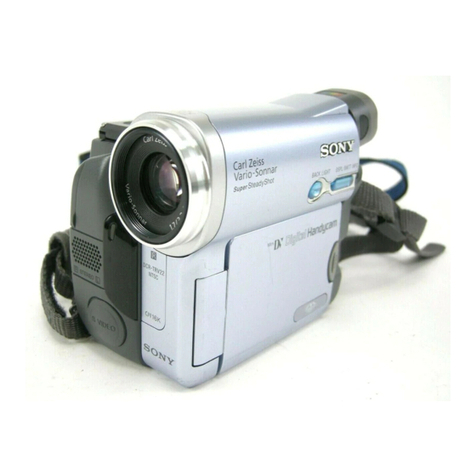
Sony DCR-TRV19 Manual de instrucciones / Manual de... User manual