NOTE: Once you have located the IP address of the SV1110IPEXT and wish to proceed with the Web
configuration, do not power off the unit or your DHCP server, since the KVM might lease a different IP
address. Should this happen, re-examine the DHCP log to verify the IP address again.
NOTE: DCHP functionality is not affected if you also connected the WAN port on the SV1100IPEXT to
your network (see below).
Accessing Web Configuration Using Static IP
Since some networks rely on static IP addresses (every device has a pre-configured IP address that does not
change), the DHCP access method described above is not applicable in those situations. To accommodate
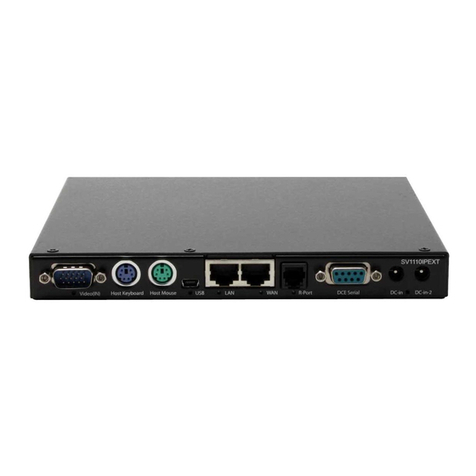
this type of installation, the WAN port on the rear panel of the SV1110IPEXT is factory-configured with
its own IP address.
NOTE: If you connected the LAN port on the rear panel of the unit to your network but did not connect the
WAN port, you must disconnect the Ethernet cable from the LAN port and move it to the WAN port
before attempting a static IP installation. (If desired, you can return the cable to the LAN port if you
configure it with a static IP address during the configuration process.) If you have connected both the LAN
and WAN ports on the KVM to your network, you may proceed with a static IP Web configuration.
The following are the default values for the WAN port, configured at the factory:
IP Address: 192.168.1.123
Subnet Mask: 255.255.255.0
Default Gateway: 192.168.1.254
Broadcast: 192.168.1.255
To access the Web configuration for this product, you will need to configure the workstation you are using
to the same subnet (255.255.255.0) and also assign it a valid IP address. For details on how to change the
IP address of your computer (if necessary), consult your documentation or System Administrator for
assistance.
NOTE: It is advisable to verify whether another device on your network is using the same IP address as
the SV1110IPEXT before connecting it to the network to avoid a conflict. Should an IP address conflict
occur with another device on the network, power off the conflicting device or assign it another IP address
before continuing the installation.
NOTE: Not all IP addresses are valid for a given subnet. If you are required to change your subnet (and
therefore IP address) to configure the unit, be sure the IP address you choose is within the allowable range
for the 255.255.255.0 subnet.
Once your computer is configured to the same subnet as the SV1110IPEXT, you can use the IP address
192.168.1.123 to access the Web configuration system.
Accessing Terminal Configuration Using a Serial Cable
Configuring the SV1110IPEXT using a serial cable is the best choice if you need to pre-configure the unit
before attaching it to a network, i.e. when sending to a branch office, customer site, etc. In general, the
Web configuration is far preferable because of its intuitive interface and the fact that you do not have to be
within close physical proximity to do the configuration. However, if you wish to use the serial cable
method to configure the SV1110IPEXT, you can use any typical communication software package (UNIX:
tip, cu, kermit, minicom; Windows: HyperTerminal, kermit).
Using a DB9 male-to-female (straight-through, not null-modem) connect the end of the cable with the male
connector to the DCE Serial port on the rear panel of the SV1110IPEXT. Connect the end with the female