ENG
6
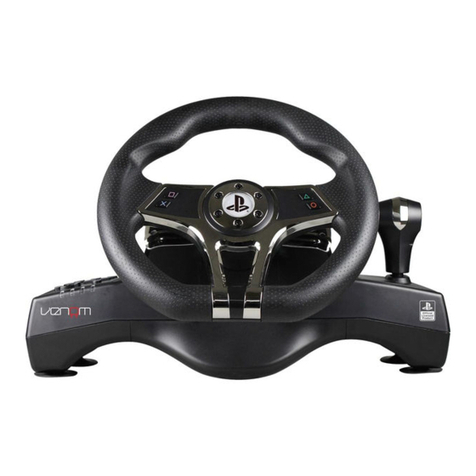
Game racing wheel
8. PROGRAMMABLE FEATURES
The wheel allows to re-assign some features to other buttons. Acceleration/brake buttons,
wheel-mounted buttons, gear-change lever can be re-assigned depending on your preferences
and needs in a game and are dened as A/B/X/Y/LB/RB/LT/RT. Whereas other keys do not sup-
port re-assignment.
Programming
Press and hold PROGRAM button for 3 seconds, until 4red LEDs light up on a bottom front
panel of the wheel. Press a functional button, that you would like to be programmed (pedals,
wheel-mounted buttons, gear-change lever). LEDs will start ashing quickly. Press one of func-
tional buttons (A/B/X/Y/LB/RB/LT/RT), in order to assign a new feature to a button. LEDs will stop
ashing. Programming is completed.
Cancelling a single programmed button
Press and hold PROGRAM button for 3 seconds, until 4red LEDs light up on a bottom front
panel of a wheel. Press a button that you would like to reset and once again press PROGRAM.
LEDs will stop ashing. The programmed button is reset.
Cancelling all programmed buttons, reset by default
Simultaneously press and hold SELECT and START buttons for 3seconds, bottom 4LEDs will
blink 3times. Reset is completed.
9. ADJUSTING WHEEL SENSITIVITY
Conguration allows to adjust 4levels of wheel sensitivity.
In order to increase wheel sensitivity, simultaneously press wheel-mounted buttons L1 and R1.
In order to decrease wheel sensitivity, simultaneously press wheel-mounted buttons L2 and R2.
Indicator panel consisting of 4LEDs corresponds to sensitivity levels from 1 to 4. LEDs of a cor-
responding level will ash 3times, and then will go out.
10. CONNECTION AND INSTALLATION
Make sure that the wheel steering angle equals 0° (do not touch the wheel), before connecting
a wheel to a gaming console or PC with the power turned on. This guarantees that the wheel
steering angle is in the center from the start. You can repeat this procedure if it turns out
that your wheel is not aligned.
Insert a USB connector of pedal unit to a USB port on a gaming wheel back panel.
11. CONNECTING A WHEEL TO DIFFERENT PLATFORMS
Using a wheel with PS3, PS4 console
Connect pedals to a wheel, connect a wheel to a console via USB cable.
Turn on the console power.
One of LEDs will light up with red. The wheel is ready for operation.
Using a wheel with Nintendo Switch console
Connect pedals to a wheel, connect a wheel to a console using USB cable to a docking station
or via OTG-Type-C cable to a console.
Turn on the console power.
One of LEDs will light up with red. The wheel is ready for operation.
Control settings should be made via programming mode.
Using a wheel with Android
Connect a wheel USB cable to your Android device, Smart TV or set-top box.
Connection of a wheel to a telephone or a tablet requires OTG cable (not included in the set).