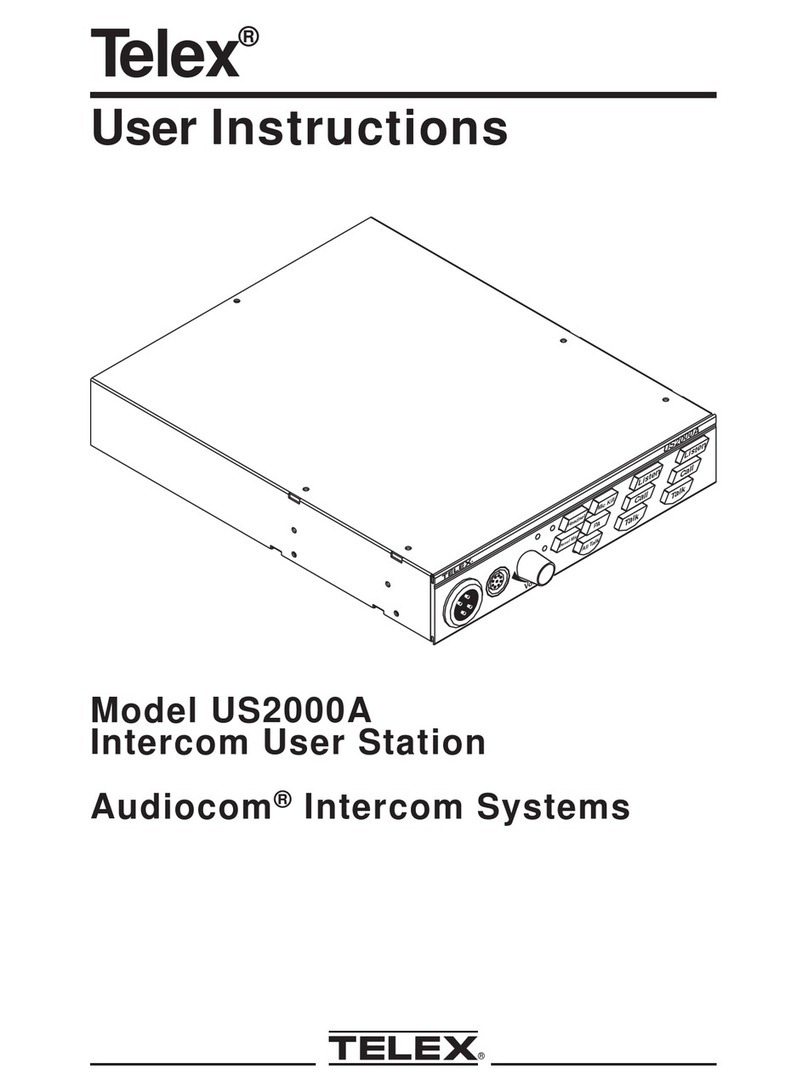
Telex SS2000 User manual

Telex®
User Instructions
Model SS1000 / SS2000
Intercom Speaker Stations
Audiocom®Intercom Systems
Volume
Panel Mic
Headset
GRN 1
RED 2
SS2000
TM
Headset Listen
Ch Select Talk
Panel Mic Call
SS2000 “S” Box
®
SS2000
GRN 1
RED 2
Headset
Panel Mic
Volume
TM
Listen
Call
Talk
Headset
Panel Mic
Ch Select
SS2000 “P” Box
Volume
SS2000
Headset
GRN 1
RED 2
Headset Listen
Panel Mic Call
Ch Select Talk
Panel Mic
TM
SS2000 “U” Box

FCC Statement
This equipment uses and can radiate radio frequency energy that may cause in-
terference to radio communications if not installed in accordance with this man-
ual. The equipment has been tested and found to comply with the limits of a
Class A computing device pursuant to Subpart J, Part 15 of FCC Rules which
are designed to provide reasonable protection against such interference when op-
erated in a commercial environment. Operation of this equipment in a residential
area may cause interference which the user (at his own expense) will be required
to correct.
This product meets Electromagnetic Compatibility Directive 89/336/EEC.
Introduction.
Thank you for purchasing the Audiocom SS1000 / SS2000 Intercom Speaker
Station. We hope the many design features of this product will satisfy your inter-
communication requirements for many years to come. To get the most out of
your new intercom station, please take a few moments to look through this book-
let before using the Intercom Speaker Station for the first time.
2

Table of Contents
Description .............4
Features ..............5
Installation .............8
Unpacking ............8
Configuration Pre-check..........8
Intercom Channel Connections ........11
Headset / Headphone / Microphone Connections ....19
Power-Up ............20
Sidetone Adjustment ..........20
Operation .............22
Channel Select (SS2000 Only) ........22
Headset / Headphone / Speaker / Microphone Selection . . 22
Receiving Calls ...........22
Calling an Intercom Channel ........22
Specifications ............24
Factory Service and Parts Information .......26
3

Description
The SS1000 and SS2000 Intercom Speaker Stations may be used with a headset, or
with the built-in speaker and an optional gooseneck panel microphone, or with head-
phones and an optional gooseneck microphone. As an alternative to a headset, a tele-
phone style handset may also be used. The SS1000 is a single-channel station; the
SS2000 provides switch-selectable access to either of two intercom channels. Both
the SS1000 and SS2000 come in three versions to suit a variety of applications. The
“S” box is a portable version. It has a carrying handle and dual “loop-through” inter-
com connectors which permit stations to be quickly interconnected using prefabri-
cated cables. The “P” box is a stationary version. It also has dual “loop-through”
connectors for quick interconnection, but the case is designed for desktop or
console-mount applications. The “U” box is designed for permanent, in-the-wall
mounting. It uses quick release terminals for connection to the intercom system.
4
Audiocom®
Volume
Panel Mic
Headset
GRN 1
RED 2
SS2000
TM
Headset Listen
Ch Select Talk
Panel Mic Call
SS2000
GRN 1
RED 2
Headset
Panel Mic
Volume
TM
Listen
Call
Talk
Headset
Panel Mic
Ch Select
Volume
SS2000
Headset
GRN 1
RED 2
Headset Listen
Panel Mic Call
Ch Select Talk
Panel Mic
TM
“S”Box
“P”Box
“U”Box
Figure 1. Speaker station versions (SS2000 shown.)

Features
1. Channel and Power Connections: The "U" box uses quick release terminals to connect au-
dio and power wires. For the “S” box and “P” box versions, the terminal connections are
brought out to the dual, loop-thru XLR connectors on the side of the box. These permit
several stations to be connected in a string, or daisy-chain, using prefabricated intercom
cables.
2. Configuration DIP switches: These switches control the following features:
Call Beep: In addition to a flashing call key indication for incoming calls, an incoming
call beep tone can also be used.
Headset Microphone Type Selection: Either a balanced or unbalanced dynamic micro-
phone may be selected.
DC call enable: This may be turned on to use the intercom station with intercom sys-
tems that use DC call signaling.
3. Panel Mic Key: Selects the Panel Mic connector (11) in the on position and the Headset
connector (10) in the off position.
4. Speaker Key: Selects the built-in speaker in the on position and the Headset connector
(10) in the off position.
5. Channel Select Key (SS2000 Only): Selects intercom channel 1 or 2. The key lights green
for channel 1 and red for channel 2.
6. Volume Control: Adjusts intercom listen volume to headphones or speaker.
7. Intercom Listen Key: Both momentary (push-to-listen) and latching (hands-free listen)
are possible.
8. Call Key: Used to send call signals on the intercom channel. Flashes for incoming calls.
9. Intercom Talk Key: Both momentary (push-to-talk) and latching (hands-free talk) are pos-
sible. The SS1000 / SS2000 also features a "mic kill receive" circuit, which allows an op-
erator at a remote master station (such as the US2000A) to turn off the SS1000 / SS2000
talk key.
10. Dynamic-Mic Headset Connector: 4-pin male XLR connector accepts headsets with mon-
aural headphones and either a balanced or unbalanced dynamic microphone. Also accepts
a telephone style handset. Can also be used with headphones when a Panel Mic is con-
nected. Or, can be used with a handheld microphone along with the internal speaker.
11. Panel Mic / Electret-mic Headset Connector: Accepts an electret gooseneck microphone,
such as the Telex Model EGM-12N or EGM-18N.
12. Sidetone Trimmers: These adjust the level of the user's own voice in the headphones
when using full-cushion headphones. (Eliminates the muffled sensation when talking
with the ears completely covered.) When using the speaker or open-ear style headphones,
the sidetone trimmers are adjusted to eliminate the user's voice from the headphones or
speaker. This helps to prevent feedback.
5

13. Balanced / Unbalanced Selector Switch: This switch sets the intercom station for compati-
bility with either Audiocom or Clear-Com* intercom systems.
14. Mounting Holes (Figure 3): The “U” box is typically mounted in a wall. The “S” and “P”
boxes may be mounted on a wall, desktop, or console.
6
Audiocom®
1
1
1
2
3
4
5
7
BACK SIDE OF
FACEPLATE
8
10
11
12
Panel Mic
Headset
Volume
GRN 1
RED 2
SS2000
TM
Speaker
Ch Select
Panel Mic
Call
Talk
Listen
Volume
Panel Mic
Headset
GRN 1
RED 2
SS2000
TM
Headset Listen
Ch Select Talk
PanelMic Call
SS2000
GRN 1
RED 2
Headset
Panel Mic
Volume
TM
Listen
Call
Talk
Headset
Panel Mic
Ch Select
SW1
Ch 2
Ch 1
13
TOP VIEW OF
FACEPLATE
6
9
Figure 2. Reference view for controls, indicators and configuration switches. (The
numbered items refer to the features list.)
* Brand names mentioned are the property of their respective companies.

7
9.625
244.48 mm
"
8.563"
217.5 mm
8.11"
206 mm
6.102
155.0 mm
4.125"
104.78 mm
2.125“
53.98 mm
6.75"
171.5 mm
9.125“
231.78 mm
6.102"
155 mm
"S" Box
"P" Box
"U" Box
6.102"
155 mm
3.937"
100 mm
2.7"
69 mm
3.15“
80 mm
.812" Dia (3 Places)
20.63 mm
1.575"
40 mm
1.56"
39.6 mm 1.56"
39.6 mm
Figure 3. Dimensions

Installation
Unpacking
Each SS1000 / SS2000 is supplied with the following items. Contact the shipper or
your Audiocom dealer immediately if anything is damaged or missing. Detach and
fill out the registration card and return it to Telex to properly register your intercom
station.
Quantity Description
1 SS1000 or SS2000 Intercom Station
1 Warranty and registration card
1 User Instructions
Configuration Pre-check
Before making connections, read the configuration notes that follow, and make sure
that all internal controls are properly set for your intended usage. If you need to ac-
cess the internal controls, remove the four screws on the front that secure the inter-
com station faceplate to the mounting box, then lift out the faceplate. Figure 2shows
the locations of the internal controls.
DIP Switches (Figure 2, item 2)
Table 1lists the DIP switch descriptions and factory default settings.
DC Call Enable (DIP Switch 2)
For Audiocom setup, leave this switch in the open position, and also leave the Bal-
anced / Unbalanced switch (Figure 2, item 13) in the Balanced position. For
Clear-Com setup, set DIP switch 2 to the closed position and set the Balanced / Un-
balanced switch in the Unbalanced position.
8
Audiocom®

Incoming Call Beep (DIP Switch 3)
Incoming calls are always indicated by a red-flashing call key. If you also want in-
coming call beep in headphones, set DIP switch 3 to the Open position (default). DIP
switch 3 must also be in the Open position if you want to activate incoming call beep
to the speaker using DIP switch 5.
Dynamic Microphone Type Selection (DIP Switch 4)
If you will be using a headset, telephone-style handset, or dynamic handheld
microphone, and the specifications indicate the microphone type is balanced, leave
DIP switch 4 in the Open (default) position. If the specifications indicate an unbal-
anced microphone set this switch to the Closed position. If you are not sure, leave the
switch in the Open position for now, then try both positions during operation. Use the
position that produces the best audio quality at other stations.
9
Switch
Number Description Settings
Open=Off, Closed=On Default
Setting
1 Not used Don't care Open
2 Call signal method Closed: DC (SW1 set to UNBAL)
Open: Audiocom (SW1 set to BAL) Open
3 Incoming call beep Closed: Disabled
Open: Enabled Open
4 Microphone type Closed: Unbalanced
Open: Balanced Open
5Speaker beep for
incoming call Closed: Enabled (DIP switch 3 must
be set to Open)
Open: Disabled Open
6 Not used Don’t care Open
7 Not used Don’t’ care Open
8 Not used Don’t care Open
Table 1. DIP Switch Settings

Speaker Beep for Incoming Call (DIP 5)
Set DIP switch 5 to the Closed position if you want to hear incoming call beep in the
speaker. Note that DIP switch 3 must be in the Open position.
Balanced/Unbalanced Switch (Figure 2, item 13)
This switch is set at the factory to the Balanced, or BAL, position for use with
Audiocom intercom channels. Set the switch to the Unbalanced, or UNBAL, position
for use with a Clear-Com intercom system.
Sidetone Trimmers (Figure 2, item 12)
These are normally adjusted after all connections are completed. See "Sidetone Ad-
justment", page 20.
10
Audiocom®
This manual suits for next models
1
Table of contents
Other Telex Intercom System manuals
Telex
Telex Audiocom EMS-4001 User manual
Telex
Telex EKP-832 User manual
Telex
Telex 4030 User manual
Telex
Telex RadioCom BTR-700 User manual
Telex
Telex Audiocom US-2000 User manual
Telex
Telex BP-325 User manual
Telex
Telex IC-S User manual
Telex
Telex RKP-4 Technical manual
Telex
Telex Audiocom IFB-1000 User manual
Telex
Telex RADIOCOM TR-1 User manual
Telex
Telex IC-1 User manual
Telex
Telex EKP-32 User manual
Telex
Telex IC-1 User manual
Telex
Telex RTS SPK300L User manual
Telex
Telex RadioCom IC-100 User manual
Telex
Telex EPAP-32 User manual
Telex
Telex Legacy XO-1 User manual
Telex
Telex 4012 Guide
Telex
Telex Audiocom SPS-2000 User manual
Telex
Telex BP-2000 User manual