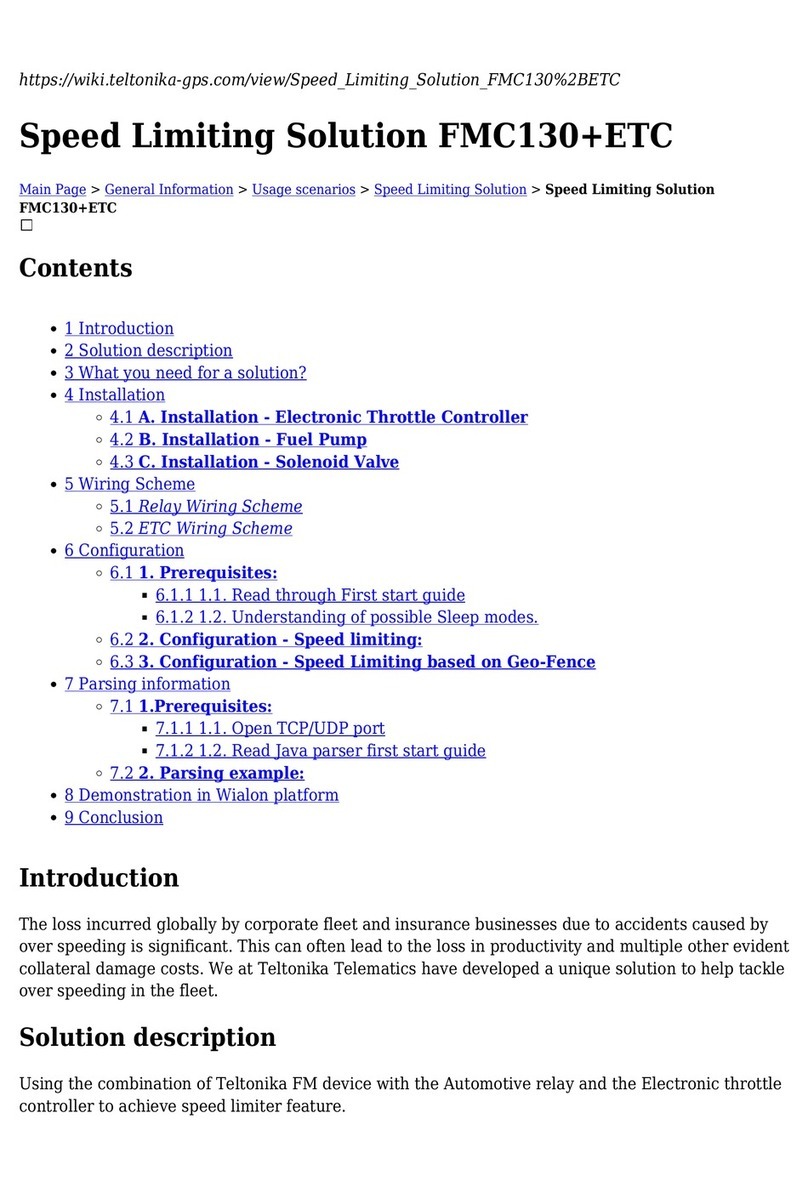
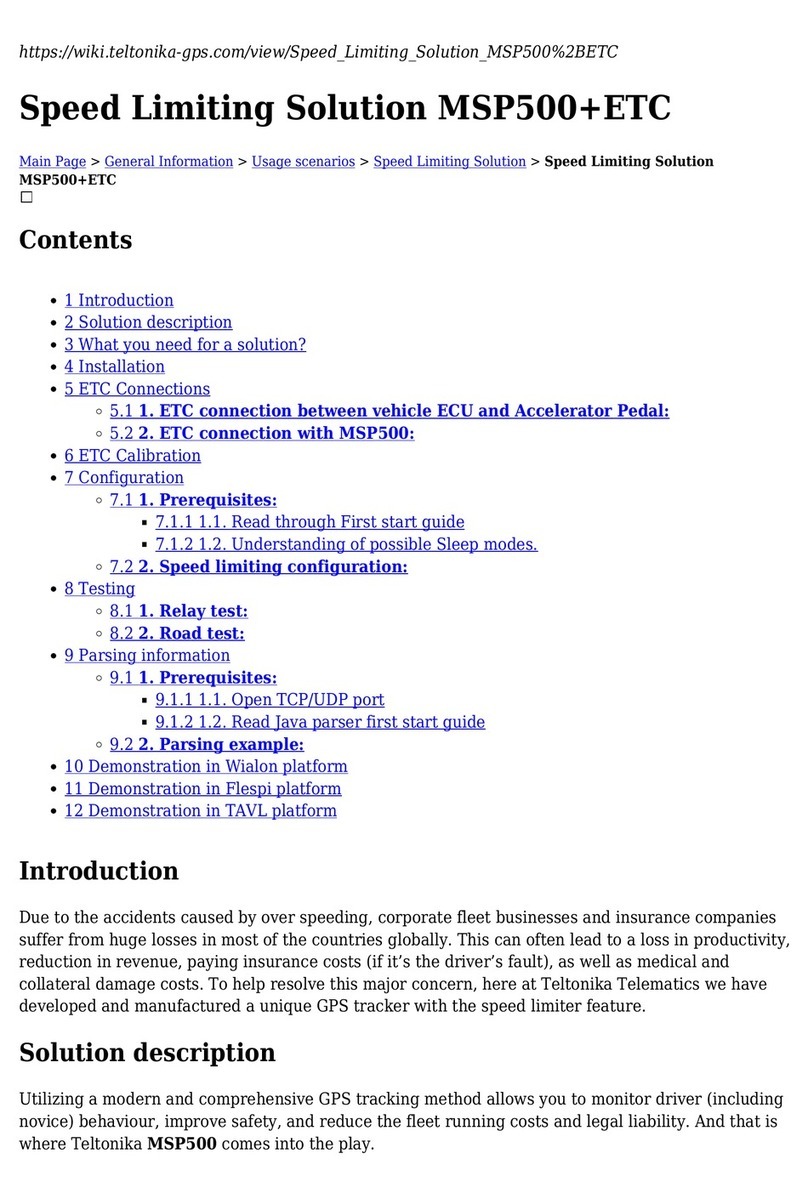
Teltonika FMP100 User manual
Other Teltonika GPS manuals

Teltonika
Teltonika FMP100 Installation guide
Teltonika
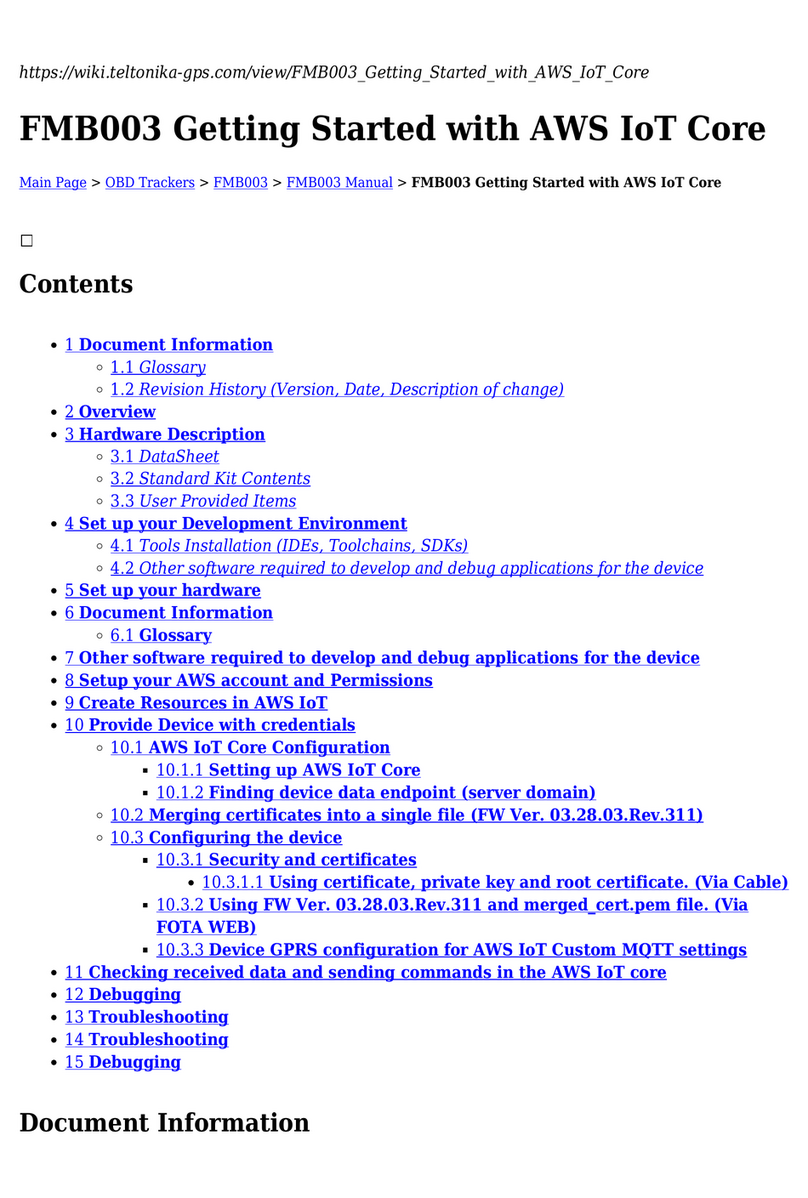
Teltonika FMB003 User manual

Teltonika
Teltonika FMC230 Guide

Teltonika
Teltonika FTC961 Installation guide

Teltonika
Teltonika Telematics FTC881 Installation guide
Teltonika
Teltonika Telematics FMC003 Installation guide
Teltonika
Teltonika FMB202 Installation guide
Teltonika
Teltonika FMB130 User manual

Teltonika
Teltonika FMB910 Installation guide
Teltonika
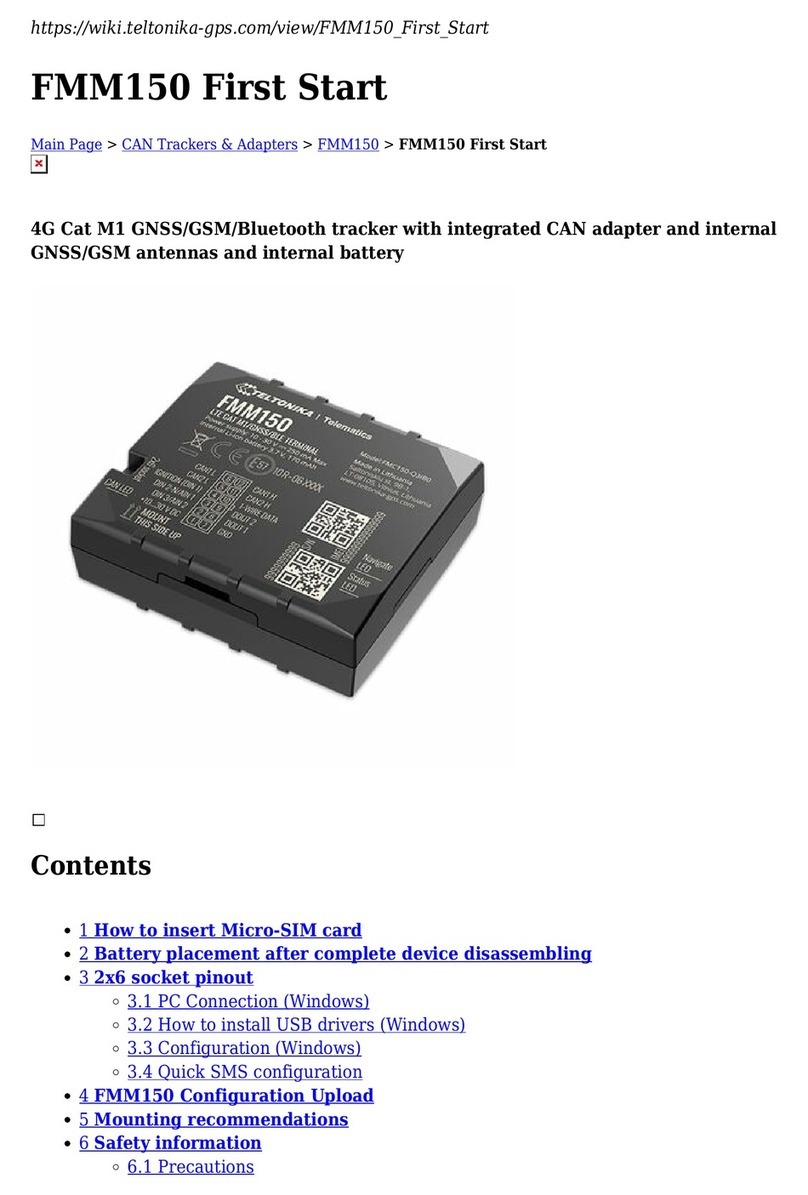
Teltonika Telematics FMM150 User manual
Teltonika
Teltonika FMM880 User manual

Teltonika
Teltonika FMB965 Installation guide

Teltonika
Teltonika FM3001 Installation guide

Teltonika
Teltonika TMT250 User manual
Teltonika
Teltonika FMB2 User manual

Teltonika
Teltonika FM640 User manual
Teltonika
Teltonika FMB920 Installation guide
Teltonika
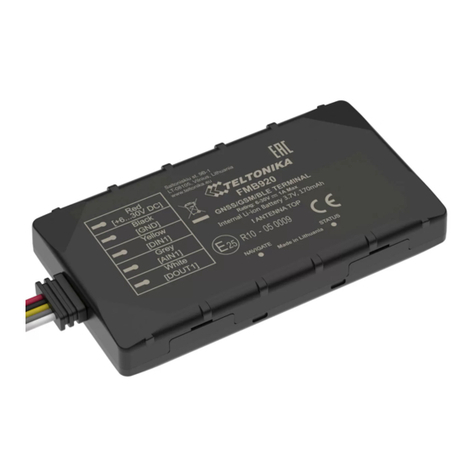
Teltonika FMB920 User manual
Teltonika
Teltonika GH120 Series Instruction Manual
Teltonika
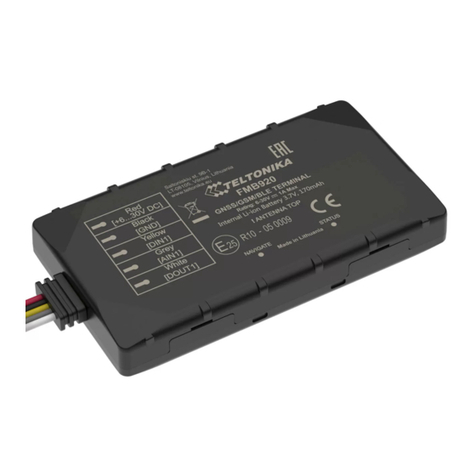
Teltonika FMB920 User manual