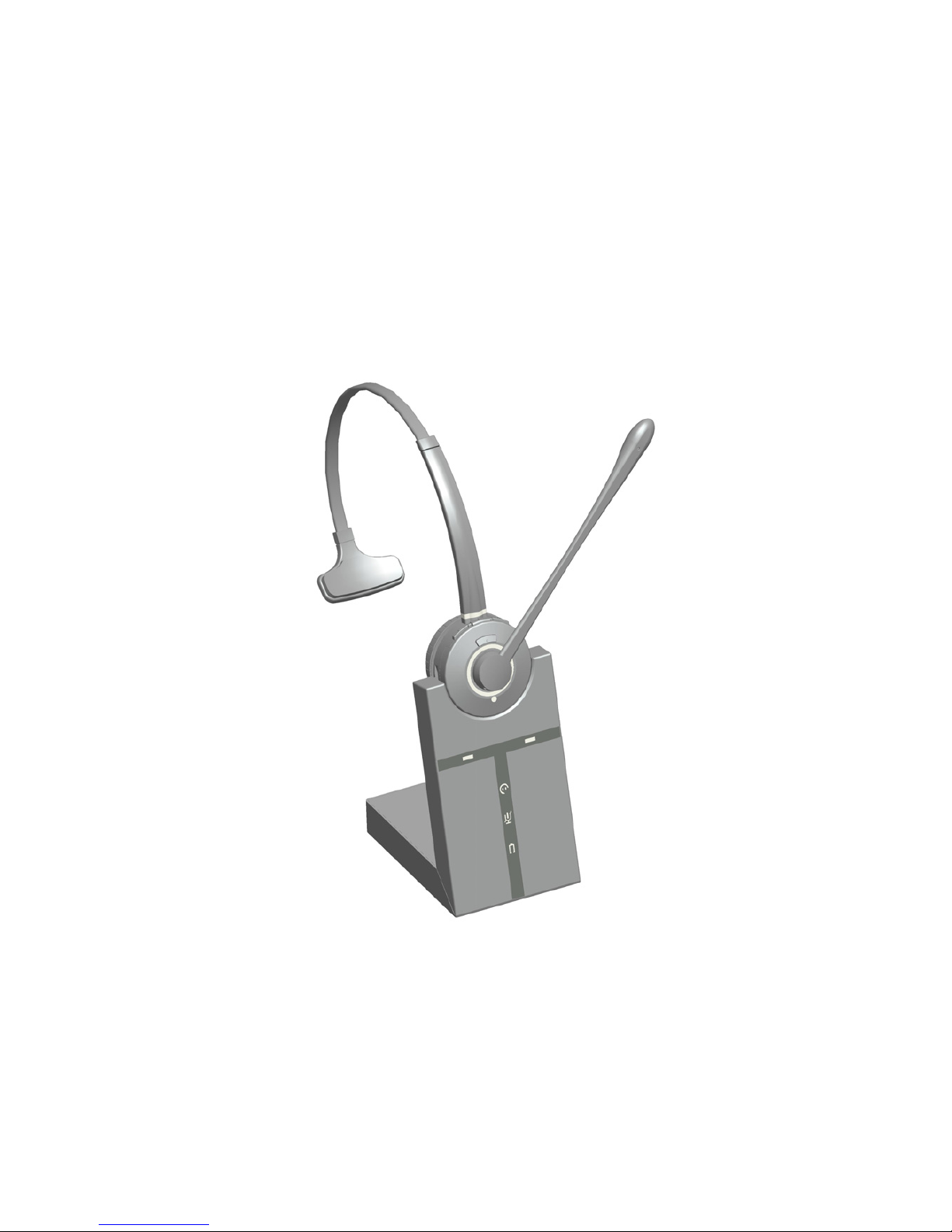
TIPTEL 9030 DECT User manual

User Manual (en)
tiptel 9030 DECT
tiptel

Note: If you need manuals in other languages, instruc-
tions on how to install a tiptel 9030 DECT headset,
on supported desk phones or technical specifica-
tions please visit http://www.tiptel.com

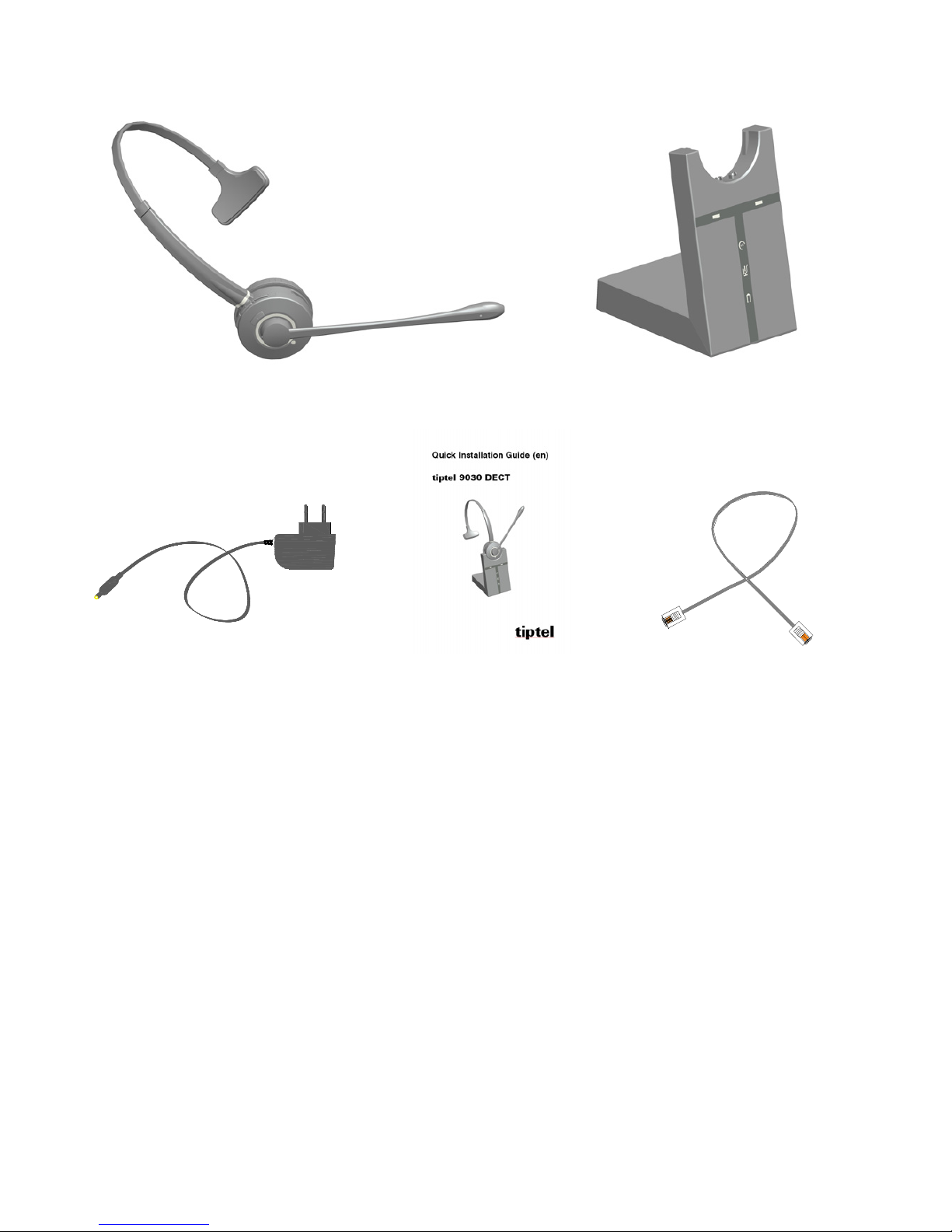
Package Contents
Headset Base
Power Adapter User Manual Phone Cable

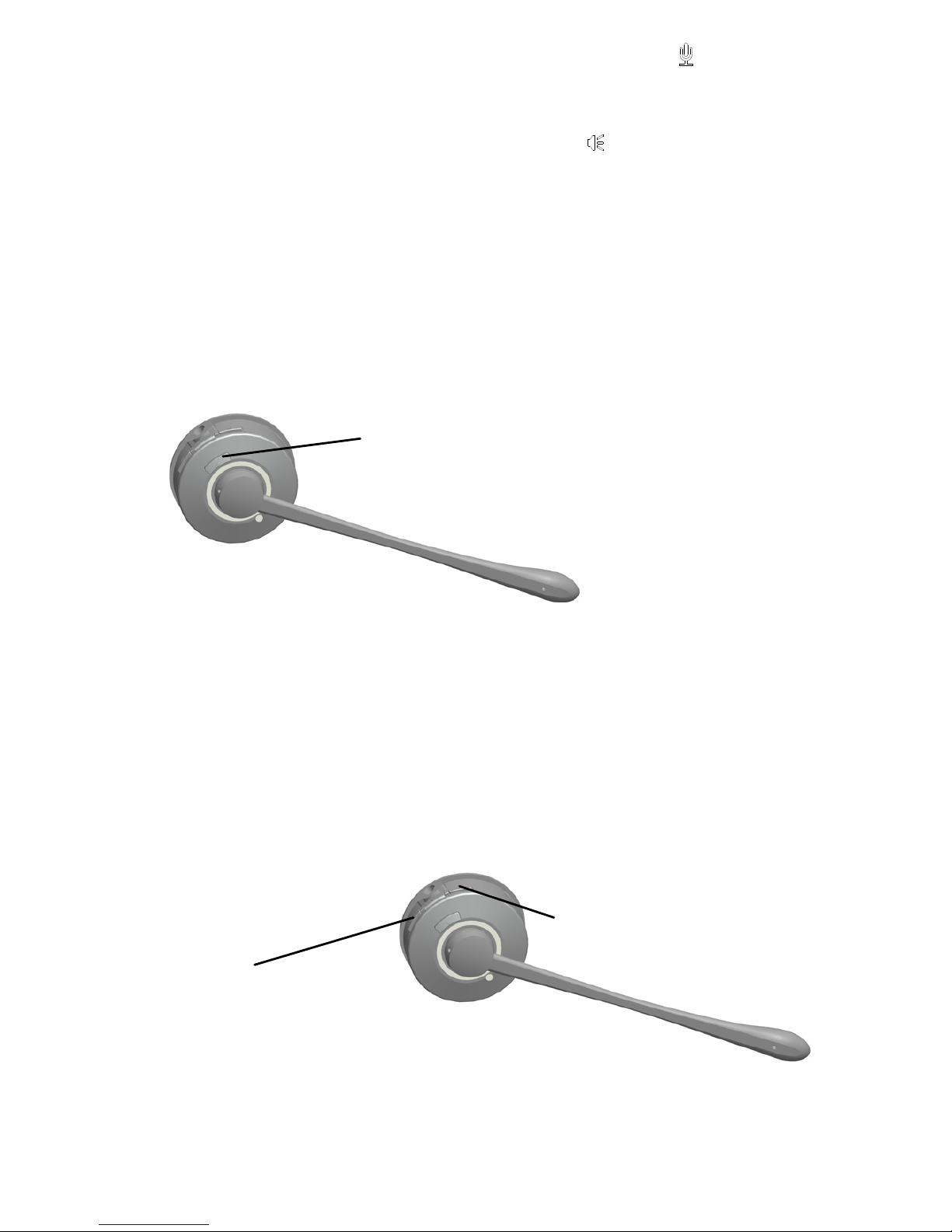
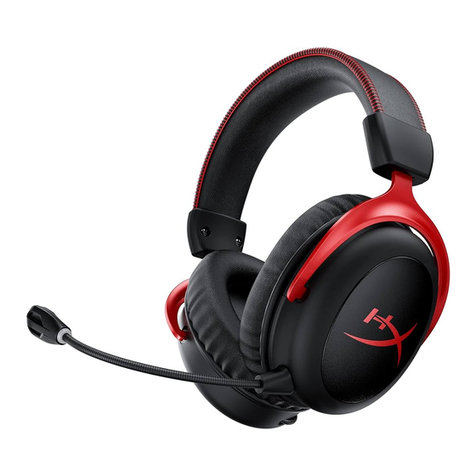
tiptel 9030 DECT Headset Overview
Noise cancelling MIC
MIC boom
Receiver
Leather cushion
Headset charger
contacts
Receiver volume up
Multiple function button
Receiver volume
down
Headband
MIC mute
Headset status LED

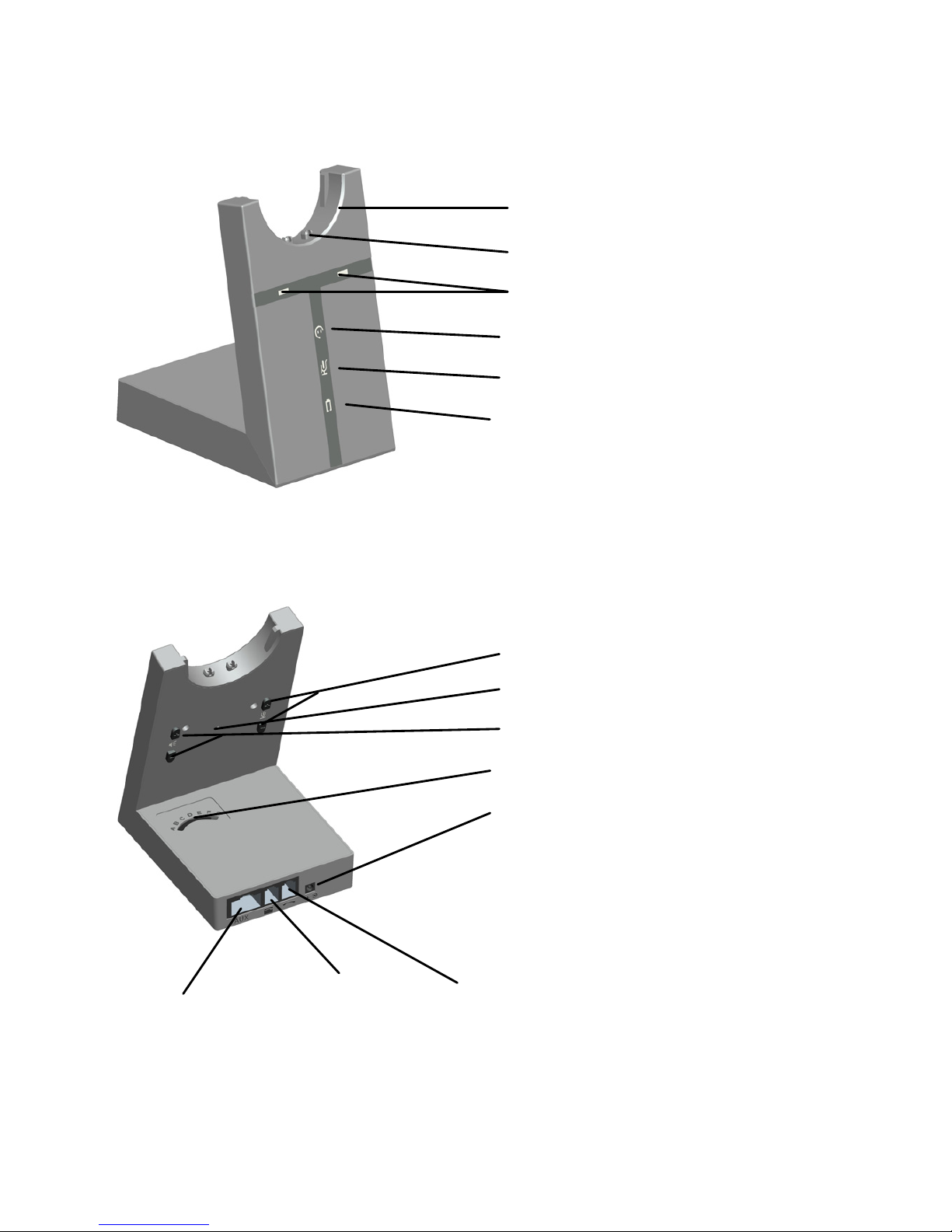
tiptel 9030 DECT Base Overview
Headset seat
Charger contacts
Headset on (signal diode)
Headset with paired light
MIC mute light
Battery charging status light
Mic volume adjustment
PAGE Switch
Receiver volume adjustment
Multiple switch
AC power adapter port
AUX for
EHS cable port
Telephone
cable port
Handband
cable port

Visual Indicators on the Base
The DECT base has five LEDs to indicate the status of battery, calls and
events.
Connecting to a Desk Phone
Visit http://www.tiptel.com for separate instructions on how to connect a
tiptel 9030 DECT headset with desk phones.
Icon Status
Online
Link between headset and base
Searching for headset
Microphone mute
Battery charging
Full battery
Unknown battery status

Connect Power Supply to Base
1. Plug the power adapter into the port marked on the base.
2. Connect the power adapter to the mains power socket.
Pairing
To check the pairing press the multiple function button, the LED at headset
will light up and the LED will be lit when the headset is successfully
paired with the base.
If this do not works you have to renew to pair the headset:
Consistently press the Page switch at the back side of base for 5 seconds,
the LED indicating the pairing will flash while searching the headset.
Consistently press the headset mute button until the headset status LED
flashes. Headset and base are successfully paired when the LED of head-
set and base station turns off.
To dispair the headset plug out the power adaptor. Then consistently press
the microphone + button at the back of the base and plug in power
adaptor. When the battery charging status light flashes three times the
headset and the base is dispaired.

Dock the Headset
Dock the headset to the headset seat. If there is an active call the call is
terminated.
When docked correctly the headset battery will begin charging automati-
cally, if needed (LED will flash when charging ). Charge for 20 minutes
or until the battery indicator on the base lights steady green.

Configuring the Audio Quality
Due to the large range of desk phone brands/models available, a clear dial
tone must be set before using the tiptel 9030 DECT the first time. Setting
the clear dial tone will enable the tiptel 9030 DECT to function correctly with
your specific desk phone. Additionally it is also important to set the micro-
phone volume for optimal sound quality.
Set a Clear Dial Tone
1. Put on the headset.
2. Get a dial tone by pressing the headset but-
ton on the desk phone, or by lifting the desk
phone handset.
3. Locate the clear dial tone switch on the
back of the tiptel 9030 DECT base, as illustrat-
ed, put the headset on to hear a clear dial
tone, rotate the switch from A to G. Determine
the best switch position. The dial tone should
be strong, clear and undistorted.
4. When the clear dial tone is set, press the
headset button on the desk phone, or return
the desk phone handset to the receiver.
Set the Volume
1. Put on the headset.
2. Get a dial tone by pressing the head-
set button on the desk phone or by lift-
ing the desk phone handset.
3. Make a test call to test your speaking
volume. Ensure the listener does not
adjust its own volume.
CLICK
MIC
adjustment
Receiver
ad

j
ustment

Multi-function button
Speaker volume button"+"
Speaker volume button"-"
4. Adjust the microphone volume using the microphone + / - volume
buttons, as illustrated.
5. Adjust the receiver volume using the receiver + / - volume buttons, as
illustrated, for the listening volume.
6. When the microphone volume is set, end the call.
Headset Multi-Function Button
The multi-function button can answer and end calls and power the headset
on and off.
Tab the multi-function button to power on the headset. If powered on tab
the multi-function button to answer and end a call. Press hold on the multi-
function button to power off the headset.
Headset Speaker Volume Buttons
The speaker volume buttons adjust the headset speaker volume.
Table of contents