manuals.online logo
Brands
  1. Home
  2. •
  3. Brands
  4. •
  5. TRENDnet
  6. •
  7. Conference Phone
  8. •
  9. TRENDnet TVP-SP4BK - ClearSky Bluetooth VoIP Conference... User manual

TRENDnet TVP-SP4BK - ClearSky Bluetooth VoIP Conference... User manual

Other manuals for TVP-SP4BK - ClearSky Bluetooth VoIP Conference...

4

Other TRENDnet Conference Phone manuals

TRENDnet TVP-SP4BK - ClearSky Bluetooth VoIP Conference... User manual

TRENDnet

TRENDnet TVP-SP4BK - ClearSky Bluetooth VoIP Conference... User manual

TRENDnet TVP-SP4BK - ClearSky Bluetooth VoIP Conference... User manual

TRENDnet

TRENDnet TVP-SP4BK - ClearSky Bluetooth VoIP Conference... User manual

TRENDnet TVP-SP4BK - ClearSky Bluetooth VoIP Conference... User manual

TRENDnet

TRENDnet TVP-SP4BK - ClearSky Bluetooth VoIP Conference... User manual

Popular Conference Phone manuals by other brands

Polycom SoundStation 2W User and administrator guide

Polycom

Polycom SoundStation 2W User and administrator guide

Oregon Scientific OS200 user manual

Oregon Scientific

Oregon Scientific OS200 user manual

Polycom SoundStation IP 4000 user guide

Polycom

Polycom SoundStation IP 4000 user guide

Albrecht Multicom manual

Albrecht

Albrecht Multicom manual

Fortinet FortiFone FON-C70 user guide

Fortinet

Fortinet FortiFone FON-C70 user guide

Konftel Konftel 55W Quick reference guide

Konftel

Konftel Konftel 55W Quick reference guide

Vixtel glass 1100 user guide

Vixtel

Vixtel glass 1100 user guide

Polycom SoundStation 2W User and administrator guide

Polycom

Polycom SoundStation 2W User and administrator guide

Yealink CP920 quick start guide

Yealink

Yealink CP920 quick start guide

AbleNet Prism C user guide

AbleNet

AbleNet Prism C user guide

Polycom SoundStation IP 6000 quick start guide

Polycom

Polycom SoundStation IP 6000 quick start guide

Mitel 6970 IP Quick reference guide

Mitel

Mitel 6970 IP Quick reference guide

Yealink CPE860 Quick start up guide

Yealink

Yealink CPE860 Quick start up guide

Avaya B159 Series Quick setup guide

Avaya

Avaya B159 Series Quick setup guide

LifeSize Phone HD quick start guide

LifeSize

LifeSize Phone HD quick start guide

Konftel 50 user guide

Konftel

Konftel 50 user guide

Polycom SoundStation IP 7000 quick start guide

Polycom

Polycom SoundStation IP 7000 quick start guide

Mitel 6867i Premium Quick reference guide

Mitel

Mitel 6867i Premium Quick reference guide

manuals.online logo
manuals.online logoBrands
  • About & Mission
  • Contact us
  • Privacy Policy
  • Terms and Conditions

Copyright 2025 Manuals.Online. All Rights Reserved.

1
2
Table Contents
I
NTRODUCTION
.................................................................................................................................... 3
G
ETTING TO KNOW THE
C
ONFERENCE
P
HONE
K
IT
.................................................................................. 3
P
ACKING
C
ONTENTS
..................................................................................................................... 3
I
DENTIFYING
C
OMPONENTS
........................................................................................................... 3
G
ETTING
S
TARTED
.............................................................................................................................. 5
M
INIMUM
S
YSTEM
R
EQUIREMENTS
................................................................................................ 5
S
ETTING UP THE
C
ONFERENCE
P
HONE KIT
..................................................................................... 5
S
OFTWARE
/
D
RIVER
I
NSTALLATION
................................................................................................ 5
A
PPLIACTIONS
I
NSTALLED
............................................................................................................. 7
E
XPLORING THE
C
ONFERENCE
K
IT
D
ISPLAY
...........................................................................................
D
ISPLAY
I
CONS
............................................................................................................................
M
AIN PAGE
................................................................................................................................ 10
C
ONTACT
L
IST
P
AGE
................................................................................................................... 10
C
ONFIGURATION
M
ENU
............................................................................................................... 11
G
UIDE TO
B
ASIC
F
UNCTIONS
.............................................................................................................. 12
C
ALL
S
KYPE
™
C
ONTACT
............................................................................................................ 12
C
ALL AN ORDINARY PHONE NUMBER
(S
KYPE
™
OUT
)...................................................................... 12
A
NSWER A CALL
......................................................................................................................... 12
M
AKE A
C
ONFERENCE
C
ALL
........................................................................................................ 12
R
EDIAL OUTGOING CALLS
............................................................................................................ 13
R
EDIAL ANY CALL FROM
H
ISTORY
................................................................................................. 13
O
PERATIONS DURING A CALL
....................................................................................................... 13
A
PPENDIX
......................................................................................................................................... 14
S
PECIFICATIONS
......................................................................................................................... 14
T
ROUBLESHOOTING
.................................................................................................................... 16

3
Introduction
Welcome to the Bluetooth Conference Bridge manual. In this manual, you will learn how to use this
Conference Phone Kit to do all popular Skype standard functions, such as Conference call, Contacts, History,
SkypeOut, SkypeIn, etc. This Conference Phone kit enables you to make and receive Skype calls anywhere,
without being in front of the PC. With advanced acoustic echo cancellation technology and superior noise
suppression design, this Bluetooth Conference Phone can provide you business quality conferencing
experience.
Key Features
 Advanced acoustic echo cancellation technology
 Superior noise suppression
 Support long range Bluetooth Class 1 standard that reaches up to 100 meters distance in outdoor clean
environment.
 Feature easy of use graphical user interface.
 Support long life Lithium rechargeable battery.
 Support advanced power down management to extend battery life.
 Support USB-port charging while traveling on the road.
Getting to know the Conference Phone Kit
Packing Contents
 TVP-SP4B Bluetooth Conference Phone
 TBW-104UB Advanced High Power Bluetooth USB Adapter
 5V 1A Power Adapter with miniUSB connector
 Quick Guide
 Utility & Driver CD-ROM
Identifying Components
TBW 104UB TVP SP4B
4
TVP SP4B
Sync Skype Contacts
Menu
End a call, Back to
Home
Power ON/OFF
Navigation Key
Make a call, Answer a
call, Redial last call,
Hold a call
Enter / OK
Volume (+/
-)
Mute / UnMute
Select Concall Participants
Clear Input /
Last Move to right
Enter / OK / Next
miniUSB Connector
M
IC 2
M
IC 3
MIC1
Antenna
Speakerphone
Mute LED
MIC2 LED
MIC3 LED
MIC1 LED
Bluetooth LED
Power LED
LCD: 128 x 80
5
Getting Started
Minimum System Requirements
 PC running Windows XP, 2000
 Skype software installed
 At least 600 MHz processor
 At least 128 MB RAM
 At least 50MB free disk space on your hard drive
 CD-ROM drive
Setting up the Conference Phone kit
1. Connect USB cable to charge battery pack (please let the battery charge for a full 6 hours before using
the phone for the first time)
Software / Driver Installation
If you have any Bluetooth driver (software) previously installed on your computer or built-in bluetooth device,
please remove the driver and disable Bluetooth device first!
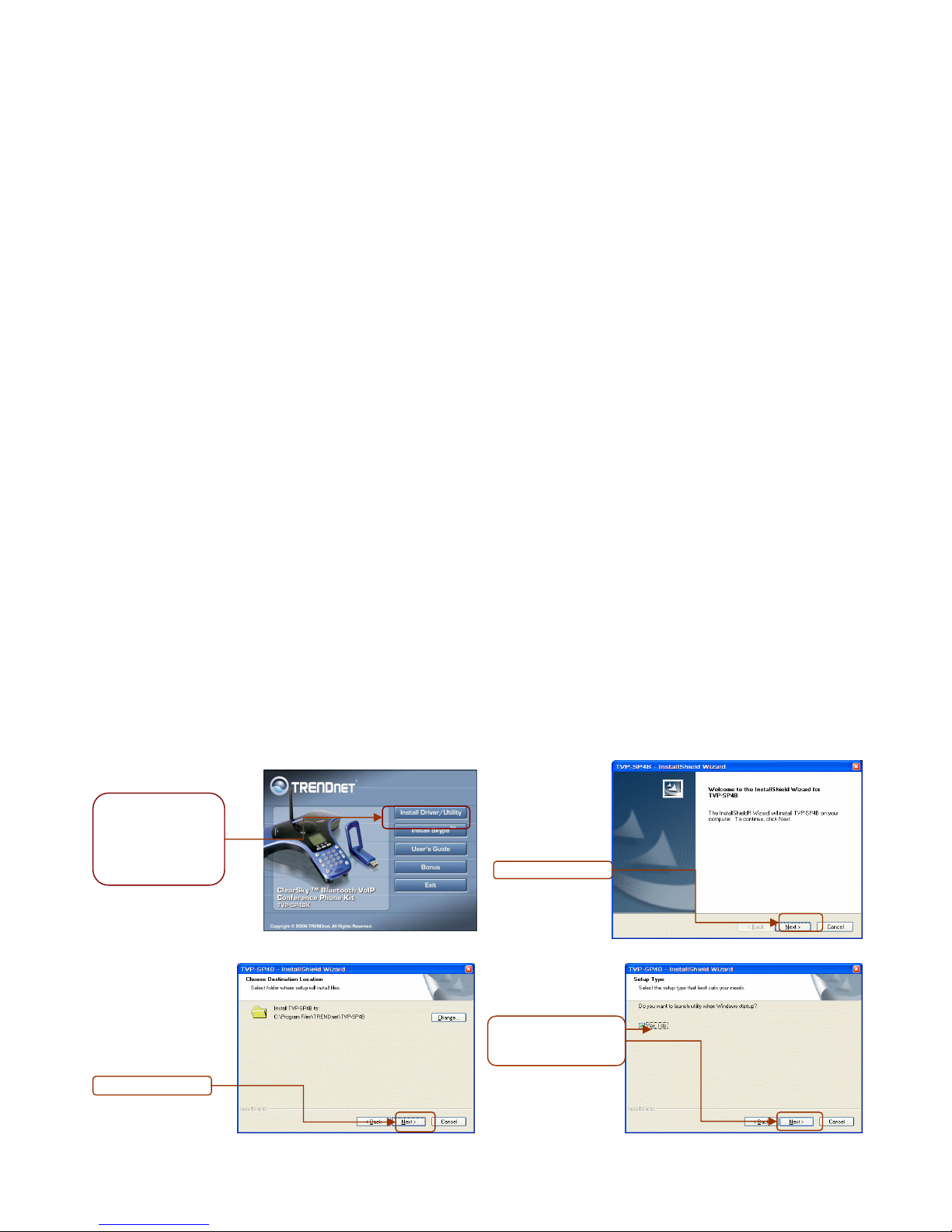
1. Please insert the Utility & Driver CD into CD-ROM drive, and then follow the instruction below to install
Utility and drivers.
Note: DO NOT connect the TBW 104UB USB adapter until instructed to do so.
Note: If the setup menu does not launch automatically, use Windows Explorer to navigate to the
appropriate CD ROM drive and run “Setup”
4. When you reach this
screen, please select
Yes, I do. Click Next.
3. Please click Next.
2. Please click Next.
1. Insert the
Utility &
Driver CD ROM
into
your computer’s
CD-ROM Drive and
then click Install
Driver/Utility.
6
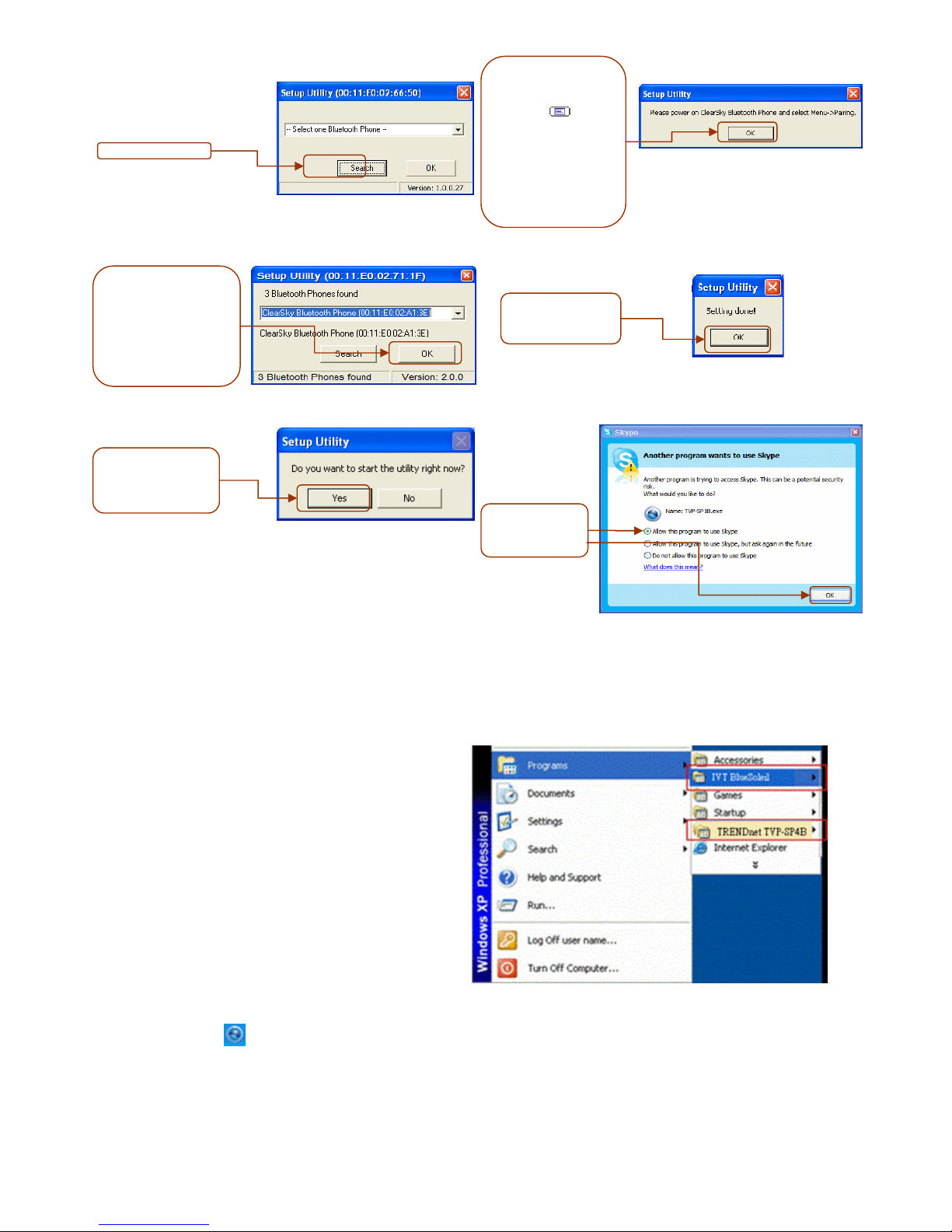
16. After the computer
restarts (Win2K) or
Installation complete
(WinXP), the Setup Utility
should pop-up, if not
double-click the
ClearySky icon. Plug in
USB adapter and click
OK
.
15. Please click
Yes to restart
your computer
Win2K only
14.
Disregard all popup
Windows except for
the installation
Window shown to the
right and click Finish
13. Click
Install
12.
Please
Click
Next
11. Please Click
Next
10. Please select
I
accept the terms in
the license
agreement. Click
Next
.
Please Click
Next
8. Please select
Language from
the drop down
menu and then
click OK.
7. Please click
Yes
to
begin Bluetooth
adapter
installation.
6. Please click Finish.
5. Please click Install.
7
Appliactions Installed
After you finish above installations, “IVT
BlueSoleil” and “TRENDnet TVP SP4B” items will
be added to Windows Start Menu Programs group.
TRENDnet TVP SP4B Phone Utility
Phone Utility icon ( ) in system tray can display phone utility version and has some options by right-clicking
the icon.
17. Click
Search
.
Note: If a window popup
to ask you enter PIN
code, please enter “0000”
18. Power On The
Bluetooth Phone and
press the Menu
button ( )
located
below the LCD
screen. Select
Pairing from the
menu and then press
the Call button to
enter Pairing Mode.
Click OK
1 . Select your Bluetooth
Phone (Please check
the MAC address to
select the right device.
Please remove the
battery to locate the
MAC address label).
Click OK.
20. To finishing
Bluetooth
pairing click OK.
21. Please click
Yes
to launch the
Bluetooth Phone
Utility.
22. Select Allow the
program to use
Skype and then
click OK.
8
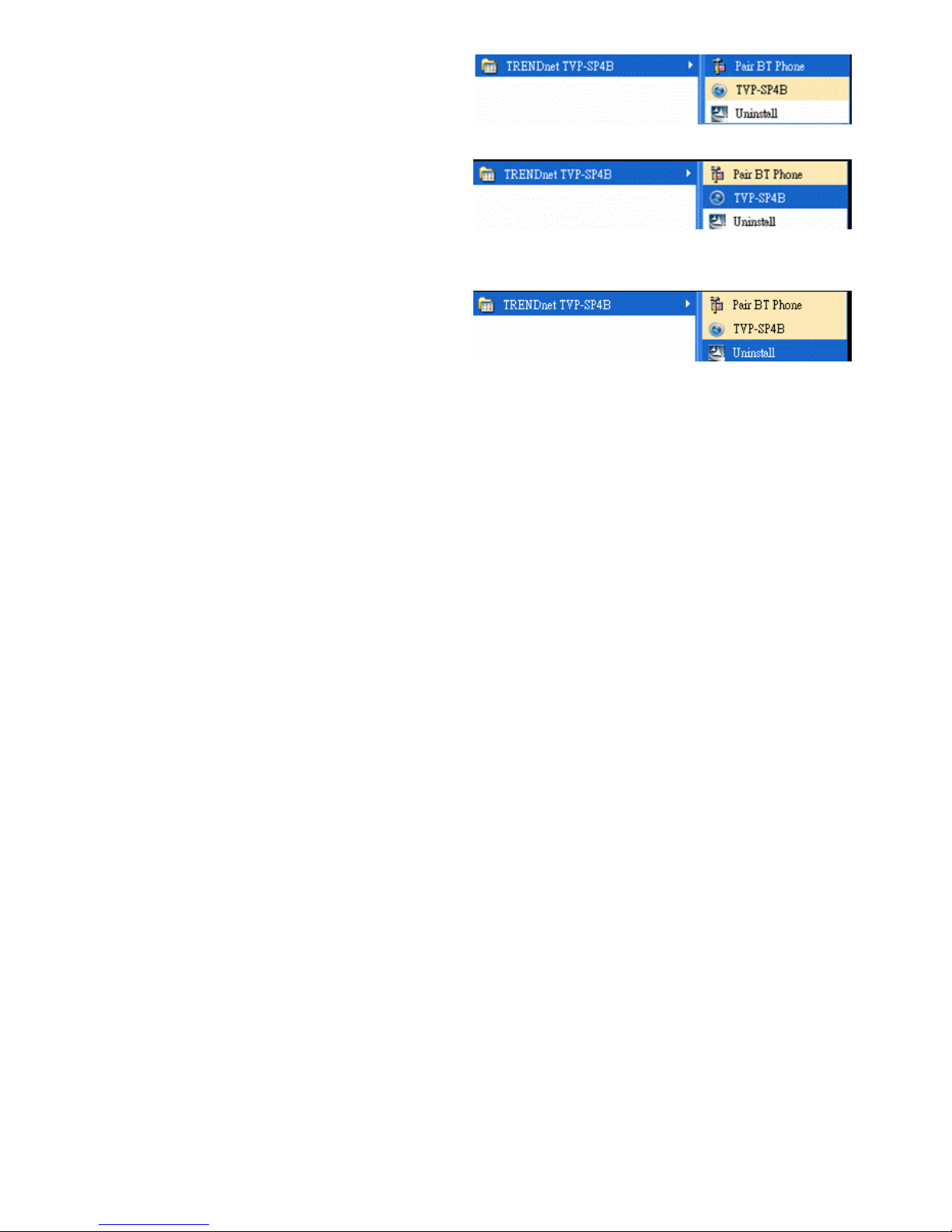
1. Pair BT Phone
This utility help you pair Clearsky Bluetooth Phone
with USB bluetooth adapter.
2. TVP-SP4B Utility:
This is the main program which enables you doing
skype functions from this Bluetooth phone.
3. Uninstall:
Remove the TVP-SP4B phone utility from your
computer.
Exploring the Conference Kit Display
Display Icons
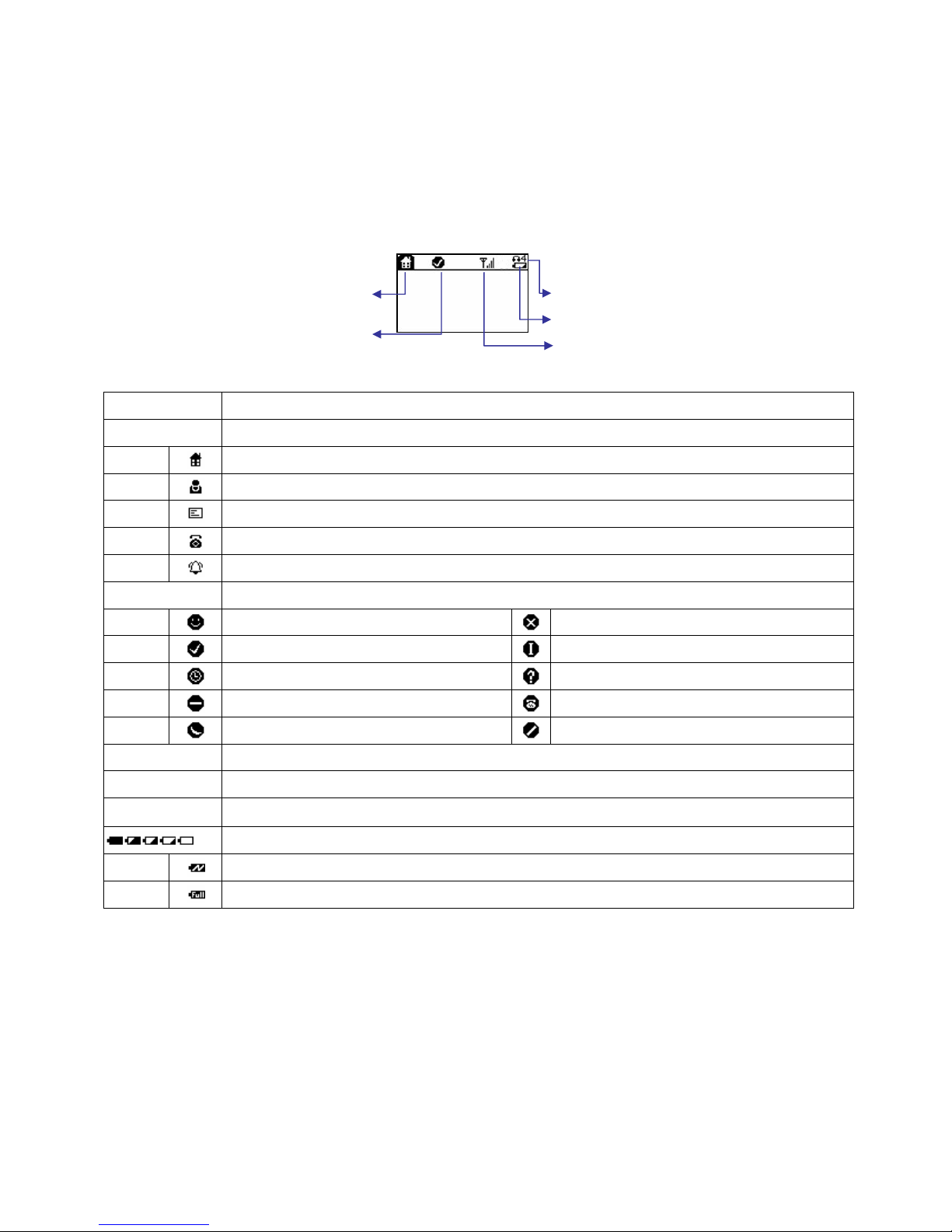
Icons Description
Operation Indicate which operation your phone is doing.
Main page
Sync Skype contact lists
Configuration Menu
Incoming or Outgoing calls connected
Incoming call ringing
Skype Status
Skype Me
Offline
Online
Invisible
Away
Pending
Do Not Disturb
Skype Out
Not Available
Block
Signal Strength
Show Bluetooth Signal Strength
Volume level Adjust earpiece volume
Battery Status Indicate Battery status.
This bar goes lower as the battery charge runs low
Charging
Full charge
Operation
Skype Status
Signal Strength
Battery Status
Volume
10
Main page
Press
to go to main page.
4 possible cases on main page:
1. Bluetooth is disconnected: LCD shows “ClearSky”, Signal strength icon is disconnected
2. Bluetooth is connected but skype is not signed in: LCD shows “ClearSky / Skype Unavailable”, Signal
strength icon shows levels of signal strength
3. Bluetooth is connected and skype is signed in: LCD shows “ClearSky”
4. Bluetooth is connected, skype is signed in and has missed calls: LCD shows “ClearSky / # Missed calls”.
Contact List Page
Press can go to Contact List page
 Show Contacts (Displayname > Full Name > Skype Account)
 Sort by Skype status (Online / Offline)
 Sort by name
Quick Access
1. Press the first letter of the name. (Press a key once to insert the first letter on the key, twice for the second
letter, and so on.)
2. Press ‘1’ to go back to the top of the contact list
3. Press ‘1’ again to go to the last online contact, so you can rolling from bottom to the beginning
Scrolling Long Display Name (long name which cannot be displayed completely on LCD)
1. Press to move to right.