manuals.online logo
Brands
  1. Home
  2. •
  3. Brands
  4. •
  5. TRENDnet
  6. •
  7. Gateway
  8. •
  9. TRENDnet TVP-224HR User manual

TRENDnet TVP-224HR User manual

Other manuals for TVP-224HR

3

Other TRENDnet Gateway manuals

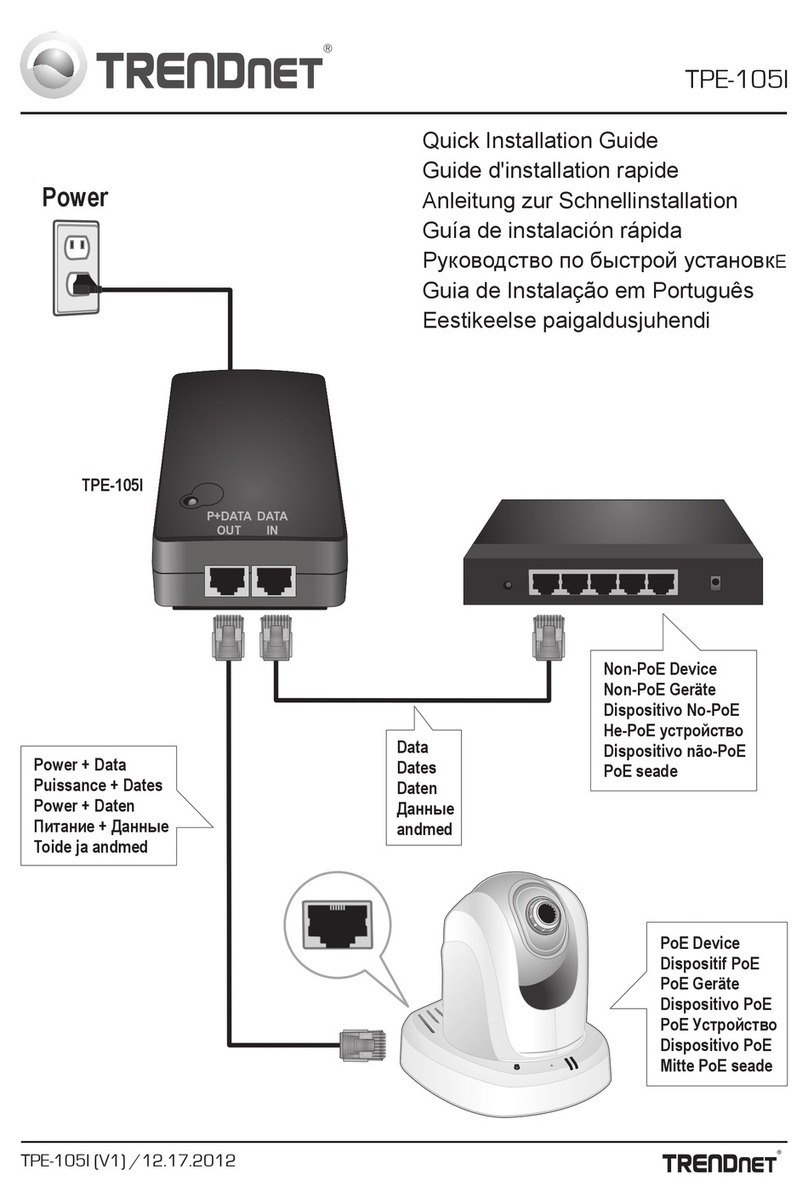
TRENDnet TPE-105i User manual

TRENDnet

TRENDnet TPE-105i User manual

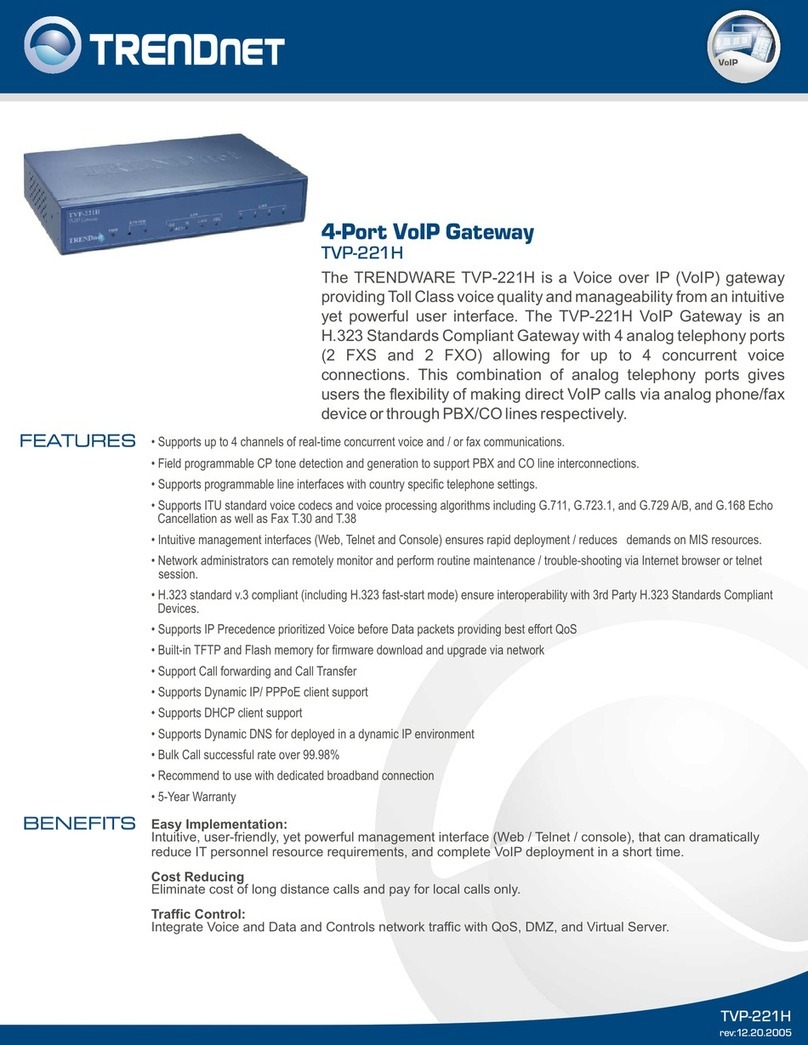
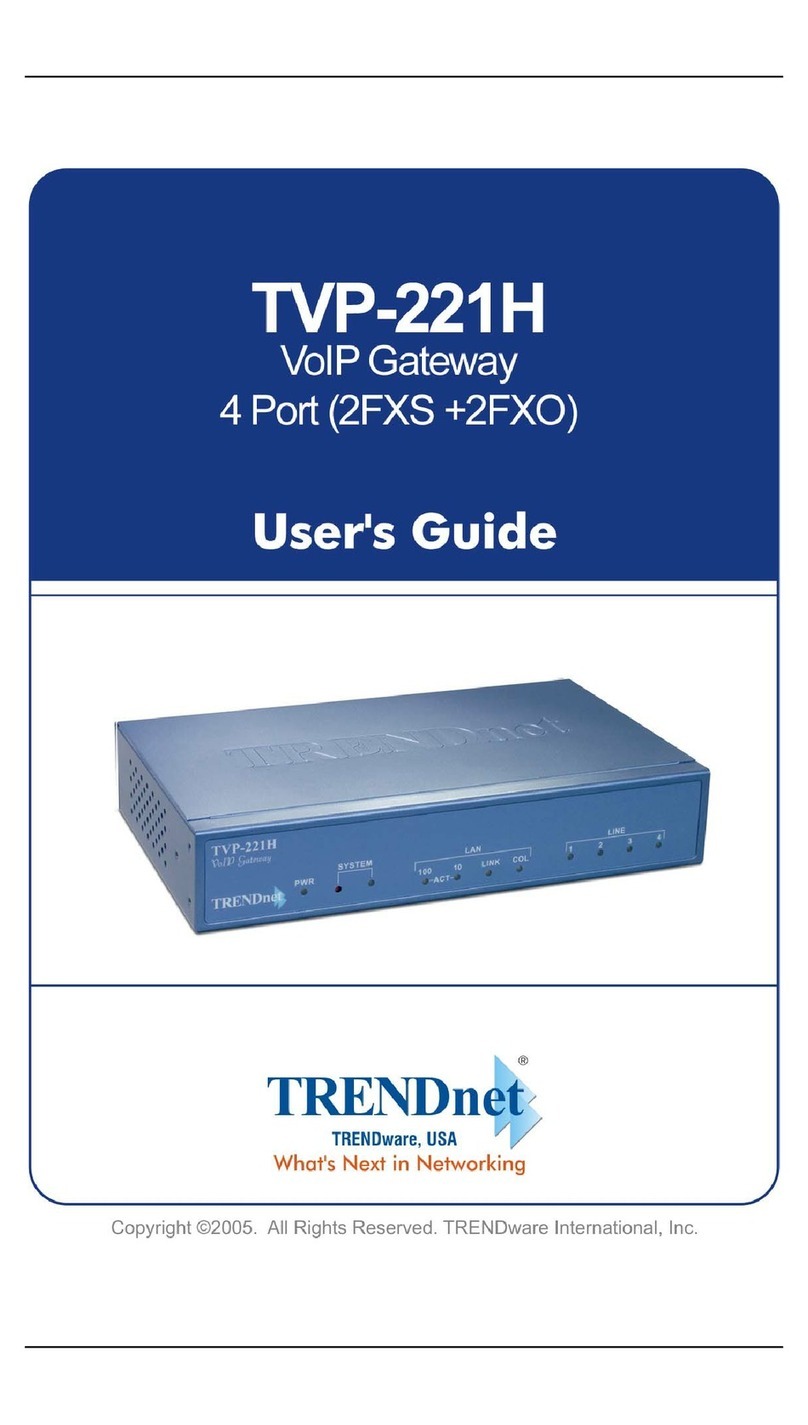
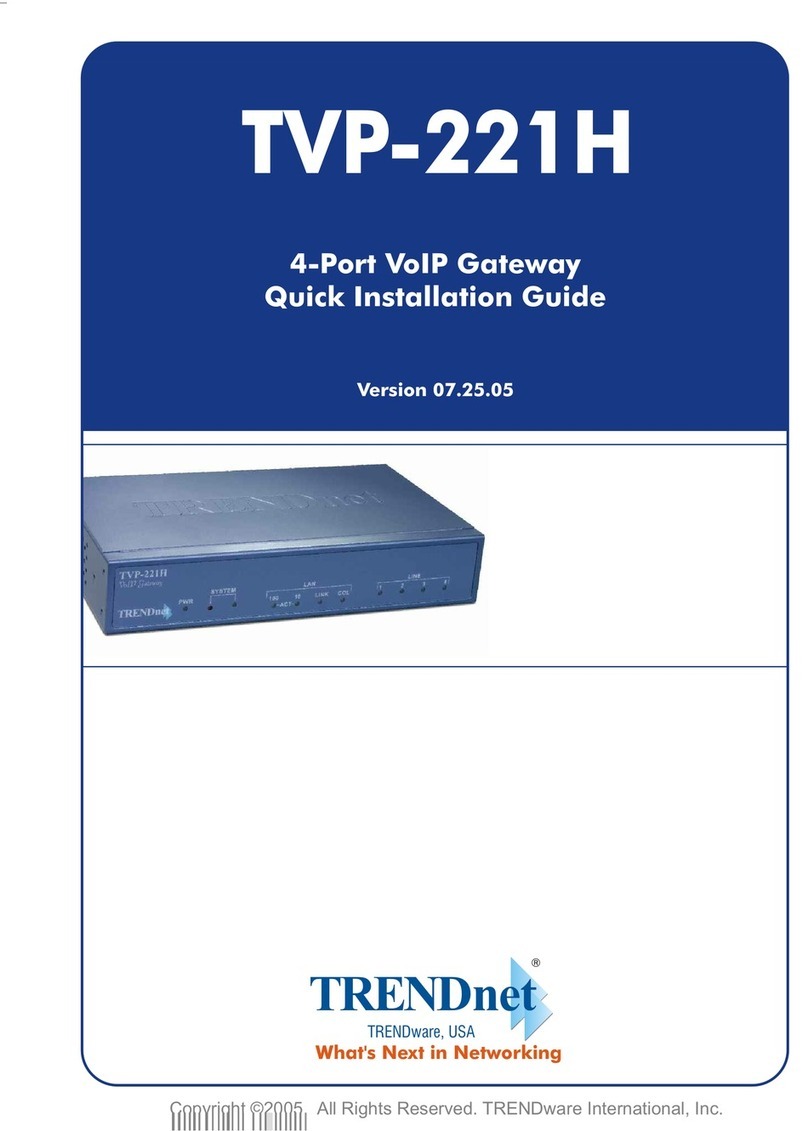
TRENDnet TVP-221H User manual

TRENDnet

TRENDnet TVP-221H User manual

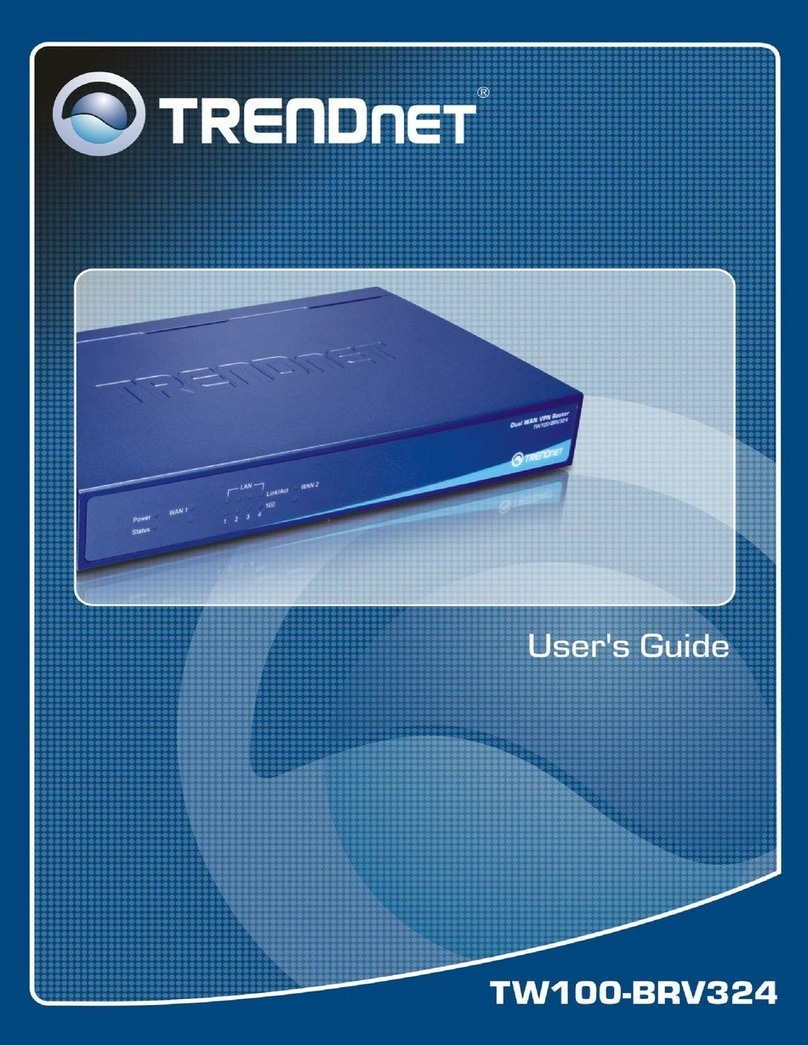
TRENDnet TW100-BRV324 User manual

TRENDnet

TRENDnet TW100-BRV324 User manual

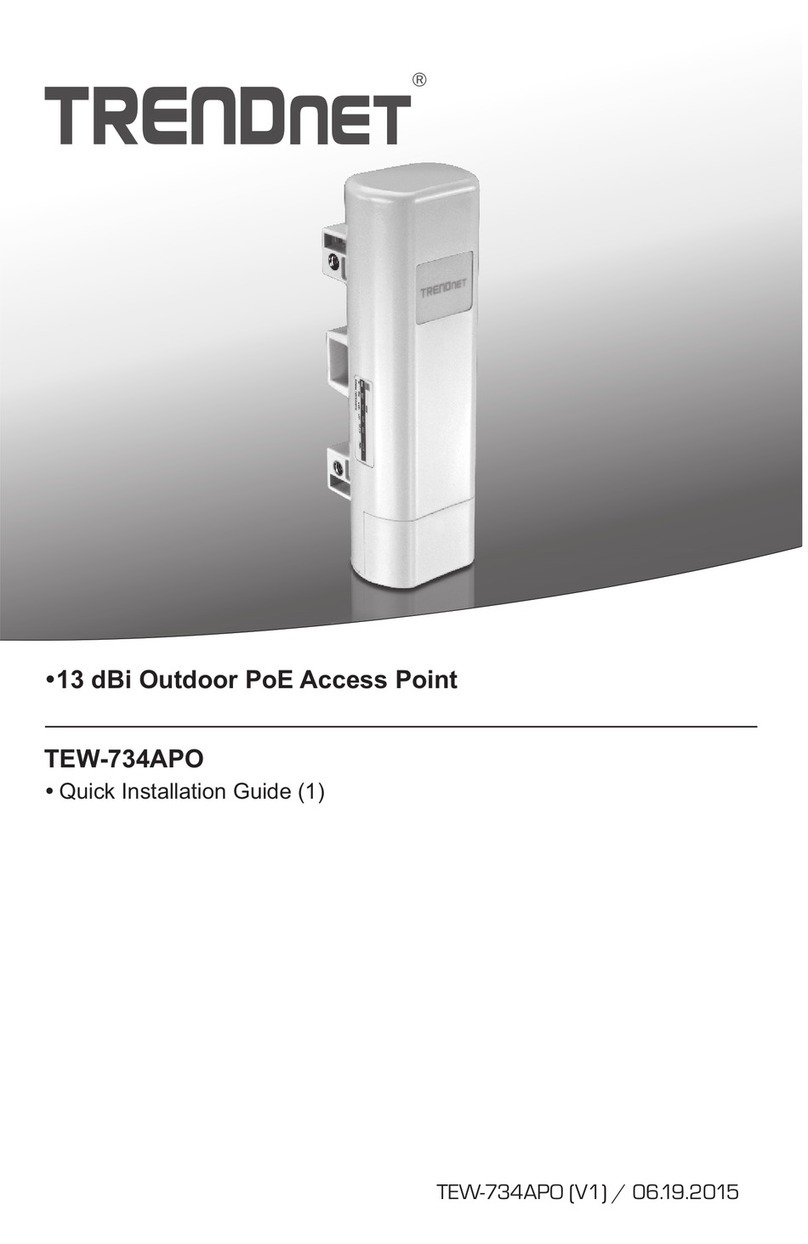
TRENDnet TEW-734APO User manual

TRENDnet

TRENDnet TEW-734APO User manual

TRENDnet TVP-221H User manual

TRENDnet

TRENDnet TVP-221H User manual

TRENDnet TVP-221H User manual

TRENDnet

TRENDnet TVP-221H User manual

Popular Gateway manuals by other brands

Telecom FM onestream gfx Programming guide

Telecom FM

Telecom FM onestream gfx Programming guide

UfiSpace LoRa GPE810U Quick setup guide

UfiSpace

UfiSpace LoRa GPE810U Quick setup guide

Merak MMk-736F Quick setup guide

Merak

Merak MMk-736F Quick setup guide

Robustel R3010 user guide

Robustel

Robustel R3010 user guide

turck BL20-PG-EN-V3 user manual

turck

turck BL20-PG-EN-V3 user manual

IBM Security Web Gateway Appliance quick start guide

IBM

IBM Security Web Gateway Appliance quick start guide

SSS Siedle Smart Gateway Commissioning instructions

SSS Siedle

SSS Siedle Smart Gateway Commissioning instructions

ADTRAN 424RG Installation

ADTRAN

ADTRAN 424RG Installation

Chorus Hyperfibre XGS-250WX-A user guide

Chorus

Chorus Hyperfibre XGS-250WX-A user guide

Dragino G308 user manual

Dragino

Dragino G308 user manual

Data Domain DD690g Installation and setup guide

Data Domain

Data Domain DD690g Installation and setup guide

Raritan Laptop Release notes

Raritan

Raritan Laptop Release notes

Haivision Torpedo quick start guide

Haivision

Haivision Torpedo quick start guide

ATCOM AG-268 user manual

ATCOM

ATCOM AG-268 user manual

LST M500RFE-AS Specification sheet

LST

LST M500RFE-AS Specification sheet

Vega VEGA BS-3 user manual

Vega

Vega VEGA BS-3 user manual

Kinnex Media Gateway quick start guide

Kinnex

Kinnex Media Gateway quick start guide

2N Telekomunikace 2N StarGate user manual

2N Telekomunikace

2N Telekomunikace 2N StarGate user manual

manuals.online logo
manuals.online logoBrands
  • About & Mission
  • Contact us
  • Privacy Policy
  • Terms and Conditions

Copyright 2025 Manuals.Online. All Rights Reserved.

Copyright ©2005. All Rights Reserved. TRENDware International, Inc.
TRENDnet
TRENDware, USA
What's Next in Networking
Version 07.25.05
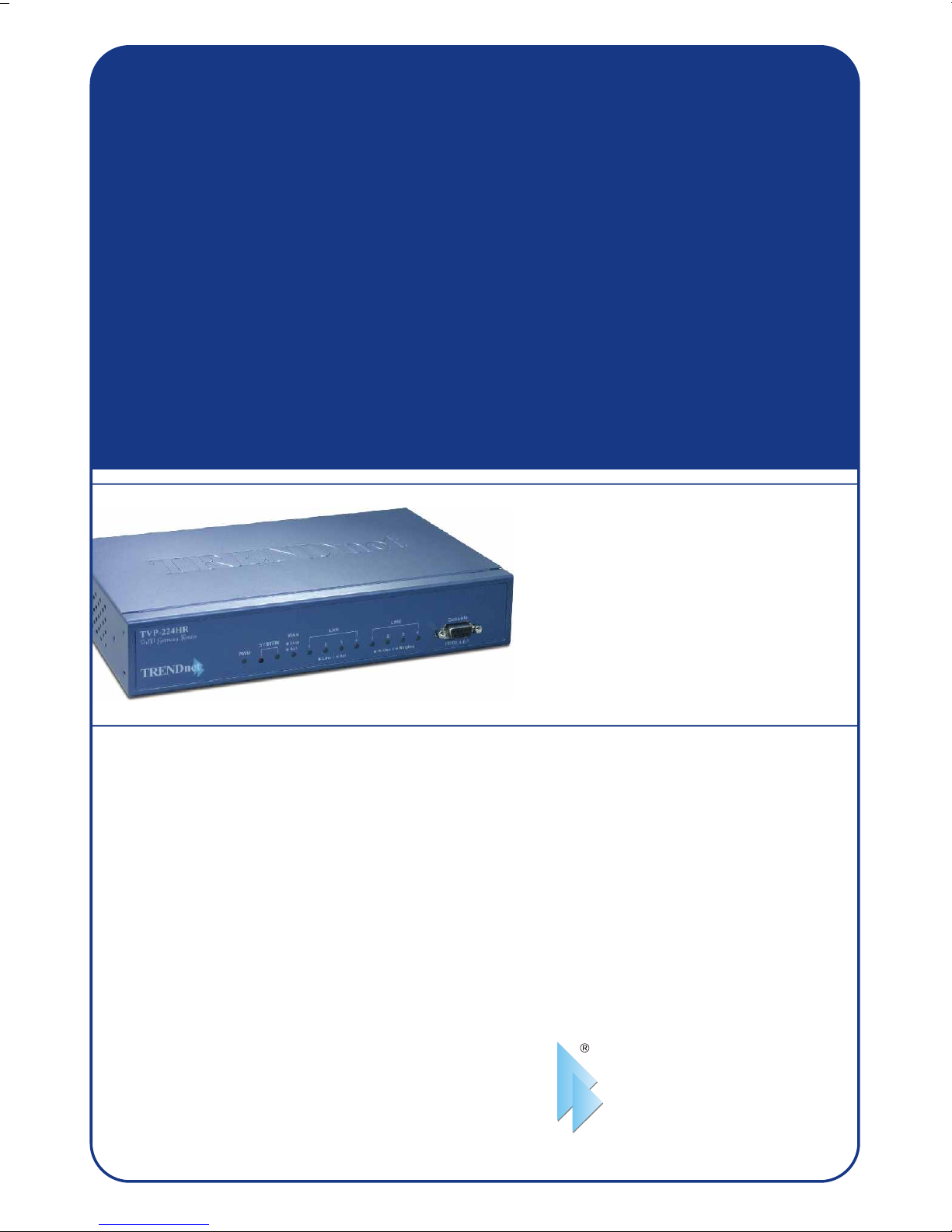
4-port VoIP Gateway with 4-port Broadband Router
Quick Installation Guide
TVP-224HR
Table of Contents
English ...................................................................................................... 1
1
2
3
10
4
12
9
14
1. Prepare for Installation ......................................................................
2. Install Hardware ................................................................................
3. Configure the computer's TCP/IP Settings ........................................
4. Configuration .....................................................................................
5. Connection through Telnet .................................................................
6. Connection through Console .............................................................
7. Dynamic DNS (Domain Name Server) ..............................................
8. Web Browser Dial Plan Sample .........................................................
Thank you for purchasing the TVP-224HR. This VoIP Gateway Router will
allow you to share your broadband Internet connection with wired 10/100Mbps
Fast Ethernet computers as well as integrate your existing analog / PBX phone
system for Internet telephone.
This guide will help you setup and configure your VoIP Gateway Router.
Following the installation instructions should be quick and easy. If you run into
problems, please refer to the detailed installation procedures on the CD User's
Guide. If you need further technical support, please visit www.TRENDNET.com
or call by phone.
Verify Equipment
Before installing the VoIP Gateway Router you should have:
1. A working DSL Internet connection with Static IP or Dynamic IP with
DDNS.
2. Cable / DSL Modem
3. A computer with wired network card installed.
4. TCP/IP protocol installed on each wired computer.
5. A Web Browser such as Internet Explorer (5.0 or higher) or Netscape
Navigator (4.7 or higher).
Verify Package Contents
Please make sure you have everything in the box:
1
TVP-224HR
CD-ROM Quick Installation Guide
AC Power Adapter RJ45 Ethernet (LAN) Cable RS-232 Console Cable
English
1. Prepare for Installation
English QIG
Copyright ©2005. All Rights Reserved. TRENDware International, Inc.
TRENDnet
TRENDware, USA
What's Next in Networking
Version 07.25.05
4-port VoIP Gateway with 4-port Broadband Router
Quick Installation Guide
TVP-224HR
2English
2. Install Hardware
135
2
4
TVP-224HR
1. Connect a RJ-45 network cable from Cable/ADSL Modem to TVP-224HR's
WAN port.
2. Connect a RJ-45 network cable from one of the TVP-224HR's LAN ports to
PC.
3. Connect Analog Phones/ Fax machine using RJ11 to FXS port(s).
4. Connect FXO port(s) using RJ 11 Cable to PBX system or PSTN line.
5. Power on your TVP-224HR.
Verify Hardware Installation
Make sure the following Router LEDs are on: Power, System (blinking), WAN,
LAN (100Mb/s or 10Mb/s Off)
WARNING: Never connect a Trunk Line / PSTN line to a FXS Port. This
will result In permanent damage to the FXS port.
POWER
LINE
SYSTEM LAN
WAN
3English
3. Configure the computer's TCP/IP Settings
To verify that your computer can communicate with your VoIP Gateway Router,
you need to configure the TCP/IP settings in your PC Operating System (OS).
Set up the PC to “Obtain an IP address automatically”. Detailed setup
procedures for Windows OS computers can be found in the User Manual on
the CD provided. If you are running any other OS please see your system
documentation for configuration information.
4English
The TVP-224HR comes with default LAN IP addresses “192.168.0.1”. The
TVP-224HR DHCP server is always enabled, and by default assigns 30 IP
addresses starting from 192.168.0.10. You may use any PC to connect to the
LAN port of TVP-224HR, and then follow the steps below:
1. Start your WEB browser. In the address field, Type in the following address
http://192.168.0.1.
2. The pop-up screen should appear and prompt for user name and password.
The default values are:
User name: admin (all lower case)
Password: 123
3. The following TVP-224HR VoIP Gateway Router Graphical User Interface
main page should appear. If connection fails, check all cable connections
between the Cable / ADSL Modem and TVP-224HR.
4. Configuration
5English
Connection Type Data required
Fixed IP (Static)
Fixed IP Address, Subnet Mask, Default
Gateway and Primary DNS (Secondary
DNS is optional).
PPPoE Login name and password (Service Name
is optional)
DHCP
Usually, none. But some ISP may require a
particular Hostname, Domain name, or MAC
(physical) address.
The following set-up information is designed to help you set-up your gateway to
connect to the Internet. The set-up is different depending upon the type of
Internet Connection you have with your ISP (Fixed IP, PPPoE or DHCP). If
you're not sure what type of connection you have, please contact your Internet
Service Provider and collect the required information. Below is a table that
outlines the basic data you will require from your ISP.
Internet Access
After setting up Internet Access you will be able to Remote Manage the
Gateway using the WAN IP. By default the Web Access and Telnet
Access management are enabled. Both of these methods provide
access over the internet so they do pose a potential security risk. It is
recommended that once configuration is complete, both Web and Telnet
access are disabled for security reasons. Turning of Web Access
disables access from the Internet; however, you will still have web
browser access from the LAN side from a computer in the same
segment. If you prefer leaving Web and / or Telnet access enabled, be
sure to change the administration password. In the event that you
should forget the password see section 6 Connection through Console.

6English
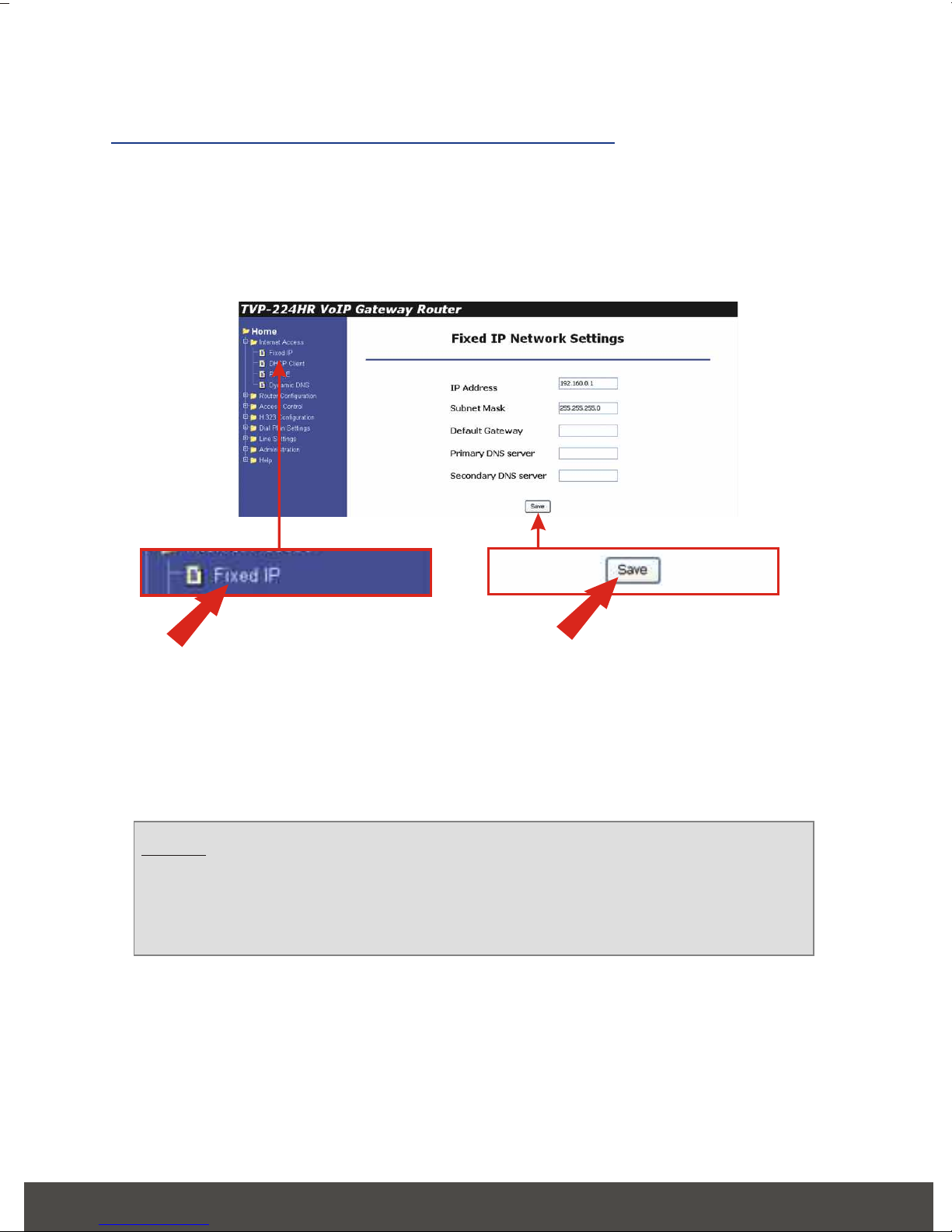
1. From the Navigation Bar on the left side of the screen, Click on the Internet
Access Option. From the Internet Access sub-menu, Select Fixed IP.
The Fixed IP Configuration page will appear.
2. Enter all field information as provided by your ISP and Click Save.
3. Reboot the TVP-224HR system in order for the changes to take effect.
4. Launch your web browser, (Internet Explorer or Netscape Navigator) Type
http://www.trendnet.com in the address bar, and hit the Enter key. If the
website appears, your router is configured correctly.
Static or Fixed IP Cable Connection
NOTE: If the website does not appear, please verify that the information
is entered correctly. Also call your ISP and verify your connection type. If
you still can not establish Internet Access, please reference the trouble
shooting section of your user manual.
7English
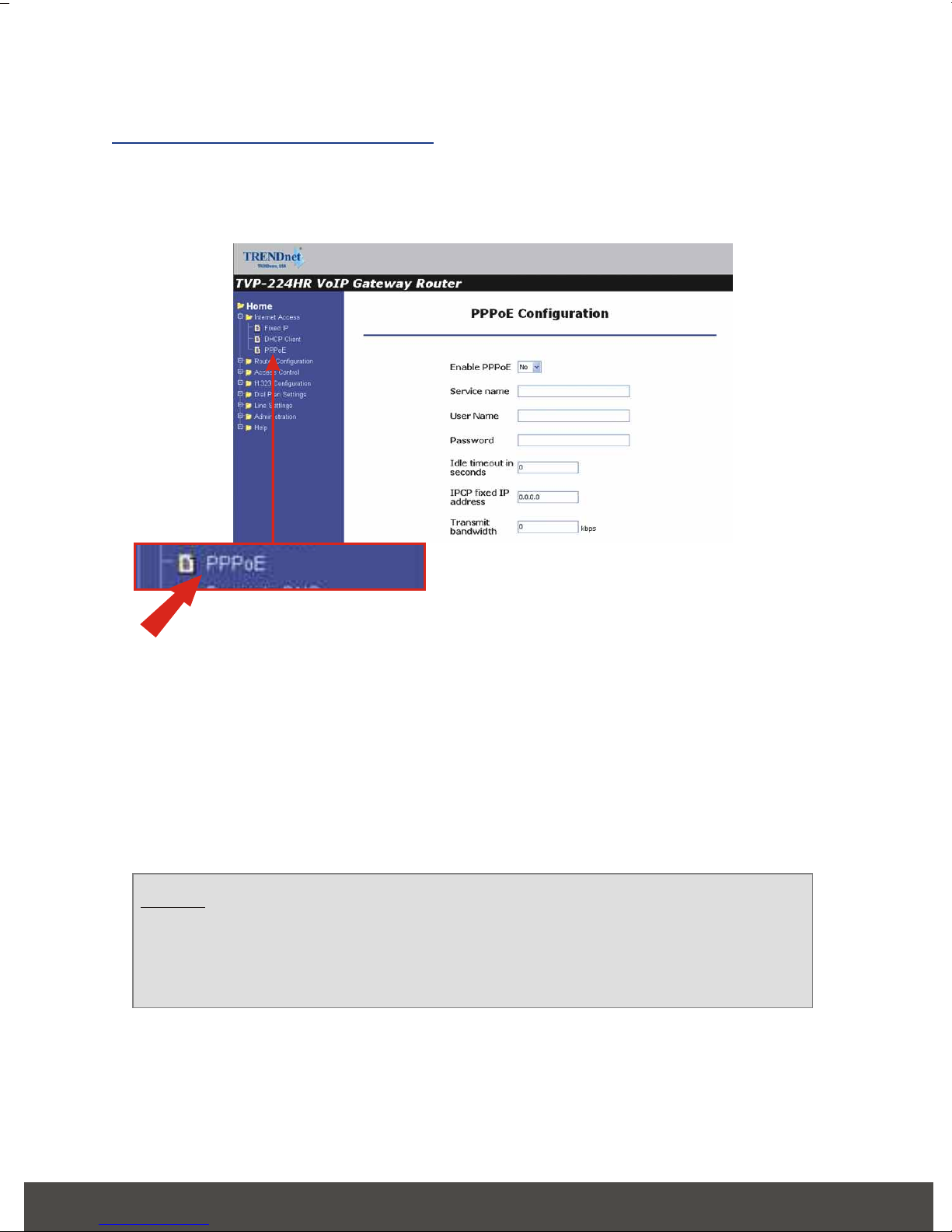
1. Click on the Internet Access option on the left-hand side of the screen and
Select PPPoE. The WAN PPPoE configuration page will appear.
PPPoE DSL Connection
2. Enter PPPoE User Name and Password as provided by your ISP.
3. Click Save.
4. Reboot the TVP-224HR system in order for the changes to take effect.
5. Launch your web browser, (Internet Explorer or Netscape Navigator) Type
http://www.trendnet.com in the address bar, and hit the Enter key. If the
website appears, your router is configured correctly.
6. Setup DDNS Client (See section 7 on DDNS Client).
NOTE: If the website does not appear, please verify that the information
is entered correctly. Also call your ISP and verify your connection type. If
you still can not establish Internet Access, please reference the trouble
shooting section of your user manual.
8English
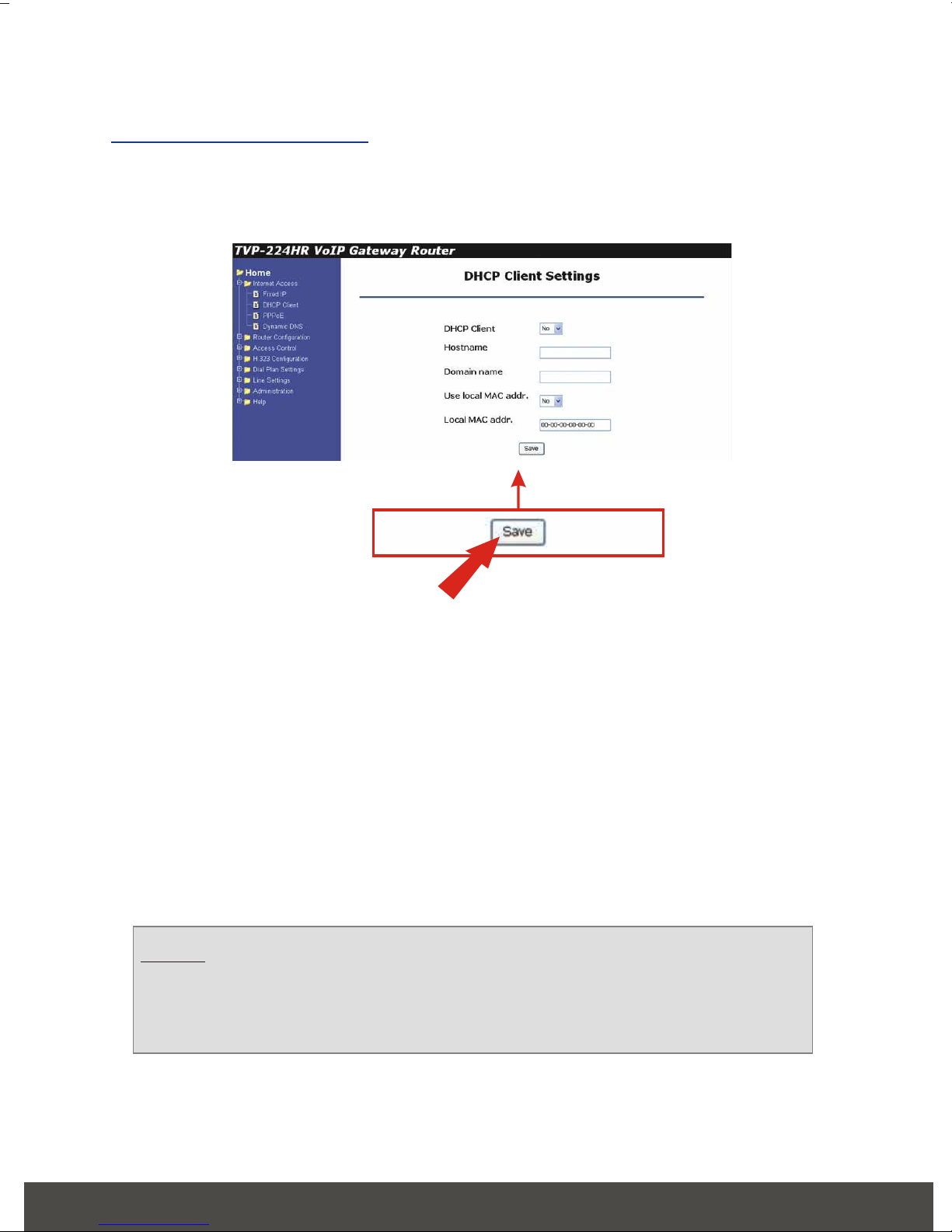
1. Click on the Internet Access option on the left-hand side of the screen and
Select DHCP. The WAN PPPoE configuration page will appear.
DHCP Connection
2. Enable DHCP, and enter Hostname, Domain Name and / or WAN MAC
Address (To find the WAN MAC Address, please navigate to Home / System
Status page) if required by your ISP.
3. Click Save.
4. Reboot the TVP-221H system in order for the changes to take effect.
5. Launch your web Browser, (Internet Explorer or Netscape Navigator) Type
http://www.trendnet.com in the address bar, and hit the Enter key. If the
website appears, your router is configured correctly.
6. Setup DDNS Client (See section 7 on DDNS Client).
NOTE: This quick guide covers only the most common situations.
Please refer to the User Guide (CD) for more information. For console /
telnet configuration, please reference the Advanced User Guide (CD) for
more detailed information.