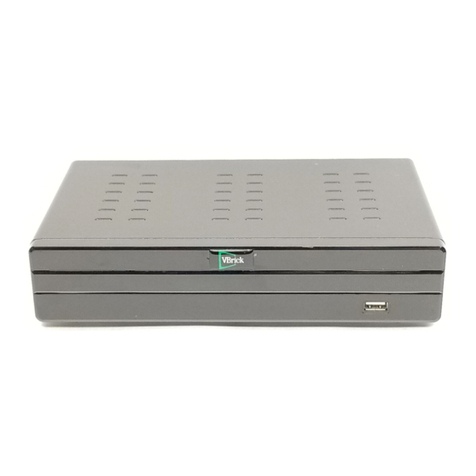
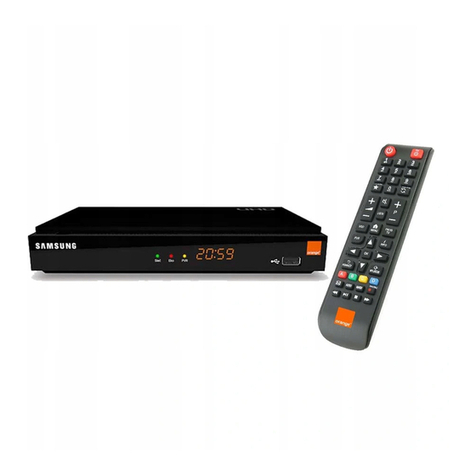
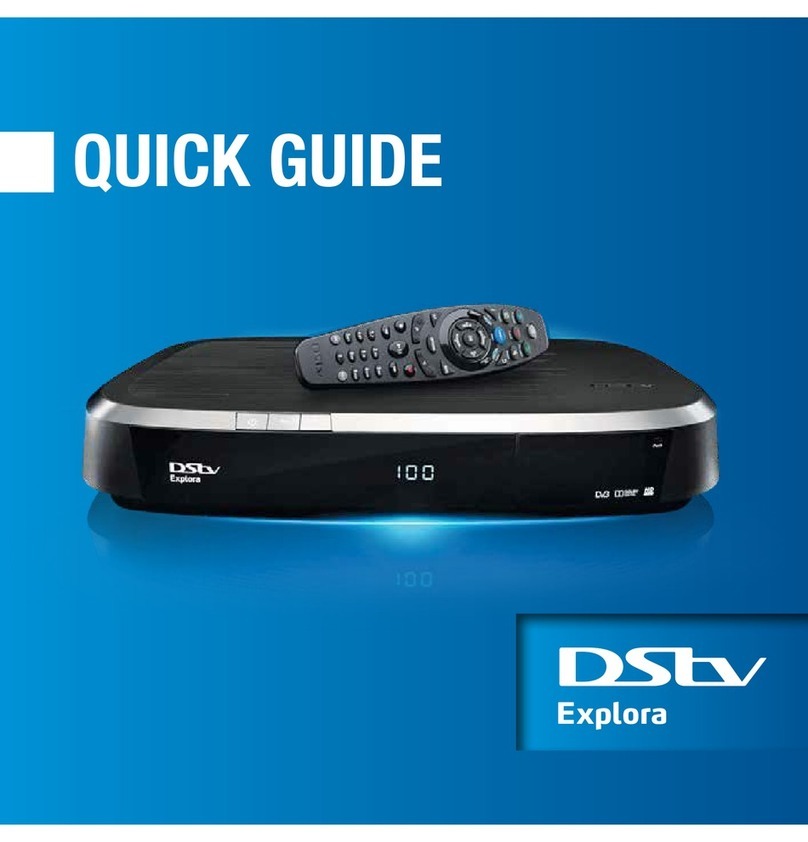
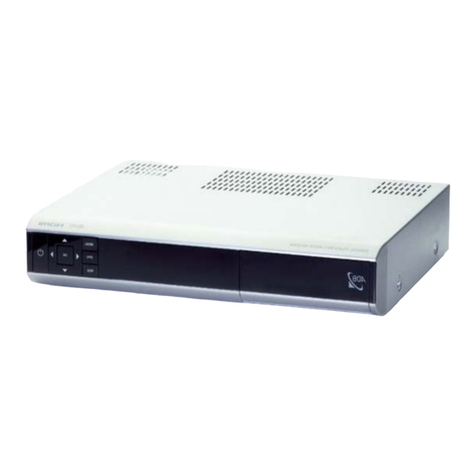
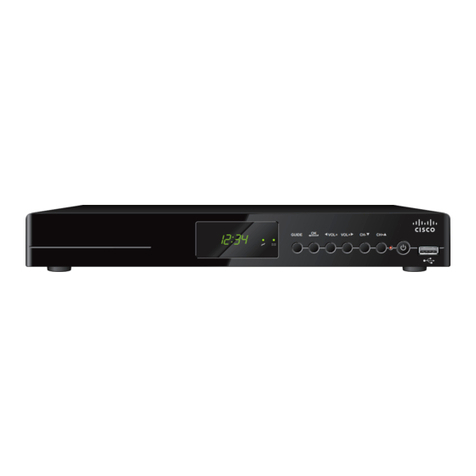
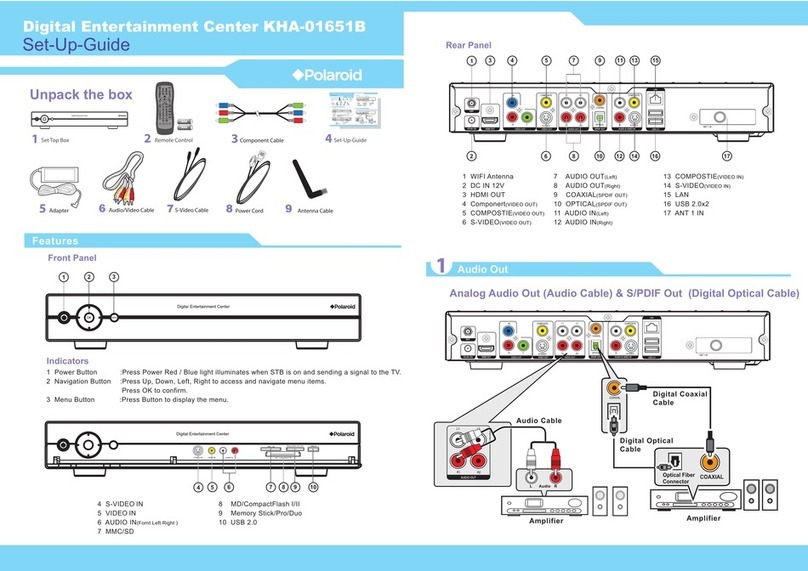
United Communications ADB 3721 User manual

THE FUTURE
NOW SHOWING
Digital Video User’s Guide

Digital TV is different than anything you have seen before. It isn’t
cable…it’s better. Digital TV offers great channels, many features
and many choices. Watch what you want – sports, movies, news,
cartoons, dramas, comedies – anything you can imagine is there.
Watch when you want – with features like Autotune, video on
demand and digital video recording. Watch how you want – high
quality digital video and sound. So sit back, relax and enjoy the future.
The NEW
WAY To
WATCH
Digital TV User’s Guide Copyright © 2005-2014 MS Communications. IPG screen images Copy-
right © 2010 Minerva Networks, Inc. Used with permission. All rights reserved. Portions Copyright
Advanced Digital Broadcasting (ADB), Amino Communications, Ltd., Entone, Inc and Universal
Electronics, Inc.. Used with permission. All rights reserved. All other images copyright and/or
trademark of their respective owner(s). Dolby and the double-D symbol are registered trademarks
of Dolby Laboratories.
This material may not be duplicated, in whole or in part, by any means, without the express written
consent of MS Communications, Ringgold GA 30736 USA.
Minerva 5.7 release 2014
Welcome

Table of Contents
1 Remote Control Basics 1
ADB Focus Remote Control Layout 1
ADB Potenza Remote Control Layout 2
ADB Polaris Remote Control Layout 3
ADB Titan 2056 ISX Remote Control Layout 4
Turn Your Set Top Box or TV On or Off 5
Change Channels 5
Adjust Volume 5
System Buttons 5
Programming Your Remote 6
2 How To Use This Book 8
Layout 8
Color-codes & Icons 8
Changing Your Onscreen Guide 9
3 Infobar 11
Introducing The Infobar 11
Go To The Infobar 11
Infobar Layout 12
Using the Infobar 13
4 Menubar 14
Introducing the Menubar 14
Go To the Menubar 14
Understanding the Menubar 14
5 Guide 16
Introducing Guide 16
Go To Guide 16
Getting Around Guide 16
Favorites List in Guide 16
HDTV Programming 16
Guide Layout 17
6 Guide - Alerts & Recording 18
Introducing Guide & Recording 18
Setting a Reminder, Autotune or Recording 18
Editing a Recording 20
Setting a Series Recording 21
Editing a Series Recording 22
Skipping an Episode 23
Canceling an Autotune, Reminder, Recording or Series Recording 24
Additional Information on Canceling Events 24

Table of Contents
7 Recording 25
Recordings 25
Quick Recording 25
General Guidelines About Recordings 25
Pausing Live TV (PLT) 25
Controlling Live TV 26
DVR Playback Controller 26
Schedule Event 27
Accessing the Schedule Event Screen 27
Configuring the Schedule Event Screen 27
Record By Search 28
8 DVR 29
Introducing DVR 29
Go To DVR 29
The DVR Menu Quick Reference 29
Recorded Programs 29
Recorded Programs: Watching a Recorded Program 30
Recorded Programs: Sorting Recordings 31
Recorded Programs: Locking or Unlocking a Recording 31
Recorded Programs: Deleting a Recording 32
Recorded Programs: Stopping a Program Currently Recording 32
To Record 32
To Record: Sort Future Recordings 33
To Record: Canceling a Future Scheduled Recording 33
Schedule Priority 33
Schedule Priority: Changing Schedule Priority 33
Schedule Event 34
Schedule Event: Editing a Schedule Event 34
Record History 34
Record History: Reviewing Record History 34
Whole Home DVR 35
Set a Recording 35
Non-DVR Set Top Box Recordings List 35
Watching from Room to Room 36
9 Pay Per View 37
Introducing Pay Per View (PPV) 37
Go To Pay Per View 37
Buying Pay Per View 37

Table of Contents
10 On Demand 39
Introducing On Demand 39
To Access 39
Getting Around On Demand 39
Bringing Up the Play Menu 39
Play a Program & Add It to My Library 40
Rent a Program 40
On Demand Browse & Search Options 41
Stop a Video and Exit On Demand 42
11 My Library 43
Introducing My Library 43
The My Library Menu 43
Go To My Library 43
Go To Rented Videos 43
Watching a Rental Video 44
Introducing PPV Events 44
Go To PPV 44
Introducing Reminders 45
Go To Reminders 45
Cancel a Reminder or Autotune 45
Introducing Messages 46
Go To Messages 46
Reading a Message 46
Introducing Caller ID 47
Go To Caller ID 47
Deleting a Caller ID Entry 47
12 Settings 48
Introducing Settings 48
Go To Settings 48
Activating Parental Control 48
Selecting Parental Control Settings 48
Turning Parental Controls On and Off 49
Working With Additional Preferences 50
Working With Settings/Users 53
Adding a User Account 54
Editing a User Account 56
13 Sign Out / Sign In 58
Sign Out / Sign In 58
Go To Sign Out / Sign In 58

Table of Contents
14 Favorites 59
Introducing Favorites 59
Go To Favorites 59
Choosing a Favorites List 59
Creating or Editing a Favorites List 60
Delete a Favorites List 60
15 Search 61
Introducing Search 61
Go To Search 61
Search for a Program 61
Introducing Web & Email 63
Go To The Web 63
16 Web & Email (Coming Soon) 63
Go To Email 64
17 Widgets (Coming Soon) 65
Introducing Widgets 65
Go To Widgets 65
Using Widgets 65
Stocks Widget 65
Weather Widget 66
Twitter Widget 67
Suggestions Widget 68
18 Cloud TV (Coming Soon) 71
Cloud TV 71
Introducing YouTube 71
Go to YouTube 71
Using YouTube 72
Settings (YouTube) 73
Using Settings (YouTube) 73
Search (YouTube) 74
Using Search (YouTube) 74
Introducing MetaChannels 75
Go To MetaChannels 75
Using MetaChannels 76
Search (MetaChannels) 76
Using Search (MetaChannels) 77
Introducing Picasa 77
Go To Picasa 77
Using Picasa 78

Table of Contents
Settings (Picasa) 78
Using Settings (Picasa) 78
My Photos & People 80
Search (Picasa) 81
Using Search (Picasa) 81
Introducing Cloud Search 81
19 Remote Scheduling (Coming Soon) 82
Introducing Remote Scheduling 82
Accessing Remote Scheduling on the Web 82
Recording a Program 83
Record Using the Home Page 83
Record Using the Guide Page 84
Using the Search Guide Option 85
Managing Your Scheduled Recordings 85
Managing Your DVR Recordings 86
Manage your account settings 86
Changing Your Password 87
Renaming Your DVR Set Top Boxes 87
Signing Out 87
Stream Management (Coming Soon) 88
Set Top Box 89
ADB 2500 Set Top Box 89
ADB 2721 W (WX) Set Top Box 90
ADB 3721 WN Set Top Box 91
ADB 3800 Set Top Box 92
ADB 5721 WNX Set Top Box 93
ADB 5810 Set Top Box 94
Movie Ratings 95
MPAA (Motion Picture Association of America) Ratings System 95
TV Ratings 96
TV Parental Guidelines Ratings System 96
Program Ratings 96
Content Ratings 96


1
1 Remote Control Basics
STB
Send commands to
the set top box
TV
Send commands to
the TV
AV
Choose between
your TV’s different
connections
Mute
Toggles audio on/off
Vol +/-
Adjust the volume; in
Guide jumps listings
12 hours ahead/
back
Closed Caption
Toggles closed
captions on or off
Menu
Display the Menu
Bar
Direction Buttons
Move the highlight in
system screens
OK
Enter a choice you
have made
Back
Tune to the previous
channel
Function Buttons
For future use
DVD
Send commands to
the DVD player
Power
Turn a selected
device on or off
Shift
Used to program
your remote control
Number Pad
Enter a channel
number or PIN
Keyboard
Displays an on-
screen keyboard
Prog +/-
Change the chan-
nel; in Guide jumps
listing one screen
ahead/back
Action
Displays Guide
Info
Display the Info Bar
Exit
Close any screen
and return to TV
Playback Controls
Control playback of
Video On Demand
and DVR-recorded
programs.
ADB Focus Remote Control Layout

2
1 Remote Control Basics
Device Selection
Send commands
to TV, audio, DVD,
auxiliary device or
set top box
RCU SETUP
Setup remote (see
page 5)
DVR LIST
Displays list of
recorded programs
MENU
Displays Menu Bar
Arrow Keys
Move highlight in
system screens
GUIDE
Displays Guide
DAY - / DAY +
Jumps Guide 1 day
ahead or back
Function Buttons
For future use
VOL + / -
Adjust volume
MUTE
Toggle audio on or
off
Number Pad
Enter a channel
number or PIN
WWW
For future use
INPUT
Access Devices
PHONE
Display Caller ID Log
POWER
Turn a selected
device on or off
Playback Controls
Control playback of
DVD, DVR or VOD
RECORD
Begin DVR recording
INFO
Display the Info Bar
OK
Enter a choice you
have made
EXIT
Close any screen
and return to TV
PG + / -
Jump Guide 1 page
up or down
CH +/-
Change the channel
VOD
Displays VoD menu
LAST
Return to previous
channel
CC
Toggles closed
captions on or off
SAP
Toggles Secondary
Audio Program on
or off
ADB Potenza Remote Control Layout
This manual suits for next models
5
Table of contents