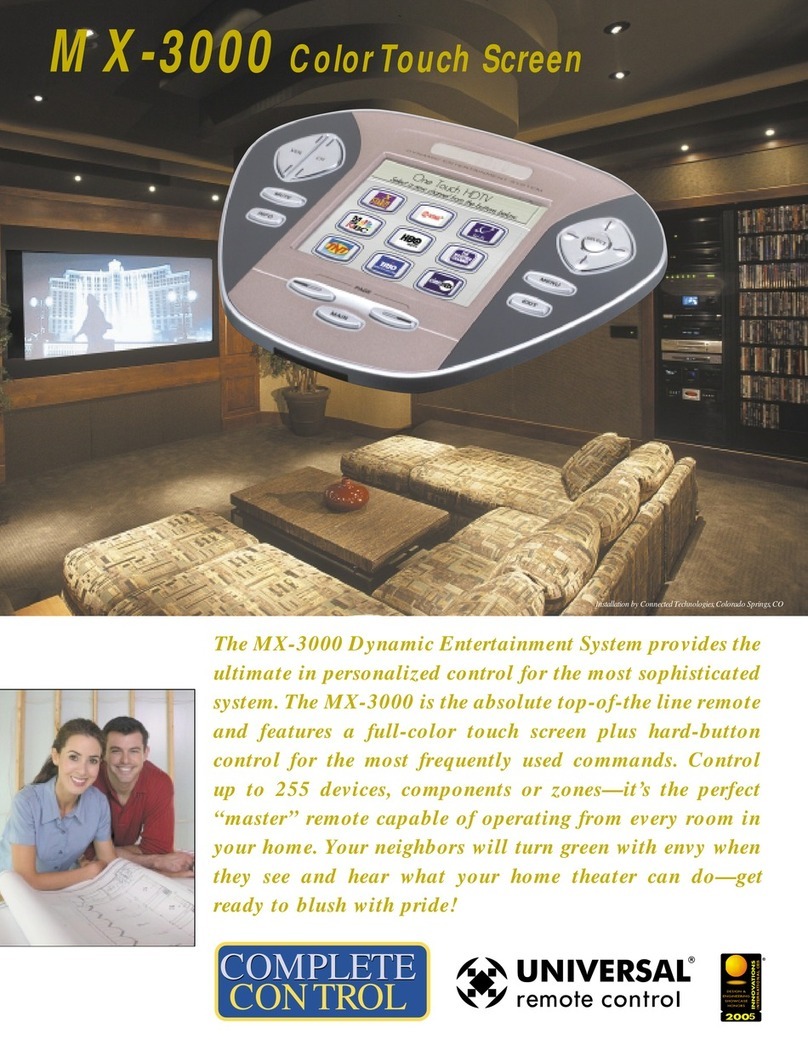
Universal Remote Control MX-3000 User manual

Operating Your System
With The MX-3000

This remote control was
Custom Programmed for you by:
For questions about your Custom Programming call:
Custom Programming of a complex home theater and/or a
multi-room system is one of the most challenging tasks
within an audio/video installation. It involves an intimate
knowledge of how the components interact and exact
details on the proper sequences of control.
Only a Complete Control dealer has the requisite
experience and training to quickly and effectively customize a
remote control for true automated operation.
Congratulations on your choice!
MX-3000 Owners Manual © 2006-2014 Universal emote Control, Inc.
Front Cover Photo courtesy of obert idenour of Connected Technologies,
www.connected-technologies.com
The information in this Owner’s Manual is copyright protected. No part of this manual may
be copied or reproduced in any form without prior written consent from Universal emote
Control, Inc.
UNIVE SAL EMOTE CONT OL, INC. SHALL NOT BE LIABLE FO OPE ATIONAL,
TECHNICAL O EDITO IAL E O S/OMISSIONS MADE IN THIS MANUAL.
The information in this Owner’s Manual may be subject to change without prior notice.
Complete Control is a registered trademark of Universal emote Control, Inc. Entertainment
Made Simple is a trademark of Universal emote Control, Inc.
All other brand or product names are trademarks or registered trademarks of their respective
companies or organizations.
500 Mamaroneck Avenue, Harrison, NY 10528
Phone: (914) 835-4484 Fax: (914) 835-4532

TABLE OFCONTENTS
Congratulations 1
Connecting the Battery Pack 1
Using the Charging Base 2
Programmable only by a URC Certified Professional 2
No More Pointing! 3
Operating Your System 4
Displaying the Settings Screen 5
Adjusting Backlighting 5
Adjusting Brightness 5
Button Light Settings 5
Sound 6
Setting Time and Date 6
Power Settings 6
System 6
Pickup Settings 7
Calibration 7
Factory Default 7
Exit 7
Maintaining Your MX-3000 8
Warranty 8
End User Agreement 11
Specifications 12
Information To The User 13
Warning 14
Note 15

MX-3000 COLOR TOUCH SCREEN
Congratulations
You’ve purchased a unique synthesis of
hardware and software engineering, the
Complete Control MX-3000. The twin goals
of the design team were to improve the
elegance and usability of touch screens
through the physical design while providing
a new standard in brightness, clarity and
animation for the touch screen itself.
Easy Operation
By assigning the important home theater operational buttons to the
natural resting place of the end users thumbs, the MX-3000 achieves a
new standard in use and comfort.
Automatic Backlighting
The integral motion sensor detects any movement of the touch screen and
automatically backlights the screen. You do not have to press any button
to display the screen. Any movement of the MX-3000 renews the
backlighting. To adjust the backlighting, see page 5.
Connecting the Battery Pack
Unlock the rear cover by using a coin to move the locking screw to the
Unlock position.
Remove the cover. For shipment from the
factory, the battery cable is left unplugged.
Plug the cable into the socket next to the
battery. The connector is slotted to prevent
plugging it in the wrong way, so don’t force it.
Replace the cover and lock it into place with
a coin.
Locked
Battery Cable Plugged In
Un-Locked
Page 1

MX-3000 COLOR TOUCH SCREEN
Using the Charging Base
Plug the 5V DC adapter into a
power outlet and into the back of
the charging base.
Gently place the MX-3000 into the
cradle of the charging base.
Push down on the base of the
MX-3000 until you hear and feel a
firm “click”.
The Status light should immediately
light. Red indicates that it is
charging. Blue shows that it is fully
charged. There is no harm in leaving the MX-3000 on its charging base
whenever it is not in use.
Programmable only by a URC Certified Professional
To fully automate your audio/video system, the programmer must have
detailed knowledge of each component as well as how the system is
connected and operated. Only a trained and certified professional
audio/video installer can install a MX-3000 remote control in a timely and
efficient manner.
The MX-3000 on it’s Charging Base.
Page 2

MX-3000 COLOR TOUCH SCREEN
No More Pointing!
The combination of the MX-3000 with it’s companion MRF-300 base
station will enable you to place your audio/video components out of sight
behind closed doors and/or in another room of your house. The MX-3000
sends radio signals to the MRF-300 throughout your house (50-100’ away,
indoors or outdoors). The MRF-300 converts your commands to the
infrared signals that control your A/V components.
1. The MX-3000 remote
control sends radio waves in
every direction, so you don’t
have to point the remote
anymore!
4. Self-adhesive “Flashers” affix to the
Infrared sensors on the front panels of
your components. The Flashers relay
commands to components out of sight of
the MRF-300’s Front Blaster. The flashers
plug in to the MRF-300’s rear flasher line
outputs via their 10 foot cables.
Uniquely, the MRF-300 can also connect
to rear panel IR Inputs via its adjustable
IR Line Outputs.
3. The MRF-300’s built-in Front Blaster sends commands to
components in the same cabinet space as the MRF-300.
2. The RFX-150 RF Sensor can be
freely positioned for optimal reception.
Page 3

MX-3000 COLOR TOUCH SCREEN
Operating Your System
The MX-3000’s MAIN menu displays the most popular activities and
devices in your system. Press the MAIN button to see the MAIN menu.
Large systems may have more than one page. Press the page button if you
don’t see all your devices.
Gently press any screen button with your finger to select an activity or a
device. The screen will change to a display of the buttons you need for
that activity/device. The PAGE buttons may reveal additional buttons for
some devices and activities.
When you would like to control another device, press the MAIN button
and select a new device from the MAIN menu.
The PAGE buttons
reveal additional
pages of buttons
when they are
available.
The Volume and
Mute buttons are
always available
regardless of what
screen is displayed.
To select a touch
screen button,
touch the screen
with a gentle tap of
your finger.
The 4 way cursor
buttons enable you
to navigate on
screen guides and
menus with ease.
The MAIN Button below the
screen always takes you to the first
page of the MAIN Menu.
Page 4

MX-3000 COLOR TOUCH SCREEN
Displaying the Settings Screen
You can adjust the settings of the
MX-3000 whenever you like by pressing
and holding the MAIN button for five
seconds. When you do, the screen will
change to the SETTINGS screen. If you
do not press any button on the
SETTINGS screen within 30 seconds, the
MX-3000 will time out and automatically
return to normal operation.
Adjusting Backlighting
If you uncheck the check boxes, the
MX-3000 will stay lit until the
battery is exhausted. If you check the check
boxes, you can select from the list of delays.
The amount of delay you select will be the
how long the MX-3000 stays lit. You can save
battery life this way.
Adjusting Brightness
Simply touch and drag the brightness slider to
the desired level. Increased brightness does
affect battery life.
Button Light Settings
You can opt to conserve battery life by
disabling the LED lighting behind the
buttons.
This is done by pulling down the list box and
selecting “always off” from the list.
The Settings Screen
The Backlight Screen
The Brightness Screen
The Button Light Screen
Page 5

MX-3000 COLOR TOUCH SCREEN
Sound
Your MX-3000 may have been programmed
to make sounds. This is optional, and some
professional installers may prefer to keep it
silent. However, you can adjust the volume
to any level you like by touching and
dragging the volume control here.
Setting Time and Date
Your MX-3000 may have been programmed
to display the time or date on a touch screen
button. If so, you can correct the time
displayed by changing the settings on this
screen.
Power Settings
You can display the remaining charge
by selecting Power Settings.
You can also adjust when the low battery
warning screen will appear.
System
The System screen displays data about your
MX-3000’s operating system, memory etc.
The Sound Screen
The Time and Date Screen
The Power Screen
The System Screen
Page 6

MX-3000 COLOR TOUCH SCREEN
Pickup Settings
You can set your MX-3000 to only turn on
when touched, or every time you move it.
Calibration
If you like, you can calibrate where you tap
by running the calibration. You will need a
pen top or PDA stylus to do this. Do not
attempt to calibrate using your fingers.
Factory Default
WARNING! Only use this button when
instructed to by Technical Support. It resets
the memory of the MX-3000 to the factory
condition. All your programming will be lost!
Exit
When you have finished adjusting Settings,
simply tap the EXIT button to return to
normal operation.
The Pickup Screen
The Calibration Screen
The Default Screen
The Exit Button
Page 7
Other manuals for MX-3000
1
Table of contents
Other Universal Remote Control Control System manuals