manuals.online logo
Brands
  1. Home
  2. •
  3. Brands
  4. •
  5. Vernier
  6. •
  7. Media Converter
  8. •
  9. Vernier VE10W User manual

Vernier VE10W User manual

Other Vernier Media Converter manuals

Vernier MEU-VDS User manual

Vernier

Vernier MEU-VDS User manual

Vernier DTS-EC User manual

Vernier

Vernier DTS-EC User manual

Vernier VE11U User manual

Vernier

Vernier VE11U User manual

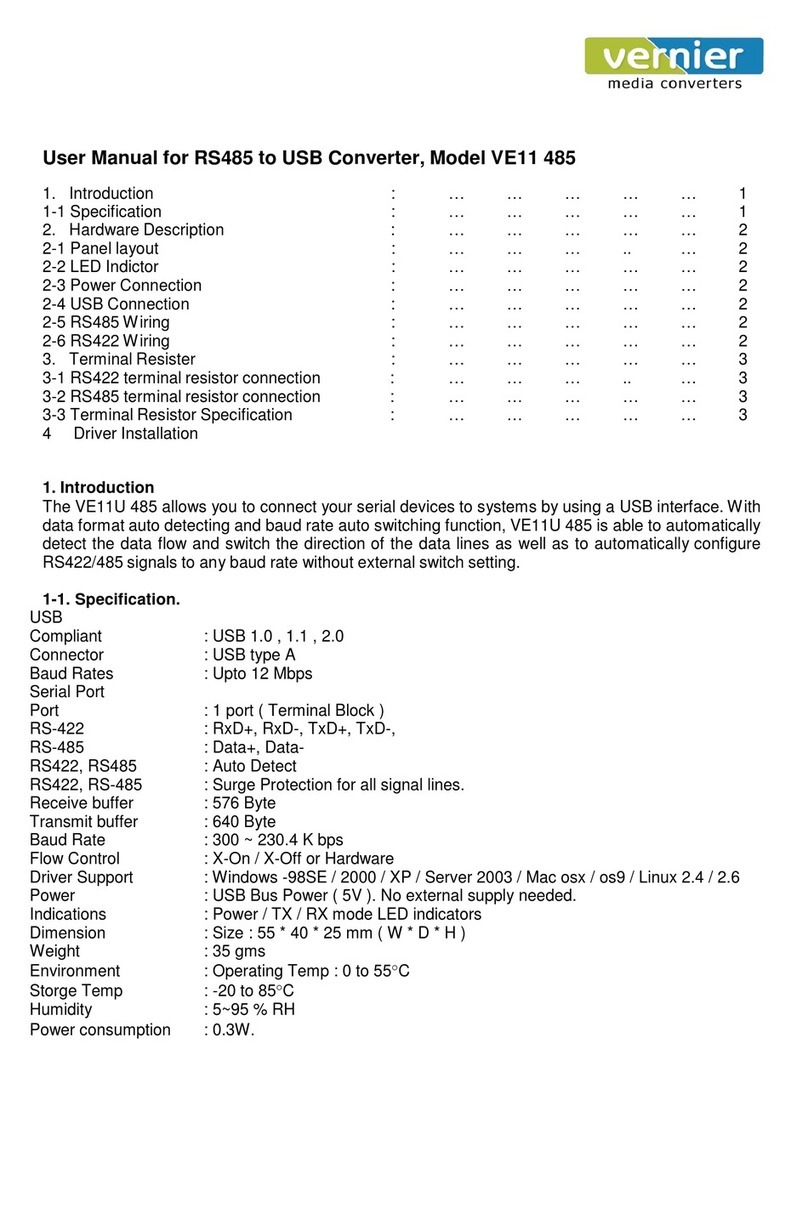
Vernier VE11 485 User manual

Vernier

Vernier VE11 485 User manual

Popular Media Converter manuals by other brands

TR-Electronic CMS582M-4096/4096 IOL DMS 14H7 KRF Assembly instructions

TR-Electronic

TR-Electronic CMS582M-4096/4096 IOL DMS 14H7 KRF Assembly instructions

Korenix JetCon 2301S user manual

Korenix

Korenix JetCon 2301S user manual

StarTech.com ET91000LCOAM manual

StarTech.com

StarTech.com ET91000LCOAM manual

Alesis AI-3 Reference manual

Alesis

Alesis AI-3 Reference manual

Caton Vpro 5100 user guide

Caton

Caton Vpro 5100 user guide

Cypress CSC-5500 Operation manual

Cypress

Cypress CSC-5500 Operation manual

H&B TX-100 Installation and instruction manual

H&B

H&B TX-100 Installation and instruction manual

Bolin Technology D Series user manual

Bolin Technology

Bolin Technology D Series user manual

IFM Electronic Efector 400 RN30 Series Device manual

IFM Electronic

IFM Electronic Efector 400 RN30 Series Device manual

GRASS VALLEY KUDOSPRO ULC2000 user manual

GRASS VALLEY

GRASS VALLEY KUDOSPRO ULC2000 user manual

Linear Technology DC1523A Demo Manual

Linear Technology

Linear Technology DC1523A Demo Manual

Lika ROTAPULS I28 Series quick start guide

Lika

Lika ROTAPULS I28 Series quick start guide

Weidmuller IE-MC-VL Series Hardware installation guide

Weidmuller

Weidmuller IE-MC-VL Series Hardware installation guide

Optical Systems Design OSD2139 Series Operator's manual

Optical Systems Design

Optical Systems Design OSD2139 Series Operator's manual

Tema Telecomunicazioni AD615/S product manual

Tema Telecomunicazioni

Tema Telecomunicazioni AD615/S product manual

KTI Networks KGC-352 Series installation guide

KTI Networks

KTI Networks KGC-352 Series installation guide

Gira 0588 Series operating instructions

Gira

Gira 0588 Series operating instructions

Lika SFA-5000-FD user guide

Lika

Lika SFA-5000-FD user guide

manuals.online logo
manuals.online logoBrands
  • About & Mission
  • Contact us
  • Privacy Policy
  • Terms and Conditions

Copyright 2025 Manuals.Online. All Rights Reserved.

Page 11 of 18
Serial
Device
Signal
VE10W
Pin
no’s
Signal
D-
1
D-
D+
2
D+
Serial
Device
Signal
VE10W
Pin
no’s
Signal
R-
3
T-
R+
4
T+
T-
1
R-
T+
2
R+
User Manual of Serial to WiFi Converter, Model VE10W
WiringArchitecture
RS232 Wiring Diagram RS485 Wiring Diagram RS422 Wiring Diagram
Serial
Device
Pin no’s
Signal
VE10W
Pin
no’s
Signal
2
RX
3
TX
3
TX
2
RX
5
GND
5
GND
7
RTS
8
CTS
8
CTS
7
RTS
LEDIndicators
SYS (Red)
: Power
When the Power is on, the LED in ON
LAN (Green)
: Network
When the LAN signal is detected, the LED will be ON.
TX (Red)
: Data sent
When data is sent out from the network, the LED will blink.
RX (Green)
: Data received
When data is received in the network, the LED will blink.
When you finish the steps mentioned above and the LED indicators are as shown, the converter is
installed correctly. You can use the Software Setup CD to setup the IPAddress.
To proceed with the Advance parameter setup, you can also use a web browser (IE or Netscape) to continue
the detailed settings.
Page 22 of 18
DS Tool Software Setup
DS Tool uses UDP broadcast packets to query and configure converters on the network.
Insert the CD.
Select “DSTool_ODM_Setup”folder.
Double click
“DSTool_ODM_Setup.exe”.
When the “Installing DSTool” screen pops up, double click the “Start” icon for installing.
After installation, “Installation was completed successfully”screen will pop up. Double click the “OK”
icon. Choose any of the 2 options in the next screen.
If you choose “Launch DSTool Now”then the Device Configuration manual screen will appear.
Page 33 of 18
Serial to Wi-Fi Converter Configuration
Broadcast
After finishing DSTool installation, launch DSTool, double click “Broadcast” button. It will detect the
existence
converters in the network.
Select the converters you wish to add and double click “Add”button.
The table will depict the converter details such as IP address, MAC Address, Device Name and Status.
Device List
In the Device List icon, you will find all the added converters.
Double click on the device will allow you to configure other converter settings.
Page 44 of 18
General
After listing of device IP in “Device List” item, you can click the IP as shown in the table.
General information as
“Model”, “IPAddress”, and
“MAC Address”, “Firmware
Version” “Device Name /
Location“and device working
status …etc appear.
You can configure some
parameters and modify
device name and location
Security
Serial to Wi-Fi converter’s Security includesAccess IP, Mask list and Administration security.
The Access IP Table specifies the
IP address and Subnet that can
access the device. The access is
based on IP and Mask combination.
If the access is open to all hosts, Do
NOT enable this function. You can
assign a password for Administrator’s
Management
& Security.
After modifying configuration, be sure to Save the changes by using “Apply Only”or “Apply and Save”.
Page 55 of 18
Networking
Wireless
Notification
Serial to Wi-Fi converter can support both
type of IP such as Static IP or DHCP/BootP
IP configuration.
After modifying configuration click
the
icon
of “Apply Only”or “Apply and Save”
for finishing IP configuration.
You can use the wireless item for
configuring Serial to Wi-Fi Converter’s
Wi-Fi parameters. “SSID Scan”is for
searching the available wireless access
point and to select your AP device.
“Wireless Encryption”is for setup
parameters as encryption type and key.
Save the changes by using “Apply Only”
or “Apply and Save”.
Serial to Wi-Fi
converter can support 3
ways of event
notification e.g “SNMP
Trap”, “Email
Notification”
and
Syslog Notification.
Page 66 of 18
Management
In addition to DSTool, Serial to Wi-Fi Converter can also be managed by Web and Telnet consoles as well as by
SNMP. The Web and Telnet functions are
enabled as default. To enable or
disable the management consoles,
you can use the “Configuration”
and “Management” of DSTool for
configuring.
To enable SNMP trap support, you
have to check the SNMP
Management Enable device and
specify SNMP settings including Community, Location, Contact, and Trap Server IP.
Upgrade Firmware
To update firmware of the device,
save the firmware file in your host
PC. Go to “Configuration”, and
“Update Firmware”. Specify the
file location by Browsing and
continue operation by Update. The
device will reboot after firmware
updating.
Note: All parameters will restore to default after the firmware update, except for the device IP address.
Save/Load
After finishing setup, click “Applyand Save” button.
The changes are valid after rebooting the device.
“Load default” is all parameters changes to factory’s default except network setting.
“Reboot Device” is for rebooting device and needs to broadcast again to search the device.
“Import” is for retrieving saved configuration file in to the current device.
“Export” is saving the current parameters onto a file and export to a current host for saving.
Page 77 of 18
Port
Port Configurations is for configuring Serial parameters.
delimiters are received the data will not be transmitted successfully.
PortAlias : Remarks for the port.
Baud rate : From 110bps to 460.8kbps
Parity : No, Even, Odd, Mark, Space
Data Bits : 5, 6, 7, 8
Stop Bits: 1, 2 (1.5)
Flow Control : None, XON/XOFF,
RTS/CTS, DTR/DSR
Interface : RS232
Performance : “Throughput” : guarantees
highest transmission speed or “Latency”:
guarantees shortest response time.
Delimiter Settings
For advanced data packing options, you
can specify delimiters for Serial to
Ethernet and / or Ethernet to Serial
communications.
You can define 4 delimiters (00~FF,
HEX) for each way and until the
“Flush Ethernet to Serial Data Buffer After”is time for which data will be stored before getting transmitted
between Ethernet and Serial.
“Force TX interval time” is for specifying the timeout when no data has been transmitted and the timeout is
reached or TX buffer is full (4K Bytes), the queued data will be sent. If you want to disable and the parameter is
setting “0”. (factory default)
Service Mode : UDPMode
When device is configured as TCP Server, it gives the connected serial device a unique IP : Port address on a
TCP/IP network that it can be accessed by other host on the network. Device as TCP Server waits passively to
be contacted by the host computer, allowing the host computer to establish a connection and get data from the
serial device.
Page 88 of 18
This operation mode supports up to 5 simultaneous connections, so that multiple hosts can collect data from the
same serial device at the same time.
Service Mode : Virtual COM Mode
This option enables the Serial Port in the Converter to act and be controlled as PC’s COM port for Windows.
One PC can have as many as COM ports on the network without the limitation of PC’s physical slots. The
Virtual COM ports on the network can also be shared by multiple hosts.
Service Mode : TCP Client Mode
When Serial to Wi-Fi converter is configured as TCP Client, it allows the connected serial device to initiate the
TCP connection to remote host software when needed. When connected, the data is transmitted bi-directionally
and till the data transmission is finished, the TCP connection will be closed by TCP Client. The connect-on-
demand TCP Client operation helps the host computer to manage high number of remote devices that exceeds
the maximum simultaneous TCP connections allowed. Serial to Wi-Fi converter supports up to 5 simultaneous
TCP Client connections for redundant system considerations
Notification
Port status can be notified to administrator by email, SNMP trap, or System Log.
Several events of notification include :
DCD changed: When DCD (Data Carrier Detect) signal changes, indicating the modem connection status has
changed, the event will be triggered.
RI changed: When RI (Ring Indicator) signal changes, indicating the incoming of a call, the event will be
triggered.
DSR changed: When DSR (Data Set Ready) signal changes, indicating that the data communication equipment
is powered off, the event will be triggered.
CTS changed: When CTS (Clear To Send) signal changes, indicating that the transmission between computer
and DCE can proceed.
Port connected: In TCP Server Mode, when the device accepts an incoming TCP connection, this event will be
trigger. In TCP Client Mode, when the device has connected to the remote host, this event will be trigger. In
Virtual COM Mode, when Virtual COM is ready to use, this event will be trigger.
Port disconnected: In TCP Server/Client Mode, when the device looses the TCP link, this event will be trigger.
In Virtual COM Mode, When Virtual COM is not available, this event will be trigger.
To enable activate the notification, specify the event type and the notification methods.
The details of SNMP trap Server, Email SMTP server, or Log server IP should be configured first properly in
device “Configuration”“Management”.
VCOM List
You can monitor the COM port status from the “VCOM”function. The monitored items can also be defined by
the “Select Monitor Items”icon. The COM ports must be configured first before monitoring the status.
DSTool offers 5 Setup Wizards to help you manage Serial Wi-Fi Converter devices as a group.

Page 99 of 18
Virtual COM Wizard
Select the available ports of Serial Wi-Fi Converters on the network.
DSTool offers one of the easiest way to
add serial COM ports over the network by
the Virtual COM Wizard. Serial Wi-Fi
Converter COM port driver is installed
when you install DSTool.
Select the Virtual COM Wizard from
Setup Wizard. There are only 3 steps to
follow up.
Continue by configuring the Serial settings of the Serial ports. In Performance mode, there are “Throughput”
mode and “Latency”mode. In Throughput mode, the throughput is high. In Latency mode, the response time is
low.
Page 1010 of
18
Specify the Virtual COM port range and continue the operation by checking the COM port table
Serial Tunnel Wizard
The Serial Tunnel Wizard gives you the option to transparently pair two devices over the network.
Select the devices that should be
paired and move the devices into
IP1 and IP2.
After configuring the serial
setting
of
the ports, the serial tunnel will be
built by assigning one port as the
TCP Server mode and the other as
the TCP Client mode.