-25-
●Windows
1. Connect the TR-1 to your computer with the included USB cable.
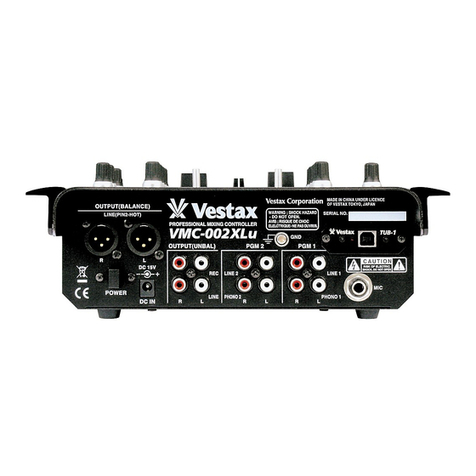
2. Set the Power select switch to the power source you wish to use. Set the switch to [DC 9V ADAPTOR] if using
the power adaptor and [USB POWER] if using USB bus power.
The POWER LED of the TR-1 will light up.
※CAUTION:Please use the exclusive power adaptor for stable operation if the USB is connected to a non-
powered USB hub or if the computer does not have enough power capacity.
A message saying New hardware foundwill appear, and the required drivers will be automatically installed.
(The message may not appear when the TR-1 is connected for the second time or when the driver is already
installed)
3. Move any knob and fader to check that the data send LED illuminates along with all control movements.
4. To check connection status in Windows XP, view [control panel] > [system] > [hardware] > [device manager] >
inside USB controller find [USB combined device] (Property: Location: Vestax TR-1) > inside sound, video and
game controller find [USB Audio device] (Property: Location: Vestax TR-1). If both are displayed and the status is
"This device is installed normally", the TR-1 is functioning with the computer.
●Macintosh
1. Select a power source with the Power Select switch on the rear panel.
Select DC ADAPTOR if using the Vestax power adaptor, USB BUS POWER if utilizing USB bus power from the
computer.
※NOTE:If using a non-powered USB hub or if the computers power capacity is not sufficient, use the Vestax
power adaptor (not included) for stable operation.
2. Connect the TR-1 to the computer with the included USB cable. The power LED will light up.
3. Move any knob and fader to check that the data send LED illuminates along with all control movements.
4. To check the connection status in Macintosh, view [Applications] > [Utilities] > [Audio MIDI setting] > [MIDI
device] and find the TR-1 icon as shown in the picture.
Click the [TR-1] icon to see property.
Device: TR-1
Manufacturer: Vestax
Model: TR-1
CONNECTION WITH COMPUTERS