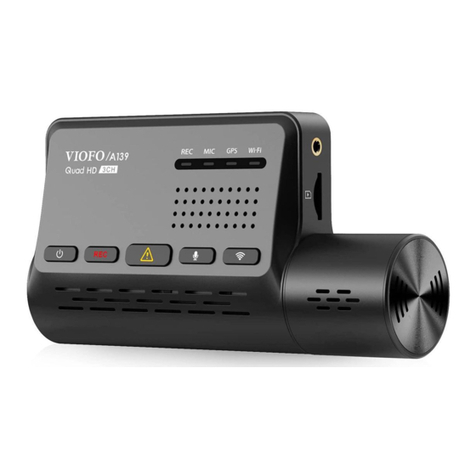
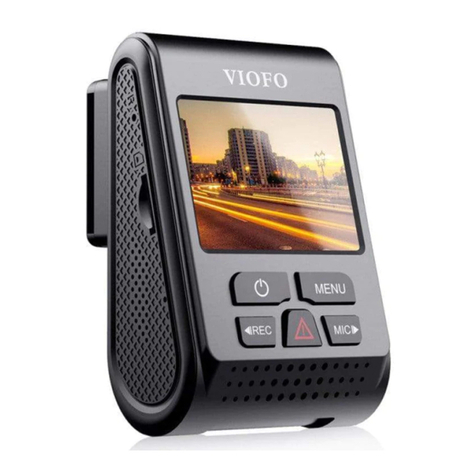
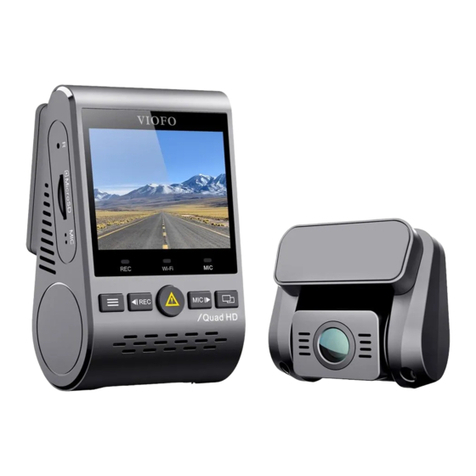
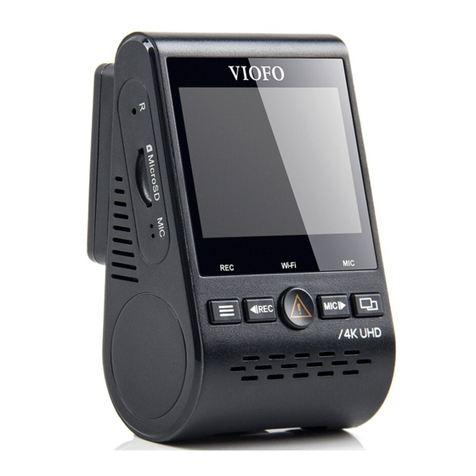
Viofo A229 User manual

Copyright 2022 VIOFO Ltd. All Rights Reserved.
The user manual is available on
https://viofo.com/en/content/42-help-and-support/

Table of Contents Product Overview
Table of Contents Product Overview
Standard Items
Optional Accessory
Front Camera
Rear Camera Bluetooth Control
CPL Hardwire Kit
Rear Camera
Cable (6M)
Type-C Data Cable
1 2
Windshield
Static Stickers x2
Note: The USB data cable is only for connecting the camera with computer to transfer
video files or upgrade firmware, not for charging the camera.
*
VIOFOHardwireKitforCar Dash Camera
INPUT:
RED
—POWER
BLACK
—GND
YELLOW
—ACC
Input:12/24V;Output:5V2A Max
External Microphone
Car Charger
Trim Removal Tool
GPS Module
Spare Front
Mount Sticky Pads
Spare Rear
Mount Sticky Pads
Product Overview
Installation
Operation
System Settings
Review and Control on Smartphone
Bluetooth Remote Control
Notice
Customer Service
Standard Items
Optional Accessory
Product Diagram
Inserting / Removing the Memory Card
LED Indicators
Buttons and Icons
Display Overview
Front Camera Installation
Rear Camera Installation
Cable Connection
Power On / Off
Loop Recording
Emergency Recording
Playback Videos
PC Mode
PIP Mode
Firmware Upgrade
2
10
15
19
23
25
24
27

Product Overview Product Overview
Product Diagram
Inserting / Removing the Memory Card
Rear Camera ( Optional )
Inserting the Memory Card
1) Front Camera
2)
3 4
Push the memory card into the card slot until you hear a click,
with the card label facing the forward (away from the screen).
1
-
Menu / Power On|Off
2
-
Menu Up / Recording Start / Stop
3
-
Menu Confirm / Video Protect /
Playback
4
-
Menu Down /
Microphone Enable / Disable
5
-
Wi-Fi On|Off
6
-
Rear Camera Port
7
-
Memory Card Slot
8
-
External Microphone Port
1
-
Power In / MicroSD Card
Reader Mode
2
-
Reset Button
3
-
Power Status Indicator
4
-
Recording Status Indicator
5
-
GPS Status Indicator
6
-
Microphone Status Indicator
7
-
Wi-Fi Status Indicator
7
6
5
4
3
Lens
Power In
USB Power Port
Mount
Lens
1
1
2
3
4
5
6
7
8
2

The microSD card is sold separately. The microSD card must have a
UHS-U1/U3 or above rating and the capacity up to 256GB.
64GB,128GB and 256GB microSD cards must be formatted with the
FAT32 file system, either on a computer or in the camera.
We recommend you to buy the VIOFO brand memory card which
are manufactured with top-tier MLC NAND flash, making them
durable and reliable.
Product Overview Product Overview
Removing the Memory Card
Formatting the Card
Note:
5 6
Ensure that the camera is turned off / not recording, and then
push the edge of the memory card with your fingernail.
The card will spring out far enough to be removed.
LED Indicators
LED Led Status
Flashing Red
Solid Red
Off
Solid Red
Flashing Red
Flashing Blue
Solid Blue
Off
Solid Blue
Off
Flashing Blue
Solid Blue
Off
Behavior
Updating Firmware
Power On
Power Off
Recording
Not Recording
GPS Signal Receiving
GPS Signal Received
GPS Disabled
Microphone Enabled
Microphone Disabled
Wi-Fi On and Waiting Connecting
Wi-Fi Connected
Wi-Fi Disabled
GPS
MIC
Wi-Fi
REC
PWR
Memory card must be formatted before first use.
We suggest formatting the card periodically to ensure the best
performance of the camera.
Note: Formatting card will erase all data permanently , please
back up important data beforehand.

Product Overview Product Overview
ButtonsMode
Recording
Mode
Behavior
Long press to power off
Click once to stop recording
Long press to enable / disable the Wi-Fi
Buttons and Icons
Click once to lock the file being
recorded
Click once to enable / disable audio
recording
ButtonsMode
Standby Mode
(Not Recording)
Behavior
Click once to start recording
Click once to enter menu
Long press to enter playlist
Click once to enable / disable audio
recording
Long press to enable / disable the
Wi-Fi
ButtonsMode
Setting
Menu
Mode
Behavior
Exit setting menu / Return to
previous menu
Menu up
Enter / Confirm setting options
Menu down
N / A
Buttons
Mode
Playlist
Mode
Behavior
N/A
Menu up / Change playback speed /
Delete the video
Menu down / Change playback speed
/ Lock current / Unlock current video
Return to previous menu / Exit playlist
Select the current video / Play / Pause
7 8

Installation
2) Select a location on the windshield rear of the rear-view mirror.
Front Camera Installation
1) Insert the clips, then slide the mount horizontally into the slot on
the back of camera.
3) Wipe clean the installation surface of the windscreen with a dry
cloth, it must be grease free for the sticky pad to stick firmly.
4) Peel the protection film off the sticky pad and camera lens.
Connect to car
cigarette lighter socket
Best mounting location
Product Overview Installation
9 10
Display Overview
Recording Status
Parking Mode
Recording Mode
Loop Recording Status
Parking Motion Detection
G-sensor Status
SD Card Status
GPS Status
Recording Time
Video Resolution
Microphone
Emergency Lock
1440P30+
1440P30
00:00:00
00:00:00
2022/04/01 10:00
1440 P30 + 1440 P30
Wi-Fi Status

Cable Connection
3) Peel the protection film off the sticky pad and camera lens.
4) Fix the rear camera on the selected location.
1) Connecting to Power
Plug the USB power adapter into your vehicle’s 12V / 24V female
power socket. Insert the car charger USB cable’s male port into the
camera's mount USB port.
Installation Installation
11 12
Rear Camera Installation
5) Fix the front camera on the selected location.
6) Adjust the lens angle
- Look at the live view on the LCD.
- Adjust the angle of the lens up / down if necessary.
1) Select an installation location
2) Wipe clean the installation surface of the windscreen with a dry cloth.
Select a location on the windscreen, without defrost grid wires,
and where the camera can record the entire rear view.
2
1

Installation Installation
1. Do not install / mount the camera in a location that interferes with
the driver’s visibility and safety.
2. Install / mount the camera close to the rearview mirror so that
both sides of the scene being recorded are equally covered by the
camera’s FOV (field of view).
3. To ensure a clear view on rainy days, the lens should be positioned
within the windshield wiper’s sweeping range.
4. Do not install / mount the camera on or near airbag panels.
5. Installation / mounting location should not be aected by sun
control film (window tint). There should not be any other electronic
equipment close to the camera for optimal performance.
Note:
Do not install / mount the camera or cables near an airbag panel or
within the airbag’s working range. The manufacturer is not liable for
any injury or death caused by deployment of the airbag.
Tips
2) Connecting with Rear Camera
Power off the product and connect the rear camera cable to the front
camera (main unit).
Cable routing should be as shown in the following two diagrams.
1
2
Rear Camera
Front Camera
13 14

Emergency Recording
Automatic emergency recording
When the G-sensor is activated by a collision, the current footage
will be locked automatically to avoid being overwritten by loop
recording.
Manual emergency recording
Pressing the [ ] button during a recording will lock the current
file being recorded. Once locked, the file will not be overwritten by
the loop recording feature.
Note:
Collision sensing feature can be adjusted in settings under the
“G-sensor” option. Locked files are saved to SD card: DCIM \ Movie \ RO
1.
2.
Loop Recording
Insert a microSD card into the camera’s card slot and automatic loop
recording will begin once the camera detects power.
Time frame for each video file is 1 / 2 / 3 / 5 / 10 minutes.
When there is insufficient space on the microSD card, loop recording
will automatically overwrite the oldest files (one by one).
Loop recording files are saved to SD card: \ DCIM \ MOVIE folder.
1.
1.
2.
3.
2.
3.
4.
Operation
Power On / O
When you start the engine, the camera will turn on and begin
recording automatically.
When you turn off the engine or unplug the charging cable from
the power adapter, the camera will stop recording and turn off.
Long press [ ] button to power on or off the camera.
Playback Videos
Under standby mode (not recording), long press [ ] button to
enter the playlist.
Use the arrow buttons [ ] to select the desired video and
press the button [ ] to play.
Press the [ ] button to exit.
1.
2.
3.
Note:
1. Separate files are created for the recordings of front and rear
camera.
2. The file name of front camera is Year_Date_Time_***F, and
Year_Date_Time_***Rfor rear camera.
3. The default video resolution of front and rear camera are
2560 x 1440P 30fps.
Operation Operation
15 16

1. Connect the camera to a computer by using the included
short USB cable.
2. The camera will automatically turn on and "microSD Card
Reader Mode" will be displayed on its LCD screen .
3. The computer will detect “removable disk” .
4. There will be two folders under DCIM folder:
Movie (loop recording video files)
Contains subfolder: Parking (Parking mode video files)
RO (Protected / Locked video files)
Photo (Video snapshot files)
5. Copy the files needed to your computer drive.
PC Mode
PIP Mode
There are four modes for live preview on the A229 LCD screen
while the rear camera is attached.
Note:
Picture in picture (PIP) mode is available only while the rear camera
is attached.
Note:
• Before using a microSD card to upgrade the firmware, formatting
the card in camera is necessary to ensure stable read and write
operation.
• Do not unplug or power othe camera during a firmware upgrade,
it may cause the camera to subsequently fail to boot.
Follow the instructions on this website to upgrade the firmware:
https://viofo.com/en/content/42-help-and-support/
Firmware Upgrade
Operation Operation
17 18
Under standby mode (not recording), long press [ ] button to
enter the playlist.
Use the arrow buttons [ ] to select the desired video and
press the button [ ] to play.
Press the [ ] button to exit.
Mode
Front Only
Rear Only
Description
Show preview video for front and rear
camera on the LCD screen, the rear camera
preview is on the top left side.
Show preview video for front and rear
camera on the LCD screen, the front
camera preview is on the top left side.
Show preview video for front camera only
on the LCD screen.
Show preview video for rear camera only
on the LCD screen.
Front + Rear
(Rear overlaid)
Rear+ Front
(Front overlaid)
Table of contents
Other Viofo Dashcam manuals
Viofo
Viofo A119S V3 User manual
Viofo
Viofo T130 User manual
Viofo
Viofo A118C User manual
Viofo
Viofo MT1 User manual
Viofo
Viofo A129 Pro Duo User manual

Viofo
Viofo A139 User manual
Viofo
Viofo A119 mini User manual
Viofo
Viofo A129 Duo IR User manual
Viofo
Viofo A119 V3 User manual

Viofo
Viofo A119 mini User manual