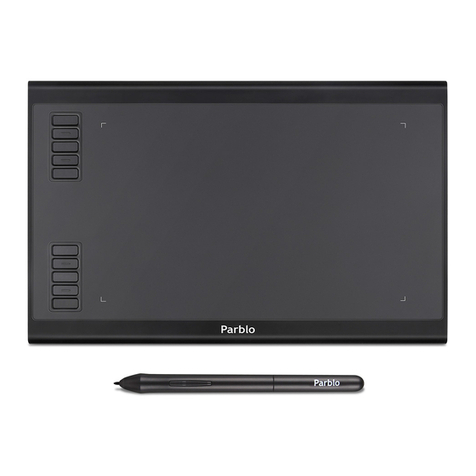
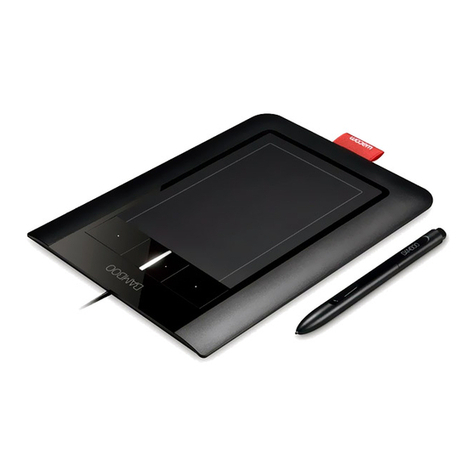
VisTablet Original 12" VT ( ) Instruction sheet

VisTablet Manual
For 12”VT Original and Mini Mouse

V#200808
[MANUAL FOR 12”VT ORIGINAL AND MINI MOUSE]
Copyright@VisTablet Systems, LLC. 2008
2
I n d e x
1. Before using your VisTablet ------------------------------------------------------------------------------- Page#3
2. How to install Pen Pad with MacroKey Manager (for PC) ----------------------------------------- Page# 3
3. How to uninstall Pen Pad with MacroKey Manager (for PC) ------------------------------------- Page#4
4. How to install Pen Pad with MacroKey Manager (for MAC) ------------------------------------- Page#5
5. How to uninstall Pen Pad with MacroKey Manager (for MAC) --------------------------------- Page#6
6. How to install Free Notes & Office Ink and Power Presenter Ⅱ(for PC) -------------------- Page#7
6.1.Installing Free Notes / Office Ink on Vista ------------------------------------------------------- Page#8
6.2.Installing Power Presenter Ⅱ(for Window Vista) -------------------------------------------- Page#9
7. How to uninstall Free Notes & Office Ink and Power Presenter Ⅱ(for PC) ----------------- Page#10
8. How to change setting for MacroKey Manager (for PC) ------------------------------------------ Page#10
9. How to change setting for MacroKey Manager (for MAC) --------------------------------------- Page#13
10. How to set up shortcuts for opening programs using MacroKeys (for PC) ------------------ Page#15
11. How to set up shortcuts of MacroKey within software applications (for PC) -------------- Page#19
12. How to delete a profile of Photoshops (for PC) ----------------------------------------------------- Page#22
13. How to delete shortcuts of MacroKeys (for PC) ---------------------------------------------------- Page#22
14. How to set up shortcuts of Function Keys (for MAC) ---------------------------------------------- Page#23

V#200808
[MANUAL FOR 12”VT ORIGINAL AND MINI MOUSE]
Copyright@VisTablet Systems, LLC. 2008
3
1.Before using your VisTablet
You should completely uninstall any other tablets’driver.
Always install driver first before plugging your VisTablet into your computer or trying to use your VisTablet.
(√Attention: On MAC / Window 2000 / ME / XP / Vista, you should install the driver first before using your VisTablet.)
2.How to install Pen Pad with MacroKey Manager (for PC)
1. Insert Driver CD or double click “setup.exe”on your CD drive
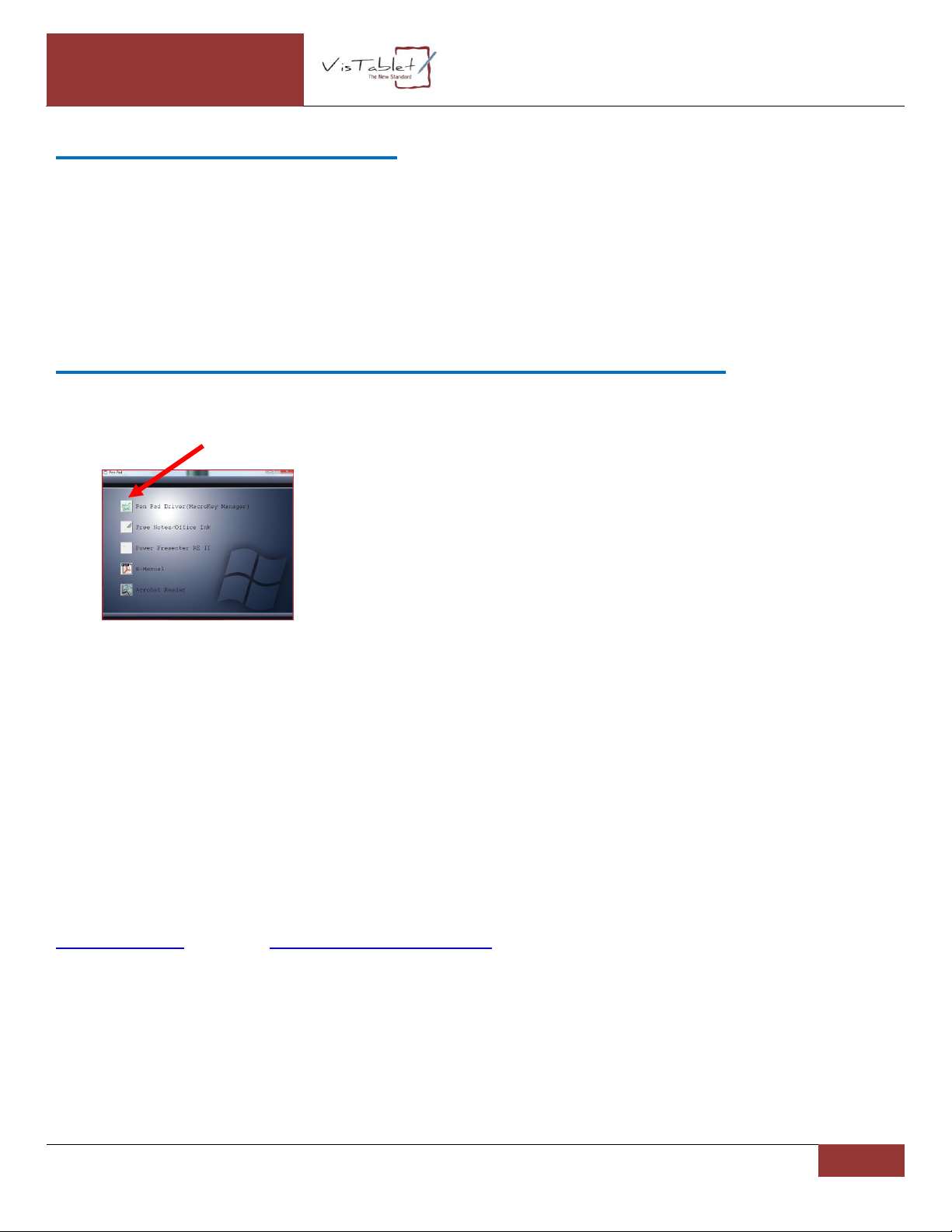
2. Click “Pen Pad Driver (MacroKey Manager)”Icon
3. After clicking the icon, Installation is automatically begun.
4. After finishing the installation, the driver will prompt you whether to restart your computer or not.
Click “Yes”.
5. After restarting your computer, plug your VisTablet into your computer USB port.
(√Attention: Most problems reported by our customers with VisTablet are originated from incorrect installation.
Most of these problems are solved by first uninstalling VisTablet driver completely, and then, reinstalling properly.
If you can’t fix the problem even though you uninstall and reinstall the driver, please contact us by our website
www.vistablet.net or by email customersupport@vistablet.net or by Toll Free Phone (888) 392-9230

V#200808
[MANUAL FOR 12”VT ORIGINAL AND MINI MOUSE]
Copyright@VisTablet Systems, LLC. 2008
4
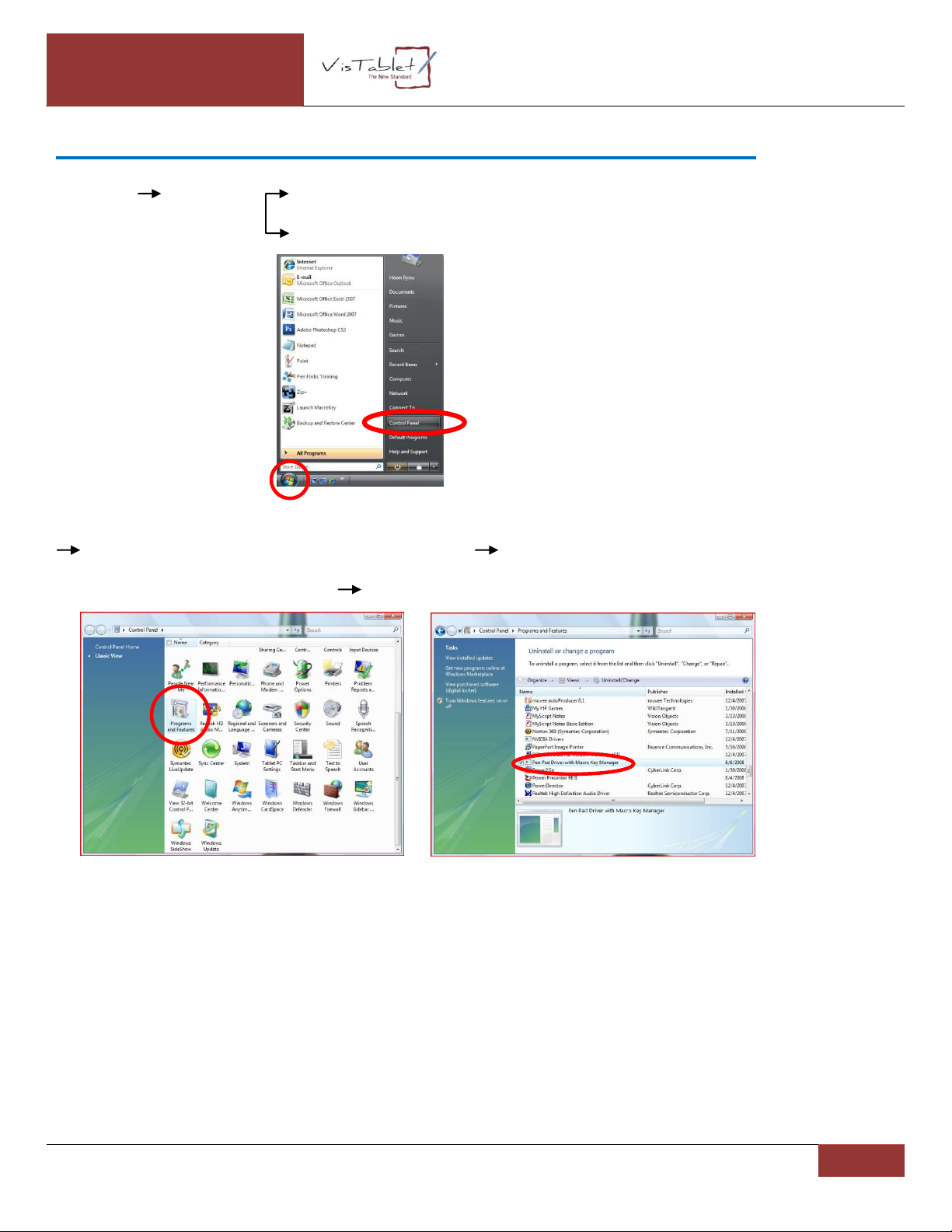
3.How to uninstall Pen Pad with MacroKey Manager (for PC)
Start Menu Control Panel Add/ Remove Programs (XP/2000/ME)
Programs and Features (Vista)
Double click “Pen Pad Driver with MacroKey Manager”Uninstall the Driver as followed by
Instruction on your pop up window Restart your computer
(√Attention: If you reinstall the driver without restarting your computer, some problems will appear again.)

V#200808
[MANUAL FOR 12”VT ORIGINAL AND MINI MOUSE]
Copyright@VisTablet Systems, LLC. 2008
5
4.How to install Pen Pad with MacroKey Manager (for MAC)
(√Attention: Always install the driver first before you plug VisTablet into your MAC.)
(√Attention: Check your driver to confirm that you have most current version 1.67. If not, go to www.vistablet.net and
download.) You can also call our Toll Free # (888) 392-9230 to receive new driver.
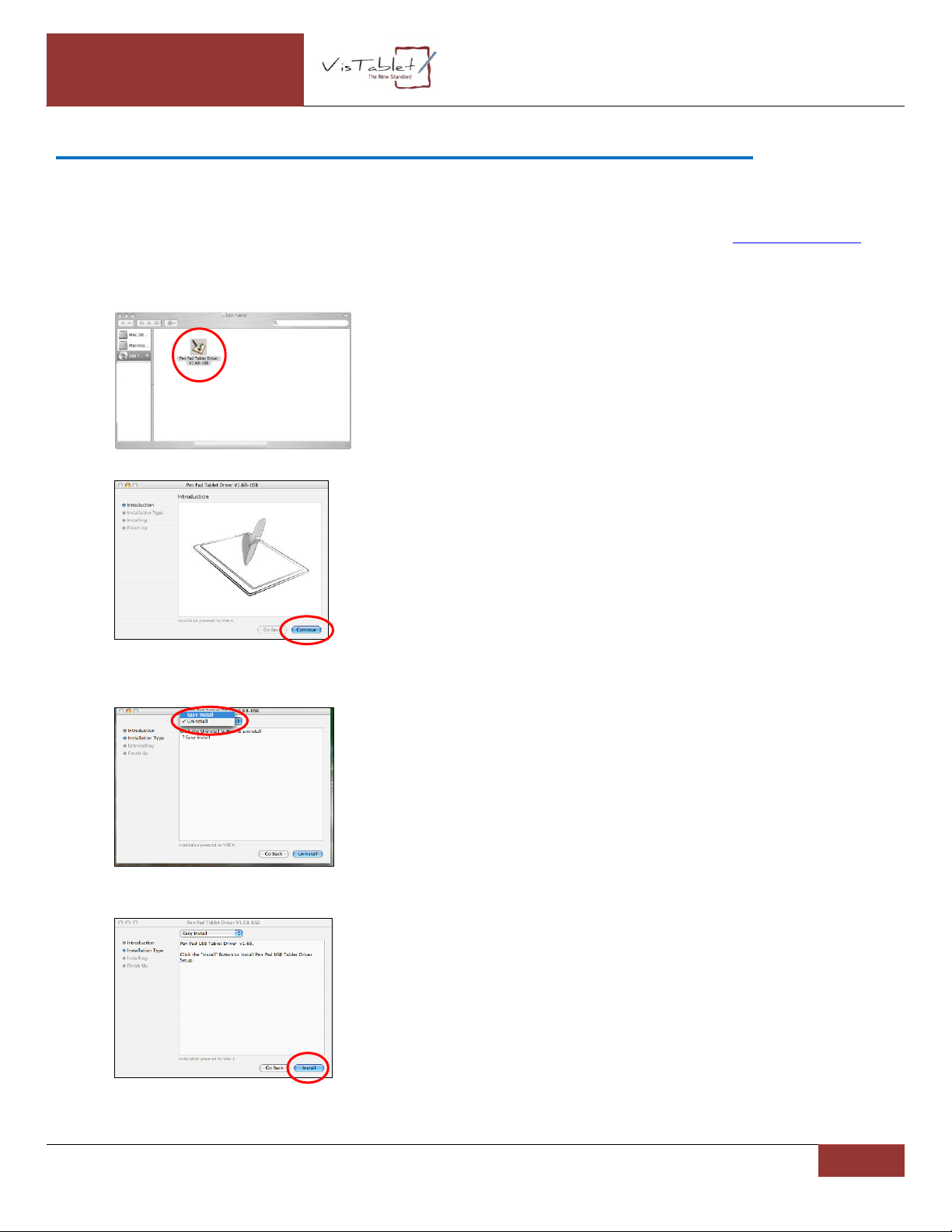
1. Insert Driver CD and Click the Pen Pad Tablet Driver Icon.
2. Click “continue”on pop up window of Pen Pad Tablet Driver.
3. Make sure that you choose “Easy Install”located on top of the pop up window of Pen Pad Tablet Driver.
4. Click “Install”.
4. Follow the instruction of Pen Pad Tablet Driver.

V#200808
[MANUAL FOR 12”VT ORIGINAL AND MINI MOUSE]
Copyright@VisTablet Systems, LLC. 2008
6
5. Restart your MAC.
6. Do not plug your VisTablet into your MAC until you have restarted and you can find Pen Pad Icon on your Dock.
5. How to uninstall Pen Pad with MacroKey Manager (for MAC)
1. Insert Driver CD and Click the Pen Pad Tablet Driver Icon.
2. Click “continue”.

V#200808
[MANUAL FOR 12”VT ORIGINAL AND MINI MOUSE]
Copyright@VisTablet Systems, LLC. 2008
7
3. Change the option from “Easy Install”to “Uninstall”on top of the pop up window of Pen Pad Tablet Driver, and
then, click “Uninstall”Icon.
4. Click “Continue”to process.
5. Click “Quit”and always restart your MAC.
(√Attention: When you already to reinstall the driver, you always restart your MAC before reinstalling the driver.)
6.How to install Free Notes & Office Ink and Power PresenterⅡ(for PC)
Free notes & Power Presenter Ⅱwork with Windows XP, 2000 and Vista only.
On Window XP and 2000, when you insert Driver CD in your computer at start up, you can find each installation “Icon”
on pop up window of Pen Pad Tablet Driver like picture below.

V#200808
[MANUAL FOR 12”VT ORIGINAL AND MINI MOUSE]
Copyright@VisTablet Systems, LLC. 2008
8
On Window Vista, the driver CD doesn’t provide automatic installation for the programs. Please, follow the step as
mentioned below.
6.1.Installing Free Notes / Office Ink on Vista
1. Insert the driver CD.
2. Close the pop up window of Pen Pad Tablet Driver.
3. Double click “Computer”icon on your desktop screen.
4. Right click on your CD drive Icon and click “Open”

V#200808
[MANUAL FOR 12”VT ORIGINAL AND MINI MOUSE]
Copyright@VisTablet Systems, LLC. 2008
9
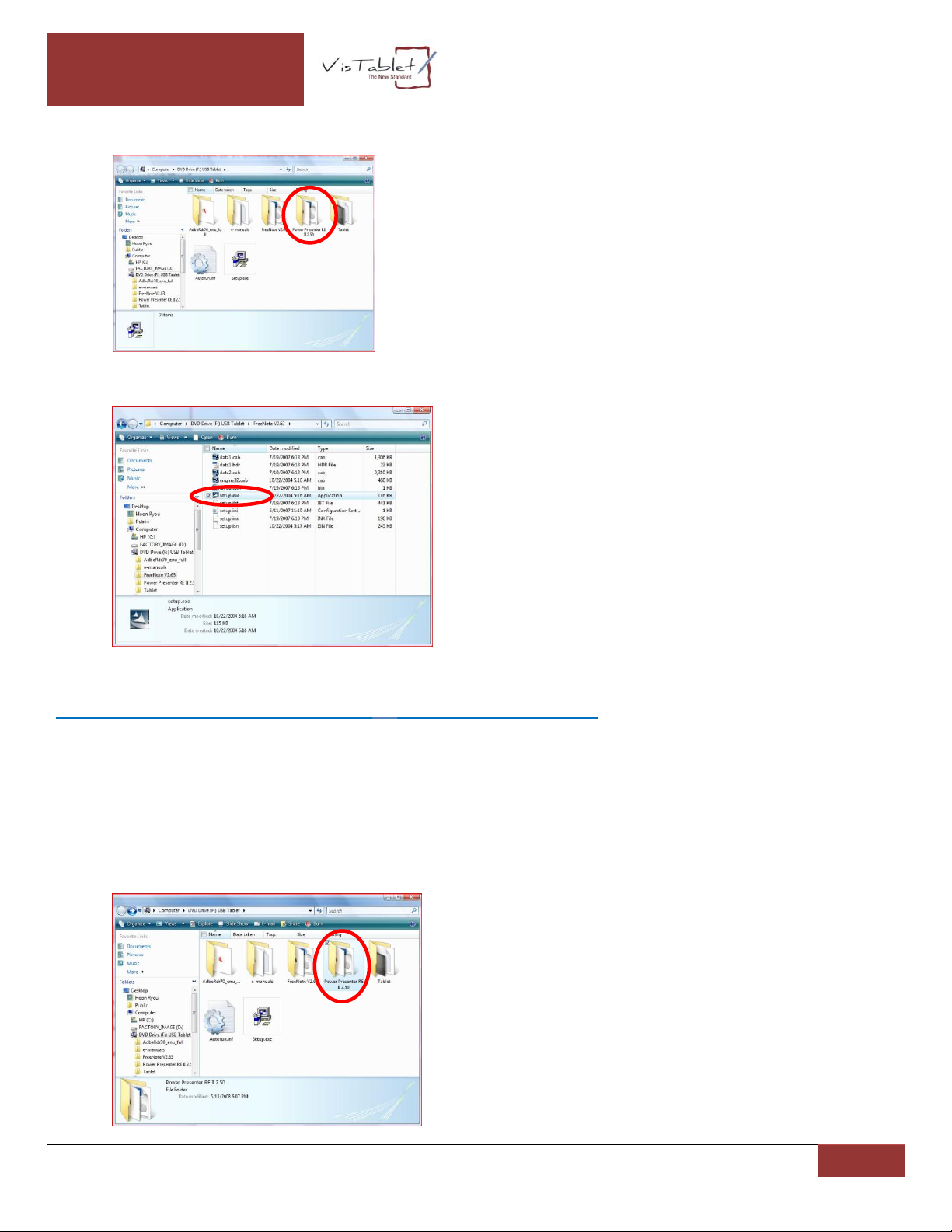
5. Double click “Free Notes”folder.
6. Double click “Setup.exe”file.
7. Follow the instruction on the pop up window of Pen Pad Tablet Driver.
6.2.Installing Power Presenter Ⅱ(for Window Vista)
1. Insert the driver CD. (See images in section 7.1)
2. Close the pop up window of Pen Pad Tablet Driver. (See images in section 7.1)
3. Double click “Computer”icon on your desktop screen. (See images in section 7.1)
4. Right click on your CD drive Icon. (See images in section 7.1)
5. Click “Open”. (See images in section 7.1)
6. Double click “Power Presenter 2”folder.

V#200808
[MANUAL FOR 12”VT ORIGINAL AND MINI MOUSE]
Copyright@VisTablet Systems, LLC. 2008
10
7. Double click “Setup.exe”file.
8. Follow the instruction on the pop up window of Pen Pad Tablet Driver.
7.How to uninstall Free Notes & Office Ink and Power Presenter 2 (for PC)
Start Menu Control Panel Programs and Features (Vista) or Add/Remove Programs (XP)
Double Click Free Notes & Office Ink or double Click Power Presenter 2
8.How to change setting for MacroKey Manager (for PC)
After the VisTablet driver is installed, you can change numbers of setting for MacroKey Manager by using the Icon on the
Tray placed on bottom of Window Bar.
If you press the button located in the bottom of pen up, the Menu like the picture below is appeared.
About
Showing MacroKey Manager version, Driver version and Firmware version
This manual suits for next models
2
Table of contents
Other VisTablet Graphic Tablet manuals