Vivitek NovoConnect Quick reference guide

Network Deployment Guide for NovoConnect
V1.0 Page 1 of 18
Network Deployment Guide for NovoConnect Devices
NovoConnect is a wireless presentation and collaboration system designed to support highly
interactive and collaborative meetings or classroom learning activities. Meeting participants,
instructors, teachers and students can interact and share digital content via their PCs, tablets,
Chromebooks and smartphones — a true BYOD device. These include the NovoCast, NovoPro,
and NovoEnterprise. For simplicity’s sake, the diagrams and examples shown are for the NovoPro
device.
To fully take advantage of NovoConnect’s capabilities, it should be properly deployed in a school
or a corporate network. Some aspects should be carefully considered and planned, for example,
Wi-Fi interference and channel selection, intranet firewall, Bonjour protocol support across
different subnets/VLANs, Quality of Service and device management. In this whitepaper, we are
going to illustrate these points one by one to facilitate a successful NovoConnect deployment in
your network.
1. Network Connection
NovoConnect has three network connection types, Ethernet, Wi-Fi Client, and Wi-Fi Hotspot.
A) Ethernet – NovoConnect can be plugged into your Ethernet via its RJ45 port. Namely,
you can connect NovoConnect to your organization’s backbone network. It is
recommended to use an Ethernet connection (when possible) since it gives you better
robustness and higher performance.
B) Wi-Fi – NovoConnect’s built-in 802.11ac Wi-Fi operates at dual bands (2.4/5GHz).
With its 2T2R antenna, it can achieve a maximum bandwidth of 300Mbps1 (NovoCast
currently only support 2.4GHz and has a 1T1R antenna). This high-performance Wi-Fi
module can operate in two modes.
a) Client Mode – NovoConnect can be connected to your organization’s Wi-Fi
network via its built-in Wi-Fi module.
b) Hotspot Mode – NovoConnect can creates its own Wi-Fi network, allowing
users to connect their mobile devices to this ad hoc network.
The following table summarizes their feature differences and typical usage.
1 300Mbps is the maximum value while the actual bandwidth may vary depending on operating environment.

Network Deployment Guide for NovoConnect
V1.0 Page 2 of 18
Ethernet/Wi-Fi Client
Mode Wi-Fi Hotspot Mode
Number of Users Allowed
64 (8 for NovoCast) 8
Internet/Intranet Access Yes By default no, but can
enable this feature by
enabling LAN-Wi-Fi
Hotspot routing)
Typical Usage Pre-configured for School or
Corporation
Quick setup for small-
group meetings
It is worth mentioning that Ethernet and Wi-Fi connections can coexist on NovoConnect devices.
Namely, you can configure NovoConnect devices in Ethernet and Wi-Fi Client mode, or in
Ethernet and Wi-Fi Hotspot mode.
1.1. Ethernet
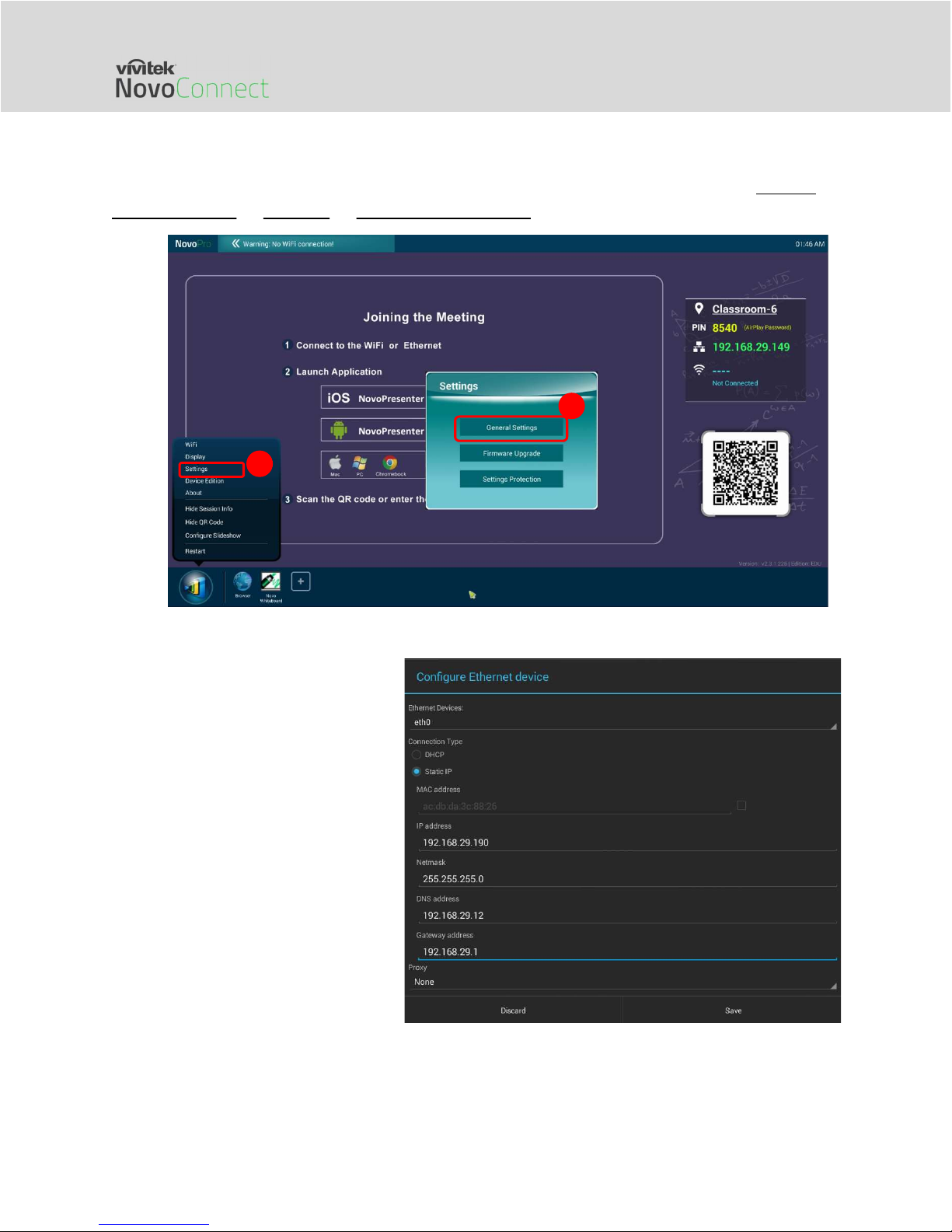
The following homescreen shows the NovoConnect device is in Ethernet mode, where its
Ethernet IP Address is highlighted in red.
When connecting to a wired network, NovoConnect devices support both DHCP and Static IP
connection types.
DHCP: NovoConnect device obtains its IP address from the DHCP server on the network.
Static IP: NovoConnect device is assigned a fixed IP address manually.

Network Deployment Guide for NovoConnect
V1.0 Page 3 of 18
“DHCP” is the default connection type. However, “Static IP” might be more preferable as it makes
remote management much easier.
The following diagram illustrates how to select one of these two connection types. (Settings
General Settings Ethernet Ethernet Configuration).
To set up “Static IP” properly, you
need to have the following
information, as shown in the diagram
on the right.
An unallocated IP address;
Netmask;
DNS address;
Gateway address.
1
2

Network Deployment Guide for NovoConnect
V1.0 Page 4 of 18
1.2. Wi-Fi Client Mode
In this mode, the NovoConnect device functions as a client to join an existing Wi-Fi network. As
illustrated in the following diagram, to set up the Wi-Fi connection, on the NovoConnect device
homescreen, click on Wi-Fi Connect to Wi-Fi Configure Wi-Fi (ON). Then select the
desired Wi-Fi SSID (the name associated with the Wi-Fi network) and enter the proper credentials
when necessary.
You may notice that you have the choice of using “DHCP” or “Static IP” in the connection dialog,
which is exactly the same as an Ethernet connection.
Logging into a Wi-Fi Network via Captive Portal: Some Wi-Fi networks are equipped with a
captive portal, which requires users to log in via a web browser before they can access the
Internet. When a NovoConnect device is connected to this type of network, users can follow
the following steps:
A. Follow the above configuration steps to connect to the organization’s Wi-Fi network;
B. After the Wi-Fi is connected, click on “Browser” on the home screen (see the picture
below);
C. Open this web browser and you will be prompted for login credentials.
D. Enter the proper username and password, and you will be connected to the network;
E. Click “Return Back” on the homescreen to return to the NovoConnect device’s App main
interface.
1
2

Network Deployment Guide for NovoConnect
V1.0 Page 5 of 18
Logging into a Wi-Fi Network with 802.1x Authentication:
When you connect to a Wi-Fi network with 802.1x
authentication (for example, radius server), you will need to
enter the following fields to set up the connection properly:
Network SSID Your network
Security 802.1x Enterprise
Choose the correct settings for
o EAP method
o Phase 2 authentication
Identity Your username (such as
DOMAIN\John.Smith )
Password Your password
Click on button “Connect” to start the connection.
1.3. Wi-Fi Hotspot Mode
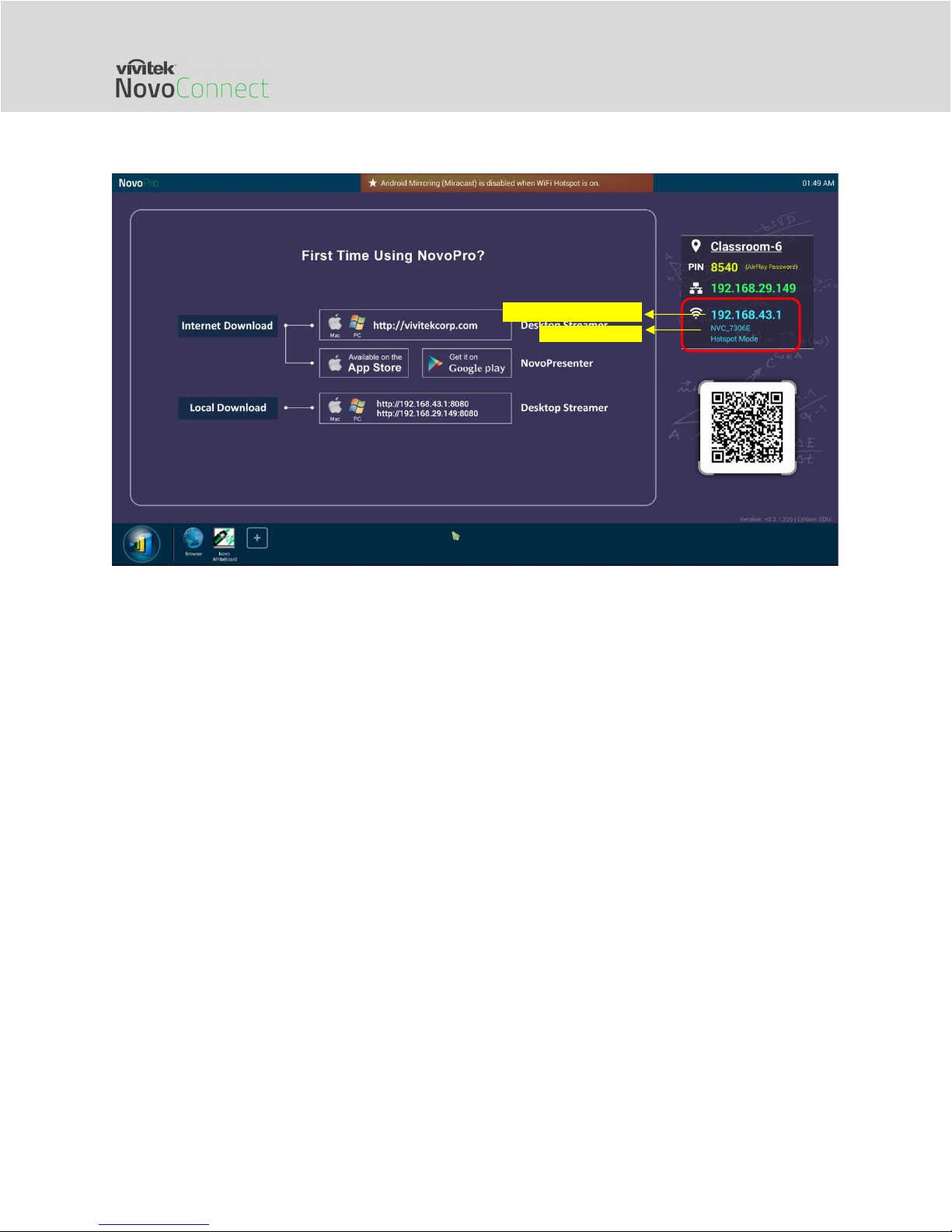
A newly unpacked NovoConnect device starts up in Wi-Fi Hotspot mode, where you can start
using it without any entanglement with the network setup. The default SSID for this Wi-Fi Hotspot

Network Deployment Guide for NovoConnect
V1.0 Page 6 of 18
is “NVC_XXXXX” (for example, “NVC_4DF8F” in the following screenshot), where “XXXXX” is a
device-generated text string.
One can also configure Hotspot’s RF channel and its routing behavior with LAN. As shown in
the figure below,
You can change the RF channel to avoid unnecessary radio interference, as explained in
Section 1.4.
“Enabling LAN-Wi-Fi-Hotspot routing” gives you the option to either keep LAN and Wi-Fi
Hotspot completely isolated, or, allow Wi-Fi Hotspot to piggyback to the LAN for
Internet access.
Hotspot AP IP address
Hotspot AP
SSID

Network Deployment Guide for NovoConnect
V1.0 Page 7 of 18
In addition, you can rename the Wi-Fi Hotspot SSID and change its security settings (security
protocol and its password.) To do so, click on Settings General Settings More Tethering
& portable hotspot. Then the following “Set up Wi-Fi hotspot” window pops up to allow you to
make the necessary changes.
1.4. Wi-Fi Network Optimization
One of the most common issues users run into when using a NovoConnect device is a loss of
connection, which is likely caused by an unstable Wi-Fi connection. Maintaining a stable Wi-Fi
connection is always a challenge due to the plain fact that it is wireless, subject to noise
interference and the physical environment. To keep a good connection, you should follow some
generic Wi-Fi setup guidelines, such as
1
2

Network Deployment Guide for NovoConnect
V1.0 Page 8 of 18
1) Do not place a NovoConnect device next to electric noise sources, such as an electric fan
or power supplies. Especially when you attach a NovoConnect device next to a projector
or an LCD monitor, you need to keep an eye on these potential “pollution” sources.
2) Make sure you do not place a NovoConnect device behind metal frames/bars, etc. Metal
will greatly degrade Wi-Fi signal strength.
3) NovoConnect device’s hotspot mode supports devices within 30 meters (100 feet). If
you have an external router, it is recommended to use the NovoConnect device’s Wi-Fi
client mode instead of hotspot mode.
4) Try using 5GHz band as it is more robust than 2.4GHz band.
5) Lastly, you might want to check how crowded the Wi-Fi spectrum is. Two popular Apps
can give you a very good view of the Wi-Fi spectrum.
“Wi-Fi Analyzer” on Android devices;
“InSSIDer” tool on Windows OS.
If too many Wi-Fi Access Points occupy the same RF channel, it can lead to sluggish
performance, and, disconnection if it becomes severe. The following example is a
screenshot from the “Wi-Fi Analyzer” App. As you can see, Wi-Fi channel 6 is heavily
utilized. You may want to change one or some of them to other less-crowded channels.
1.5. Dual-network Configuration
NovoConnect devices can even be set up to support dual networks:
Ethernet & Wi-Fi client mode: connect to your organization’s existing wired network and
wireless network simultaneously. This function is extremely useful for organizations with
“guest” wireless networks set up for external visitors.
Ethernet & Wi-Fi hotspot mode: connect to your organization’s wired network and run
as a Wi-Fi hotspot simultaneously. If needed, “LAN-Wi-Fi-Hotspot routing” function can

Network Deployment Guide for NovoConnect
V1.0 Page 9 of 18
be enabled to allow all devices connecting to its hotspot Wi-Fi to have internet/intranet
access (via the wired Ethernet connection). You may find this configuration suitable for
meeting rooms.
Ethernet & Wi-Fi client mode
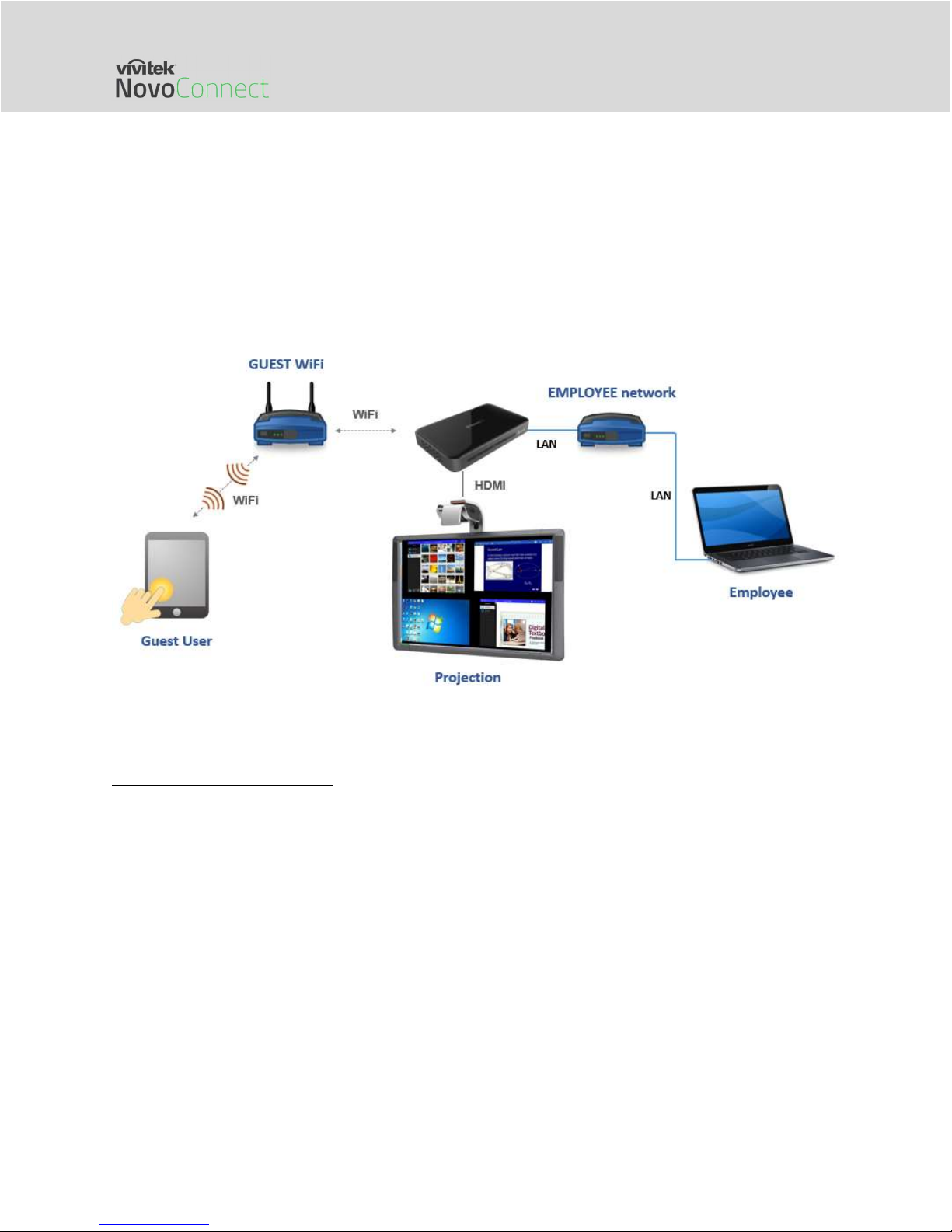
In this case, the NovoConnect device’s RJ45 port is connected to a wired EMPLOYEE network for
employees to securely access it; at the same time, the NovoConnect device’s Wi-Fi is connected
to a GUEST network to allow visitors to access it. The following graph describes such a network
setup scenario.
By doing so, the GUEST and EMPLOYEE networks are kept separate, while at the same time, the
NovoConnect device is available to both guest users and employees.
Notes on Network Security: Within a NovoConnect device, the Wi-Fi section is completely
separated from the Ethernet section, namely, there is NO network routing between these two
sections. Therefore, users connecting to the Wi-Fi section will not be able to access any resource
on the Ethernet at all, and vice versa. In short, security is not compromised in this configuration.
Ethernet & Wi-Fi hotspot mode
In this case, the NovoConnect device’s RJ45 port is connected to a wired network connecting to
the internet/intranet; at the same time, the NovoConnect device is also running in Wi-Fi hotspot
mode allowing PCs and tablets to connect to it wirelessly. The following graph describes such a
network setup scenario.

Network Deployment Guide for NovoConnect
V1.0 Page 10 of 18
As described in Section 1.3, you can enable the routing between LAN and Wi-Fi Hotspot. Once
you enable this routing feature, devices on the Wi-Fi Hotspot side will be able to access intranet
or Internet resources via the LAN connection.
Notes on Network Security: before you enable this routing feature,
1) You may consult your organization’s IT administrators to avoid compromising your
network security.
2) Wi-Fi Hotspot by default is an open network. It is strongly recommended that you change
it to a secure Wi-Fi network.
2. Port Numbers and Intranet Firewall
NovoConnect devices are TCP/IP-network-based devices, and the communications between a
NovoConnect device and its client devices (e.g. laptops, tablets, etc.) are achieved through
several TCP and UDP ports. The following table summarizes all the port numbers being used by
NovoConnect devices.
Table of contents
Other Vivitek Projector Accessories manuals