4
GIGABIT NETWORK: Wired Network interface. This is the suggested network connection for
playing Hi-Resolution material. Connect this interface to your router via an Ethernet cable.
USB 2.0: Those ports can be used to attach USB Accessories such as Thumb Drives, USB Hard
Drives and SSD, Keyboard\Mouse, Smart Remotes and USB CD-ROM Drives.
Additionally, USB DAC can be used as output audio device if connected to one of the 4 available
USB ports.
5V DC IN: Connect the Power Jack of the provided Power Supply Unit (or a compatible 5V 3A power
supply). By connecting Power the unit will turn on. To turn off the device, simply disconnect the
Power Supply (WARNING: To avoid data loss, remove the power supply after selecting “Shutdown”
from the settings menu. Do not remove power while updating or restoring factory settings).
S/PDIF Digital Output: This output can be used to stream Digital Audio to a S/PDIF DAC.
Analog Audio Output: RCA Output connection that will output 2V Analog Audio. This is the
suggested connection for achieving optimal Sound Quality thanks to Primo’s integrated Hi-Res
DAC.
HDMI Output: This output allows to connect a TV or monitor and it will display the User Inteface. It
can be used as an alternative to the small screen of a mobile device. In order to control the unit, the
attached screen must be a touchscreen, unless a mouse and/or keyboard is connected.
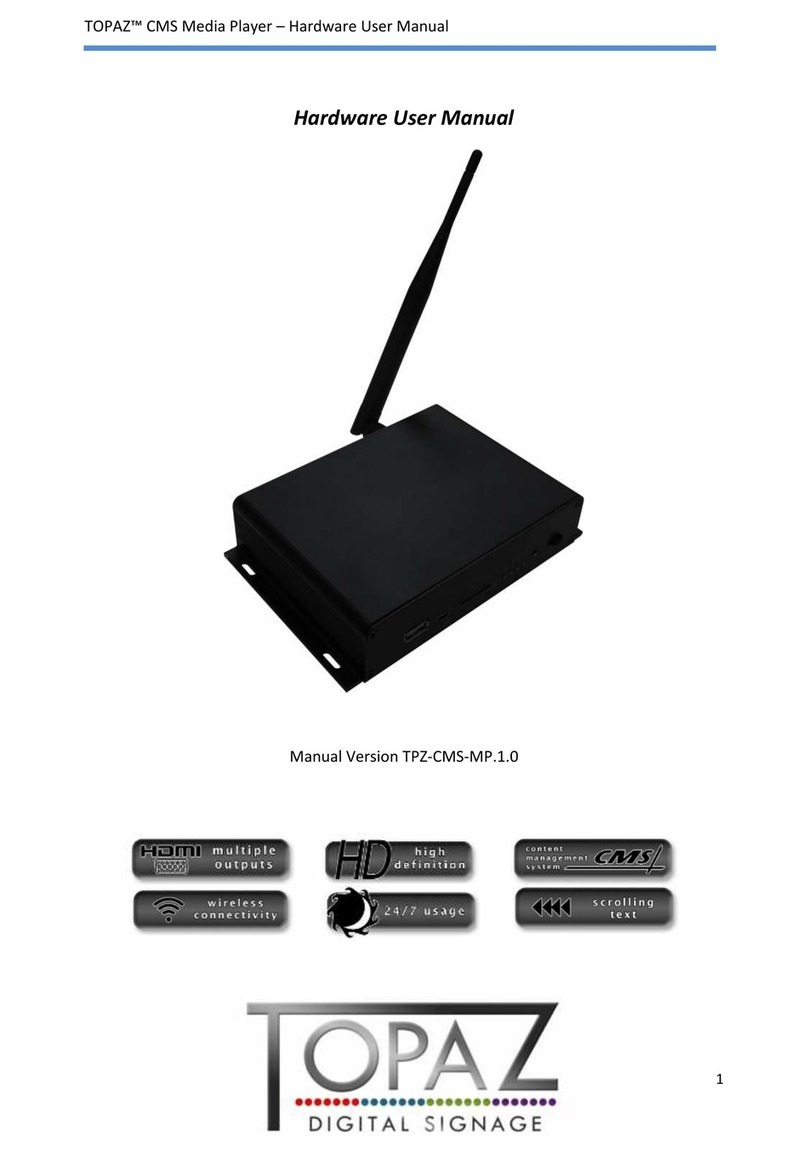
Wi-fi Antenna: To ensure optimal Wireless performances, screw the provided wireless Antenna.
Please note that Wireless connection performances might not be optimal for Streaming Hi
Resolution Audio, especially if Router is not located near the Primo or if operated in a very crowded
neighbourhood.
CONNECTION TO THE UNIT
Volumio PRIMO works best when it is connected to your network, since it is meant to be used as a
headless device: no monitor connected, and controlled via another device (PC, smartphone, tablet
etc).
Volumio PRIMO can be controlled via a Web User Interface, it mens that the controlling device can
be a mobile phone, a tablet, a PC, a Smart TV and more generally, anything with a browser. For an
optimal experience, Google Chrome is suggested.
To reach Volumio’s User Interface, first discover the IP address of your Primo. To do so, an easy way
is to use FING Android App or Net Analyzer for iOS.
Volumio also provides Android and iOS apps. They are not mandatory to use Volumio Primo, but
strongly recommended as they will automatically discover the Primo on your Network.
Another easy way to connect to Volumio Primo, especially on first setup, is to connect in Hotspot
Mode. If no wireless network is configured, Primo will create a network called “Volumio”. Simply
connect to it (password: volumio2) and the User Interface will automatically pop up.