manuals.online logo
Brands
  1. Home
  2. •
  3. Brands
  4. •
  5. X-Vision
  6. •
  7. DVR
  8. •
  9. X-Vision 4 Channel Standalone DVR User manual

X-Vision 4 Channel Standalone DVR User manual

Other X-Vision DVR manuals

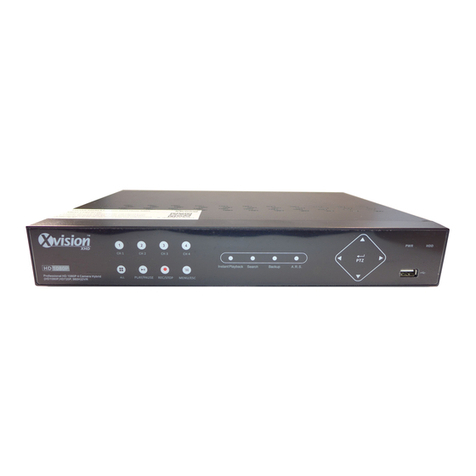
X-Vision Digital Video Recorder User manual

X-Vision

X-Vision Digital Video Recorder User manual

X-Vision XP4SW25 User manual

X-Vision

X-Vision XP4SW25 User manual

X-Vision XRN0808E User manual

X-Vision

X-Vision XRN0808E User manual

X-Vision X2RxN User manual

X-Vision

X-Vision X2RxN User manual

X-Vision HDVR User manual

X-Vision

X-Vision HDVR User manual

X-Vision XPR16H User manual

X-Vision

X-Vision XPR16H User manual

X-Vision Elite 9004P User manual

X-Vision

X-Vision Elite 9004P User manual

X-Vision EVD4E-3 User manual

X-Vision

X-Vision EVD4E-3 User manual

X-Vision EVD16NCF User manual

X-Vision

X-Vision EVD16NCF User manual

X-Vision XHR1080D16 User manual

X-Vision

X-Vision XHR1080D16 User manual

X-Vision XDVR2 User manual

X-Vision

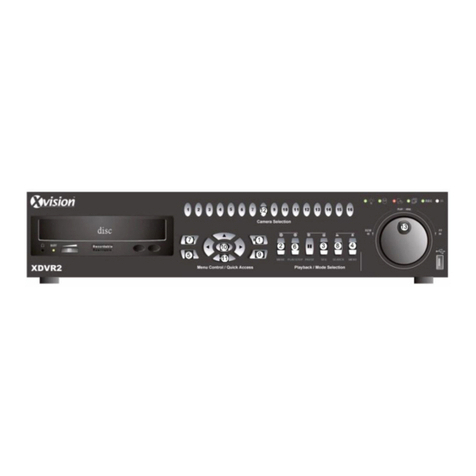
X-Vision XDVR2 User manual

X-Vision XDVR User manual

X-Vision

X-Vision XDVR User manual

X-Vision EDVRCD4 User manual

X-Vision

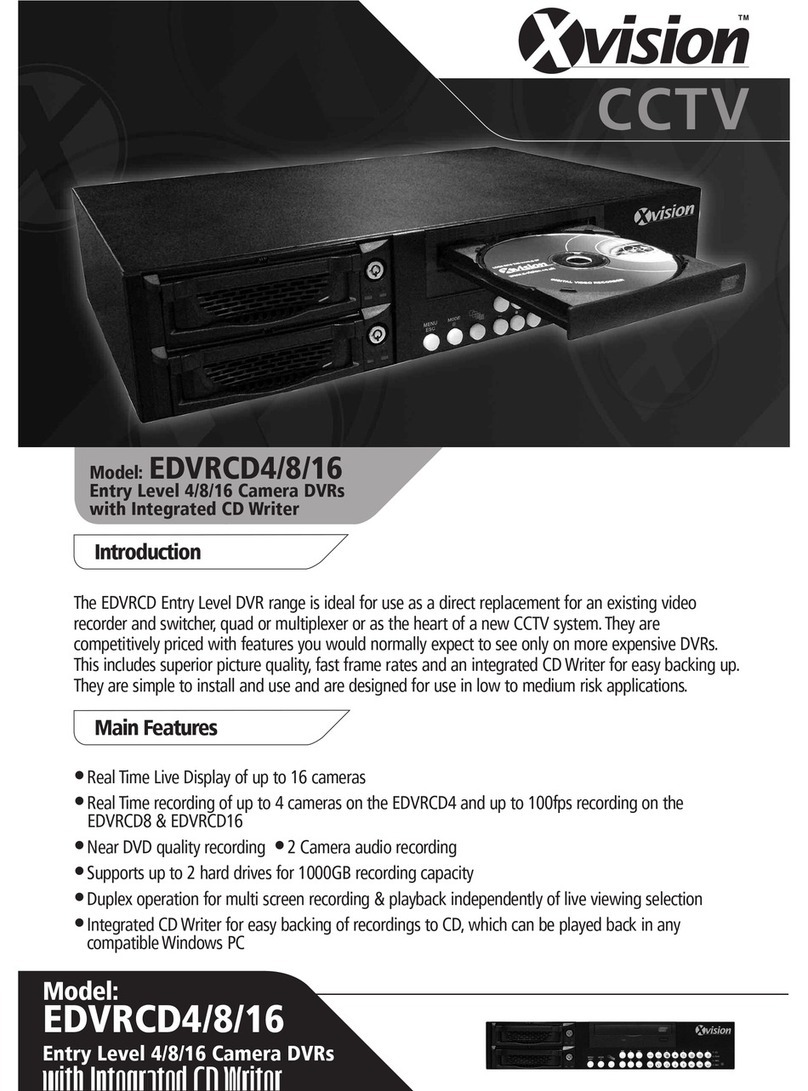
X-Vision EDVRCD4 User manual

X-Vision SDC4 User manual

X-Vision

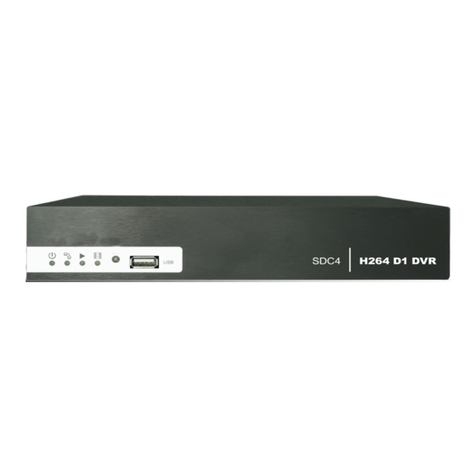
X-Vision SDC4 User manual

X-Vision X4D1H User manual

X-Vision

X-Vision X4D1H User manual

X-Vision TDVR8/16 User manual

X-Vision

X-Vision TDVR8/16 User manual

X-Vision X8D1H User manual

X-Vision

X-Vision X8D1H User manual

X-Vision Professional XR960D4 Instruction sheet

X-Vision

X-Vision Professional XR960D4 Instruction sheet

X-Vision X4 User manual

X-Vision

X-Vision X4 User manual

X-Vision HDVR User manual

X-Vision

X-Vision HDVR User manual

X-Vision H.264 Video Compression User manual

X-Vision

X-Vision H.264 Video Compression User manual

X-Vision HD 960H User manual

X-Vision

X-Vision HD 960H User manual

X-Vision XPR8/16P User manual

X-Vision

X-Vision XPR8/16P User manual

X-Vision X32D1H User manual

X-Vision

X-Vision X32D1H User manual

Popular DVR manuals by other brands

Pace TDC577X manual

Pace

Pace TDC577X manual

Zavio NQ2040 user manual

Zavio

Zavio NQ2040 user manual

KGuard Security KG-SHA104 user manual

KGuard Security

KGuard Security KG-SHA104 user manual

SanDisk V-Mate Quick manual

SanDisk

SanDisk V-Mate Quick manual

Panasonic WJND200 - NETWORK DISK RECORDER Setup instructions

Panasonic

Panasonic WJND200 - NETWORK DISK RECORDER Setup instructions

Hunt Electronic HVRM-T1600Q Install & user's guide

Hunt Electronic

Hunt Electronic HVRM-T1600Q Install & user's guide

Portwell PIVS-6104 user manual

Portwell

Portwell PIVS-6104 user manual

AVer EXR6004 Mini Quick user guide

AVer

AVer EXR6004 Mini Quick user guide

Security Labs SLD261 owner's manual

Security Labs

Security Labs SLD261 owner's manual

Swann DIGITAL VIDEO RECORDER instruction manual

Swann

Swann DIGITAL VIDEO RECORDER instruction manual

EverFocus ECOR 4 instruction manual

EverFocus

EverFocus ECOR 4 instruction manual

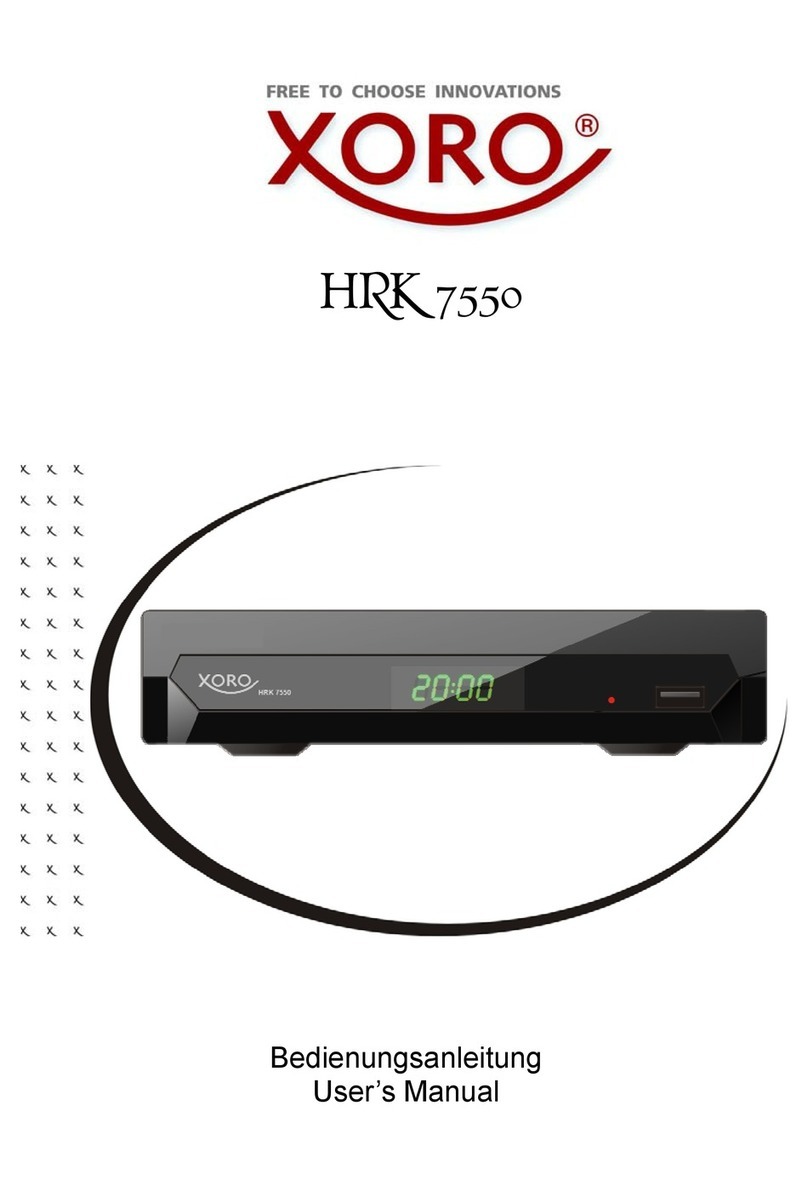
Xoro HRK 7550 user manual

Xoro

Xoro HRK 7550 user manual

FLIR M3100E Series instruction manual

FLIR

FLIR M3100E Series instruction manual

VTRACKPRO FPRO300 user manual

VTRACKPRO

VTRACKPRO FPRO300 user manual

Swann NVR-7085 models instruction manual

Swann

Swann NVR-7085 models instruction manual

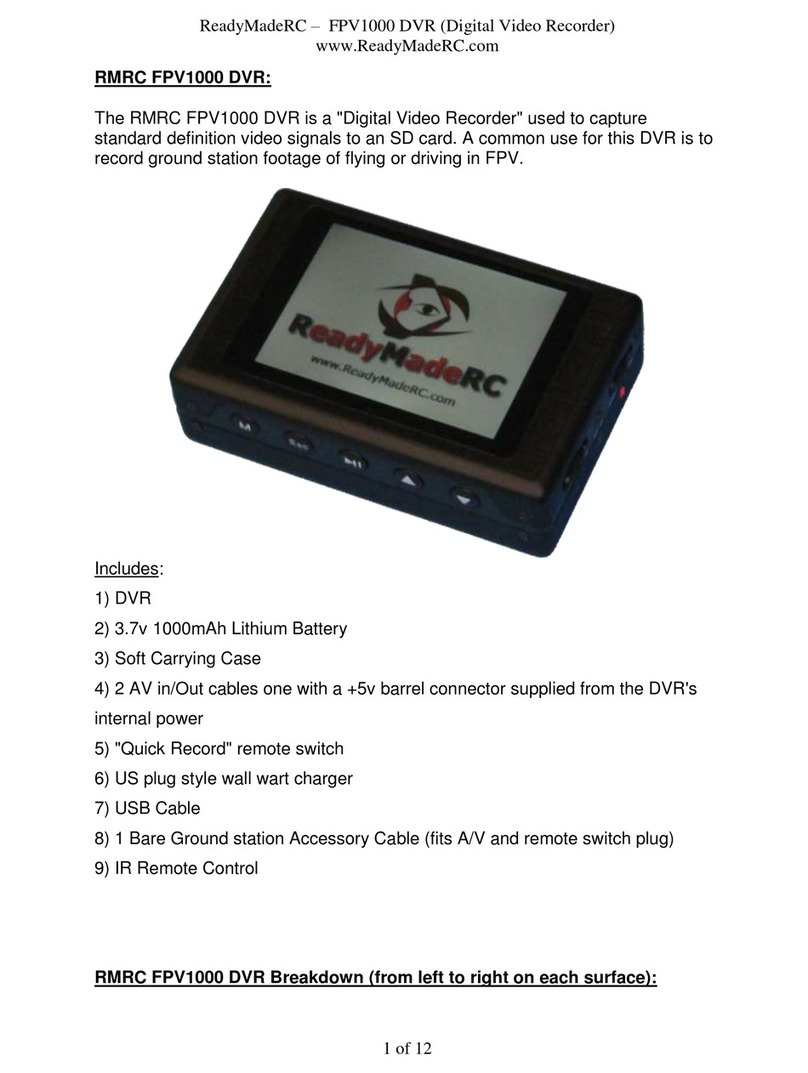
RMRC FPV1000 manual

RMRC

RMRC FPV1000 manual

urmet domus 1093/004AHD instructions

urmet domus

urmet domus 1093/004AHD instructions

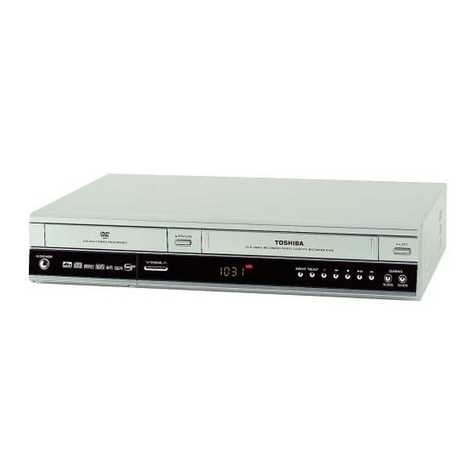
Toshiba D-VR3SU Service manual

Toshiba

Toshiba D-VR3SU Service manual

manuals.online logo
manuals.online logoBrands
  • About & Mission
  • Contact us
  • Privacy Policy
  • Terms and Conditions

Copyright 2025 Manuals.Online. All Rights Reserved.

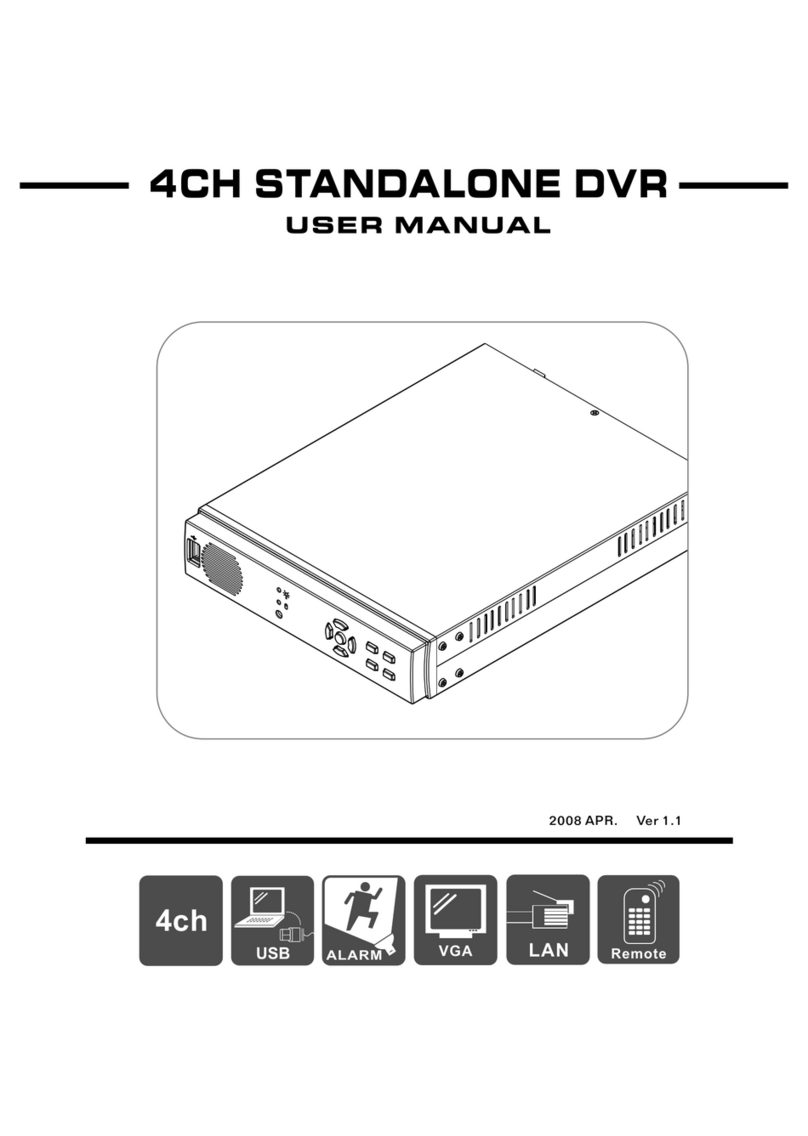
4 Channel
Standalone DVR
USERS MANUAL
CONTENT
FEATURE
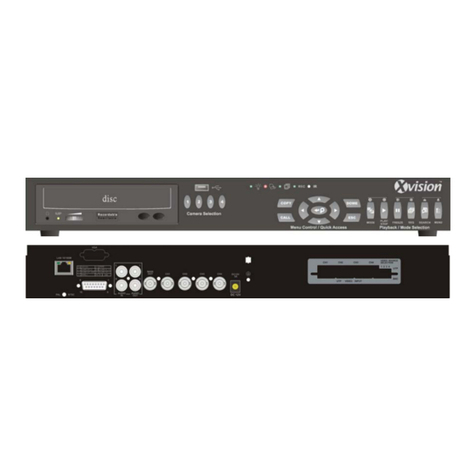
FRONT PANEL
REAR PANEL
CONTROL PANEL BUTTON
SPECIFICATIONS
OPERATING MANUAL
VIEW CONTROL
PLAYBACK CONTROL
RECORD CONTROL
4 CHANNEL RECORDING HOURS
DVR PC VIEWER
REMOTE DVR CLIENT
ALARM & LOOPING CABLE
1
1
2
3
5
6
10
10
11
11
12
19
31
Removable HDD RACK
.1.
1、Definitely Standalone.
2、Real Time Refresh Rate.
3、Display While Recording.
4、Frame Recording & Quad Recording.
5、Support Audio Recording.
6、Small Size Design.
7、Anti-Shock HDD Mobile Rack.
8、Advanced MJPEG.
9、Manual / Motion / Programmed Recording.
10、Search by Time / Date.
11、Watch dog feature.
12、HDD Volume Indicator.
13、Internal motion detect feature.
14、Auto switching function.
■ FEATURE
■ FRONT PANEL
.2.
■ REAR PANEL
★
◆
●
The standard for car usage
The standard for home usage
The advanced for home usage
DC12~24V
VCR
MONITOR
IN
OUT
VIDEO IN
CH1 CH3
CH2 CH4
VIDEO OUT AUDIO
DC12~24V
VCR
MONITOR
IN
OUT
VIDEO IN
CH1 CH3
CH2 CH4
VIDEO OUT AUDIO
ALARM I/0
VIDEO LOOP
USB
LAN
DC12V
VCR
MONITOR
IN
OUT
VIDEO IN
CH1 CH3
CH2 CH4
VIDEO OUT AUDIO
ALARM I/0
USB VIDEO LOOP
■ CONTROL PANEL BUTTON
.3.
CONTROL BUTTONS in the VIEW MODE
Menu: Enter the MENU MODE for the system setup.
(Recording and Playback needs to be stopped before entering the MENU MODE)
Record: Activate the recording.
Play: Playback the latest video stream which you haven't seen before.
Auto Switching Channels: Enable / Disable the auto switching function.
Quad Display: Monitor will be displayed as a quad display.
Channel 1: Channel 1 will be displayed as full screen.
Channel 2: Channel 2 will be displayed as full screen.
Channel 3: Channel 3 will be displayed as full screen.
Channel 4: Channel 4 will be displayed as full screen.
Channel 1: Channel 1 will be displayed as full screen.
Channel 2: Channel 2 will be displayed as full screen.
Channel 3: Channel 3 will be displayed as full screen.
Channel 4: Channel 4 will be displayed as full screen.
HDD USAGE: Show the usage of the hard drive.
Key lock: Push the button 5 times to lock/unlock the “STOP RECORDING” key.
(While the “STOP” Key is locked, there will be a letter “L” showed on the left-down corner)
Stop: Stop the recording.
Auto Switching Channels: Enable / Disable the auto switching function.
Quad Display: Monitor will be displayed as a quad display.
CONTROL BUTTONS in the RECORD MODE
CONTROL BUTTONS in the MENU MODE
Save Setup: This button needs to be pressed to save all the setting information and exit
the setup pages after each setup is finished.
Select: Confirm the selection made or setting items.
UP: UP button for item selection.
RIGHT: RIGHT button for item selection.
Select: Confirm all the selection made or setting items
DOWN: DOWN button for item selection.
LEFT: LEFT button for item selection.
Save Setup: Save the setting information and exit the setup pages.

.4.
CONTROL BUTTONS in the PLAY MODE
CONTROL BUTTONS in the PLAYBACK EVENTS SEARCH MODE
Exit: Go back to the VIEW MODE.
Play: Playback the selected stream in normal speed.
Search Mode Switch: Switch between the TIME SEARCH MODE and the EVENTS
SEARCH MODE.
Select: Confirm the selection made or setting items.(TIME SEARCH MODE)
UP: UP button for item selection.
RIGHT: RIGHT button for item selection.
DOWN: DOWN button for item selection.
Select: Confirm the selection made or setting items. (TIME SEARCH MODE)

LEFT: LEFT button for item selection.

Search Mode: Enter the PLAYBACK EVENTS SEARCH MODE.
Play: Play the video stream in normal speed.
Pause: Pause the playing.
Stop: Stop the playing, and go back to the VIEW MODE.
Channels Switching: Switch CH1→CH2→CH3→CH4 as full screen and press again
to show the quad display.
Forward Fast: There are 3 speeds for fast forward. (Ff1→ Ff2 → Ff3)
Steps Play: Play the video stream frame by frame.
Rewind Fast: Rewind Fast function.
■ SPECIFICATIONS
Video Input
Video Input Channel
Video Output Channel
Display Frame
NTSC PAL
4CH Composite
2CH Composite (VCR OUT / MONITOR OUT)
100 fps (4x25 fps)
25 fps
640x272
Max.
Max. 6.25fps(25 fps/4)
720 x 576
120 fps (4x30 fps)
. 30 fps
a
720x480
640x224
Max
M x. 7.5fps(30 fps/4)
Recording Frame Rate(QUAD)
Recording Frame Rate(EACH)
Recording Mode
MotionContinuous / / Programmed
Resolution
Display
Recording
Compression
Format
Advanced
MJPEG
Low
Normal
High
12K Bytes / Frame
15K Bytes / Frame
20K Bytes / Frame
HDD
Max. 400GB
Audio Functions 1CH Audio Input/Output Real Time Recording And Playing
Search
Mode Time / Date / Events list
Moition Detect
YES
4CH motion detect
Video loss display
Auto ch_switching
YES
Buzzer Output
Video adjust
Video loss,Motion,Sensor
Brightness,Contrast,Color
Dimension
195mm x 265mm x 65mm (W x D x H)
Alarm interface 4ch sensor input /1ch alarm output
(N.O,N.C Max:AC120V /0.5A)
◆ ●
Looping interface
◆ ● 4ch looping video output with 75 Ohm
USB interface
◆ ● USB 2.0 H.D. Backup
LAN interface
●MPG4 video output and DVR control
★
◆
●
The standard for car usage
The standard for home usage
The advanced for home usage
Power type
Weight
★
◆ ●
●
◆
★
DC 10V ~DC26V /about 15W( add HD)
DC 12V±0.5V /about 15W( add HD)
About 2.8KG
About 2.9KG
.5.
■ OPERATING MANUAL (MAIN MENU)
SYSTEM SETUP
SYSTEM SETUP
SYS EM STANDARD PAL
AUDIO RECORD : OFF
AUDIO MUTE : OFF
AUDIO CHANNEL : 1
T :〔 〕
BUZZER ALARM TIME : 2
LOSS ALARM : 〔ON〕
〔 〕
〔 〕
PASSWORD SETUP
TIME SETUP
MAIN MENU
SYSTEM SETUP
CAMERA SETUP
RECORD SETUP
RECORD SCHEDULE
MOTION SETUP
SENSOR SETUP
HARD DRIVE SETUP
NETWORK SETUP
SYSTEM RESTORE
PRESS(UP,DOWN), THEN(SELECT)
PRESS(MENU) TO EXIT
PRESS(UP,DOWN), THEN(SELECT)
PRESS(MENU) TO EXIT
Select this item to change password :
CURRENT PASSWORD :______
NEW PASSWORD : _ _ _ _ _ _
CONFIRM PASSWORD :_ _ _ _ _ _
PASSWORD SETUP
.6.
(1) When the new password is accepted, you will receive a message
that inform you. “ PASSWORD CHANGED ”
(2) If the password was not accepted, you will receive a message
that inform you. “ NO PASSWORD CHANGED ”
*Use the view control button on the front panel to input
the umber.
◆
●
For the standard for home usage only
For the advanced for home usage only
●
◆
is:"1" is:"2" is:"3" is:"4" is: "5"
Select this item to set up current time.
TIME SET
2004/12/17 18:00:30
TIME SETUP
PRESS(REW,FF), THEN(SELECT)
PRESS(MENU) TO EXIT
CAMERA SETUP
CAMERA SETUP
CAMERA : CH1
: ON
RECORD N/ : ON
BRI SETUP : 5
CON SETUP : 5
SETUP : 5
LIVE ON/OFF
O OFF
GHT
TRAST
COLORS
AUTO SWITCHING : 2
PRESS(UP,DOWN), THEN(SELECT)
PRESS(MENU) TO EXIT
.7.
RECORD SETUP
RECORD SETUP :EACH
VIDEO QUALITY :NORMAL
RECORD FRAME RATE :30
RECORD SETUP
(1) Record Setup:EACH MODE (frame recording),
QUAD MODE (quad recording).
(2) Video Quality: video quality selection: High, Normal, Low
PRESS(UP,DOWN), THEN(SELECT)
PRESS(MENU) TO EXIT
(3) Record Frame Rate: QUAD MODE frame rate alternatives as follows:
→ 30、15、10、7、5、4、3、2、1 fps.Enable Audio Record
Disable Audio Record → 30、15、10、7、5、4 fps.
In this mode 、 、 、 invalid.
Each Mode frame rate alternatives as follows:
Maximum : 7.5 fps each camera Totally :30 fps = 7.5 x 4 CH