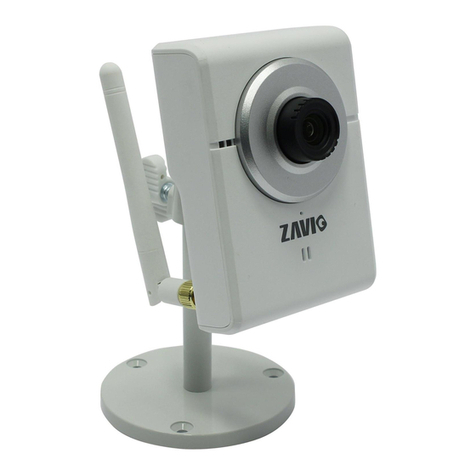
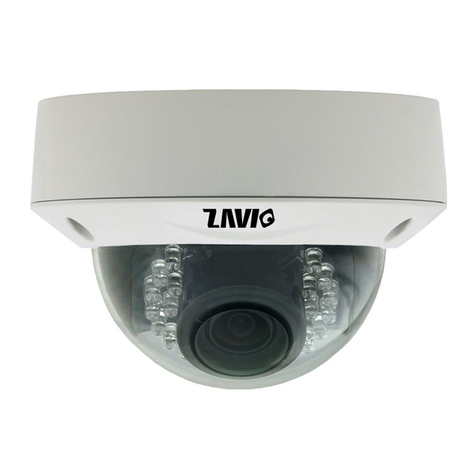
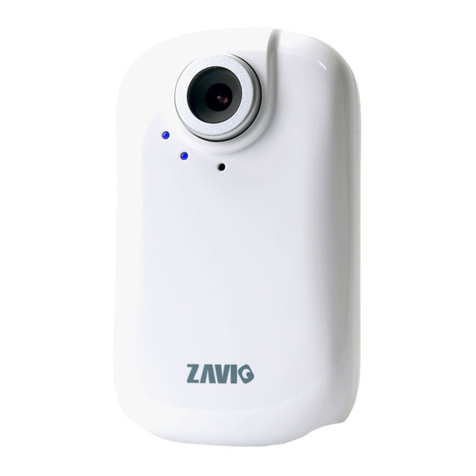
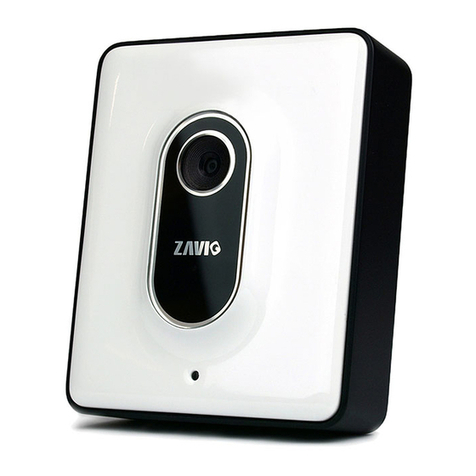
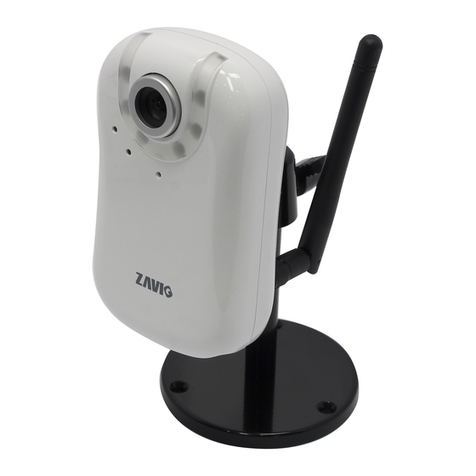
Zavio F1100 User manual


1
Content
Safety Instruction.............................................................................................................................................................. 2
Minimum System Requirement & Product Feature.......................................................................................................... 4
Main Page ......................................................................................................................................................................... 6
Information ....................................................................................................................................................................... 7
Basic Setup........................................................................................................................................................................ 8
Account......................................................................................................................................................................... 8
Network......................................................................................................................................................................... 9
Image Setting.............................................................................................................................................................. 14
Video........................................................................................................................................................................... 14
Audio...........................................................................................................................................................................15
Camera Setting............................................................................................................................................................ 15
Events..........................................................................................................................................................................16
System............................................................................................................................................................................. 20
Maintenance................................................................................................................................................................ 20
Date Time.................................................................................................................................................................... 21
Language......................................................................................................................................................................... 23

2
User Manual
Safety Instruction
Before you use this product
This product has been designed with safety in mind. However, the electrical products can cause fires which
may lead to serious body injury if it is not used properly. To avoid such accidents, be sure to heed the
following.
Legal Caution
Video and audio surveillance can be forbidden by laws that vary from country to country. Check the laws in
your local region before using this product for surveillance purposes.
Don't open the housing of the product
Don't try to open the housing or remove the covers which may expose yourself to dangerous voltage or other
hazards.
Don't use the accessories not recommend by the manufacturer
Heed the safety precautions
Be sure to follow the general safety precautions and the “Operation Notice.”
Operation Notice - Operating or storage location
Avoid operating or storing the camera in the following locations:
Extremely hot or cold places
(Operating temperature: 0 °C to + 40 °C [32 °F to 104°F] )
Exposed to direct sunlight for a long time, or close to heating equipment (e.g., near heaters)
Close to water (e.g.,near a bathtub, kitchen sink, laundry tub)
Close to sources of strong magnetism
Close to sources of powerful electromagnetic radiation, such as radios or TV transmitters
Locations subject to strong vibration or shock
In case of a breakdown
In case of system breakdown, discontinue use and contact your authorized dealer.
In case of abnormal operation

3
If the unit emits smoke or an unusual smell,
If water or other foreign objects enter the cabinet.
If you drop the unit or damage the cabinet:1 Disconnect the cable and the connecting cables. 2 Contact
your authorized dealer or the store where you purchased the product.
Transportation
When transporting the camera, repack it as originally packed at the factory or in materials of equal quality.
Ventilation
To prevent heat buildup, do not block air circulation around the device.
Cleaning
Use a soft, dry cloth to clean the external surfaces of the device. Stubborn stains can be removed using
a soft cloth dampened with a small quantity of detergent solution, then wipe dry.
Do not use volatile solvents such as alcohol, benzene or thinners as they may damage the surface.

4
Minimum System Requirement & Product Feature
System Requirement
For normal operation and viewing of the network camera, it’s recommended that your
system meet these minimum requirements for proper operation:
Item
Requirements
CPU
Pentium 4 2.8GHz (or equivalent AMD)
Graphic Card
256 MB RAM graphic cards
(or equivalent on-board graphic cards)
RAM
2 GB RAM
Operating
System
Window 2000, 2003, XP, Vista or Windows 7
Mac OS Leopard 10.5
Web Browser
Internet Explorer 8 or later
Note:
1. If using Windows 98 orWindows ME, please install IP Installer before using WEB UI to ensure the system
runs normally.
2. If not able to view the recorded video file, please install Xvid codec while installing Intelligent IP Installer.
(For Windows 98, ME or 2000 server, the codec might not work properly. Please download Xvid codec 1.0
from the internet.)
3. Please keep updating the latest Windows software and service package. (Ex: Net Framework, Windows
Media Player, EnhanceActiveX Security)

5
Product Features
SYSTEM
Resolutions
4 resolutions from 1280x720 to 160x120 via API,
4 selections via configuration web page
Screen Resolution
Higher than 1024 * 720 pixels
Compressing format
Motion JPEG
Frame Rate
Up to 10 fps at 1280x720; Up to 30 fps at 640x480; Up to 30 fps at
320x240; Up to 30 fps at 160x120
Image settings
Brightness / Contrast / Saturation / Sharpness
Backlight compensation
White balance: Fluorescent / Incandescent / Sunny / Cloudy
Image snapshot
Yes
Video Recording
Yes
Full Screen Viewing
Yes
Digital Zoom
10x digital
Audio
One-way with built-in microphone
Audio compression: G.711 μ law
Mobile Phone Live View
Through CamZaview mobile app
Event & Alarm Sending
Motion dection / FTP Client / SMTP
Security
Password Protection / HTTPS encryption
Supported protocols
TCP/IP, DHCP, PPPoE, ARP, ICMP, FTP, SMTP, DNS,
NTP, UPnP, RTSP, RTP, RTCP, HTTP, TCP, UDP, RTSP
Simultaneous Connection
Up to 5 users
Operating conditions
0℃~ 40℃(32℉~ 104℉)
HARDWARE
Lens
F2.4 fixed lens , 1.7 mm
Power
5V DC, 1A
NETWORK
Ethernet
10 / 100 Base T
Wireless
802.11b/g/n with WEP/WPA/WPA2 (F1105)

6
Main Page
Toolbar of Main Page
7
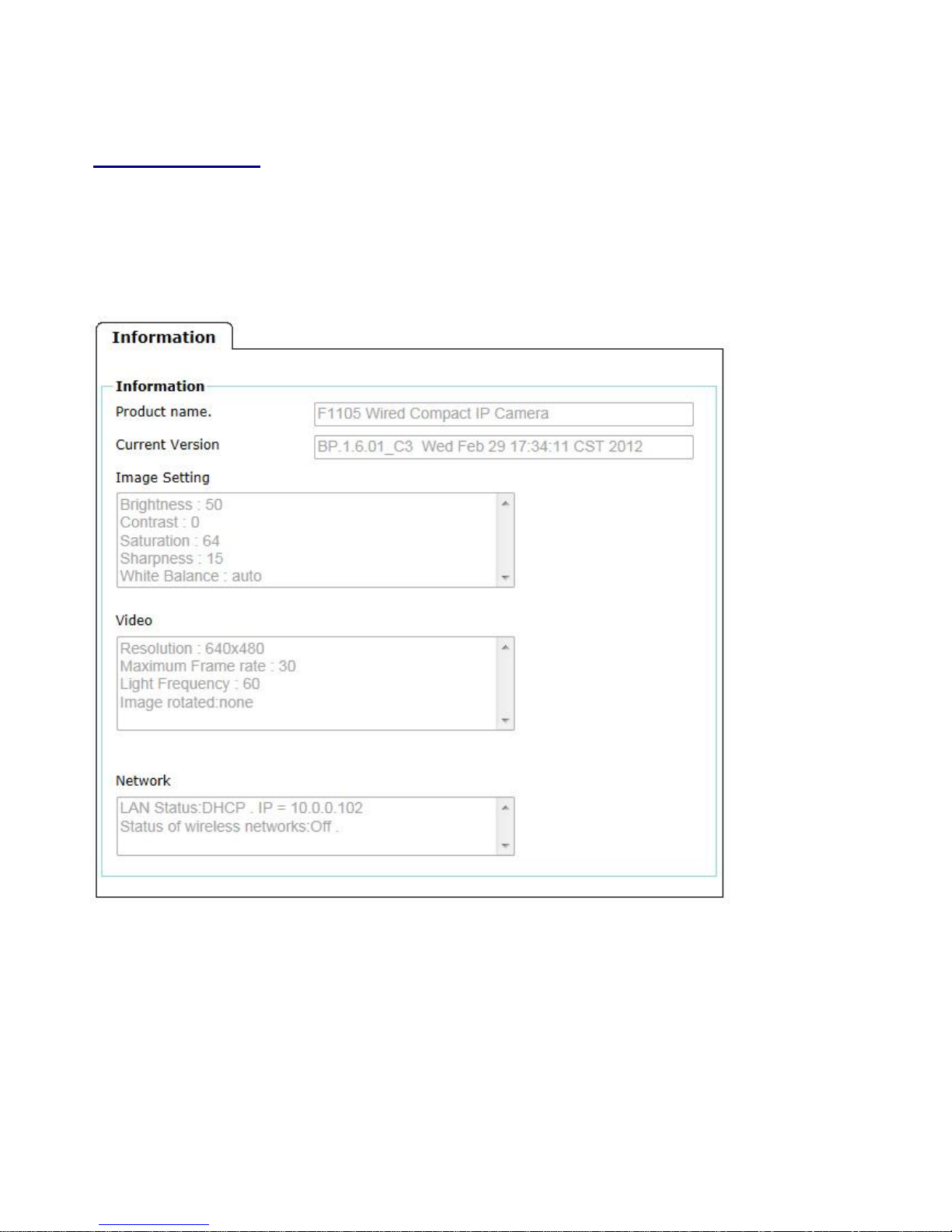
Information
The Information page provides the basic information of the product which includes Product
Name, Firmware Version, Image Setting, Video Information, and Network Information.
8
Basic Setup
Account
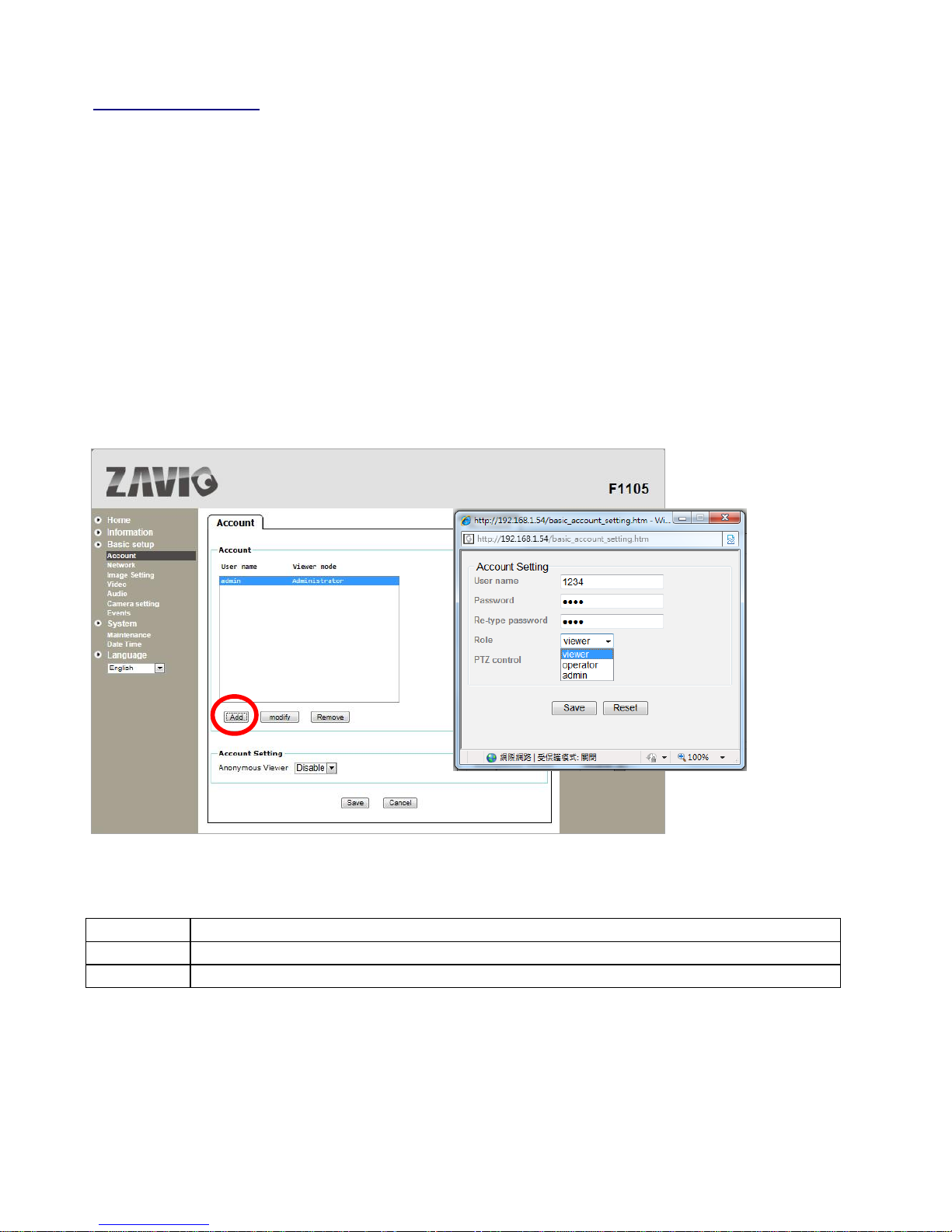
Account
The device default account and password setting is “admin / admin”. That means everyone who knows IP
address can access the device including all configuration. It is necessary to create a new password if the device
is intended to be accessed by specific ones.
Click “Add”to create the accounts to the specific users. There are 1 default account and 9 accounts that you
may assign 3 different viewer modes as you wish. The instruction of 3 viewer modes listed as below:
Account Setting
There is a drop-down menu for selecting Anonymous Viewer enable or disable.
Viewer
Operator
Administrator
It only allows the user to access to the Live View page.
It allows to view the Live View page, create and modify events, and adjust certain other settings.
It allows the user to watch the live view and access all configurations.

9
Network
TCP/IP
Internet Protocol Version 4 (TCP/IPv4)
Obtain an IPaddress automatically (DHCP): If a DHCP server is installed on the network, to select this
while the IP address is assigned by the DHCP server.
Obtain DNS server address automatically: Select this to obtain the address of DNS server
automatically.
Use the following IP address: Select this option when the fixed IP address is set.
IP address: Enter the IP address of the device.
Subnet mask: Enter the subnet mask.
Default gateway: Enter the default gateway.
Use the following DNS server address: Select this when you set the fixed address as the IP address of
DNS server.
Primary DNS server: Enter the IP address of the primary DNS server.
Secondary DNS server: Enter the IP address of the secondary DNS server, if necessary.
HTTP
HTTPport number: Select 80 in general situations. If you want to use a port number other than 80,
select the text box and enter a port number between 1024 and 65535.
When you have set the HTTP port number to a number other than 80 on the Network Setting screen
Other manuals for F1100
2
This manual suits for next models
1
Table of contents
Other Zavio IP Camera manuals