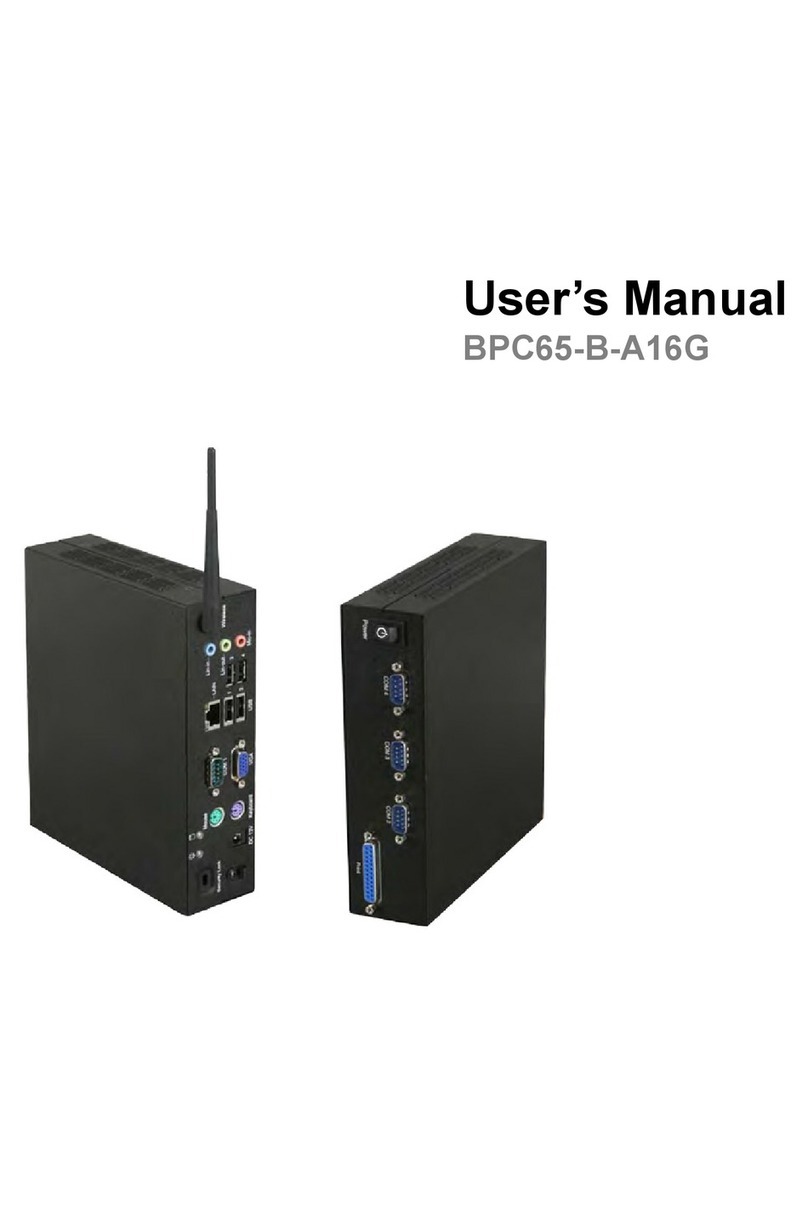
ZKC PC701 User manual

PC701------------------------------Shenzhen ZKC Software Technology Co.,Ltd
Address: 1st Floor, No. 1 Block, Zhongkenuo Industry Park, Beiqi Road, Xixiang Town, Bao'an District, Shenzhen
PC701 User Manual
1. Product brief introduction

PC701------------------------------Shenzhen ZKC Software Technology Co.,Ltd
Address: 1st Floor, No. 1 Block, Zhongkenuo Industry Park, Beiqi Road, Xixiang Town, Bao'an District, Shenzhen
2. Power on/off
Power on: Connect the built-in battery or external power, and Long press the power key.
Power off:Long press power key and click “power off”

PC701------------------------------Shenzhen ZKC Software Technology Co.,Ltd
Address: 1st Floor, No. 1 Block, Zhongkenuo Industry Park, Beiqi Road, Xixiang Town, Bao'an District, Shenzhen
3. Functions Description
3.1 Thermal printer
Open the testing demo , click “printer test”
To print words, click “print”, to print barcode, Qrcode, images, please click “print picture”
3.2 Barcode, Qrcode scanner

PC701------------------------------Shenzhen ZKC Software Technology Co.,Ltd
Address: 1st Floor, No. 1 Block, Zhongkenuo Industry Park, Beiqi Road, Xixiang Town, Bao'an District, Shenzhen
Open the demo , and click “Qrcode”, put the barcode or Qrcode in front of the
camera window to scan.
Note: Or download a barcode scannerAPP from google play store to test.
3.3 Camera test
Click the “camera test”

PC701------------------------------Shenzhen ZKC Software Technology Co.,Ltd
Address: 1st Floor, No. 1 Block, Zhongkenuo Industry Park, Beiqi Road, Xixiang Town, Bao'an District, Shenzhen
3.4 RS232 test
Click the “Serial port” in the ,connect with device via RS232 cable, click “setting”,
select serial number “ttyUSB1” and save, then click “Open”, to test the serial port.
3.5 NFC test
Open the test demo “NFC scanner”, or download NFC APP from google play store to test.

PC701------------------------------Shenzhen ZKC Software Technology Co.,Ltd
Address: 1st Floor, No. 1 Block, Zhongkenuo Industry Park, Beiqi Road, Xixiang Town, Bao'an District, Shenzhen
3.6 PSAM Test
Click ,insert into the PSAM card, select “card 1, card 2, card 3”, and click
“Init”,“Get Random” or“select Master”, then it shows the data as below, take card 3 as an
example:
3.7 MSR test
Open the testing demo Click the “serialPort”, Click “Setiing”, select serial
number as “ttyUSB2” , Select baud rate as “115200” and save, then click “open”.
Swipe the magnetic card and then it shows the data of the card as below:

PC701------------------------------Shenzhen ZKC Software Technology Co.,Ltd
Address: 1st Floor, No. 1 Block, Zhongkenuo Industry Park, Beiqi Road, Xixiang Town, Bao'an District, Shenzhen
3.8 GPS Test
Pull-down the screen, Open “GPS”, position outdoor, as below:

PC701------------------------------Shenzhen ZKC Software Technology Co.,Ltd
Address: 1st Floor, No. 1 Block, Zhongkenuo Industry Park, Beiqi Road, Xixiang Town, Bao'an District, Shenzhen
4. 3GTest
Insert into the 3G card as below and power on, click “SIM management”and select “data
connection” as “SIM 1” to open the 3G data transmission.

PC701------------------------------Shenzhen ZKC Software Technology Co.,Ltd
Address: 1st Floor, No. 1 Block, Zhongkenuo Industry Park, Beiqi Road, Xixiang Town, Bao'an District, Shenzhen
5. USB connection
Connect the device with computer via USB cable, install USB driver, select “Turn on USB”,
then click “setting”-- “developer options”---- “USB debugging”
Note: Please connect the USB cable twice before USB connection.

PC701------------------------------Shenzhen ZKC Software Technology Co.,Ltd
Address: 1st Floor, No. 1 Block, Zhongkenuo Industry Park, Beiqi Road, Xixiang Town, Bao'an District, Shenzhen
Other use instructions are same asAndroid mobile phone.
6.FAQs
1. Green light flashes
Green light flashes means lower power warn, please charge the power, if still flashes,
please connect the battery.
2. The device can not connect with computer via USB cable
1) Please install the USB driver first
2) Connect the USB cable twice
3. Serial Port can not work
1) Do not use Serial port while the device connect with computer
2) Please use the right RS232 cable
Table of contents