manuals.online logo
Brands
  1. Home
  2. •
  3. Brands
  4. •
  5. Zonet
  6. •
  7. Wireless Router
  8. •
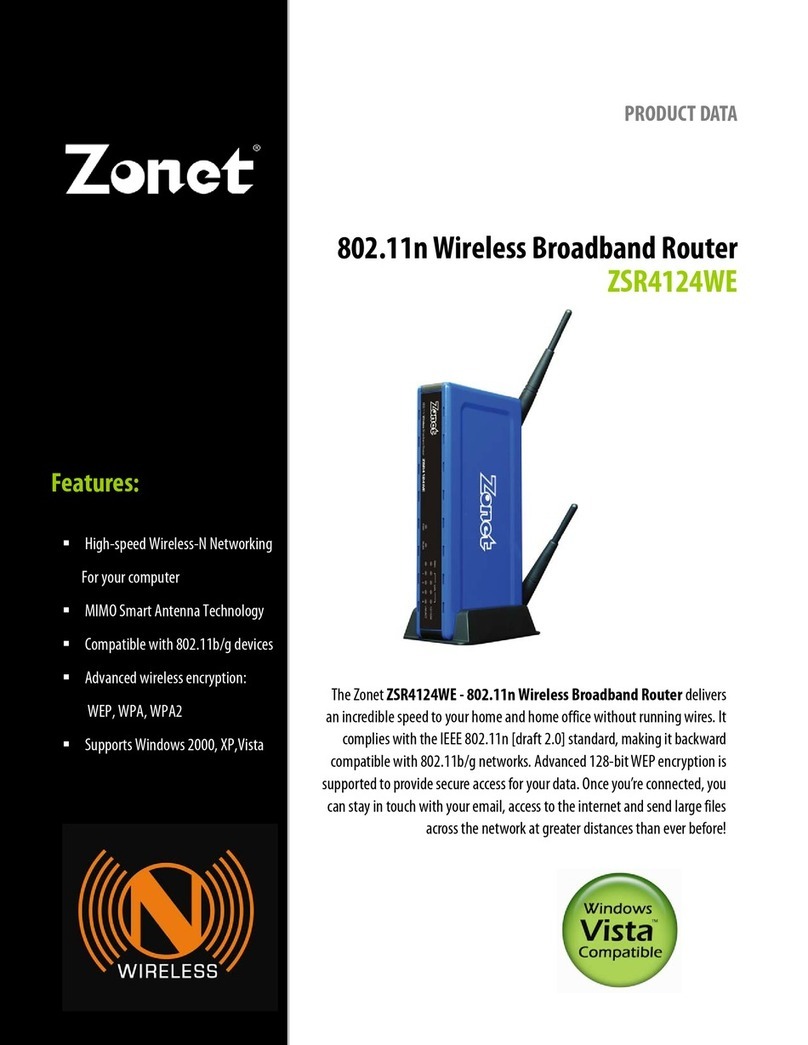
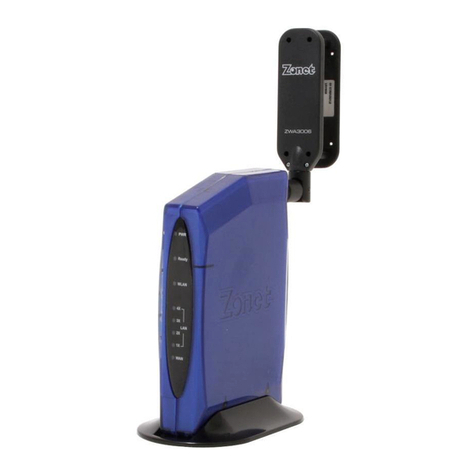
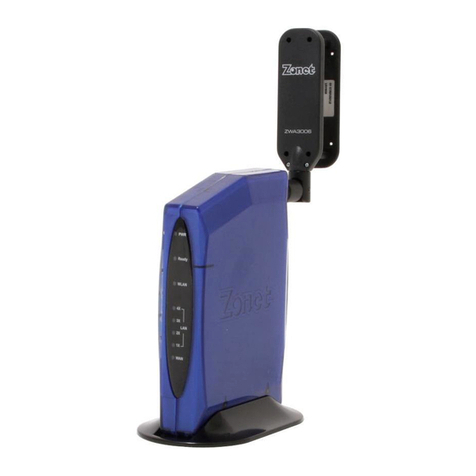
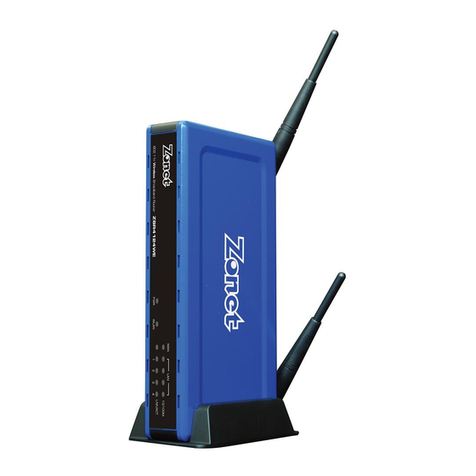
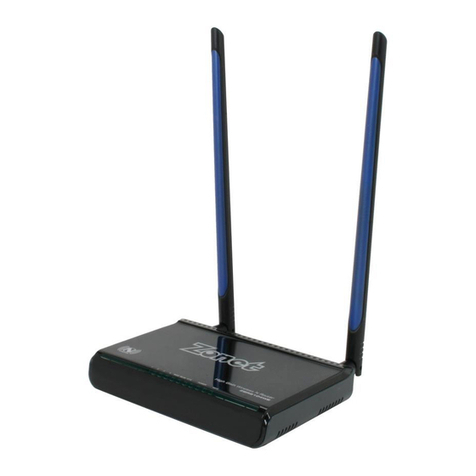
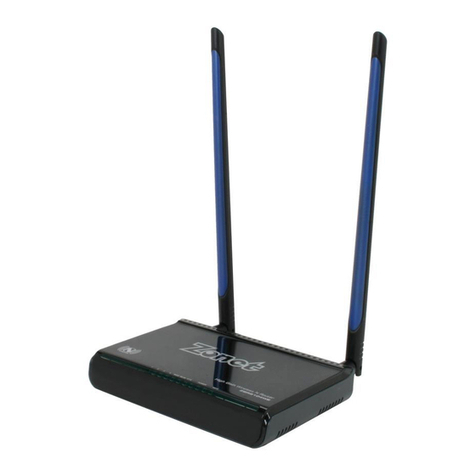
  9. Zonet ZSR4124WE User manual

Zonet ZSR4124WE User manual

Other manuals for ZSR4124WE

2

Other Zonet Wireless Router manuals

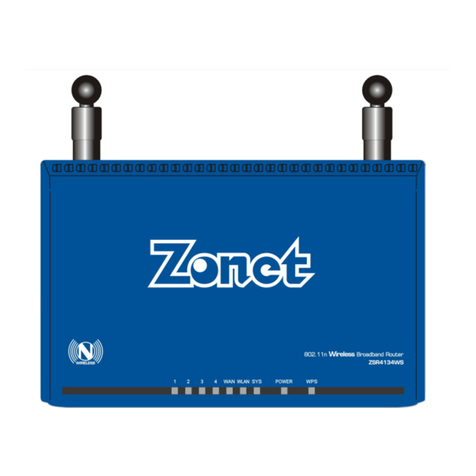
Zonet ZSR4154WE User manual

Zonet

Zonet ZSR4154WE User manual

Zonet ZSR4154WE Operation manual

Zonet

Zonet ZSR4154WE Operation manual

Zonet ZSR4124WE Operation manual

Zonet

Zonet ZSR4124WE Operation manual

Zonet ZSR9104WE User manual

Zonet

Zonet ZSR9104WE User manual

Zonet ZSR0104DE User manual

Zonet

Zonet ZSR0104DE User manual

Zonet ZSR0104CP User manual

Zonet

Zonet ZSR0104CP User manual

Zonet ZSR0104CP Operation manual

Zonet

Zonet ZSR0104CP Operation manual

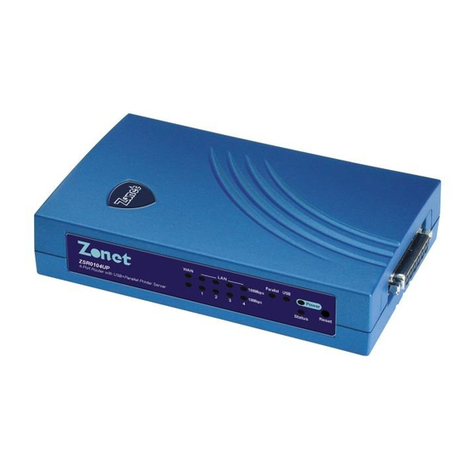
Zonet ZSR0104UP User manual

Zonet

Zonet ZSR0104UP User manual

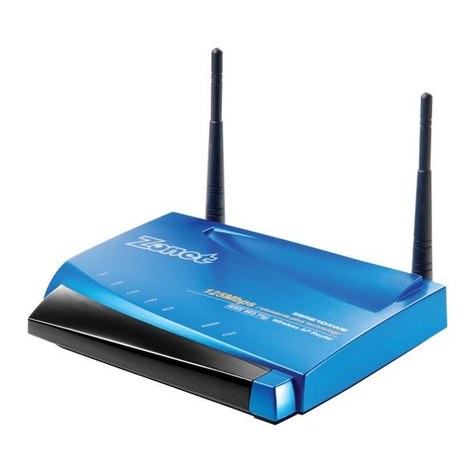
Zonet ZSR1124WE User manual

Zonet

Zonet ZSR1124WE User manual

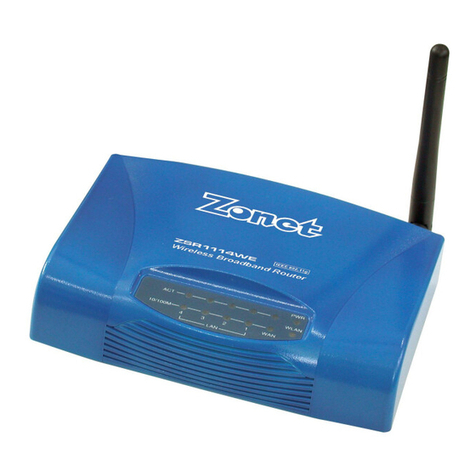
Zonet ZSR1114WE User manual

Zonet

Zonet ZSR1114WE User manual

Zonet ZSR9104WE Operation manual

Zonet

Zonet ZSR9104WE Operation manual

Zonet ZSR4134WE Operation manual

Zonet

Zonet ZSR4134WE Operation manual

Zonet ZSR4154WS User manual

Zonet

Zonet ZSR4154WS User manual

Zonet ZSR4134WE User manual

Zonet

Zonet ZSR4134WE User manual

Zonet ZSR4134WS User manual

Zonet

Zonet ZSR4134WS User manual

Zonet ZSR4154WE User manual

Zonet

Zonet ZSR4154WE User manual

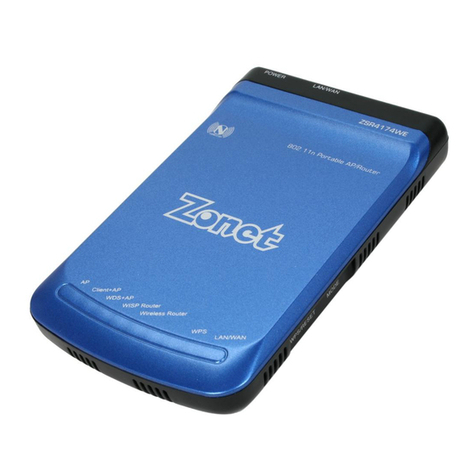
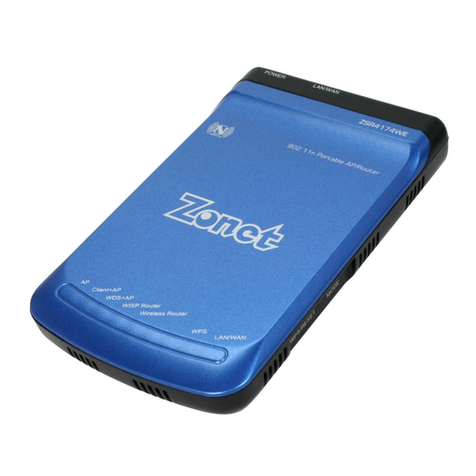
Zonet ZSR4174WE User manual

Zonet

Zonet ZSR4174WE User manual

Zonet ZSR1124WE Operation manual

Zonet

Zonet ZSR1124WE Operation manual

Zonet ZSR2104WE User manual

Zonet

Zonet ZSR2104WE User manual

Zonet ZSR0104CP User manual

Zonet

Zonet ZSR0104CP User manual

Zonet ZSR4124WE User manual

Zonet

Zonet ZSR4124WE User manual

Zonet ZSR1114WE User manual

Zonet

Zonet ZSR1114WE User manual

Zonet ZSR1134WE User manual

Zonet

Zonet ZSR1134WE User manual

Zonet ZSR1134WE Operation manual

Zonet

Zonet ZSR1134WE Operation manual

Popular Wireless Router manuals by other brands

NETGEAR Zing user guide

NETGEAR

NETGEAR Zing user guide

Proroute GEM420 user manual

Proroute

Proroute GEM420 user manual

ICP DAS USA WF-2000 Series Faq

ICP DAS USA

ICP DAS USA WF-2000 Series Faq

SMC Networks 7904WBRA-N FICHE user guide

SMC Networks

SMC Networks 7904WBRA-N FICHE user guide

Hamlet HRDSL300N user manual

Hamlet

Hamlet HRDSL300N user manual

Icidu NI-707517 Quick installation guide

Icidu

Icidu NI-707517 Quick installation guide

Hawking HWRGM1A user manual

Hawking

Hawking HWRGM1A user manual

Airlogic AirSync Class 1 Features

Airlogic

Airlogic AirSync Class 1 Features

Samsung WCH730B user manual

Samsung

Samsung WCH730B user manual

NETGEAR PowerLINE WiFi 1000 Series quick start

NETGEAR

NETGEAR PowerLINE WiFi 1000 Series quick start

TRENDnet TEW-211BRP user manual

TRENDnet

TRENDnet TEW-211BRP user manual

Cisco Valet M10 user guide

Cisco

Cisco Valet M10 user guide

Alloy WLF2454AP-S user guide

Alloy

Alloy WLF2454AP-S user guide

TELEFONICA USB Adapter quick start guide

TELEFONICA

TELEFONICA USB Adapter quick start guide

TP-Link TL-WR542G user guide

TP-Link

TP-Link TL-WR542G user guide

Hama 53120 Operating	 instruction

Hama

Hama 53120 Operating instruction

Asus RT-N10P user guide

Asus

Asus RT-N10P user guide

D-Link DIR-506L Quick installation guide

D-Link

D-Link DIR-506L Quick installation guide

manuals.online logo
manuals.online logoBrands
  • About & Mission
  • Contact us
  • Privacy Policy
  • Terms and Conditions

Copyright 2025 Manuals.Online. All Rights Reserved.

Table of Content
Chapter I. Introduction...................................................................................................................... 1
1-1. Introduction and safety information ........................................................................... 1
1-2. Safety Information ............................................................................................................... 2
1-3. System Requirements......................................................................................................... 2
1-4. ackage Contents................................................................................................................. 2
1-5. Familiar with your new wireless broadband router............................................... 2
Chapter II. System and Network Setup....................................................................................... 4
2-1. Build network connection................................................................................................. 4
2-2. Connect to wireless broadband router by web browser ..................................... 5
2-3. Using “Quick Setup” ..........................................................................................................11
2-4. Basic Setup ............................................................................................................................21
2-5. Setup Internet Connection (WAN Setup)..................................................................24
2-7. Wireless LAN Configuration ...........................................................................................37
Chapter III. Advanced Functions .................................................................................................55
3-1. Quality of Service (QoS)...................................................................................................55
3-2. Network Address Translation (NAT)............................................................................58
3-3. Firewall....................................................................................................................................66
3-4. System Status.......................................................................................................................75
3-5. Configuration Backup and Restore.............................................................................79
3-6. Firmware Upgrade .............................................................................................................80
3-7. System Reset.........................................................................................................................80
Chapter IV. Appendix .......................................................................................................................81
4-1. Hardware Specification....................................................................................................81
4-2. Troubleshooting..................................................................................................................82
4-3. Glossary .................................................................................................................................. 84
1
Chapter I. Introduction
1-1. Introduction and safety information
Thank you for purchasing this wireless broadband router! This high
cost-efficiency router is the best choice for Small office / Home office users,
all computers and network devices can share a single x SL / cable modem
internet connection at high speed. Easy install procedures allows any
computer users to setup a network environment in very short time - within
minutes, even inexperienced. When the number of your computers and
network-enabled devices grow, you can also expand the number of network
slot by simple attach a hub or switch, to extend the scope of your network!
All computers and IEEE 802.11b/g/ raft-N wireless-enabled network
devices (including P A, cellular phone, game console, and more!) can
connect to this wireless router without additional cabling. The MIMO
technology also gives you the highest speed of wireless experience ever!
With a compatible wireless card installed in your PC, you can transfer file for
up to 150Mbps (transfer data rate)! The radio coverage is also doubled, so
don’t worry if your office or house is really big!
Other features of this router including:
High Internet Access throughput
Allow multiple users to share a single Internet line
Supports up to 253 users
Share a single Cable or x SL internet connection
Access private LAN servers from the internet
Four wired LAN ports (10/100M) and one WAN port (10/100M)
Work with IEEE 802.11b/g/ raft-N wireless LAN devices
Support HCP (Server/Client) for easy IP-address setup
Support multiple wireless modes like: AP, Station-Infrastructure,
Wireless Bridge and Universal Repeater.
Advanced network and security features like: Special Applications,
QoS, MZ, Virtual Servers, Access Control, Firewall.
Allow you to monitor the router’s status like: HCP Client Log,
System Log, Security Log and evice/Connection Status
Easy to use Web-based GUI for network configuration and
management purposes

2
Remote management function allows configuration and upgrades
from a remote computer (over the Internet)
Auto M I / M I-X function for all wired Ethernet ports.
1-2. Safety Information
In order to keep the safety of users and your properties, please follow the
following safety instructions:
This router is designed for indoor use only; O NOT place this
router outdoor.
O NOT put this router at or near hot or humid places, like kitchen
or bathroom. Also, do not left this router in the car in summer.
O NOT pull any connected cable with force; disconnect it from the
router first.
If you want to place this router at high places or hang on the wall,
please make sure the router is firmly secured. Falling from high
places would damage the router and its accessories, and warranty
will be void.
Accessories of this router, like antenna and power supply, are
danger to small children under 3 years old. They may put the small
parts in their nose or month and it could cause serious damage to
them. KEEP THIS ROUTER OUT THE REACH OF CHIL REN!
The router will become hot when being used for long time (This is
normal and is not a malfunction). O NOT put this router on paper,
cloth, or other flammable materials.
There’s no user-serviceable part inside the router. If you found that
the router is not working properly, please contact your dealer of
purchase and ask for help. O NOT disassemble the router,
warranty will be void.
If the router falls into water when it’s powered, O NOT use your
hand to pick it up. Switch the electrical power off before you do
anything, or contact an experienced technician for help.
If you smell something strange, or even see some smoke coming
out from the router or power supply, remove the power supply or
switch the electrical power off immediately, and call dealer of
purchase for help.
2
1-3. System Requirements
Internet connection, provided by x SL or cable modem with a RJ-45
Ethernet port.
Computer or network devices with wired or wireless network
interface card.
Web browser (Microsoft Internet Explorer 4.0 or above, Netscape
Navigator 4.7 or above, Opera web browser, or Safari web browser).
An available AC power socket (100 – 240V, 50/60Hz)
1- . Package Contents
Before you starting to use this router, please check if there’s anything
missing in the package, and contact your dealer of purchase to claim for
missing items:
One ZSR4124WE
One Quick Installation Guide
One C with User Manual
One AC Power Adapter
1-5. Familiar with your new wireless broadband
router
Front Panel
LE Name Light Status
escription
PWR On Router is switched on and correctly powered.
On Wireless WPS function is enabled.
Off Wireless network is switched off.
WLAN Flashing Wireless LAN activity (transferring or receiving
data).
3
On WAN port (Internet) is running at 100Mbps.
Off WAN port (Internet) is running at 10Mbps.
WAN
10/100M Flashing WAN activity (transferring or receiving data).
On WAN port is connected.
Off WAN port is not connected.
WAN
LNK/ACT Flashing WAN activity (transferring or receiving data).
On LAN port is running at 100Mbps. LAN
10/100M Off LAN port is running at 10Mbps.
On LAN port is connected.
Off LAN port is not connected.
LAN
LNK/ACT Flashing LAN activity (transferring or receiving data).
Back Panel
Item Name escription
Antenna A/B These antennas are 3dBi dipole antennas.
Power Power connector, connects to A/C power adapter.
Reset / WPS Reset the router to factory default settings (clear all
settings) or start WPS function. Press this button and hold
for 10 seconds to restore all settings to factory defaults,
and press this button for less than 5 seconds to start WPS
function.
1 - 4 Local Area Network (LAN) ports 1 to 4.
WAN Wide Area Network (WAN / Internet) port.
Antenna A Antenna B
4
Chapter II. System and Network Setup
2-1. Build network connection
Please follow the following instruction to build the network connection
between your new WIRELESS router and your computers, network devices:
1. Connect your x SL / cable modem to the WAN port of router by Ethernet
cable.
2. Connect all your computers, network devices (network-enabled
consumer devices other than computers, like game console, or switch /
hub) to the LAN port of the router.
5
3. Connect the A/C power adapter to the wall socket, and then connect it to
the “Power” socket of the router.
4. Please check all LE s on the front panel. “PWR” LE should be steadily on,
WAN and LAN LE s should be on if the computer / network device
connected to the respective port of the router is powered on and
correctly connected. If PW LE is not on, or any LE you expected is not
on, please recheck the cabling, or jump to “ -2 Troubleshooting” for
possible reasons and solution.
2-2. Connect to wireless broadband router by web
browser
After the network connection is built, the next step you should do is setup
the router with proper network parameters, so it can work properly in your
network environment.
Before you can connect to the router and start configuration procedures,
your computer must be able to get an IP address automatically (use
dynamic IP address). If it’s set to use static IP address, or you’re unsure,
please follow the following instructions to configure your computer to use
dynamic IP address:
2-2-1. Windows 2000 IP address setup:
6
1. Click “Start” button (it should be located at lower-left corner of your
computer), then click control panel. ouble-click Network and Dial-up
Connections icon; click Local Area Connection, and Local Area
Connection Properties window will appear. Select “Internet Protocol
(TCP/IP)” and then click “Properties”
2. Select “Obtain an IP address automatically” and “Obtain NS server
address automatically”, then click “OK”.
2-2-2. Windows XP IP address setup:
1. Click “Start” button (it should be located at lower-left corner of your
computer), then click control panel. ouble-click Network and Internet
Connections icon, click Network Connections, then double-click Local
Area Connection, Local Area Connection Status window will appear,
and then click “Properties”
7
2. Select “Obtain an IP address automatically” and “Obtain NS server
address automatically”, then click “OK”.
2-2-3. Windows Vista IP address setup:
1. Click “Start” button (it should be located at lower-left corner of your
computer), then click control panel. Click View Network Status and
Tasks, and then click Manage Network Connections. Right-click Local
Area Network, then select “Properties”. Local Area Connection
Properties window will appear, select “Internet Protocol Version 4 (TCP /
IPv4), and then click “Properties”