Confirm Device Communication
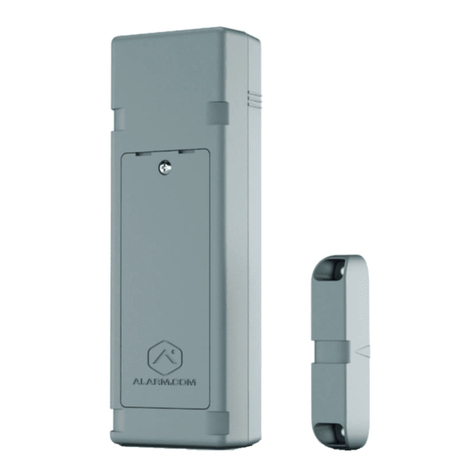
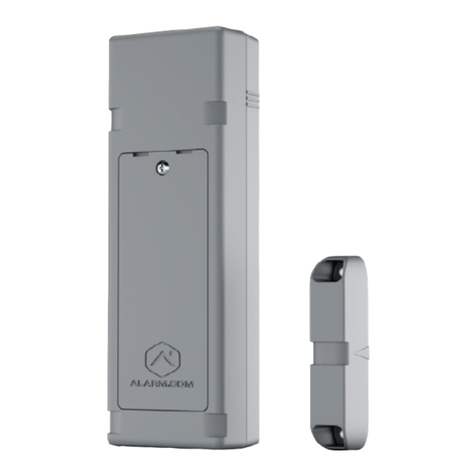
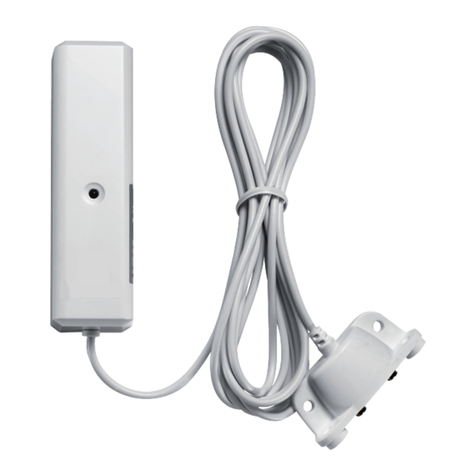
Activate the pull-apart sensor. The LED should blink yellow twice when the device is tripped. This will prompt the Flex O
to communicate with Alarm.com. Make sure this sensor activity is displayed in the Partner Portal or MobileTech Event
History.
Check LED
The device LED may cycle through a number of patterns as the device boots up and connects to a cell tower. f the LED
continues to flash after 1 minute, check to make sure that the device does not have a tamper condition (review Step 3
and Step 4).
For battery-powered installations, when the device is successfully installed the LED should be off and activate only when
the device is tripped, blinking yellow twice.
For powered installations, the yellow LED should be solid, blinking twice when the device is tripped.
f the device is not communicating with Alarm.com, see Advanced Troubleshooting Using MobileTech.
For more information about LED patterns, see Flex O - LED Patterns and Troubleshooting.
Post-Installation Checklist
• The Flex O is installed flush to the mounting surface. f the mounting tamper is enabled, the tamper button on the
back of the device should be pressed in.
• LED is not blinking.
◦ For devices with only battery power, the LED should be off.
◦ For devices with wired power, the LED should be solid yellow and not flashing.
• The only LED activity should occur when the device is activated, which should result in 2 yellow blinks.
• Loop input wires are securely connected.
• Device activations are being reported in the account's Event History.
Alarm.com plans to support additional loop input and relay output third-party devices over time, so watch for updates in
our weekly Release Notes on the Partner Portal or see Cellular Sensors. Have an input/output device you’d like us to
support? Submit any ideas to your Alarm.com Sales Representative!
https://answers.alarm.com/ADC/Partner/ nstallation_and_Troubleshooting/Cellular_Sensors/Flex_ O/Flex_ O_-_Pull-Apart_ n…
Updated: Sun, 11 Apr 2021 14:46:03 GMT
10