manuals.online logo
Brands
  1. Home
  2. •
  3. Brands
  4. •
  5. Aluratek
  6. •
  7. Ebook Reader
  8. •
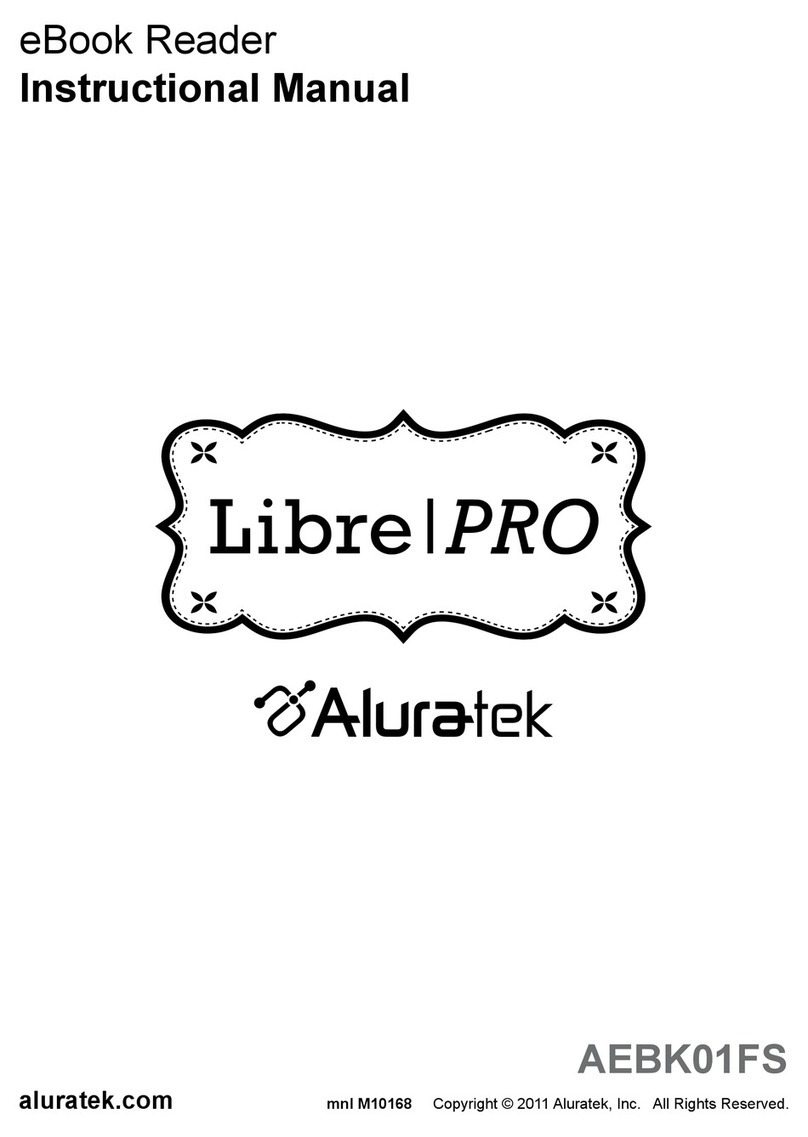
  9. Aluratek Libre color AEBK07FS Operating and maintenance manual

Aluratek Libre color AEBK07FS Operating and maintenance manual

Other manuals for Libre color AEBK07FS

2

Other Aluratek Ebook Reader manuals

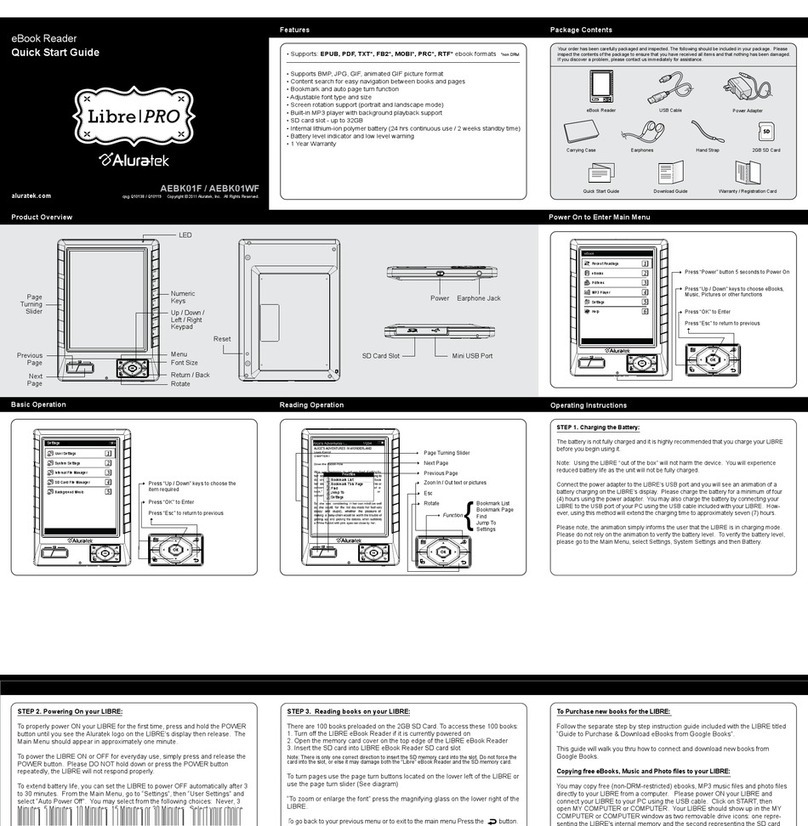
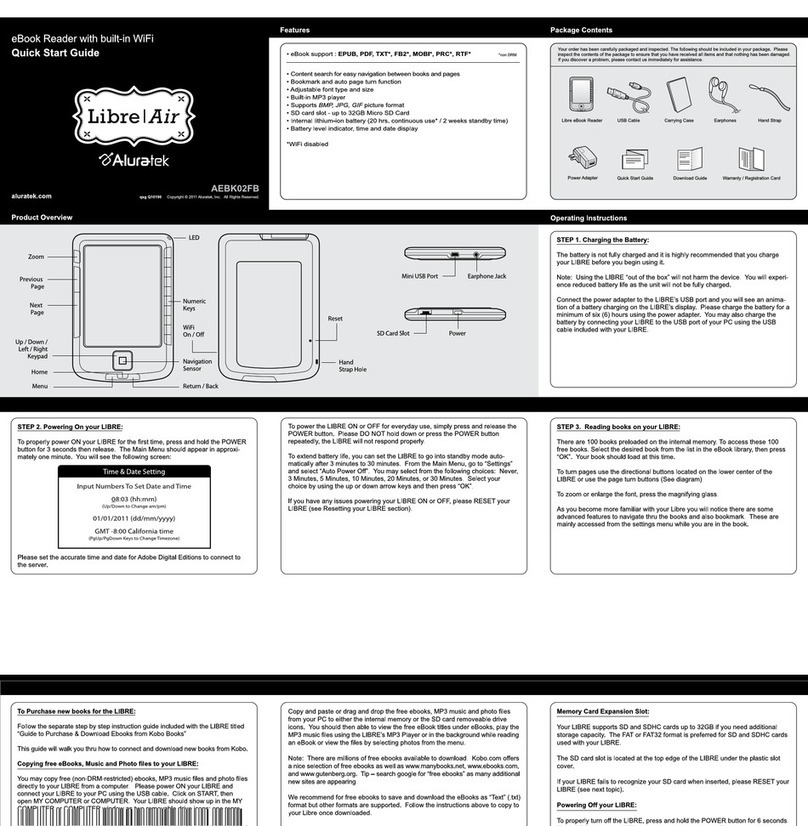
Aluratek Libre color AEBK07FS User manual

Aluratek

Aluratek Libre color AEBK07FS User manual

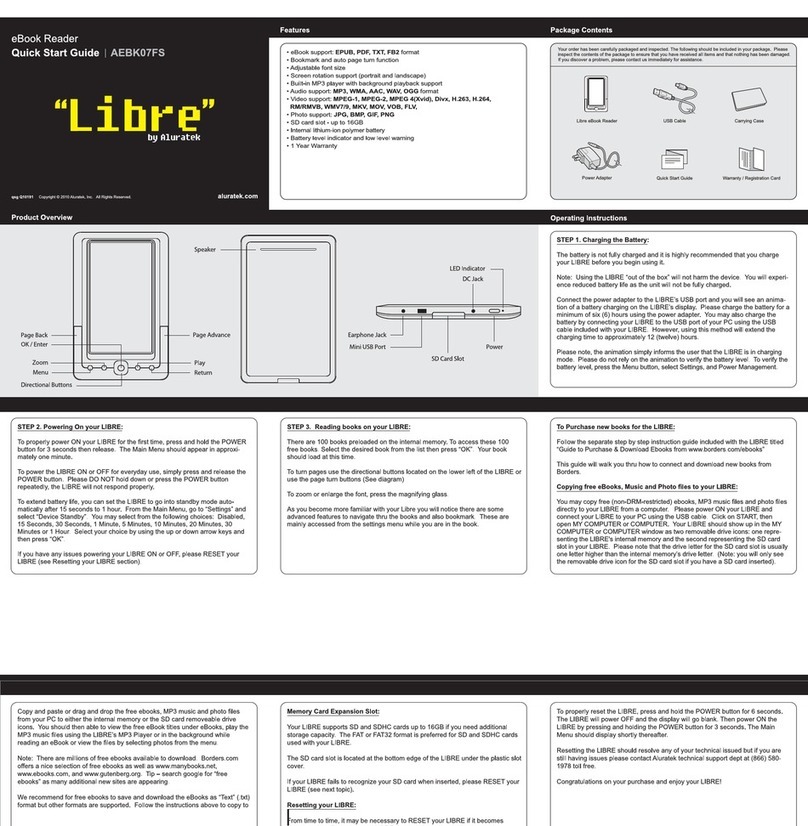
Aluratek Libre touch AEBK08FB Operating and maintenance manual

Aluratek

Aluratek Libre touch AEBK08FB Operating and maintenance manual

Aluratek Libre touch AEBK08FB User manual

Aluratek

Aluratek Libre touch AEBK08FB User manual

Aluratek Libre Air AEBK02FB User manual

Aluratek

Aluratek Libre Air AEBK02FB User manual

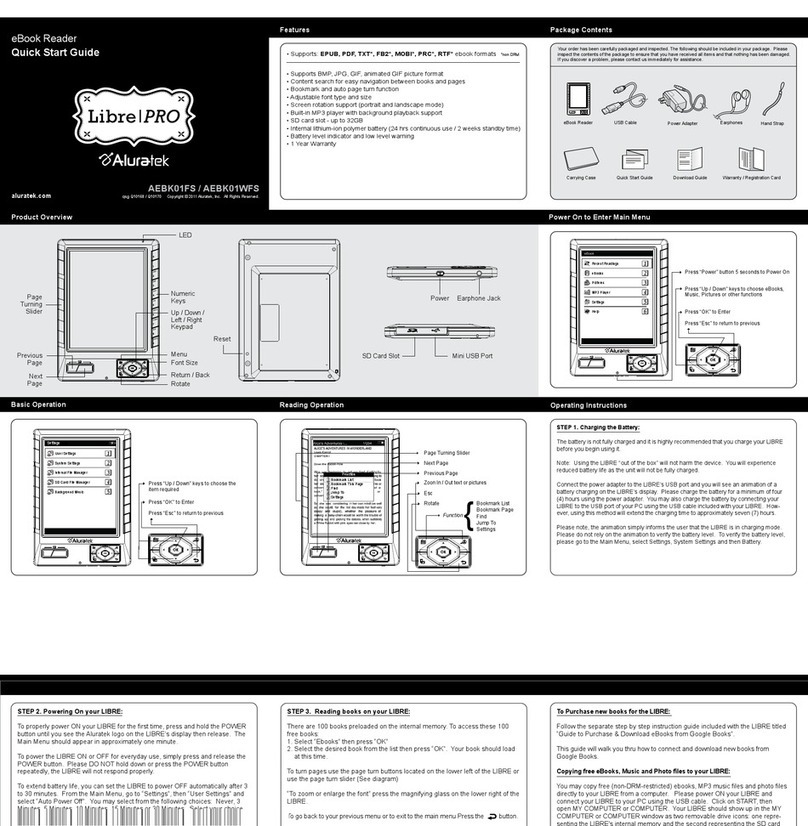
Aluratek AEBK01FS User manual

Aluratek

Aluratek AEBK01FS User manual

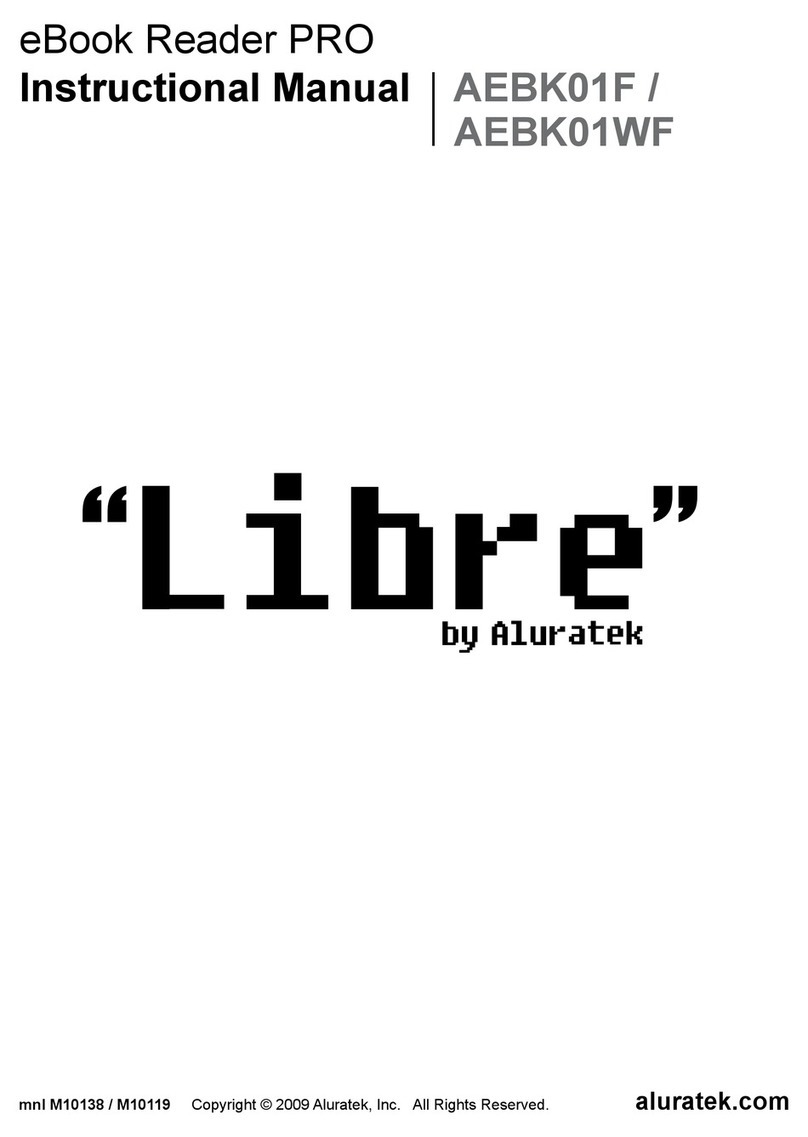
Aluratek AEBK01F User manual

Aluratek

Aluratek AEBK01F User manual
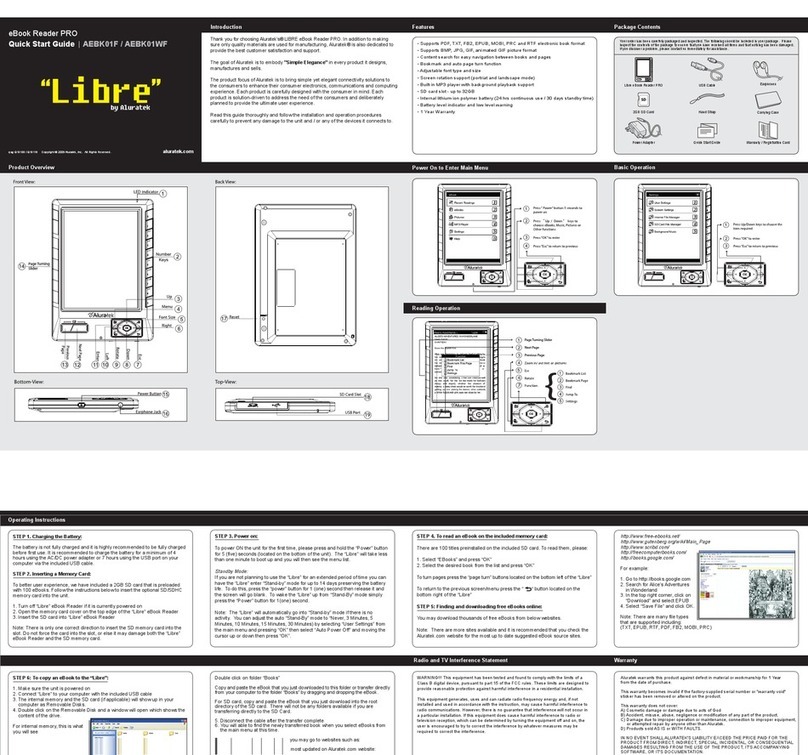
Aluratek Libre color AEBK07FS User manual

Aluratek

Aluratek Libre color AEBK07FS User manual

Aluratek AEBK01F Operating and maintenance manual

Aluratek

Aluratek AEBK01F Operating and maintenance manual

Aluratek Libre Air AEBK02FB Operating and maintenance manual

Aluratek

Aluratek Libre Air AEBK02FB Operating and maintenance manual

Aluratek AEBK01F User manual

Aluratek

Aluratek AEBK01F User manual
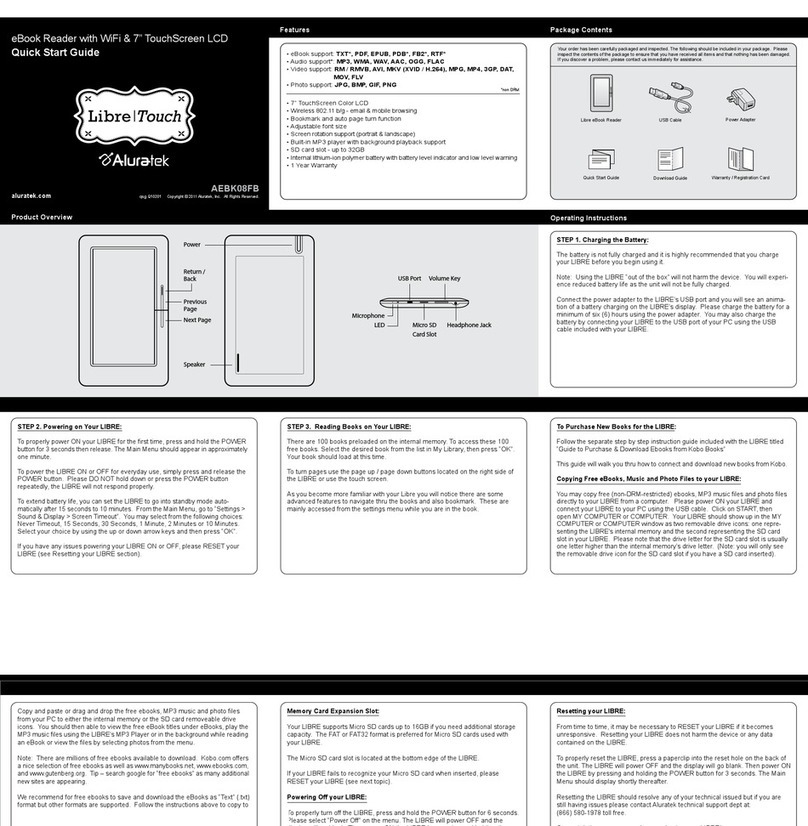
Aluratek AEBK01FS Operating and maintenance manual
Aluratek

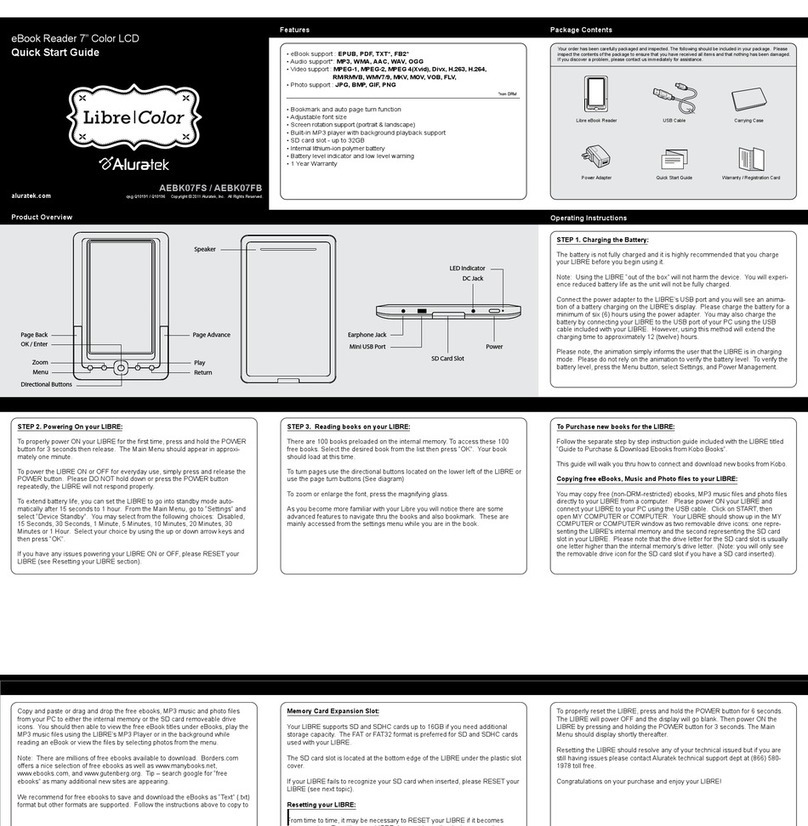
Aluratek AEBK01FS Operating and maintenance manual
Popular Ebook Reader manuals by other brands

Obreey Pro 602 user manual

Obreey

Obreey Pro 602 user manual

Denver EBO-500 instruction manual

Denver

Denver EBO-500 instruction manual

Orbit Research Reader 20 user guide

Orbit Research

Orbit Research Reader 20 user guide

Amazon Kindle Kindle 1 quick start

Amazon

Amazon Kindle Kindle 1 quick start

Franklin DFC-3015 user guide

Franklin

Franklin DFC-3015 user guide

IEI Technology AFL2-EM-RFID-KIT user manual

IEI Technology

IEI Technology AFL2-EM-RFID-KIT user manual

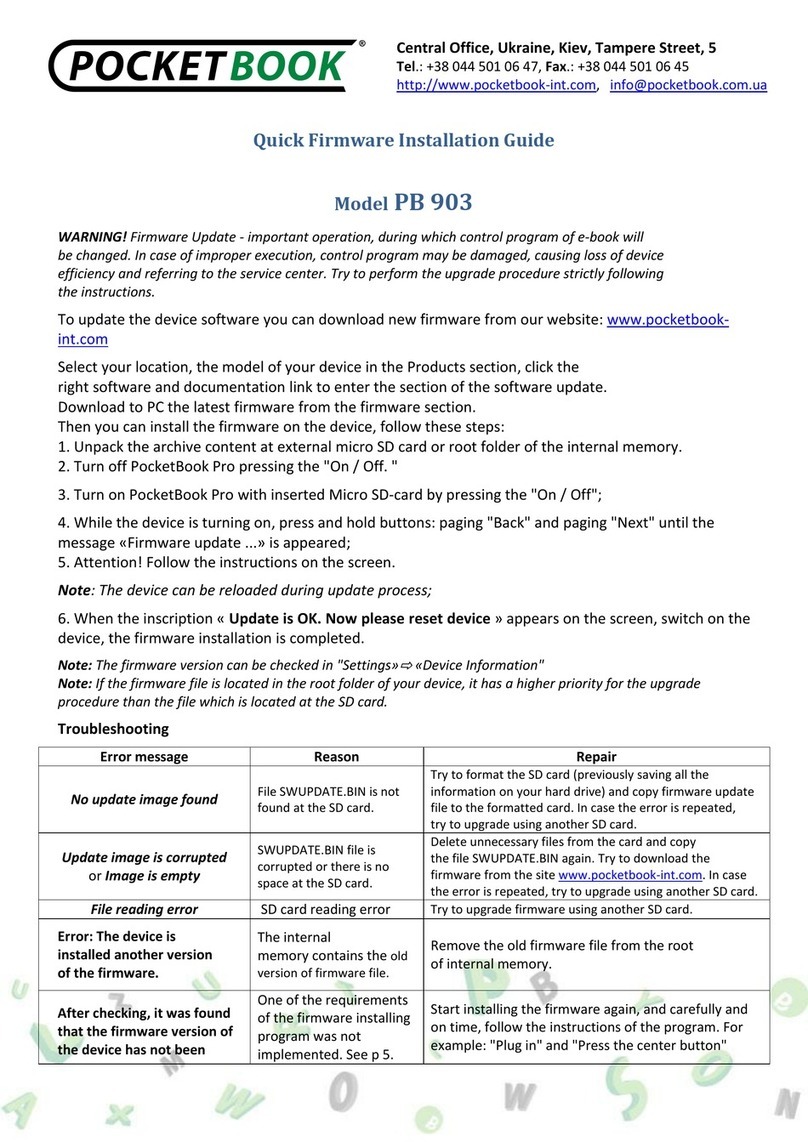
Pocketbook РВ 903 Quick Firmware Installation Guide

Pocketbook

Pocketbook РВ 903 Quick Firmware Installation Guide

Barnes & Noble NOOK Color user guide

Barnes & Noble

Barnes & Noble NOOK Color user guide

Pocketbook Basic Lux 3 user guide

Pocketbook

Pocketbook Basic Lux 3 user guide

Sony 3803775 user guide

Sony

Sony 3803775 user guide

DARTY ER703 instruction manual

DARTY

DARTY ER703 instruction manual

DOSMONO S601 user manual

DOSMONO

DOSMONO S601 user manual

Kobo GLO HD user guide

Kobo

Kobo GLO HD user guide

Onyx International SMART READING Series user manual

Onyx International

Onyx International SMART READING Series user manual

Onyx Boox T76ML Cleopatra user manual

Onyx

Onyx Boox T76ML Cleopatra user manual

Kobo arc 1 user guide

Kobo

Kobo arc 1 user guide

Boox Boox A62 user manual

Boox

Boox Boox A62 user manual

Franklin AnyBook Reader DRP-4000 user guide

Franklin

Franklin AnyBook Reader DRP-4000 user guide

manuals.online logo
manuals.online logoBrands
  • About & Mission
  • Contact us
  • Privacy Policy
  • Terms and Conditions

Copyright 2025 Manuals.Online. All Rights Reserved.

eBook Reader
Instructional Manual | AEBK07FS
mnl M10191 Copyright © 2010 Aluratek, Inc. All Rights Reserved. aluratek.com
1. AEBK07FS Ebook Reader
2. USB cable
3. Power adapter
4. Carrying Pouch
5. QSG
6. Download Guide
7. Registration/Warranty Card
Parts and Controls
Power button –press and hold for 3 seconds to turn on/off,
press and hold 6 seconds to reset
Next pg button –press to turn to next page
Previous pg button –press to turn to previous page
OK / Enter Button
Zoom button –press to adjust the font size or to zoom in/out
Menu button –press to display Option Menu
Directional buttons –to move cursor
Music button –to enter into music menu
Package Content
Getting Started
1
2
3
4
5
6
7
8
9
10
11
1
Return button –press once to return to previous menu, press
and hold to return to Home menu
Earphone jack
Mini USB jack –for data transfer and charging
SD cart slot –supports SD/SDHC/MMC card
DC jack –for charging
LED indicator
Speaker
Power On and Off AEBK07FS
Press and hold the [Power] button for 3 seconds to turn on
AEBK07FS.
When AEBK07FS is on, press and release the [Power] button for
standby mode, press and release the [Power] button again to
return to power on mode.
To turn off AEBK07FS, press and hold the [Power] button for 3
seconds.
Charging AEBK07FS
The battery is not fully charged and it is highly recommended that you
charge your LIBRE before you begin using it.
Note: Using the LIBRE “out of the box” will not harm the device. You
will experience reduced battery life as the unit will not be fully
charged.
Connect the power adapter to the LIBRE’s USB port and you will see
an animation of a battery charging on the LIBRE’s display. Please
charge the battery for a minimum of six (6) hours using the power
adapter. You may also charge the battery by connecting your LIBRE to
the USB port of your PC using the USB cable included with your LIBRE.
However, using this method will extend the charging time to
approximately twelve (12) hours.
12
13
14
15
16
17
18
Getting Started
When DC/USB power cable is connected to AEBK07FS for charging,
AEBK07FS will go into standby mode after it is idle for 60 seconds.
Press the [Power] button to start AEBK07FS.
The battery status is displayed at the bottom left corner. The
remaining battery playback time is displayed right next to the
battery icon.
Inserting Memory Card
AEBK07FS supports SD/SDHC/MMC card in both FAT and NTFS file
system. NTFS is needed to copy file with size larger than 4GB.
To insert a Memory card:
Open the SD cover.
Check that the SD card is in the correct position with the contact
pin facing upwards as illustrated below. You may damage the card
and AEBK07FS if SD card is not inserted in the right orientation.
Push the SD card into the card slot until it clicks.
To remove SD card, push the SD card once again until it clicks.
When a SD card is inserted in or ejected from AEBK07FS, it may
take few seconds for AEBK07FS to update the content.
Please avoid inserting or ejecting SD card when other operation is
running.
Do not remove the card if the content inside the card is being
played. This will halt the operation of AEBK07FS and cause
AEBK07FS to restart.
Getting Started
If the system is not responding, press and hold the <Power>
button for 6 seconds to reset.
Limitations with NTFS file system:
Books in the card are not recognized by ADE when connected to
PC.
Direct copy of files from internal memory to card is not supported.
Starting from Home Menu
When AEBK07FS is turn on, you will enter into the Home Menu.




Library

Battery Indicator

Page Number

Time & Date





1. 1. Continue Reading
2. -display the page of the last read
book. Press <OK> button to
open the last page read.
2. Library
-display the list of books
available. Move the cursor to the
desired title and press <OK> to
open it.
3. Battery Indicator
-displays battery status during
operation
4. Page Number
-displays current page number
and total available pages.
5. Time & Date
-display current time and date,
you can set this from the
[Settings]
6. File Directory
- indicates the location where the
file is stored. SD –SD card, INT –
internal memory
Getting Started
Entering Option Menu
Press the [Menu] button to display the Option Menu as illustrated.
Press the directional key to move the
cursor to desired item. Selected item
will be highlighted.
Press <OK> to enter.
To exit from Option menu, move cursor
to and press <OK> to confirm.
Alternatively, press the <Return>
button to exit.
To sort books by different categories: Title, Author,
Category, Date, and Format
Jump to a specific page
Read from previously added bookmarks
Adjust brightness of the display screen
Enter into Video Player
Enter into Music Player
Enter into Photo Viewer
Enter into File Explorer for advance file management
Enter into System settings and to read user guide
Open your favorite book list.
Getting Started
Importing Content
AEBK07FS supports USB Mass Storage Device function.
To import contents (ebooks, video, audio, photo etc) into
AEBK07FS, connect AEBK07FS to PC via the supplied USB cable.
Upon successful connection to PC, AEBK07FS will enter USB mode
and all operation will be halted.
Go to [My Computer]; double click on disk “AEBK07FS”to open.
Perform normal file management operation like other USB device.
Importing DRM Contents
Adobe Digital Editions (ADE) is required for downloading DRM content
into AEBK07FS.
Installing Adobe Digital Edition (ADE)
To download the latest Adobe Digital Edition software, please go to
http://www.adobe.com/products/digitaleditions/#fp .
For first time user, you will need to get a free adobe ID from
adobe’s website. Click on the [get an Adobe ID online] link as below:
Enter your email address and complete the online form as
instructed.
Authorizing PC and AEBK07FS
Upon registration, return to the ADE window. Enter the username
and password to activate your Adobe account.
After activation, connect AEBK07FS to PC. ADE will detect
AEBK07FS and you are prompted to authorize the device.
Importing Content
Importing and Transferring Content
After authorization, you will be able to find AEBK07FS recognized
in ADE as below. Contents inside AEBK07FS will be displayed on
the right hand windows.

You can now start downloading or buying ebooks from online
Ebook stores supporting Adobe DRM such as www.borders.com.
Purchased or downloaded ebooks will be stored in [My Digital
Editions] in [My Documents].
Transferring DRM ebooks to AEBK07FS
From ADE menu, click on [All Items] on the left column
Items in [My Digital Editions] will be listed down in right window.
Select the desired item(s) to be transferred, <Shift> + <Left Click>
to select multiple files.
Drag and drop the selected item(s) into AEBK07FS’s Drive located
on the last row of the column on the left as illustrated below.
Each ADE ID supports only 6 devices; this includes the master device
(AEBK07FS) and the slave device (SD card).
When AEBK07FS is restored to default settings, ALL DRM activation
record and data (including DRM books purchased) will be erased from
AEBK07FS. You are required to authorize the device with your ADE ID
again.
When the number of authorized device has exceeded the allowable
amount, you will come across the following error message:
To request for extension and reset of your ADE ID, go to
http://www.adobe.com/support/digitaleditions/ [Submit a web
case]. You are required to key in your ADE ID info.
Notes in using ADE
E_ACT_TOO_MANY_ACTIVATIONS
Opening Book
Books transferred to AEBK07FS will be listed in Home Menu.
AEBK07FS supports ebooks in epub, pdf, and txt format.
Use the <Directional> buttons to move the cursor to select book
and press <OK> to open.
Book Page Interface
Turning book page
In reading mode, press <Next Page> or <Directional-Right> button
to turn to next page. To turn to previous page, press <Previous
Page> or <Directional-Left> button.
Reading Books
Remaining
Battery Life
Current Page / Total Page
Font Size