Using a Micro-SD Card to Save Images
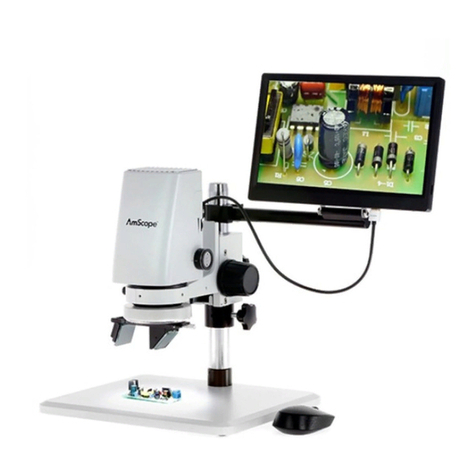
By using a Micro-SD card (not provided, please buy it separately), you can
save images and videos to review later or output to a computer or other
device .
Insert the Micro SD card in to the TF slot on top back of the monitor.
ejected.) An icon will appear at the top right side of the display.
cycle between three modes: video (), still image (), and review ().
In video mode, press the OK button (5 from the Figure 1, key on
becomes to ). The elapsed time in the recording will appear at the
top right. To stop recording, hit the OK button again.
Note: do not keep the OK button while starting or stopping a recording,
just press and release.
capture an image. Icon would appear at the top middle for a second,
when an image has been captured.
Press Capture button (6 from the Figure 1, icon on the remote has the
same function) to capture images while the microscope is recording.
If you capture the image by this way, the resolution of the image could
be neither 1080P or 720P, depends on which you choose for the video
resolution, FHD or HD.
Reviewing and Managing Images
To review and manage images on the display, use the Mode button to
select review mode. Use the Up and Down buttons to cycle through the
pictures and videos.
To play a video, press the OK button. Press the OK button again to pause.
Hit the Mode button again to exit playback.
9