manuals.online logo
Brands
  1. Home
  2. •
  3. Brands
  4. •
  5. Analog way
  6. •
  7. Switch
  8. •
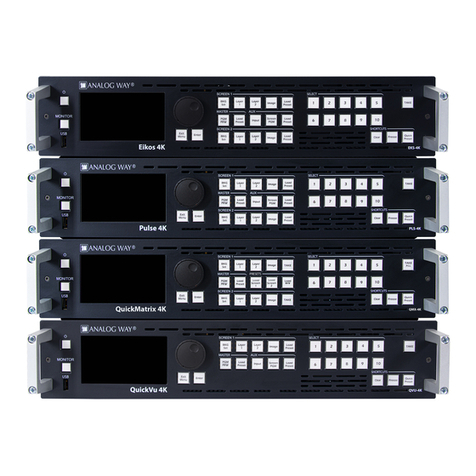
  9. Analog way PLS-4K User manual

Analog way PLS-4K User manual

This manual suits for next models

1

Other Analog way Switch manuals

Analog way Eikos LE User manual

Analog way

Analog way Eikos LE User manual

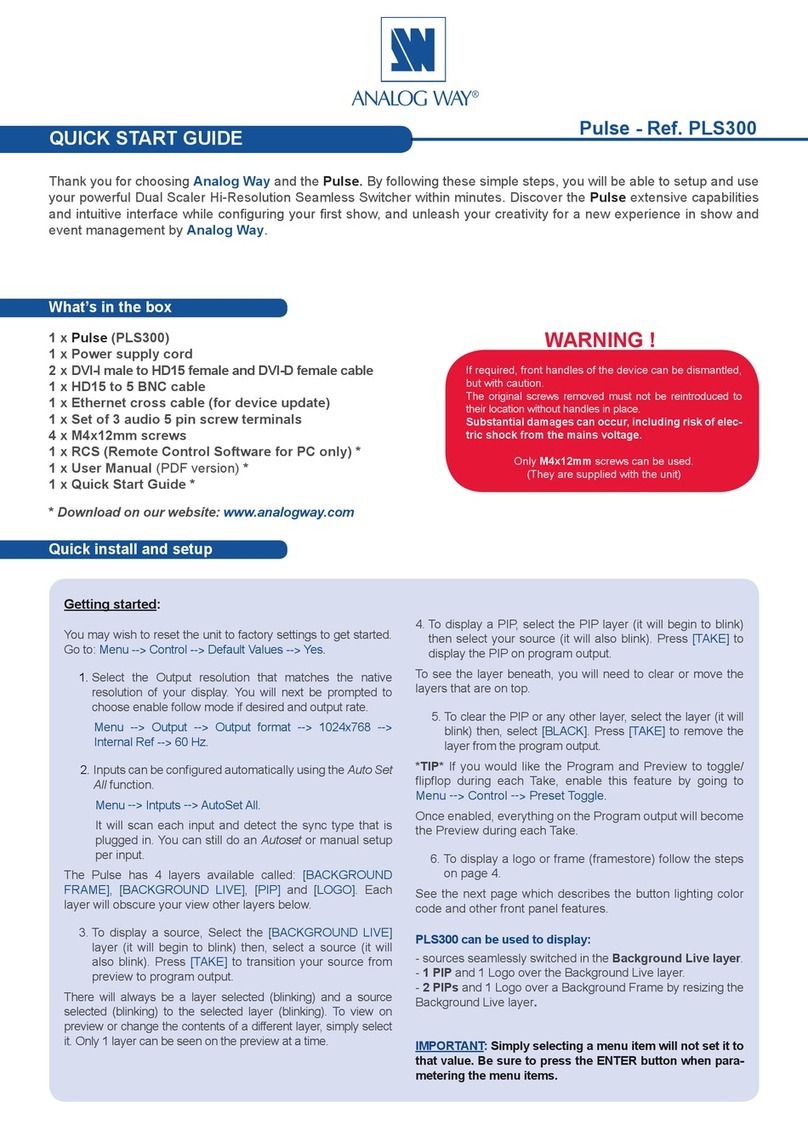
Analog way Pulse User manual

Analog way

Analog way Pulse User manual

Analog way NATIX NTX8022A User manual

Analog way

Analog way NATIX NTX8022A User manual

Analog way QUATTRO D User manual

Analog way

Analog way QUATTRO D User manual

Analog way Pulse LE User manual

Analog way

Analog way Pulse LE User manual

Analog way Smart Cut 2 User manual

Analog way

Analog way Smart Cut 2 User manual

Analog way Saphyr User manual

Analog way

Analog way Saphyr User manual

Analog way Smart Quad SQD200 User manual

Analog way

Analog way Smart Quad SQD200 User manual

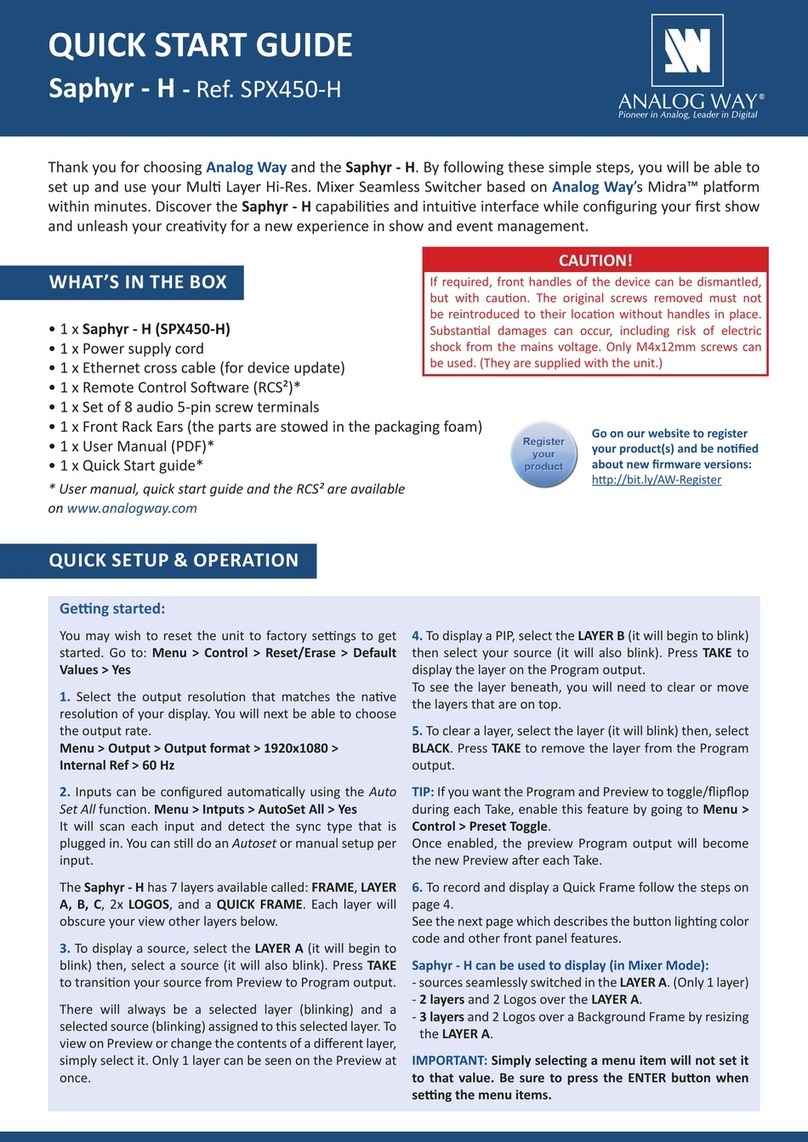
Analog way Saphyr-H User manual

Analog way

Analog way Saphyr-H User manual

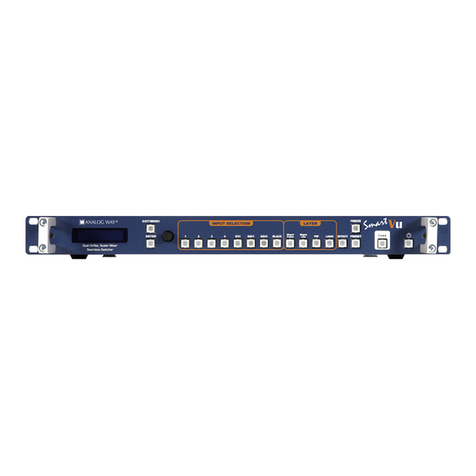
Analog way Smart Vu SVU300 User manual

Analog way

Analog way Smart Vu SVU300 User manual

Analog way Pulse User manual

Analog way

Analog way Pulse User manual

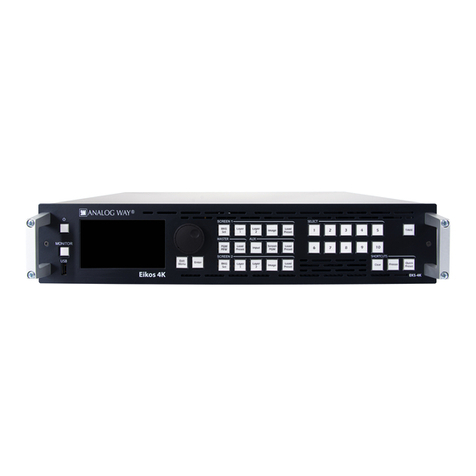
Analog way EKS-4K User manual

Analog way

Analog way EKS-4K User manual

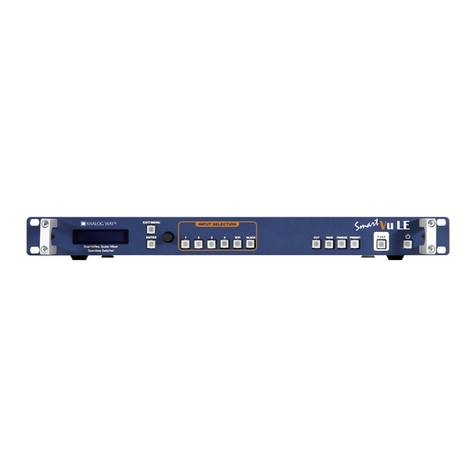
Analog way Smart Vu LE User manual

Analog way

Analog way Smart Vu LE User manual

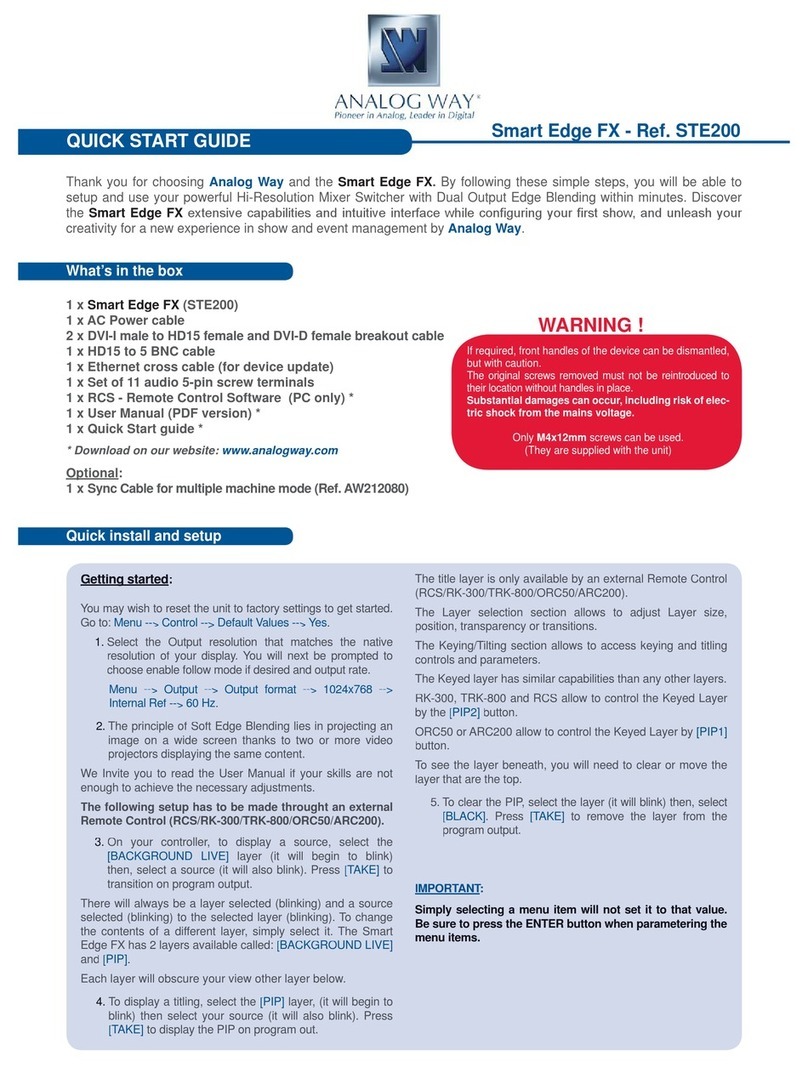
Analog way Smart Edge FX (STE200) User manual

Analog way

Analog way Smart Edge FX (STE200) User manual

Analog way CentriX CTX8022 User manual

Analog way

Analog way CentriX CTX8022 User manual

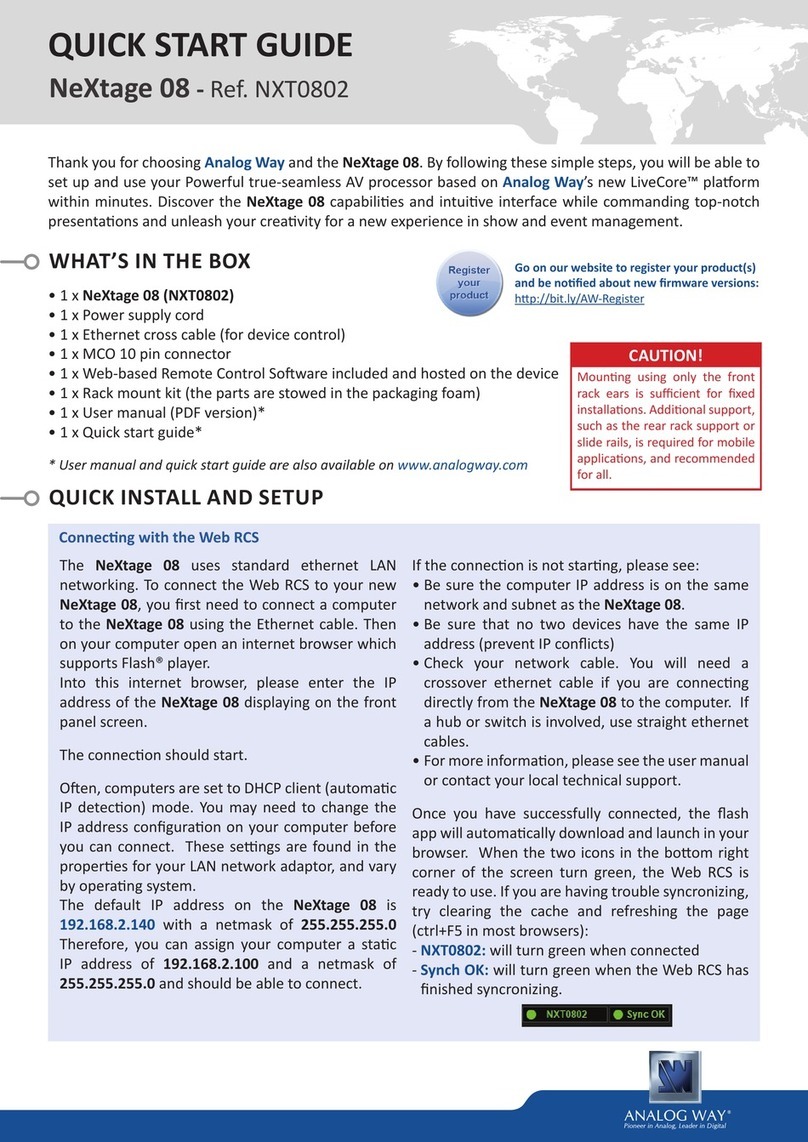
Analog way NXT0802 User manual

Analog way

Analog way NXT0802 User manual

Analog way Midra 4K Series User manual

Analog way

Analog way Midra 4K Series User manual

Analog way Ops200 User manual

Analog way

Analog way Ops200 User manual

Analog way SPX450 User manual

Analog way

Analog way SPX450 User manual

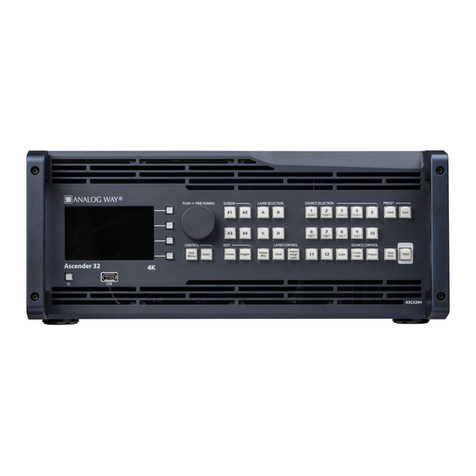
Analog way Ascender 32-4K User manual

Analog way

Analog way Ascender 32-4K User manual

Analog way OFX803 User manual

Analog way

Analog way OFX803 User manual

Analog way Di-VentiX II User manual

Analog way

Analog way Di-VentiX II User manual

Analog way ASC4806-4K-PL User manual

Analog way

Analog way ASC4806-4K-PL User manual

Analog way QMX-4K User manual

Analog way

Analog way QMX-4K User manual

Popular Switch manuals by other brands

SMC Networks SMC6224M Technical specifications

SMC Networks

SMC Networks SMC6224M Technical specifications

Aeotec ZWA003-S operating manual

Aeotec

Aeotec ZWA003-S operating manual

TRENDnet TK-209i Quick installation guide

TRENDnet

TRENDnet TK-209i Quick installation guide

Planet FGSW-2022VHP user manual

Planet

Planet FGSW-2022VHP user manual

Avocent AutoView 2000  AV2000BC AV2000BC Installer/user guide

Avocent

Avocent AutoView 2000 AV2000BC AV2000BC Installer/user guide

Moxa Technologies PT-7728 Series user manual

Moxa Technologies

Moxa Technologies PT-7728 Series user manual

Intos Electronic inLine 35392I operating instructions

Intos Electronic

Intos Electronic inLine 35392I operating instructions

Cisco Catalyst 3560-X-24T Technical specifications

Cisco

Cisco Catalyst 3560-X-24T Technical specifications

Asante IntraCore IC3648 Specifications

Asante

Asante IntraCore IC3648 Specifications

Siemens SIRIUS 3SE7310-1AE Series Original operating instructions

Siemens

Siemens SIRIUS 3SE7310-1AE Series Original operating instructions

Edge-Core DCS520 quick start guide

Edge-Core

Edge-Core DCS520 quick start guide

RGBLE S00203 user manual

RGBLE

RGBLE S00203 user manual

Thrustmaster FLIGHT SIMULATOR X quick guide

Thrustmaster

Thrustmaster FLIGHT SIMULATOR X quick guide

Southwire SURGE GUARD 41390 RVC troubleshooting guide

Southwire

Southwire SURGE GUARD 41390 RVC troubleshooting guide

Buhler Nivotemp NT 61 Brief instructions

Buhler

Buhler Nivotemp NT 61 Brief instructions

Kramer VS-41HDCP user manual

Kramer

Kramer VS-41HDCP user manual

Techly IDATA AU-270 user manual

Techly

Techly IDATA AU-270 user manual

Belkin F1U109 user manual

Belkin

Belkin F1U109 user manual

manuals.online logo
manuals.online logoBrands
  • About & Mission
  • Contact us
  • Privacy Policy
  • Terms and Conditions

Copyright 2025 Manuals.Online. All Rights Reserved.

Pulse 4K -Ref. PLS-4K
QUICK START GUIDE
Thank you for choosing Analog Way and the Pulse 4K. By following these simple steps, you will be able to set
up and use your 4K60 mul-layer video mixer and seamless presentaon switcher within minutes. Discover
the Pulse 4K capabilies and intuive interface while conguring your rst show and unleash your creavity
for a new experience in show and event management.
• 1 x Pulse 4K (PLS-4K)
• 1 x Power supply cord
• 1 x Ethernet cross cable (for device control)
• 1 x Web-based Remote Control Soware included and hosted on the device
• 1 x Rack mount kit (the parts are stowed in the packaging foam)
• 1 x User Manual (PDF version)*
• 1 x Quick start guide*
* User Manual and quick start guide are also available on www.analogway.com
Go on our website to register your product(s)

hp://bit.ly/AW-Register
WHAT’S IN THE BOX
QUICK SETUP & OPERATION
CAUTION!
Damage caused by improper
rack mounng will not be cove-
red under warranty.
Register
your product
The Pulse 4K can be fully operated from the Web RCS or
from the front panel. This guide describes procedures using
the controls of the front panel.

You may wish to reset the unit to factory sengs to get
started. Use the scroll knob and go to Control > Reset to


The Pulse 4K can be set to Mixer or Matrix mode.
 manages 1 Screen with 2 Mixing layers + 1
Aux. Screen.
 manages 2 Screens with 1 Mixing layer per
Screen.
The Screens of the Pulse 4K have layers called: Background
layer (unscalable), Layer 1, Layer 2 and Foreground layer.
The Aux. Screen has one unscalable layer.

          


 Connect inputs, outputs, power and network cables
before starng the device.
 Go to Inputs to set each input (label, audio, crop, etc.).
 Go to Inputs > Input 1 (or 2) to select
the acve plug to use.
 Go to    and select the operang
mode of the device.
 Go to     and select a
Screen or Aux. Screen to enter a Screen label, set the
Screen audio mode or display a test paern.
 Go to and set an output resoluon that
matches the nave resoluon of the connected display. For
example:     
UHDTV 2160p > 60 Hz.
 Go to to transfer images from a USB key
to the device image library.
 Go to     and select a Screen.
Assign images of the Library to the Image slots for
Background Image and Foreground Image in each Screen.
 Go to      then
select a Screen and a Background Set. Set Crop mode and
background content (Background Image or Live input).
 Go to to create Current
Time, Countdown or Stopwatch mer sources.
 Go to MVW and select a Template, or assign Inputs,
Preview Screens, Program Screens and Timers and place
widgets manually.


- Input source
- Background set
- Foreground image
- Master or Screen preset

Loop-through (Tri-level or Black
Burst) or Sync signal generator

480x272 color LCD screen

Hold for 3 seconds for
stand-by mode
USB Plug

100-240 VAC 3A 50/60H;
Fuse F4A 250 VAC; internal, autoswitchable;
max consumpon: 80W
Screen 1 layer or preset selecon

Transion the pre-selected
sources onto the Program
output with the selected
eects

 Remove the content in the selected layer(s)
 Freeze the selected input(s)
 Hide all contents and load a Master Memory,
Fade-to-Black or one custom image on all Screens

HDMI 1.4 and 3G-SDI (2K)
Selectable acve plug

HDMI 1.4 & 3G-SDI
usable at the same me
(same content)

- HDMI 2.0
with Loop
Ethernet Plug for unit control
(Web RCS or API)

- DisplayPort 1.2

The user should avoid
disconnecng the power
source (AC input) unl the
unit is in stand-by mode.

HDMI 2.0 & 12G-SDI
usable at the same me
(same content)

Display the selected input
or PGM on the LCD screen
Menu scroll knob

- 2x analog stereo mini jack line in and line out
- Dante audio primary and secondary RJ45
Gigabit Ethernet connectors

HDMI 2.0 & 12G-SDI
usable at the same me
(same content)

- HDMI 2.0

- HDMI 2.0
with Loop

- 12G-SDI

Home menu or back one level

Conrm the menu or command
Aux. Screen content type
or preset selecon
Screen 2 layer or
preset selecon
- Program/Preview mode
- Master preset selecon
OPERATION OVERVIEW
AUDIO SETTINGS
 Check device status and sengs (Ouputs, Screens,
Inputs, DANTE, Library, etc.).
 Save, load and delete Master, Screen, Layer or Mul-
viewer Memories.
 Screen layers and transion sengs.
 Select a template, set Timers and Widgets.
 Set rate mode, manage Dante Audio and audio roung.
 Device sengs (Network, Firmware update, Front pa-
nel, Factory reset, etc.)
 Check temperature and fan status, check informaon
for Technical Support, export conguraon, etc.
 Manage custom formats and EDIDs.
 Import images into the unit. Then load them as image
presets to be used in BKG or FRG layers.
 Set Inputs signal sengs (resoluon and rate), paerns,
image adjustment, cropping and keying. It is also possible to
Freeze or Black an input.
 Set Outputs format, AOI, HDCP, paerns or image ad-
justment.
 Select Operang mode, set Screen label, Audio mode,
paern or Background set.
The Pulse 4K uses standard ethernet LAN networking. To access
the Web RCS, connect a computer to the Pulse 4K using the
Ethernet cable. Then on the computer, open an internet browser
(Google Chrome is recommended).
Into this internet browser, enter the IP address of the Pulse 4K
displayed on the front panel screen (192.168.2.140 by default).
The connecon starts.
Oen, computers are set to DHCP client (automac IP detecon)
mode. You may need to change the IP address conguraon
on your computer before you can connect. These sengs are
found in the properes for your LAN network adaptor, and vary
by operang system.
The default IP address on the Pulse 4K is 192.168.2.140 with
a netmask of 255.255.255.0. Therefore, you can assign your
computer a stac IP address of 192.168.2.100 and a netmask of
255.255.255.0 and should be able to connect.
For more informaon, please refer to the User Manual or
contact Analog Way Technical Support.
FRONT PANEL MENUS USE THE WEB RCS

1.Download the latest Midra™ 4K rmware on www.analogway.
com.
2. Put the updater le on a USB drive.
3. Connect the USB drive on the front panel.
4. The updater le is automacally detected. Otherwise, go to
Control > USB Host > .
4. Extract the updater le.
5. Install the new rmware.

1. Go to Extras > > , set the
frame rate, H Acve, V Acve, Reduced Blanking, etc.
2. Select Check to verify the Custom format parameters.
3. If needed, select and enter a label.
4. Select  and select a Memory slot.
The created Custom formats are available at the top of the Output
format list.

The HDCP encrypon can be disabled on HDMI and DisplayPort
inputs and/or output. This is useful when your computer detects
the HDCP compliance of your switcher and protects the content
by encrypng the signal from this computer. This feature will di-
sable the HDCP compliance on this specic HDMI/DP input only.
If you want to use HDCP content from your sources, be sure to
use only HDCP compliant screens or projectors. Otherwise, the
output image could be disabled.
Screen will go to black without displaying the HDCP input image,
or concerned layers will output to grey.
The output status provide all informaon about the output in real
me. This feature is parcularly useful when HDCP is used with
long cable to be sure the communicaon is well handled.
Disable DHCP on an HDMI or DisplayPort input
Go to Inputs > Input X > (or DisplayPort sengs)
> HDCP > None.
Disable DHCP on an HDMI output
Go to Outputs > Output X >   > HDMI >
 > Disable.
UPDATE AND CUSTOM FORMATS
BUTTON COLOR GUIDE
 - Program mode is acve
- Take is available



- Preview mode is acve
- Element or Funcon is available
- Layer or Aux element is empty
- Input is connected and available
- Take in progress
- Screen layer or Load preset is currently
selected and empty
 - No Input connected
 - Screen layer or Load preset is currently
selected and has a source
- Layer or Aux element has a source
- «Select» element is currently used in the
selecon


1. Go to Audio > to set the rate and transion delay.
2. Go to Audio > Outputs to check the audio roung status.
3. Select an output to access its sengs (source, delay, balance,
level, paern, etc.).
Set Output audio source
1. Go to Audio > Outputs and select an output.
- For a Screen output, go to Mode to select the source:
+ Auto is set by default and follows the Screen audio mode.
+ Select an input for direct roung.
- For a Dante output, go to Mode to check the matrix status and
select the source:
+ Select  and select a audio source.
+ Or select Follow Screen and select a Screen.

1. Go to  >   > Screen X > Audio
 and select an audio mode:
-  and select a source.
-  and select the layer leading the audio.
- Follow audio layer to set the source from  > Screen > Audio.
01-OCT-2021
PLS-4K - QSG
Code : 140205
For complete details and operaons procedures, please refer to the Midra™ 4K unit User Manual and our website for further
informaon: 
This Analog Way product has a 3 year warranty on parts and labor (back to factory). Broken connectors are not covered by warran-
ty. This warranty does not include faults resulng from user negligence, special modicaons, electrical surges, abuse (drop/crush),
and/or other unusual damage. In the unlikely event of a malfuncon, please contact your local Analog Way oce for service.

GOING FURTHER WITH THE PULSE 4K
- In the MASTER area, press the key to select to work on Program Screens or Preview Screens.
- In , in each SCREEN area, press BKG Set to select the Background layer (or press  to select the Foreground
layer), then press a number key in the SELECT area to assign the corresponding background set (or foreground image).
- In each SCREEN area, press Layer 1 or Layer 2 (it will blink), then press a number key in the SELECT area to assign the corresponding
live input.
- In , the SCREEN 1 area works like in Matrix mode and the SCREEN 2 area is disabled.
In the AUX area, press Input or Screen PGM to select the source type, then press a number key in the SELECT area to assign the
corresponding content to the Aux layer.
-Go to  for more layer sengs (posion, size, transion, etc.).
- To clear a layer, select the layer, then press CLEAR in the SHORTCUTS area.
- Press TAKE to transion the source from Preview to Program output.
 To toggle/ipop Preview and Program during each Take, enable it in .
- Go to  to create Master, Screen, Aux. Screen and Mulviewer Memories.
- Go to  or press a Load Preset key then press a number key in the SELECT area to load a memory.


WEB RCS FOR MIDRA™ 4K
Familiar to LivePremier users, the Web RCS
for Midra™ 4K is the easiest way to setup
your conguraon and manage your live
presentaon.
The Web RCS for Midra™ 4K is embedded
in the device and requires no soware
installaon.
For detailed procedures, please refer to the
Midra™ 4K unit User Manual.