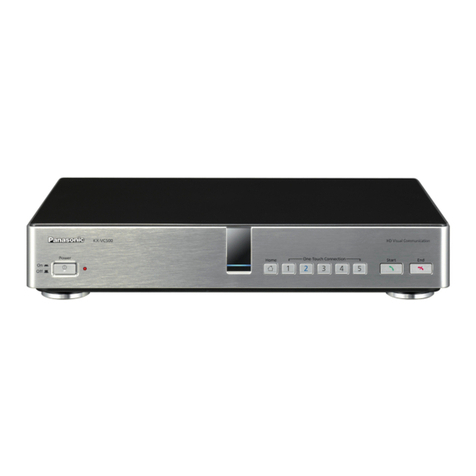
1. As shown in the diagram of the Loudspeaker Controller, first install the external antenna, then
connect the computer equipment via USB, then connect the power input port of the loudspeaker
controller to to the AC power socket with the power adapter. Turn on the power switch on the
Controller device, and check that the Controller Indicator Light is green.
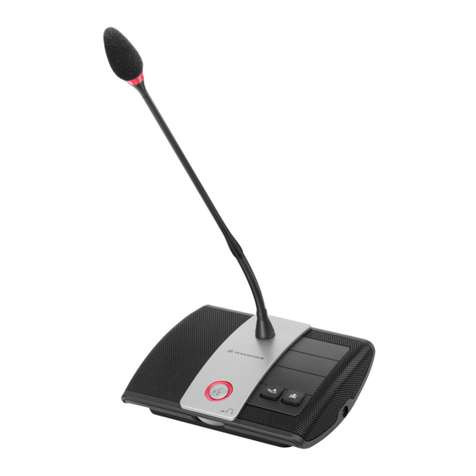
2. Before use, the wireless microphone Agents should be connected to power via the included
power adapters, and the batteries charged to full. While charging, the Agent Battery Indicator will
turn orange, and the light will turn off when fully charged. When the Agent and Controller are
wirelessly connected, the Agent will flash red when the battery is low.
3. On the Wireless Microphone Agent, press and hold the on/off button for a moment until the
green ring light turns on and stays on. This indicates that the Agent is connected to the Controller.
If the green light is flashing, this indicates no connection to the Controller.
4. The installation distance between the Controller and all Agents should be no more than 2 meters
(6 feet), and the recommended installation distance between Agents shall be 1.5 meters (4.5 feet).
Loudspeaker Controller
Loudspeaker Controller Rear Diagram
Controller Antenna
Loudspeaker Controller
Loudspeaker Controller
Loudspeaker Controller Rear Diagram
Loudspeaker Controller Rear Diagram
Wireless Microphone Agents
1. According to the meeting application scenario and requirements for equipment
installation, determine the best locations to place the loudspeaker controller and wireless
microphone agents. Install the antenna on the loudspeaker, connect the loudspeaker to the
computer, turn the volume knob to the minimum position, connect the power supply, and
turn on the power switch. Check that the indicator light has turned green. The loudspeaker
controller is now on standby mode.
2. Press and hold the on/off button on each wireless microphone agent one by one. When
the indicator light turns consistently green, it means the agent is connected to the controller.
3. Communication between the local meeting room and the remote meeting room(s) should
be established through your preferred communications service (such as Zoom,
GoToMeeting, MS Teams, Google Hangouts, etc.) on the computer. Make sure to slowly
adjust the volume of the loudspeaker and the input volume on the microphones when
adjustments are necessary. Test the equipment before the meeting and again at the start of
the meeting.
4. During the call, you can press the "Loudspeaker Mute" button on the Agent device to
mute the loudspeaker. The indicator light will turn solid red. You can press the "
Loudspeaker Mute" button again to end the mute function and the indicator light will turn
green.
5. When the device is used as a loudspeaker in a classroom or conference setting, it can
accept an external microphone with a 6.5mm plug. Please check the device diagram.
Note: This device has been tested for compatibility with Windows, Mac OS, and Linux
operating systems. The USB interface adopts USB1.1, USB2.0 or above. The system does
not require additional drivers and should work as a plug and play device.
1.To avoid problems, please do not connect multiple audio devices to the host computer
simultaneously. This system might suffer interference or other errors.
2.Connect the USB cable of the loudspeaker controller directly to the computer
host. The use of a USB hub may cause problems.
3.After the device is successfully connected, the default device for playing
(output) and recording (input) will display "Model of Local Device" in the
sound and audio device properties of the control panel option of the computer
host. Otherwise, "Model of Local Device" needs to be selected again for
confirmation. Please check this setting.
4.Keep the built-in battery of the equipment away from high temperatures and fire
sources to minimize risk.
5.Please do not try to repair the equipment yourself, as these devices require the skill of a
trained professional. If there is a problem and the equipment needs to be repaired, please
contact your dealer.