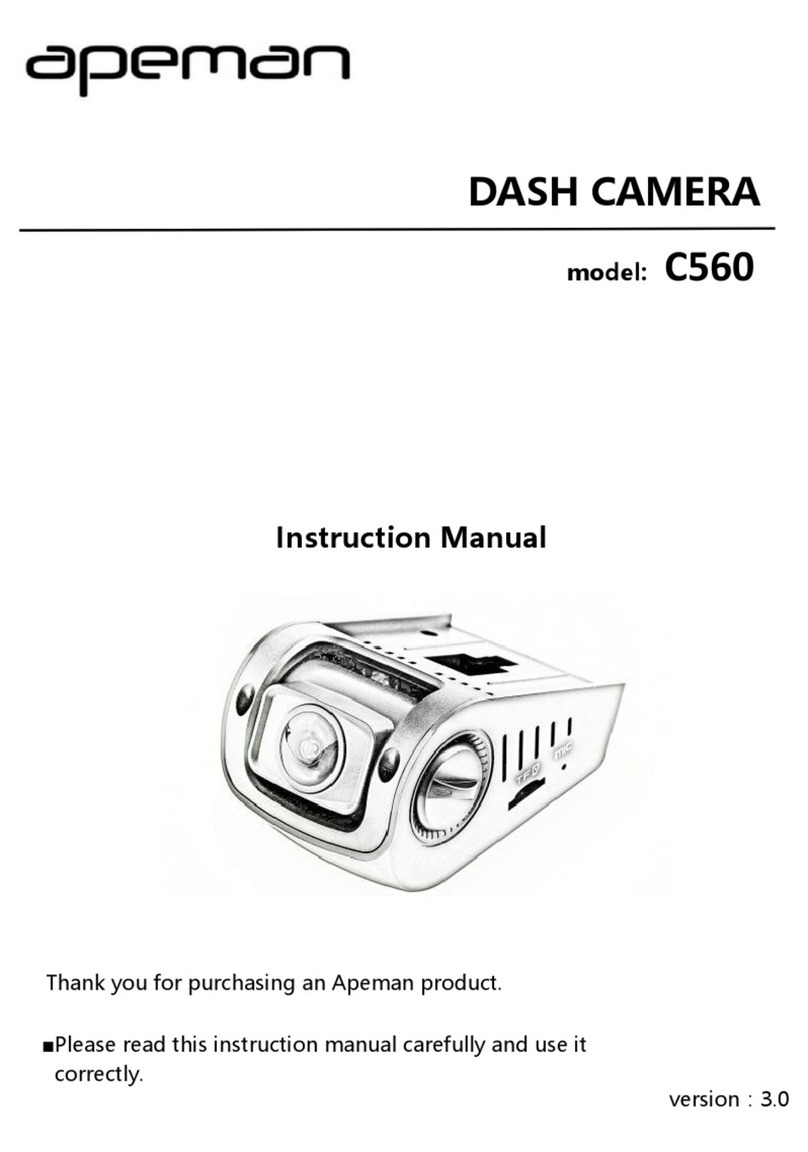
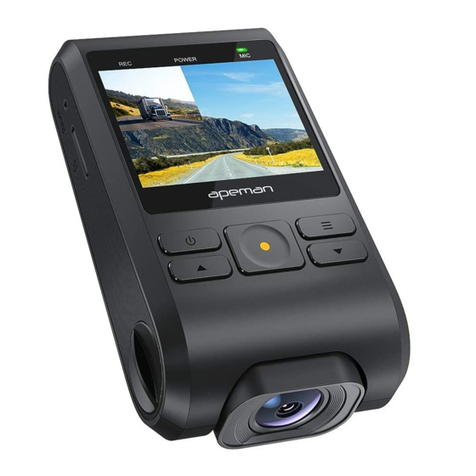
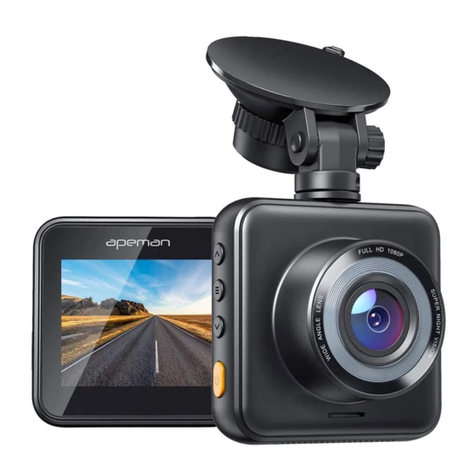
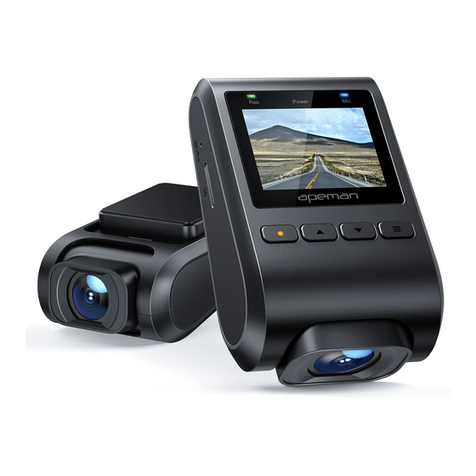
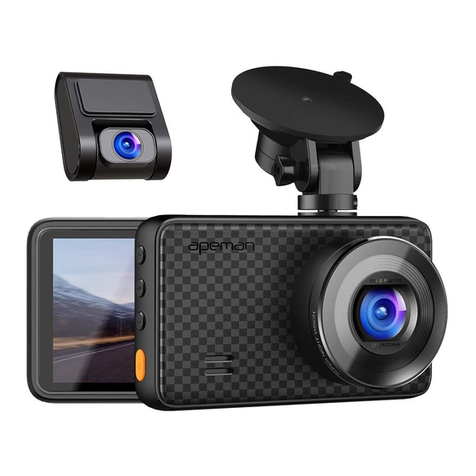
Apeman C860 User manual

C860
Dash Camera


Menu
English .......................................................................................01
Deutsch......................................................................................16
日本語 ........................................................................................31


Warranty Summary...................................................................................02
Safety Warnings .......................................................................................03
Package Contents .................................................................................... 04
Product Introduction ................................................................................ 05
Preparation and Installation ...................................................................06
Product Operation....................................................................................09
Important Functions Introduction ..........................................................12
Product Specifications ............................................................................13
Troubleshooting........................................................................................14
Contents
01 02 03 04 05 06 07 08 09 10 11 12 13 14 15
16 17 18 19 20 21 22 23 24 25 26 27 28 29 30
31 32 33 34 35 36 37 38 39 40 41 42 43 44 45
EN

APEMAN is one of the most reputed brands in providing decent quality
camera-related products. Passion, independence, creativity and sharing,
these are the values that our company stands for. Our mission is to help
people to record the most amazing adventures of their life and share
them with the world.
We aim to do our utmost to continuously improve the quality of our
products and services to make sure you are happy and satisfied. Every
APEMAN product carries a 12-month warranty from purchase date.
If you have any questions or quality issues about the product, please
contact our support team. Any questions will be answered in a timely
manner.
Email: [email protected]
Facebook Group: APEMAN Dash Cam Community
YouTube Channel: APEMAN Dash Cam
Warranty Summary
01 02 03 04 05 06 07 08 09 10 11 12 13 14 15
16 17 18 19 20 21 22 23 24 25 26 27 28 29 30
31 32 33 34 35 36 37 38 39 40 41 42 43 44 45
EN

• Use only the original car charger cable which is provided with the dash
cam.
• Do not disassemble the camera, as this may cause damage to the
internal components.
• Do not install the camera where it will block the driver’s view of the road
or the deployment of the airbag.
• Do not expose the camera to strong sunlight or high temperatures, which
may cause damage to the housing and internal components.
• Use only lens cleaner or professional tools to clean the lens.
• Make sure that the camera is turned off before inserting or removing the
memory card in order to avoid damage to the memory card and data
files.
• Keep your attention on the road. Do not operate the controls of this
product while driving.
• Remove the camera from your vehicle when it is not in use for any
extended period.
Safety Warnings
01 02 03 04 05 06 07 08 09 10 11 12 13 14 15
16 17 18 19 20 21 22 23 24 25 26 27 28 29 30
31 32 33 34 35 36 37 38 39 40 41 42 43 44 45
EN

Before starting, check that all the following items have been included in
the box. If anything is missing, please contact the seller. Memory cards are
sold separately.
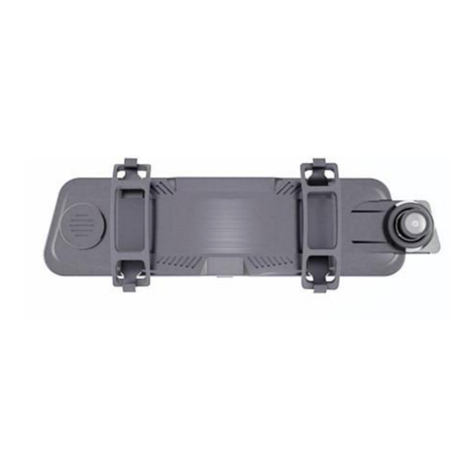
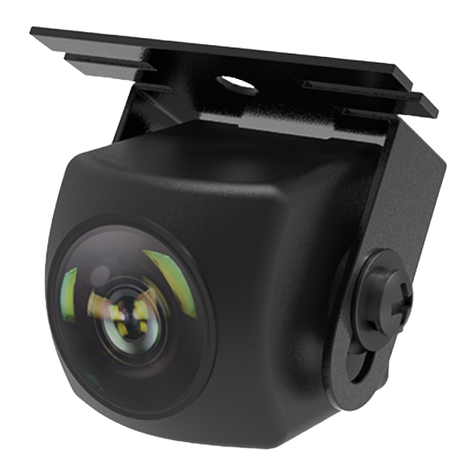
1. Front Camera x 1 2. Rear Camera x 1
3. Rear Camera Cable x 1 4. USB Cable x 1
5. Car Charger x 1 6. Suction Mount x 1
7. 3M Adhesive x 1 8. Crowbar x 1
1
6 87
3 4
5
2
3M
Package Contents
01 02 03 04 05 06 07 08 09 10 11 12 13 14 15
16 17 18 19 20 21 22 23 24 25 26 27 28 29 30
31 32 33 34 35 36 37 38 39 40 41 42 43 44 45
EN

Getting to Know the Camera
Camera Lens
Reset Hole
TF Card Slot
Microphone
Speaker
USB Interface/
Car Charger Interface
Rear Camera
Connection Port
Mounting Slot
POWER
MENU
AUDIO
EMERGENCY
RECORDING
Product Introduction
01 02 03 04 05 06 07 08 09 10 11 12 13 14 15
16 17 18 19 20 21 22 23 24 25 26 27 28 29 30
31 32 33 34 35 36 37 38 39 40 41 42 43 44 45
EN

1. MicroSD card specification: 32GB~128GB, Class 10 or above (sold
separately).
2. Insert the TF card and turn on the dash cam, format the TF card on the
camera before first use.
3. For 64GB/128GB cards, please format to a FAT32 file system on your
computer before use, (Ifyouwanttomakesuretheformatprocess,you
cansearchonlineon"HowtoformataMicroSDcardtoFAT32".)
Preparation and Installation
1. Inserting and Formatting TF Card
01 02 03 04 05 06 07 08 09 10 11 12 13 14 15
16 17 18 19 20 21 22 23 24 25 26 27 28 29 30
31 32 33 34 35 36 37 38 39 40 41 42 43 44 45
EN

2. Connect the mounting bracket to the dash cam,
as shown below
3. Install the dash cam on the windshield
Attach the mounting bracket to the front windshield behind the rear view
mirror. As shown below.
Protective Film
Suggested Area
①②
01 02 03 04 05 06 07 08 09 10 11 12 13 14 15
16 17 18 19 20 21 22 23 24 25 26 27 28 29 30
31 32 33 34 35 36 37 38 39 40 41 42 43 44 45
EN

Use the crowbar in the package to tuck the cable neatly across the top of
the windscreen and down the side to keep the cable out of eyesight and
tidier (the wires can be hidden neatly into the small gap between the roof
lining and the windscreen).
Connect the other end of the car charger cable to the cigarette lighter;
connect the other end of the rear camera cable to the rear camera. Attach
the rear view camera on the rear windshield. As shown below.
4. Other installation steps to complete
Connect the car charger cable with the front camera; connect the rear
camera cable with the rear camera interface on the front camera. As
shown below.
Rear Camera Connection Port
Car Chager Interface
01 02 03 04 05 06 07 08 09 10 11 12 13 14 15
16 17 18 19 20 21 22 23 24 25 26 27 28 29 30
31 32 33 34 35 36 37 38 39 40 41 42 43 44 45
EN

Make operation easier by following the bar on the right side of the screen.
Product Operation
A. Manual Startup
After connecting with the USB cable or car charger,
the camera can be activated by pressing the Power
button for 1 second.
B. Auto Startup
After connecting with the car charger, the camera can turn on and start
recording automatically when the engine starts and turn itself off when
the engine shuts off.
Camera Startup
A. Start Recording
The camera will automatically record when it is turned on. A flashing blue
light means that the camera is recording.
B. Stop Recording
Press the first button to stop recording.
Camera Recording
2021/01/01 01:54:35
00:00:06
01 02 03 04 05 06 07 08 09 10 11 12 13 14 15
16 17 18 19 20 21 22 23 24 25 26 27 28 29 30
31 32 33 34 35 36 37 38 39 40 41 42 43 44 45
EN

C. Loop Recording
Where there is insufficient space on the memory card, the "loop
recording" function automatically overwrites the oldest file on the memory
card, replacing it with a new recording.
D. Emergency Recording
· Automatically: In the event of a sudden collision or sudden
acceleration,sudden swerve and so on, the Gravity sensor will
be triggered. The video will be recorded and locked for a
certain period of time before and after the event. These
important videos are not automaticaly overwritten, but are
saved in the Event folder of the Emergency Recording storage
space.
· Manully: If you want to take and save a fascinating view or an urgent
event while driving, you can press the orange button to make an
emergency recording.
A. Playback on camera
Stop recording first and press the second button to enter the menu. You
can find your recordings in the Files folder.
Video Playback and Deletion
2021/01/01 01:54:35
00:00:06
Video
Mode selection
Photo Files Settings
01 02 03 04 05 06 07 08 09 10 11 12 13 14 15
16 17 18 19 20 21 22 23 24 25 26 27 28 29 30
31 32 33 34 35 36 37 38 39 40 41 42 43 44 45
EN

B. Playback on PC
You can either use the original USB cable to connect the camera to the
PC or use a card reader to read MicroSD card data on the PC.
C. Delete a video
After entering the playback screen, long press the “Enter" button on the
far right to enter the delete option. As the picture shows.
Pause recording first and press the second button to enter the menu.
Entering the Setup screen and then change settings.
Change Settings
00:15
Dash Cam 01:16:58 2021/01/01
20210101_011659_005A.MP4 0005/0005
01 02 03 04 05 06 07 08 09 10 11 12 13 14 15
16 17 18 19 20 21 22 23 24 25 26 27 28 29 30
31 32 33 34 35 36 37 38 39 40 41 42 43 44 45
EN

Important Functions Introduction
Please turn off this function while driving. With this function on, the device
will automatically record whenever it detects car vibration. Use of the
Parking Guard for long time periods will require a hardwired connection
for the dash cam, in order to connect it to the ACC and GND of the fuse
box safely and to provide the ongoing power required. Kits for this can be
purchased separately.
Parking Monitoring
If the headlights dim or are otherwise outside of normal parameters, the
camera will show a flashing icon and deliver an audible warning to alert
the driver to the anomaly.
Headlight Warning
In the recording state, the screen goes dark when there is no operation
after a while, though recording continues. The dash cam is working if the
blue indicator light is on.
Screensaver
01 02 03 04 05 06 07 08 09 10 11 12 13 14 15
16 17 18 19 20 21 22 23 24 25 26 27 28 29 30
31 32 33 34 35 36 37 38 39 40 41 42 43 44 45
EN

Product Speci ications
Product Feature Front and rear cameras
Lens 170-Degree Ultra-Wide Angle
Screen 3.0” IPS Screen
Sensor Sony IMX335
Aperture F=1.8
Video Resolution
Single Cam:
1520P 30FPS/1440P 30FPS/1080P 30FPS
Dual Cam:
1440P+1080P/1080P+1080P
Photo Format JPG
Power Interface 5V 2.5A
Battery 300mAh Built-in Li-ion Battery
System Windows XP/Vista/Windows 7/8/MAC
Working temperature -10°C to 60°C
f
01 02 03 04 05 06 07 08 09 10 11 12 13 14 15
16 17 18 19 20 21 22 23 24 25 26 27 28 29 30
31 32 33 34 35 36 37 38 39 40 41 42 43 44 45
EN

When recording is interrupted:
1. The TF card may be full, please format it.
2. Please check if Parking Guard or Motion Detection is turned on. We
recommend turning these two functions off while driving, because they are
used for parking monitoring.
When the TF card is full after using it for a while:
Although the dash cam has the Loop Recording function, not all recorded
are automatically overwritten due to the G-sensor Protection function. Also
the videos recorded under the Motion Detection and Parking Guard will also
be locked. These locked videos will not be deleted automatically.
To save more memory space, we suggest to set the Loop Recording to 3
MINS and the Gravity Sensor to LOW.
When your 128 GB TF card cannot be read by the dash cam:
It must be formatted to a FAT32 64KB file system first on your computer.
Also format it on your computer or dash cam before use.
When the camera can't be turned on after being used for a
while:
1. Please confirm whether it is charged properly: Check if the indicator light
on the car charger is on when it is charging; Check if the car charger is
working properly and if the blue indicator light on the dash cam is on.
2. Remove the TF card and reset the camera. Connect the camera and
computer with the original USB cable to see if the camera can be
charged and turned on.
Troubleshooting
01 02 03 04 05 06 07 08 09 10 11 12 13 14 15
16 17 18 19 20 21 22 23 24 25 26 27 28 29 30
31 32 33 34 35 36 37 38 39 40 41 42 43 44 45
EN

The front camera works but the system delay occurs when the
rear camera is connected, or the rear camera does not work:
1. Please check if the rear camera cable is working properly: Check if the
cable is properly placed or broken; Check if the charging port of the rear
camera is intact.
2. Please check if the TF card has been formatted to the correct file
system (FAT32).
Emergency recording prompt appears on the screen during
recording:
Pressing the UP button during recording will put the camera into an
emergency recording. The video recorded in this case will not be
automatically overwritten. You can manually lock a video in this way.
01 02 03 04 05 06 07 08 09 10 11 12 13 14 15
16 17 18 19 20 21 22 23 24 25 26 27 28 29 30
31 32 33 34 35 36 37 38 39 40 41 42 43 44 45
EN

Inhalt
Zusammenfassung der Garantieleistungen ...........................................17
Sicherheitshinweise ...................................................................................18
Lieferumfang...............................................................................................19
Produkteinführung......................................................................................20
Vorbereitung vor der Installation .............................................................21
Produktbetrieb ............................................................................................24
Einführung in wichtiger Funktionen ........................................................27
Produktdetails .............................................................................................28
Fehlerbehebung ..........................................................................................29
01 02 03 04 05 06 07 08 09 10 11 12 13 14 15
16 17 18 19 20 21 22 23 24 25 26 27 28 29 30
31 32 33 34 35 36 37 38 39 40 41 42 43 44 45
DE
Other manuals for C860
1
Table of contents
Languages:
Other Apeman Dashcam manuals

Apeman
Apeman SS200 User manual

Apeman
Apeman C550 User manual
Apeman
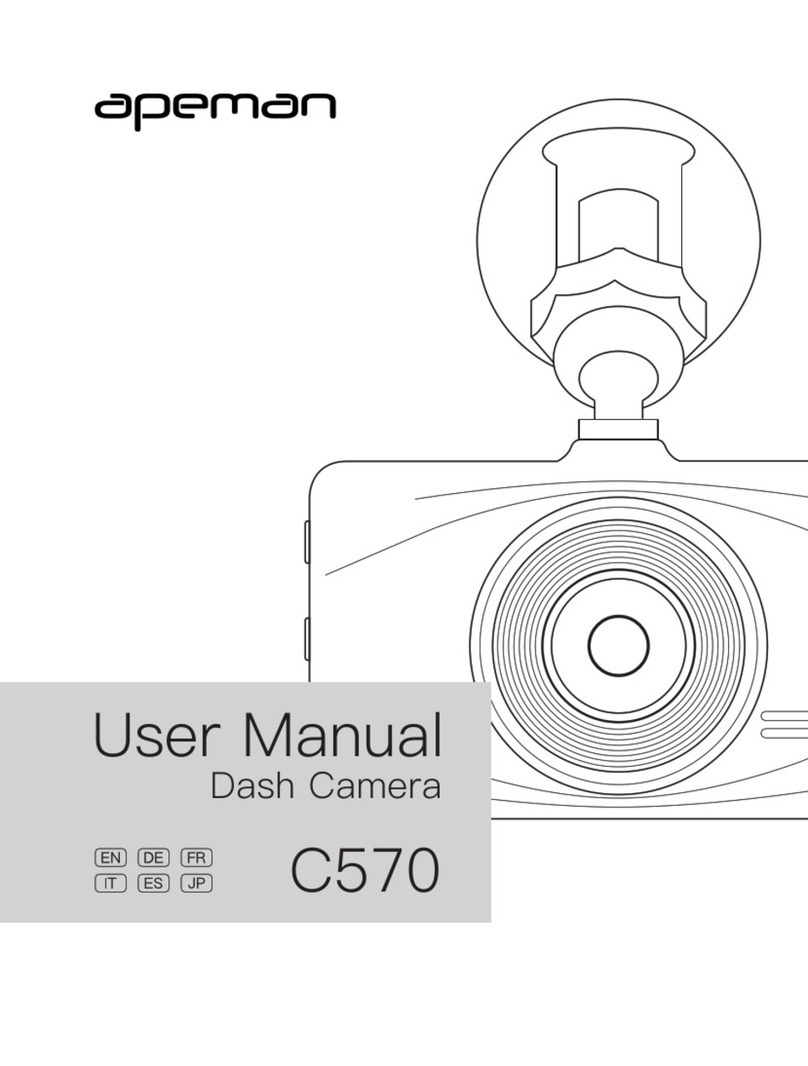
Apeman C570 User manual
Apeman
Apeman C420 User manual

Apeman
Apeman C420D Operating and maintenance manual

Apeman
Apeman C560 User manual

Apeman
Apeman C450 A Series User manual

Apeman
Apeman C370 Operating and maintenance manual

Apeman
Apeman C860 User manual

Apeman
Apeman C770 Operating and installation instructions