3.3 Playback Menu Items
When the menu icon appears, you have certain options. During song playback, press the MENU
button for the following options.
• Setup: Enters the Setup screen (same as selecting the Setup icon
in the main menu) which allows you access to parameters such as
bass and treble.
• Info: Show file information such as the file name, file size, date created, file
format, etc.
• ARCLibrary:Allows you to browse through your ARCLibrary while listening to the
current song.
• Edit Playlist: Enters the playlist editor (see below how to use Playlists).
• Set Bookmark: Set a bookmark at the current position within the audio file. See
the Bookmark section below.
3.4 ARCLibrary Specifics
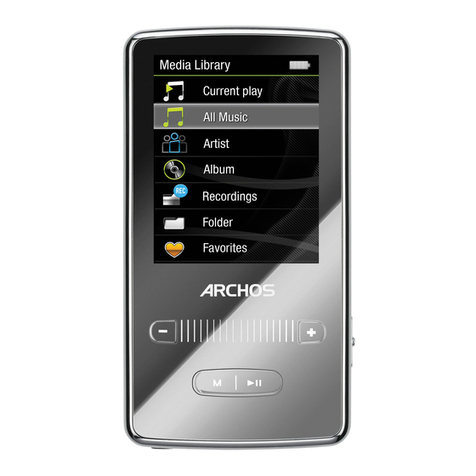
TheARCLibrary is a system for choosing your music by its characteristics. It can be
turned On or Off in the settings from Setup > Playmode. As shown in this screen
capture here, you can select your music by Artist, Album, Song Title, Genre, or
Year. MP3 and WMA music files have internal data tags to hold information about
the song. For MP3 files, these are known as ID3 tags. Not all MP3 files have all
this information filled in. If you purchase a song from a music download service,
the song will have this information. If you have an MP3 or WMA file without this tag
information, then you can add or change it by going to the properties of the file in
Windows®Explorer. TheARCLibrary indexes all the music and playlists that it finds
in the folders Music and Playlists by using the tag information in each song. Thus,
you should never delete the folders Music or Playlists. If a song does not have
tags, it will be put into the category <unknown>.
12
12
3.5 ARCLibrary Updating
If you paste audio files from your computer to the ARCHOS 105, they go directly in the ARCHOS 105’s internal
memory without the ARCLibrary knowing about the new song. This is why the ARCLibrary is updated when
you disconnect your ARCHOS 105 from the computer. Alternatively, you can set up the ARCLibrary to update
only when you choose to, by setting it to On, not automatic. You can find the information on how to do this
in the section Playmode in the Settings chapter. You will then have to go to the Setup > Playmode screen,
highlight [Update ARCLibrary] and press ENTER. A message screen will appear indicating that it is updating
the ARCLibrary contents.
3.6 Setting a Bookmark
If you are listening to a song, or perhaps a long recording, and would like to place a bookmark in it in order to
pick up from this point at another time, you can use the Bookmark function. While listening to the audio recording,
simply click on the MENU button, then choose Set Bookmark. This will set a bookmark in the audio file at the
current position. You can only set one bookmark per file. In your browser, bookmarked music files appear with
this icon: . You can have a maximum of 16 files bookmarked. Setting more bookmarks will erase existing
bookmarks, starting with the oldest. The next time you play the audio file, you will be presented with three
options:
Resume: Start playing from the bookmarked position.
Ignore: Keep the bookmark but start playing from the very beginning.
Clear: Clear the bookmark from this file and start playing from the very beginning.
3.7 The Resume Function
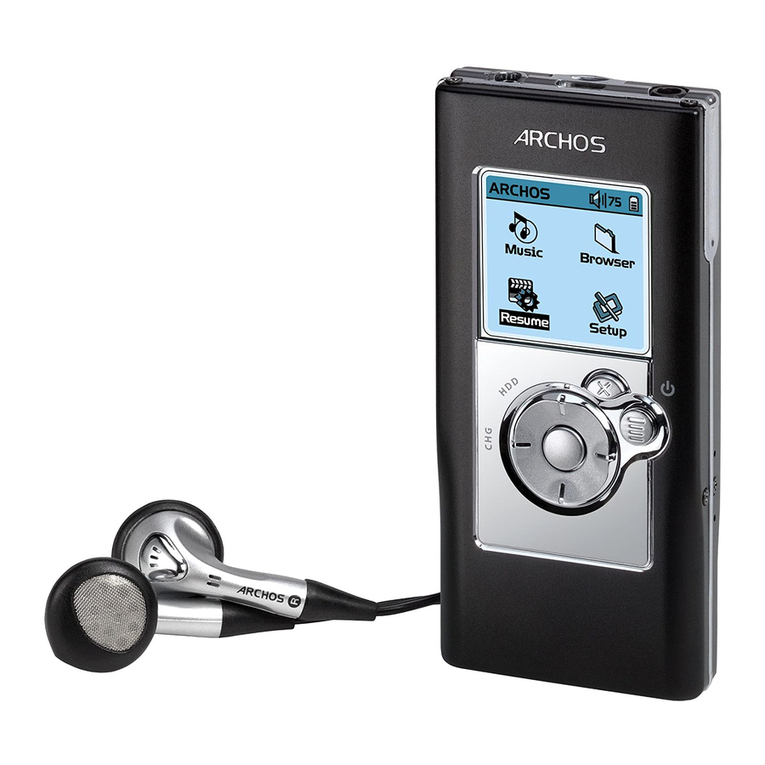
When you turn on your ARCHOS 105 you will sometimes notice that the icon which is highlighted on
the main screen is not the Browser but rather the Resume icon. This icon is highlighted when the
ARCHOS 105 can resume the last played audio file.